2.7.1.3 Product Preference
This topic describes about configuring various loan account specific preferences applicable for the accounts created under this product.
This topic describes about configuring various loan account preferences applicable for the accounts created under this product and these preferences control the account's behavior throughout its life cycle. Preference related to Term, Amount and Currencies and lifecycle events like disbursement, repayment, closure etc are configured in this section. The sections following, go into greater detail on the preferences, intended functionality, and related parameters.
- Click Next in the Business Components screen to add the preferences.The Contract Preferences - Primary screen is displayed.
Figure 2-42 Contract Preferences - Primary
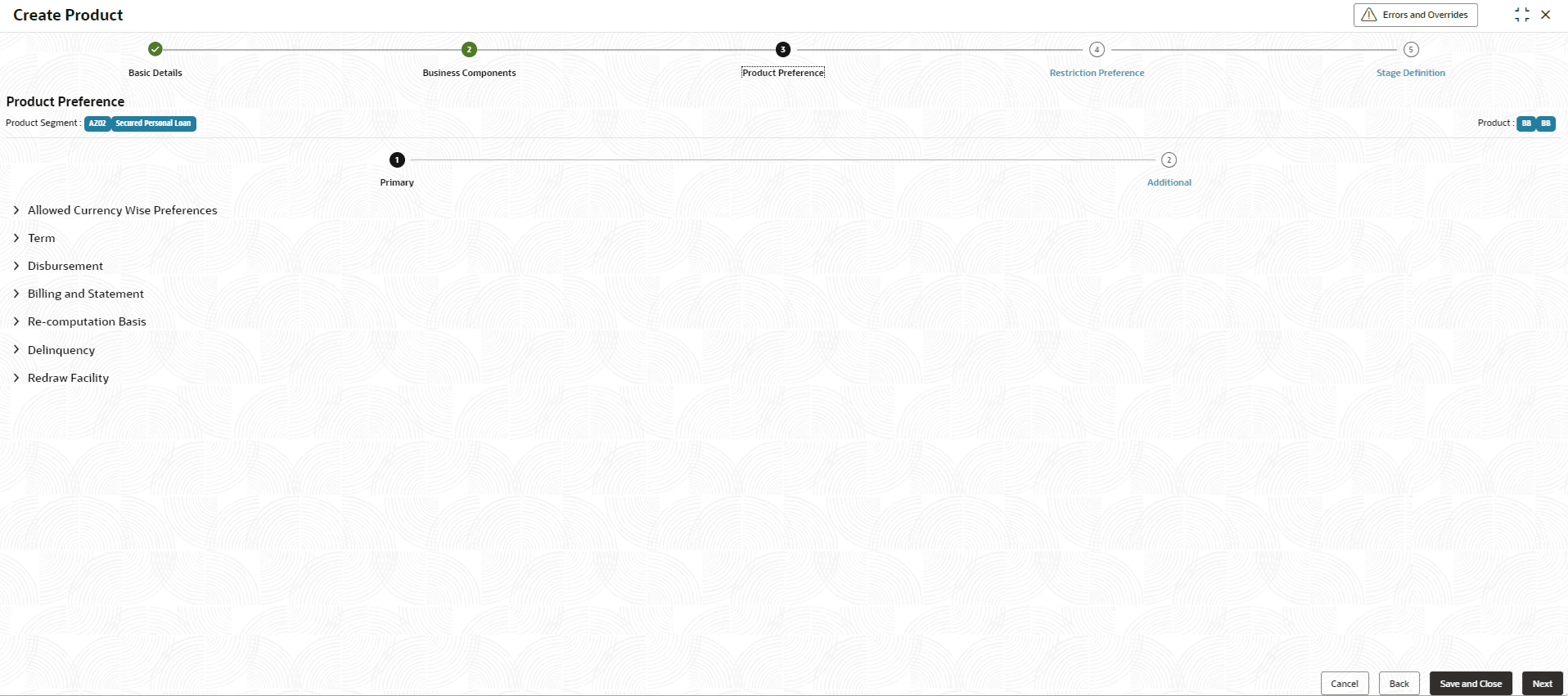
Allowed Currency Wise Preference
- Specify the fields on Contract Preferences - Primary screen.
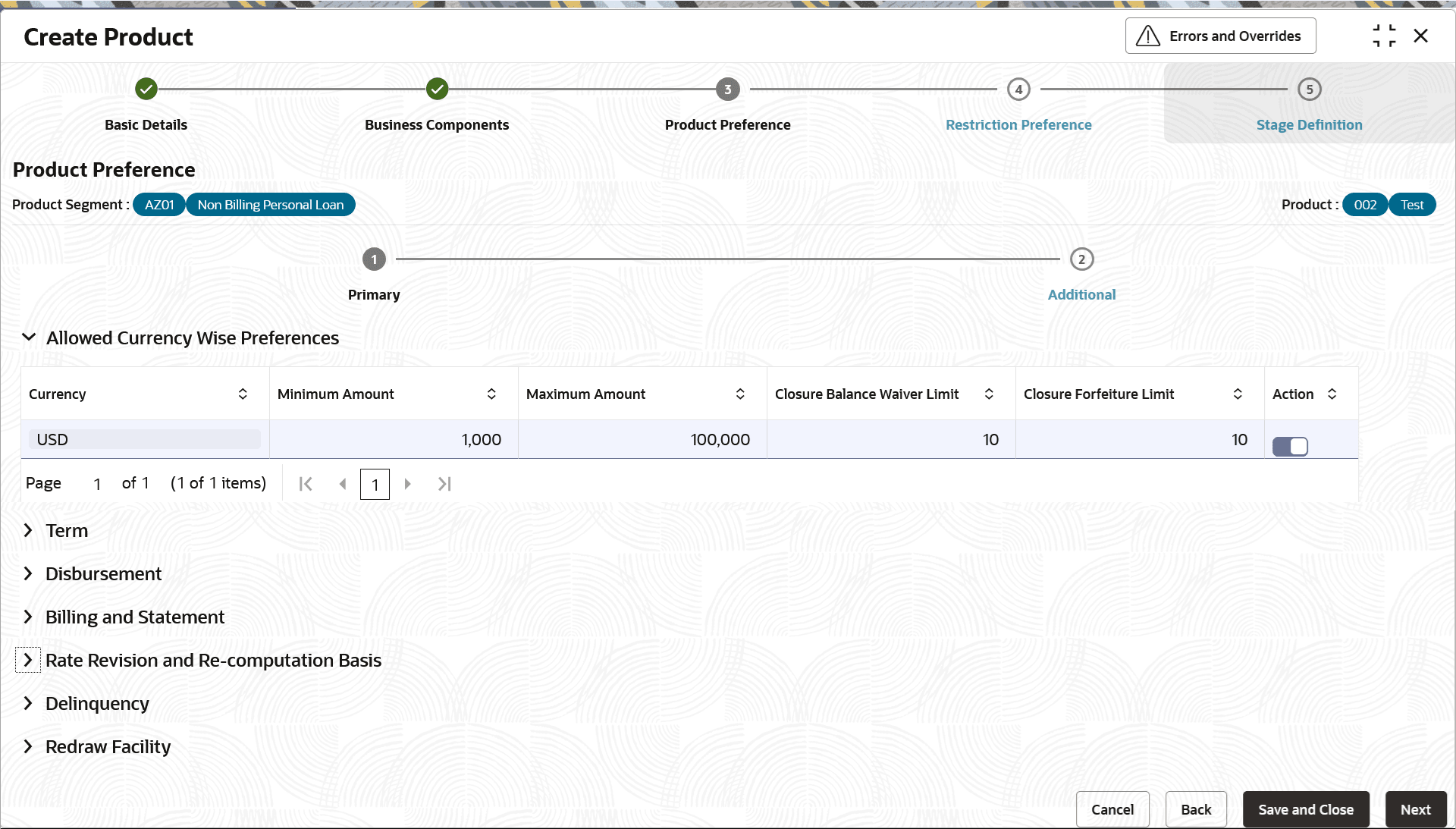
This section describes the list of allowed currencies under which loan accounts of this product can be opened. Currencies defined in Product segment are defaulted and enabled here. They can disabled by toggling the Action button.
On loan account on-boarding validation is done to ensure the loan amount lies within the range of minimum amount and maximum amount.
For more information on fields, refer to the field description table.Figure 2-43 Allowed Currency Wise Preference
Table 2-44 Allowed Currency Wise Preference - Field Description
Field Description Currency Displays the currency selected for a loan account. Minimum Amount Displays the minimum amount in the specified currency for a loan account opened under the product. Note:- In US region Regulation Z compliance is mandatory for consumer loan products between USD 1 and USD 69,500. (Limits are updated annually based on CFPB guidelines).
- Displays the lowest allowable sanctioned limit for a Line of Credit (LOC) to ensure valid Sanctioned limit during LOC Account On-boarding. This field value should be set to 1 by default
This field is editable for all product types except Line of Credit products.
.
Maximum Amount Displays the maximum amount in the specified currency for the loan account opened under the product. Note: In US region Regulation Z compliance is mandatory for consumer loan products between USD 1 and USD 69,500. (Limits are updated annually based on CFPB guidelines).
User can modify the same.
Closure Balance Waiver Limit Specify the closure balance waiver limit. When full payoff of loan, when total outstanding is less than small balance waiver limit, the outstanding will be waived automatically and account will be marked as paid off. Note: This field is not supported for Line of Credit products as this is not applicable during Draw Period.
Closure Balance Forfeiture Limit Specify the closure balance forfeiture limit. During full payoff of loan, when amount paid is more than total due, excess amount is forfeited and account will be marked as paid off. Note: This field is not supported for Line of Credit products as this is not applicable during Draw Period.
Action Indicates if the allowed currency wise preference is enabled or not. By default, this option is enabled.
Note: Enabling at least one currency row is required.
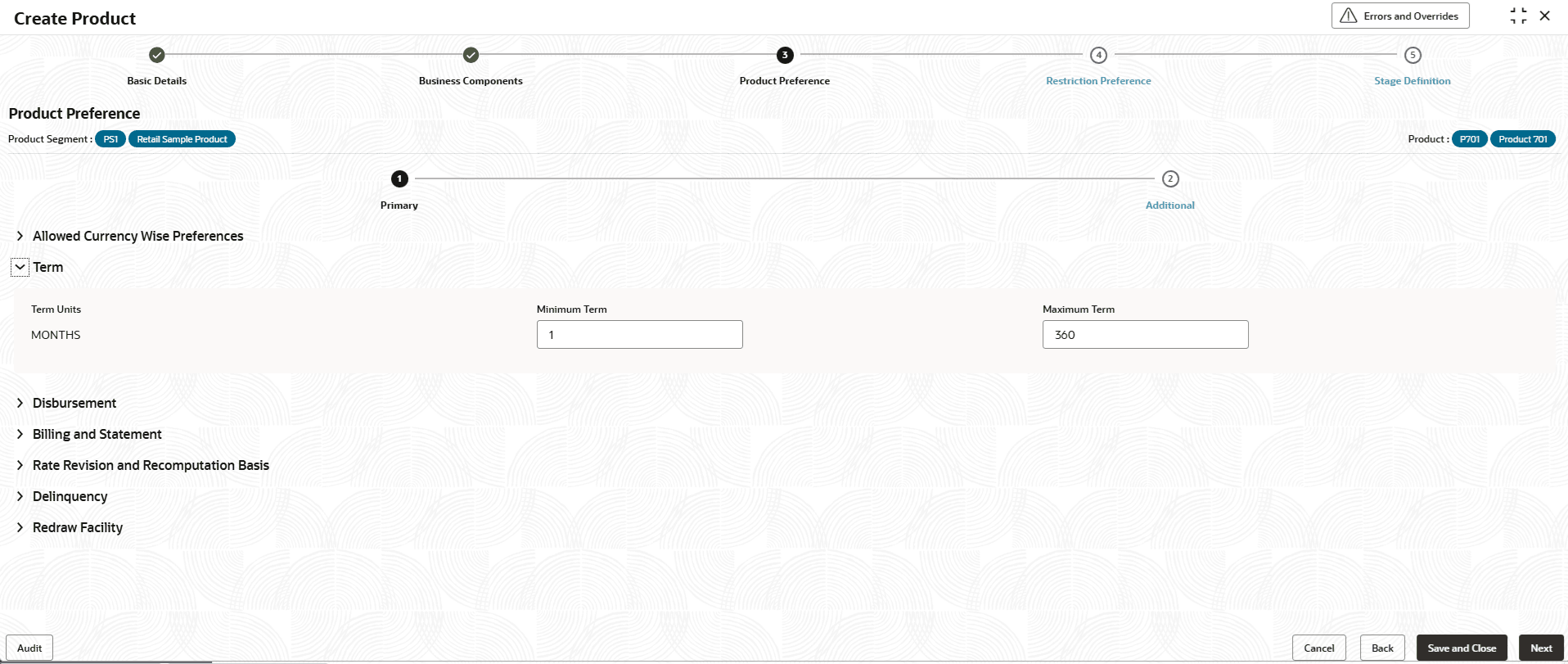
For more information on fields, refer to the field description table.
Table 2-45 Term - Field Description
Field Description Term Units Displays the term units as selected in product segment → preferences → term → term units. Note: This field is not supported for Line of Credit products.
Minimum Term Specify the minimum term for a account opened under the product. Note: This field is not supported for Line of Credit products.
Maximum Term Specify the maximum term for a account opened under the product. Note: This field is not supported for Line of Credit products.
For more information on fields, refer to the field description table.
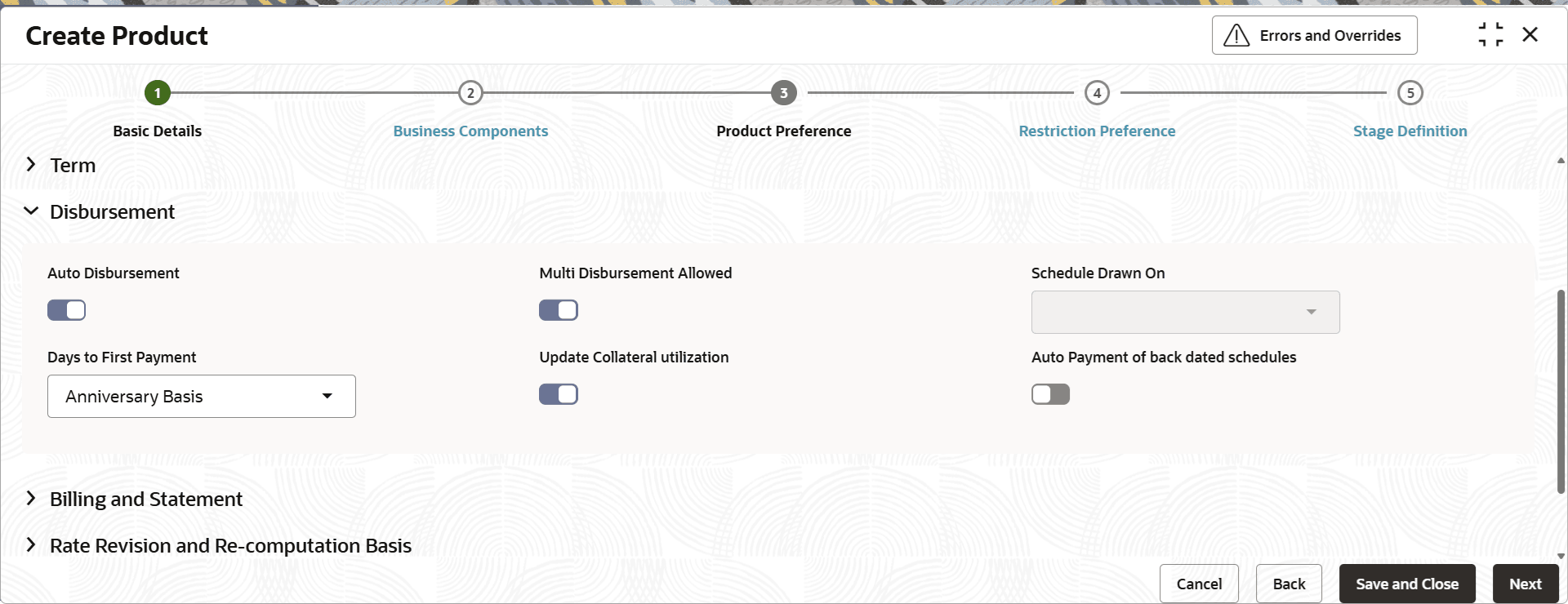
Table 2-46 Disbursement - Field Description
Field Description Auto Disbursement Toggle to enable the auto disbursement. The toggle is enabled by default but will be allowed to disable.
Note: field is not supported for Line of Credit products.
Multi Disbursement Allowed Toggle to enable the multiple disbursement. The toggle is enabled by default but will be allowed to disable.
Note: This field is not applicable for Line of Credit products; as multiple draw-downs applicable for Line of Credit by default
Schedule Drawn On Select the schedule drawn from the drop-down list. The available options are:
- Sanction Amount
- Outstanding Principal Amount
If schedule is drawn on Sanction Amount, installment amount is computed on sanctioned amount and schedule is drawn for the same installment amount. If schedule is drawn on Outstanding Principal amount, installment amount is computed on outstanding principal at the time of disbursement and schedule is re-computed on every disbursement
The allowed values are defined by the lookup type SCHEDULE_DRAWN_ON.
Note: This field is not supported for Line of Credit products.
Days to First Payment Specify the number of days post first disbursement, when the first payment will become due on the loan account. For example, if a loan account is disbursed on 10-Jan and Days to First payment is say 45 days, then first payment due date is derived as 24-Feb. Subsequent payment dates of loan are derived by adding the frequency of installment payment to the first due date derived.
The allowed values are:- Anniversary
- 30
- 45
- 60
- 90
The allowed values are defined by the lookup type DAYS_FIRST_PAYMENT.
Note: This field is not supported for Line of Credit products.
Update Collateral Utilization Toggle this to enable collateral utilization on disbursement and de-utilization on payment, for the secured loans. The toggle is enabled by default. If not checked, utilization against collateral will not be done.
Note:- Blocking of collateral for the Collateral linkage amount will be done as a default behavior for secured loans.
- This field is not supported for Line of Credit products.
Auto Payment of back dated Schedules This is for future use. Note: This field is not supported for Line of Credit products.
For more information on fields, refer to the field description table.
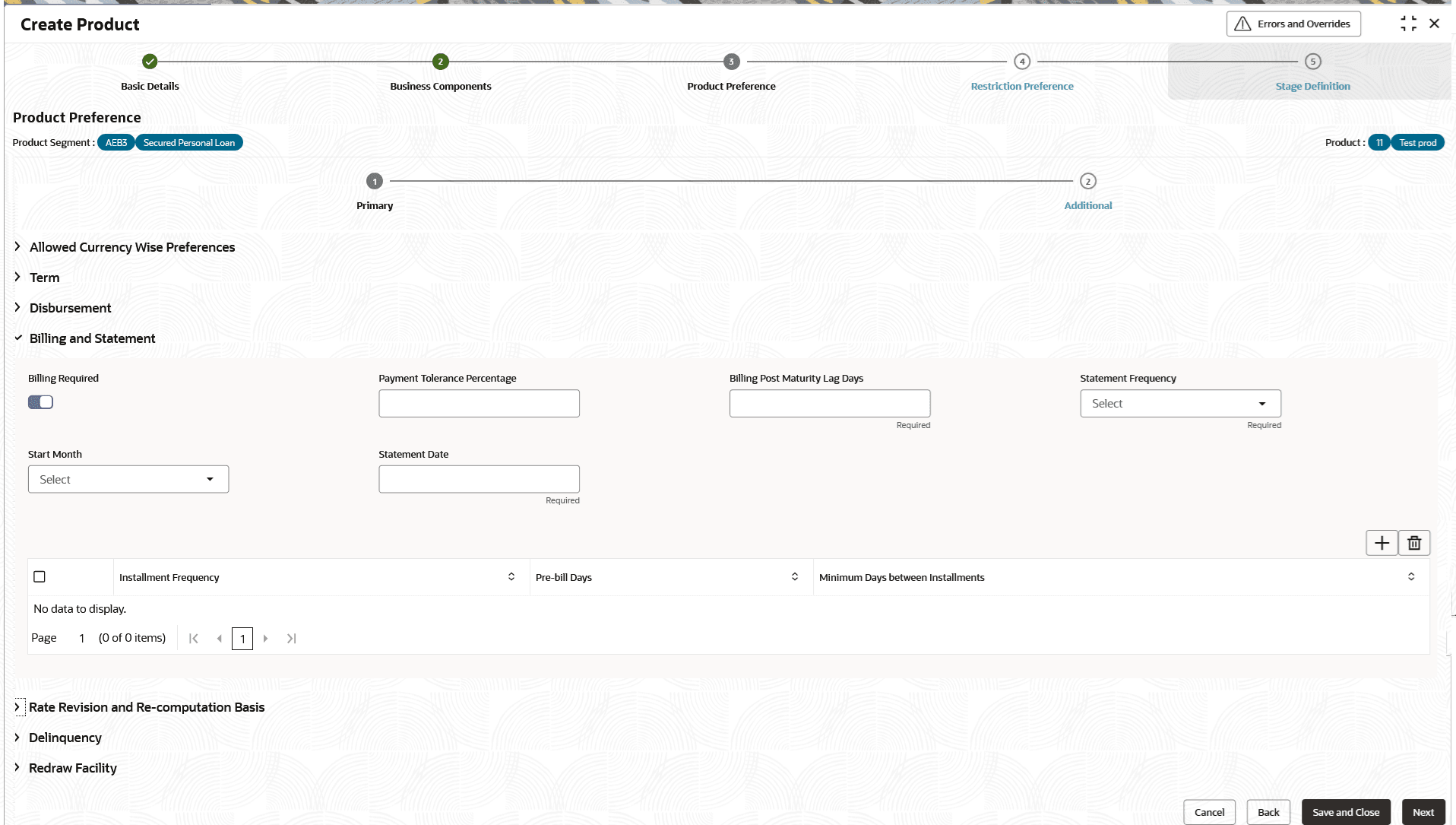
Table 2-47 Billing and Statement - Field Description
Field Description Billing Required This field indicates if loan billing notice to be generated or not. The toggle is disabled by default and can be modified to enable.
Enabling this flag initiates the billing cycle. The system generates the upcoming bill on the calculated Billing Date (Bill Due Date−Billing Notice Days) which includes all current and overdue Principal, Interest, and Fees.
Note: This field is mandatory for the Line of Credit products.
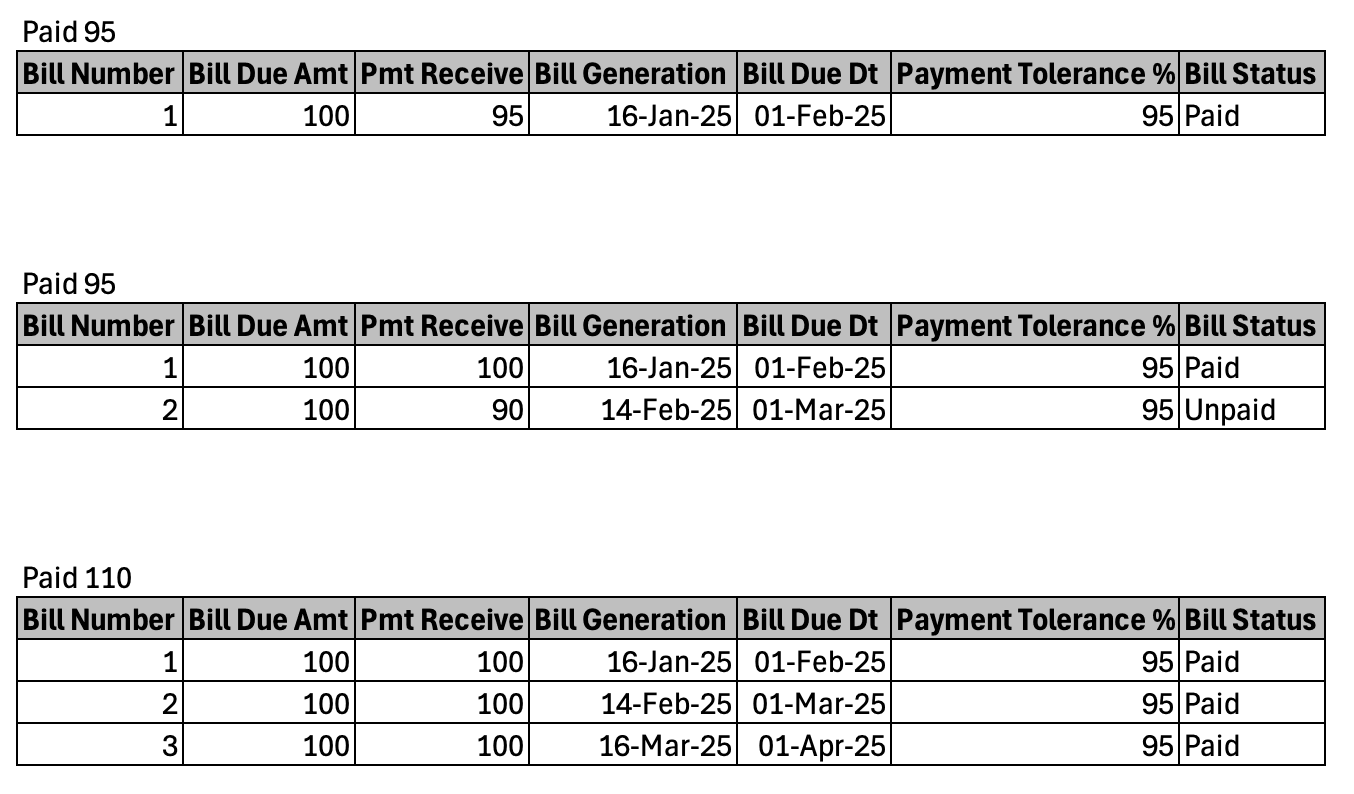
Payment Tolerance Percentage Specify the tolerance percentage for the payment. This is the threshold percentage of payment amount that must be achieved before a due amount is considered PAID or UNPAID.
It is only supported for billing accounts. And allowed values for Payment Tolerant Percentage are from 1 to 100, with up to 2 decimal places.
See the Examples - Payment Tolerance Percentage below for related examples.
Note :This field is not supported for Line of Credit products.
Billing Post Maturity Lag Days Specify the number of days after maturity date, when loan billing notice will be sent to the customer, after every lag days is crossed, if the loan account is not fully settled. Input in this field is required if Billing Required is enabled. For example if this field is maintained as 15 days and 10-Jan is the maturity date, then Post maturity bill will be sent every 15 days on 25-Jan, 09-Feb, 24-Feb and so on until the loan is fully repaid.
Note : This field is not supported for Line of Credit products.
Statement Frequency Select the frequency from the drop-down list, when the loan account / Line of Credit statement needs to be generated. The allowed values are defined by the lookup type STMT_FREQ.
Note:- Billing Accounts supports weekly, biweekly and quarterly frequencies.
- If the frequency is set to Same as Billing Date, the statement will be generated specifically on the Billing Date.
Start Month Specify the month on which statement generation will begin. This field is required if statement frequency is greater than Monthly. Valid values are Jan, Feb, Mar etc. If frequency is Quarterly and Start month is Feb, then statement will be generated every Feb, May, Aug and Nov.
This field is enabled only when the Statement Frequency is set to Quarterly, Half-Yearly, or Yearly. In these cases, the field is mandatory.
The allowed values are defined by the lookup type MONTH.
Note: This field is supported for Line of Credit products.
Statement Date Specify the date when the statement is to be generated as per the statement frequency. If statement frequency is Quarterly and Start Month is Feb and Statement Date is 5, then statement will be generated on 5-Feb, 5-May, 5-Aug and 5-Nov. This field is mandatory when Statement Frequency other than None or Same as Billing Date.
Note: This field is supported for Line of Credit products.
Installment Frequency Select the multiple installment frequency when the installment amount will become due for payment from the drop-down list. The available options are:- Monthly
- Quarterly
- Weekly
- Half Yearly
The allowed values are defined by the lookup type INST_FREQ.
Note:- The MONTHLY Installment Frequency is the only supported configuration for the Line of Credit products for generating the bill.
- This field is mandatory when the Billing Required is captured.
- This field is supported for Line of Credit products.
Pre-bill Days Specify the number of days before the schedule due date for generating the billing notice. This field is mandatory when the Installment Frequency is captured.
This field allows values between 1 to 28 with no decimals.
Note:- This field is mandatory when the Billing Required is captured.
- This field is supported for Line of Credit products.
Minimum Days between Installments This field is mandatory when the Billing Required is not selected and Installment Frequency is captured.
Note: This field is not supported for Line of Credit products.
Figure 2-47 Examples: Payment Tolerance Percentage
Line of Credit
Note: This section is only supported for Line of Credit products.
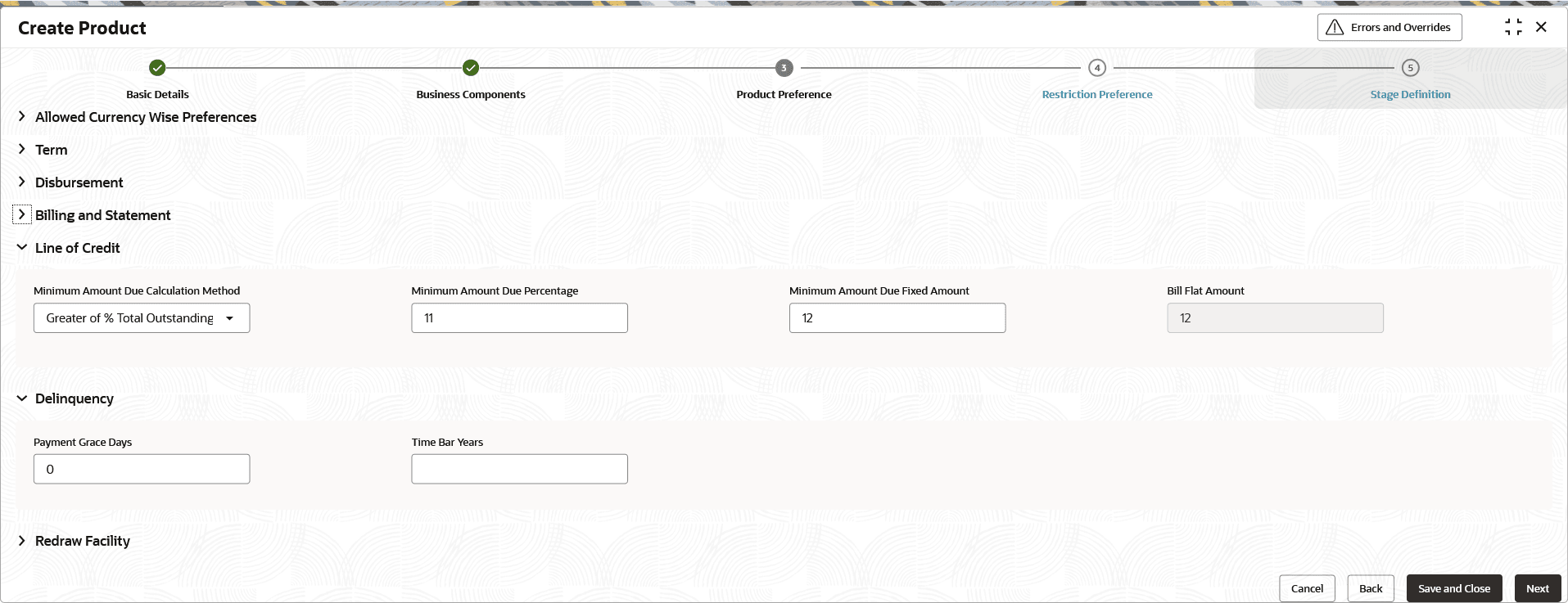
Table 2-48 Line of Credit- Field Description
Field Description Minimum Amount Due Calculation Method Specify the minimum portion of the total outstanding balance that the borrower is required to pay by the due date to keep the account in good standing and avoid delinquency and penalty charges. Refer below table for more information on applicable Minimum Amount Due Calculation Methods . Note: This field is applicable for Line of Credit Products.
Minimum Amount Due Percentage Specify the predefined constant percentage for required for calculating Minimum Amount Due. This field is enabled and mandatory only when a Minimum Amount Due Calculation Method has been selected.
Minimum Amount Due Fixed Amount Specify the a predefined fixed amount, that is Minimum Amount Due Fixed Amount. This field is enabled and mandatory only when a Minimum Amount Due Calculation Method has been selected.
Bill Flat Amount Specify the minimum bill amount threshold.
The field is applicable for all the Minimum Amount Due formulas but with below exception,- If Minimum Amount Due Calculation Method = 'Greater of % Total Outstanding or Fixed Amount', this field value = Minimum Amount Due Fixed Amount and non-editable.
- If Minimum Amount Due Calculation Method = 'Fixed Amount', this field value = Minimum Amount Due Fixed Amount and non-editable.
See the Examples - Bill Flat Amount below for related examples.
Table 2-49 Minimum Amount Due Calculation Methods
Sr No. Minimum Amount Due Calculation Method Formula Bill is marked Paid Billed Component 1 Percentage of Balance (Principal Balance x X%) + Interest + Fees* Payment is more than or equal to Billed Interest + (Principal Balance x X%) - Billed Interest
- Billed Fee
- Principal Balance x X%
2 Flat Percentage Total Outstanding Balance x X% Payment is more than or equal to Billed Interest + Billed Principal First Minimum Amount Due is calculated
Then Billed Principal = Minimum Amount Due - Billed Interest -Billed Fee
- Billed Interest
- Billed Fee
- Billed Principal
3 Interest + Fixed Amount Interest + Fees* + Fixed Amount*(example,$25) Payment is more than or equal to Billed Interest + Billed Principal First Minimum Amount Due is calculated
Then Billed Principal = Minimum Amount Due - Billed Interest -Billed Fee
- Billed Interest
- Billed Fee
- Billed Principal
4 Grater of % or Fixed MAX((Balance x X%),$Y Example, MAX(2%of balance, $25)
Payment is more than or equal to Billed Interest + Billed Principal First Minimum Amount Due is calculated
Then Billed Principal = Minimum Amount Due - Billed Interest -Billed Fee
- Billed Interest
- Billed Fee
- Billed Principal
5 Fixed Dollar Payment $X per month (example,$50) Payment is more than or equal to Billed Interest + Billed Principal First Minimum Amount Due is calculated
Then Billed Principal = Minimum Amount Due - Billed Interest -Billed Fee
- Billed Interest
- Billed Fee
- Billed Principal
Note:
Based on the selected Minimum Amount Due Calculation Method, Minimum Amount Due Percentage (X%) and Minimum Amount Due Fixed Amount ($Y) are captured.Examples : Bill Flat Amount
Case 1: At the time of Bill generation, if the Total Minimum Amount Due is less than the defined Bill Flat Amount (as per product definition), the Bill will be generated for the defined Bill Flat Amount.
Total Minimum Amount Due = $20
Defined Bill Flat Amount (as per product definition) = $30
Since $20 < $30, the system will generate the Bill for $30 instead of $20.
Case 2: At the time of Bill generation, if the Total Outstanding of the Bill is less than the defined Bill Flat Amount (as per product definition), the Bill will be generated for the Total Outstanding Amount.
Defined Bill Flat Amount (as per product definition) = $30
Total Outstanding Amount Due = $15
Although $15 < $30, the system will generate the Bill for $15.
Figure 2-49 Rate Revision and Re-computation Basis
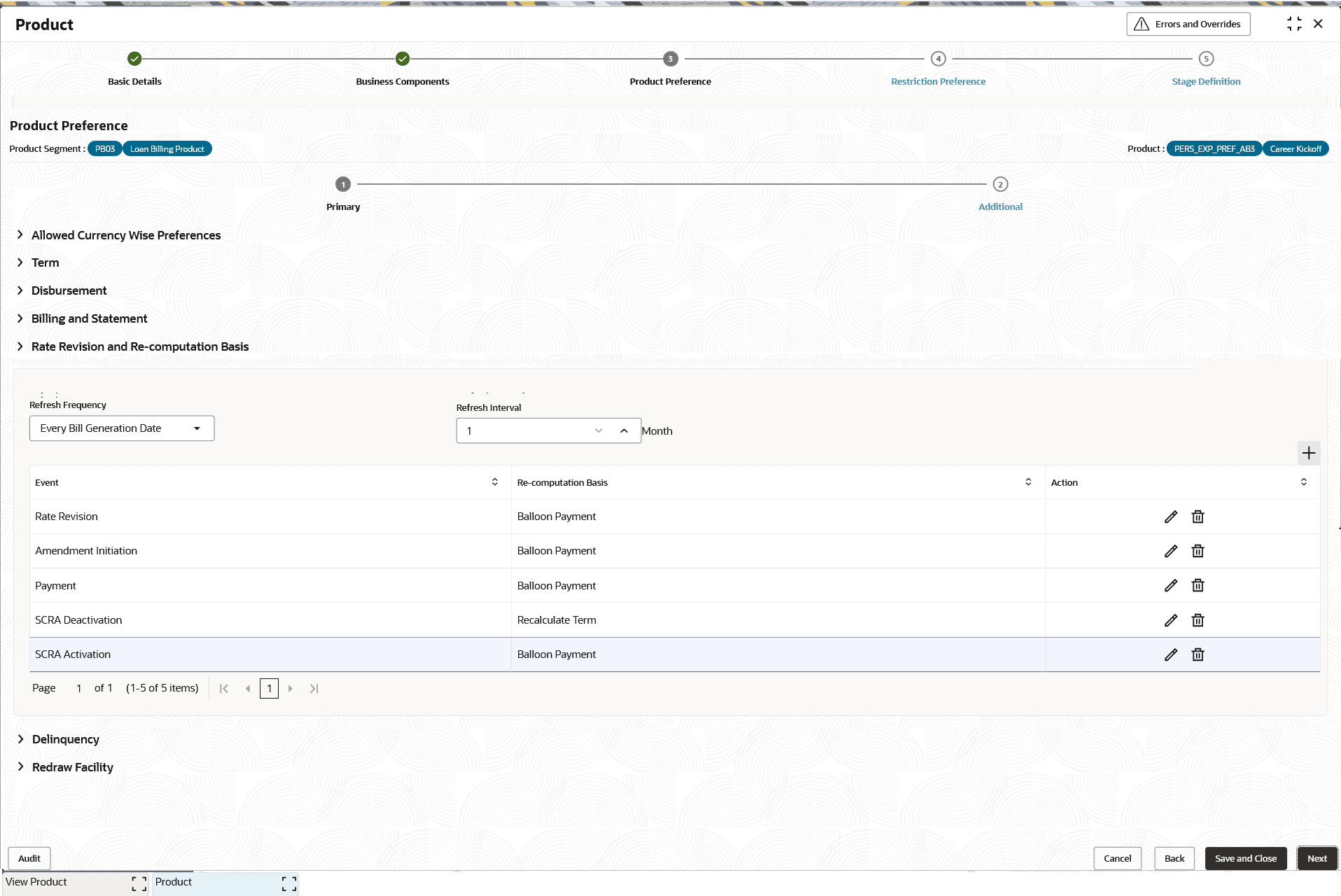
Description of the illustration product-preference---rate-revision-re-computation-basis.pngNote:
This section is not supported for Line of Credit products.For more information on fields, refer to the field description table.
Table 2-50 Re-computation Basis - Field Description
Field Description Refresh Frequency This field refers to the frequency at which the rate changes at rate code/price code level to be propagated to loan account. This field is applicable when Interest Pricing level, Rate Application is selected as Floating for interest component. Select the frequency from the drop-down list. The available options are:- Immediate
- Every Due Date
- Every Bill Generation Date
- Every N months
The allowed values are defined by the lookup type RATE_REFRESH_FREQUENCY.
Refresh Interval Specify the refresh interval. This field refers to refresh period when rate revision is to be triggered if Refresh frequency is Every N months. Specify the refresh interval in months. Allowed value can be from 1 – 12 months. Event Select the event from the drop-down list. The available options are:- Disbursement
- Payment
- Amendment Initiation
- Rate Revision
- SCRA Activation
- SCRA Deactivation
The allowed values are defined by the lookup type PRODUCT_EVENTS_RECOMPBASIS.
Re-computation Basis Select the Re-computation basis from the drop-down list. The available options are:- Recalculate Term - The installment amount remains same as before the operation and term is recomputed.
- Recalculate Installment - The term remains the same as before and Installment amount is recomputed.
- Balloon Payment - Neither the term nor the installment is changed, anything excess will be adjusted in maturity schedule or schedules with zero dues are drawn.
The allowed values are defined by the lookup type RECOMPUTE_BASIS.
For more information on fields, refer to the field description table.
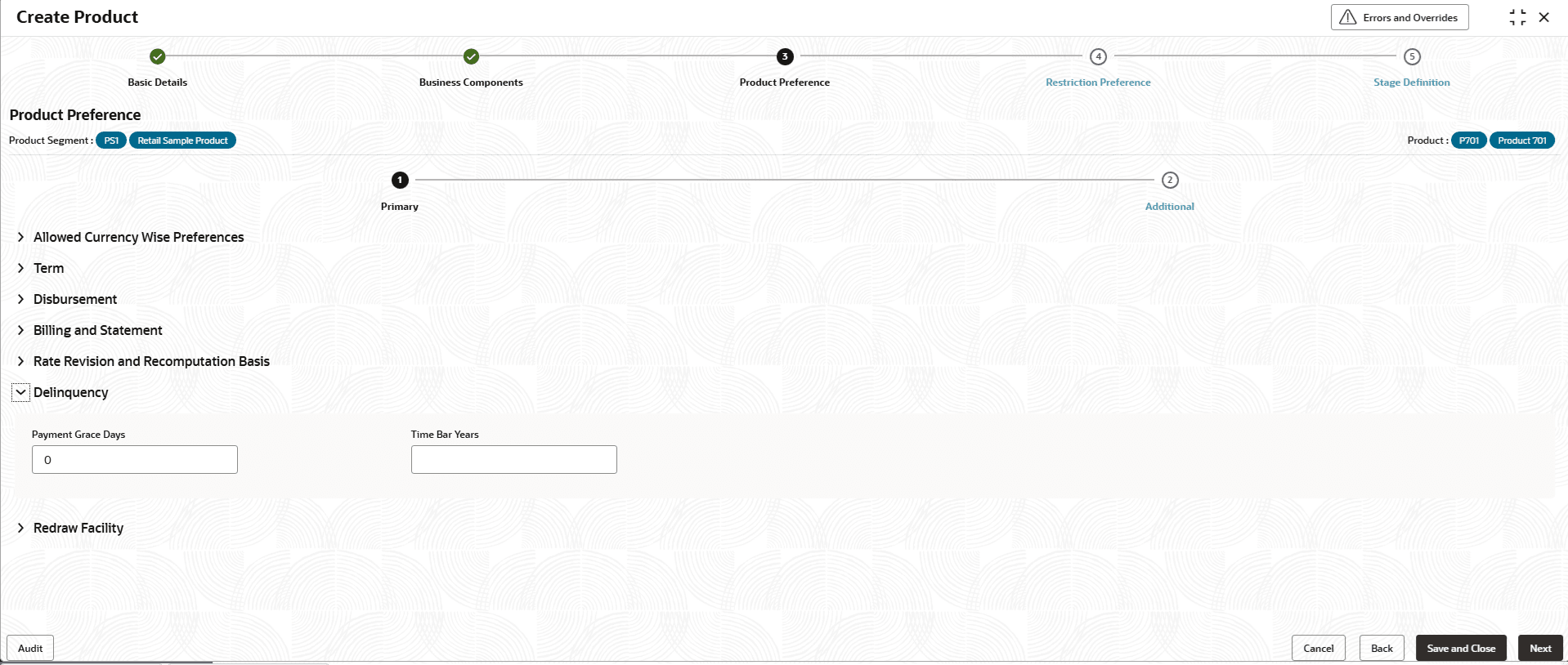
Table 2-51 Delinquency - Field Description
Field Description Payment Grace Days Specify the number of grace days to be provided for payment of dues after the installment has become due. Account is not levied penalty if payment is done within the grace days. Example: Due date: 10th January 2024, Grace 3 days, If payment done on or before 13th January 2024, penalty will not be levied.
Note: For Line of Credit products, if the Principal and Interest portion of the Total Minimum Amount Due (TMAD) are not settled by the due date, the system will apply a Late Fee (if configured) once the Grace Days have expired.
Time Bar Years This field is for future use. Note:
This section is not supported for Line of Credit products.For more information on fields, refer to the field description table.
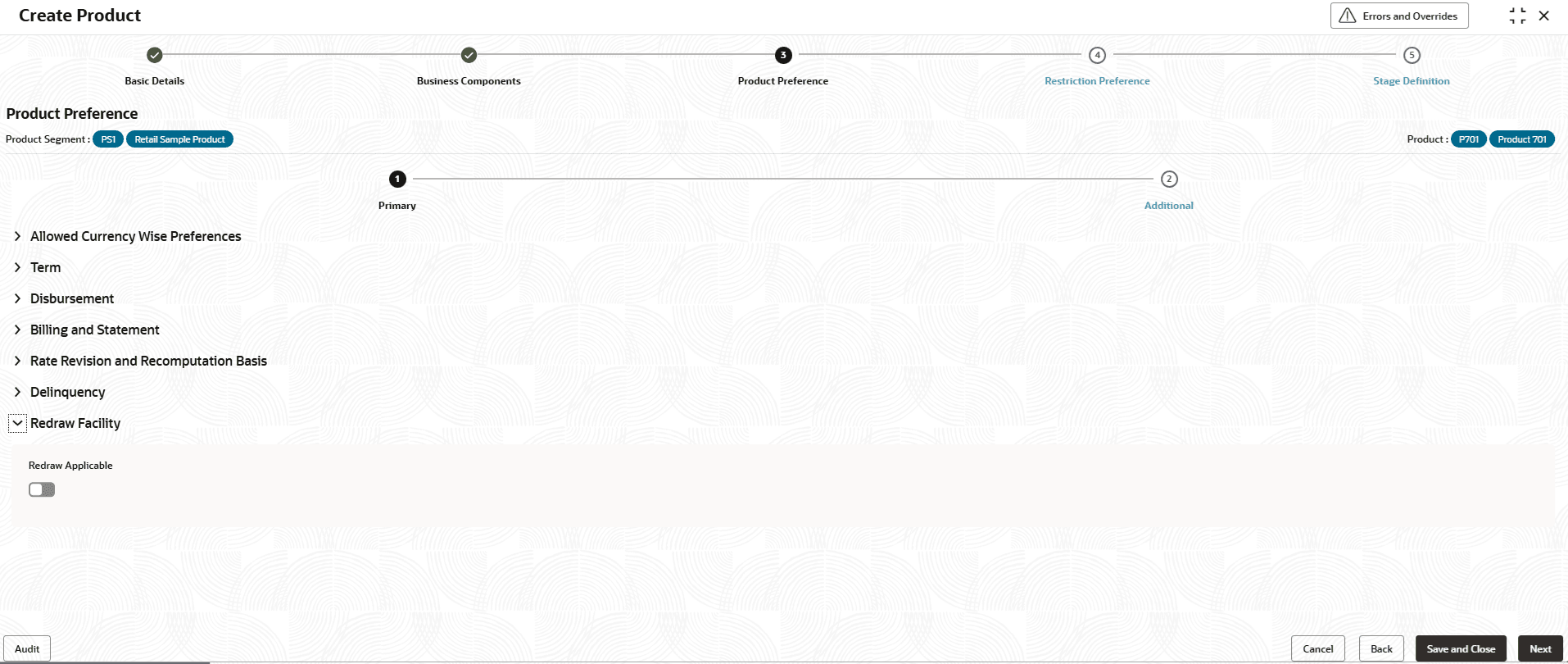
Table 2-52 Redraw Facility - Field Description
Field Description Redraw Applicable This feature allows to refund the excess amount paid by customer. Click the toggle status to enable this feature. Note: This field is not supported for Line of Credit products.
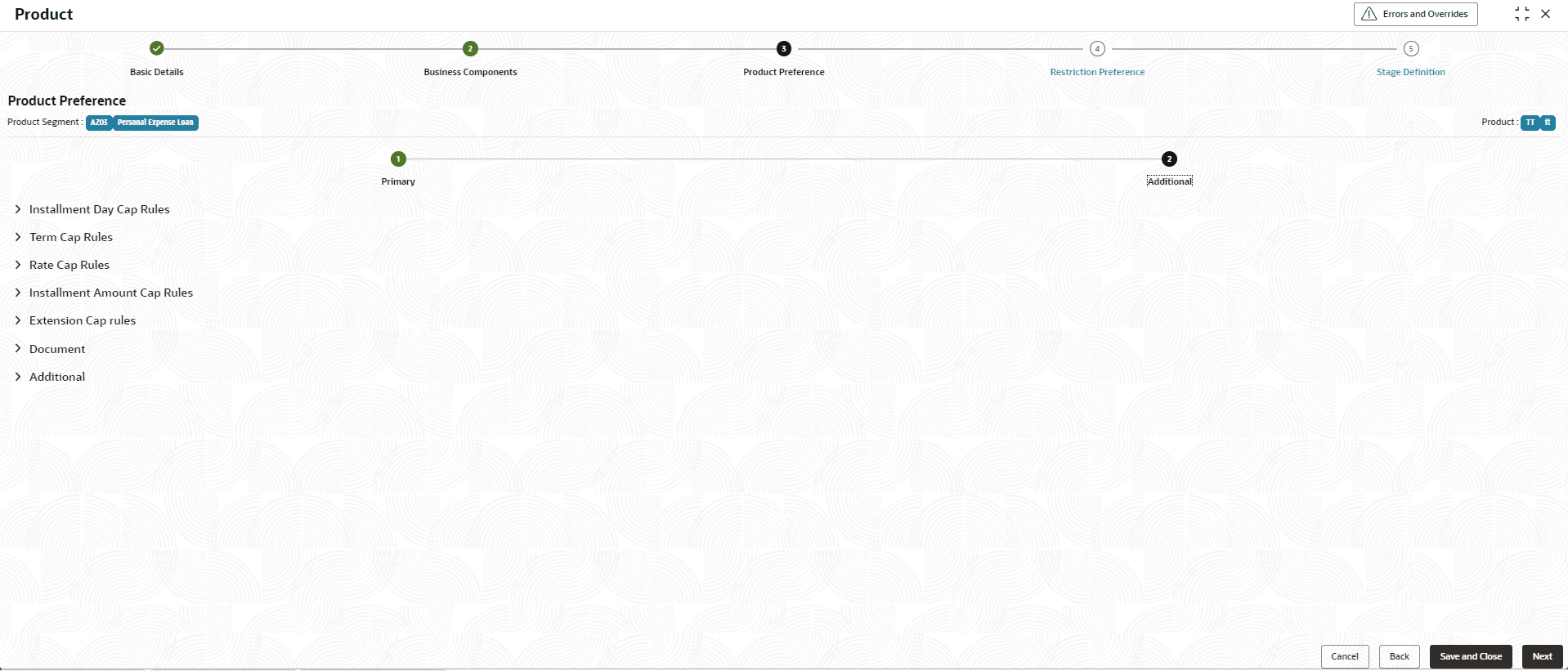
- On Product Preference screen, click
Additional tab.The Product Preference - Additional screen displays.
Figure 2-52 Product Preference - Additional
Figure 2-53 Installment Day Cap Rules
Note:
This section is not supported for Line of Credit products.For more information on fields, refer to the field description table.Table 2-53 Installment Day Cap Rules - Field Description
Field Description Minimum Installment Day Specify the minimum start day for the repayment frequency. For example, For the minimum installment frequency set to monthly and the minimum installment day set to 10, any installment or schedule due date ranging from the 1st to the 9th cannot be accepted during the on-boarding or installment change operation, as the minimum start day is the 10th.
Maximum Installment Day Specify the maximum start day for the repayment frequency. At the Product level or at account level, if the user wants the date to be month end then the Due Date Day has to be entered as 31. In such a case the system will validate that the First Installment Due Date is the last day of that month and not do an exact comparison with 31.
Also going forward all due dates will be month end. The system should also validate that the Product Level Due Date Day is within the Minimum Installment Day and Maximum Installment Day otherwise an error will be thrown "Due Date Day is not within the range of Minimum Installment Day and Maximum Installment Day". The system should also validate that the Account Level Due Date Day is within the Minimum Installment Day and Maximum Installment Day.
For example1: Product Level Due Date Day = 10
Defaults to Account Level, User modifies to 20
All Installments for the frequencies Monthly and above will have the Day part of the Installment Due Date as 20
20-Feb-2025
20-Mar-2025
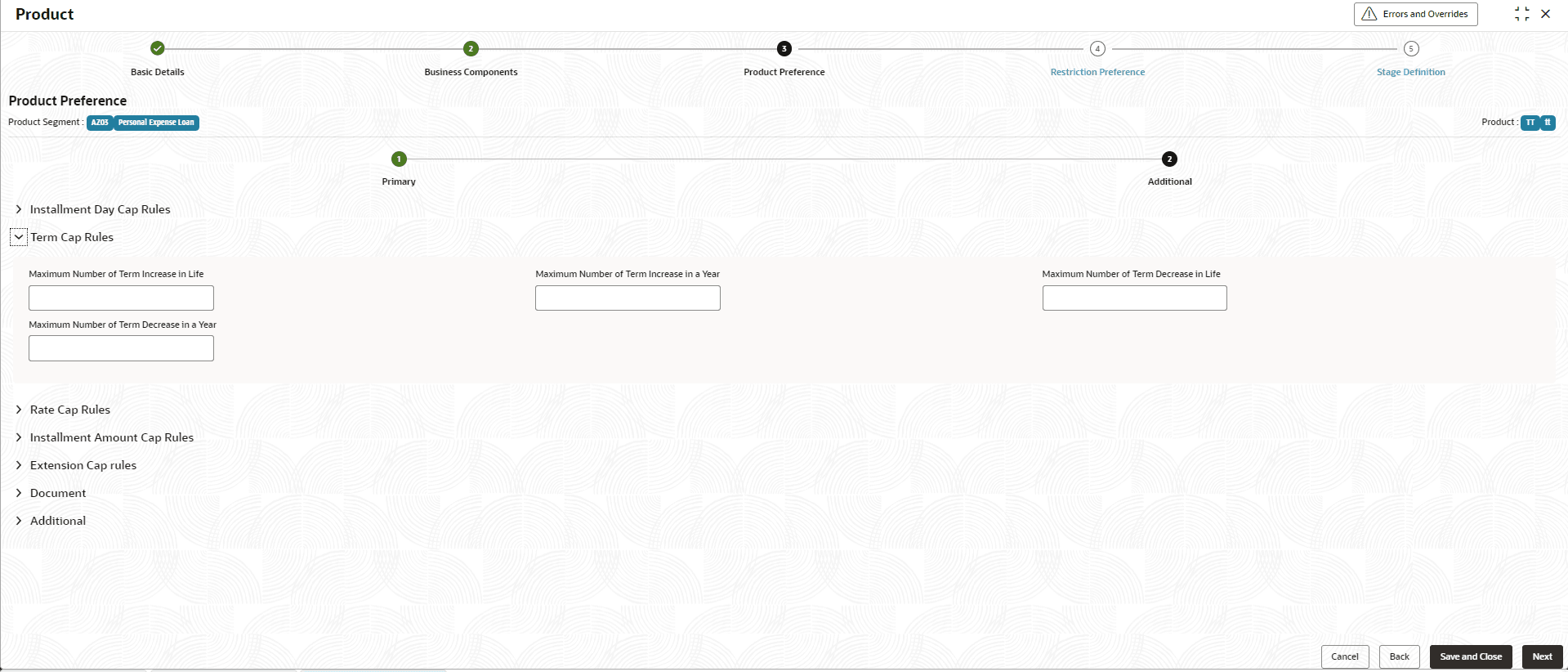
Date Change Gap Days Specify the gap days between each date change operation is captured. Maximum Number of Date Change in a Year Specify the maximum number of installment date changes allowed within a year. Maximum Number of Date Change in Life Specify the maximum number of loan term installment date changes allowed within a lifetime. Figure 2-54 Term Cap Rules
Note:
This section is not supported for Line of Credit products.For more information on fields, refer to the field description table.Table 2-54 Term Cap Rules - Field Description
Field Description Maximum Number of Term Increase in Life Specify the maximum number of term increase in life. If there is a term increase, the system tracks the occurrence count. When this count (for the entire duration) exceeds the allowed number of term increases, the system will display an error message: Term Increase is not allowed as it exceeds the maximum number of term increases permitted during the lifetime. This validation is only applicable if the field is not blank; if the field is blank, the validation will be skipped.
Maximum Number of Term Increase in a Year Specify the maximum number of term increase in year. When there is a Term Increase, the system tracks the occurrence count for the year. If the count exceeds the allowed limit, the system will display the error message: Term Increase is not allowed as it exceeds the maximum number of term increases permitted in a year. This validation is only applied if the field value is not blank; if the field is blank, the validation will be skipped. The value will be compared with the original or booking-time term value to determine whether there is an increase or decrease.
Maximum Number of Term Decrease in Life Specify the maximum number of term decrease in life. When there is a Term Decrease, the system tracks the occurrence count for the entire duration. If the count exceeds the allowed limit, the system will display the error message: Term Decrease is not allowed as it exceeds the maximum number of term decreases permitted during the lifetime. This validation will only apply if the field value is not blank; if the field is blank, the validation will be skipped. The count will be compared against the original or booking-time term value to determine whether there is an increase or decrease.
Maximum Number of Term Decrease in a Year Specify the maximum number of term decrease in year. For a Term Increase, the system tracks the occurrence count within a year. If the count exceeds the allowed limit, the system will display the error message: Term Decrease is not allowed as it exceeds the maximum number of term decreases permitted in a year. This validation is only triggered if the field value is not blank; if the field is blank, the validation will be skipped. The value will be compared to the original or booking-time term value to assess whether there is an increase or decrease.
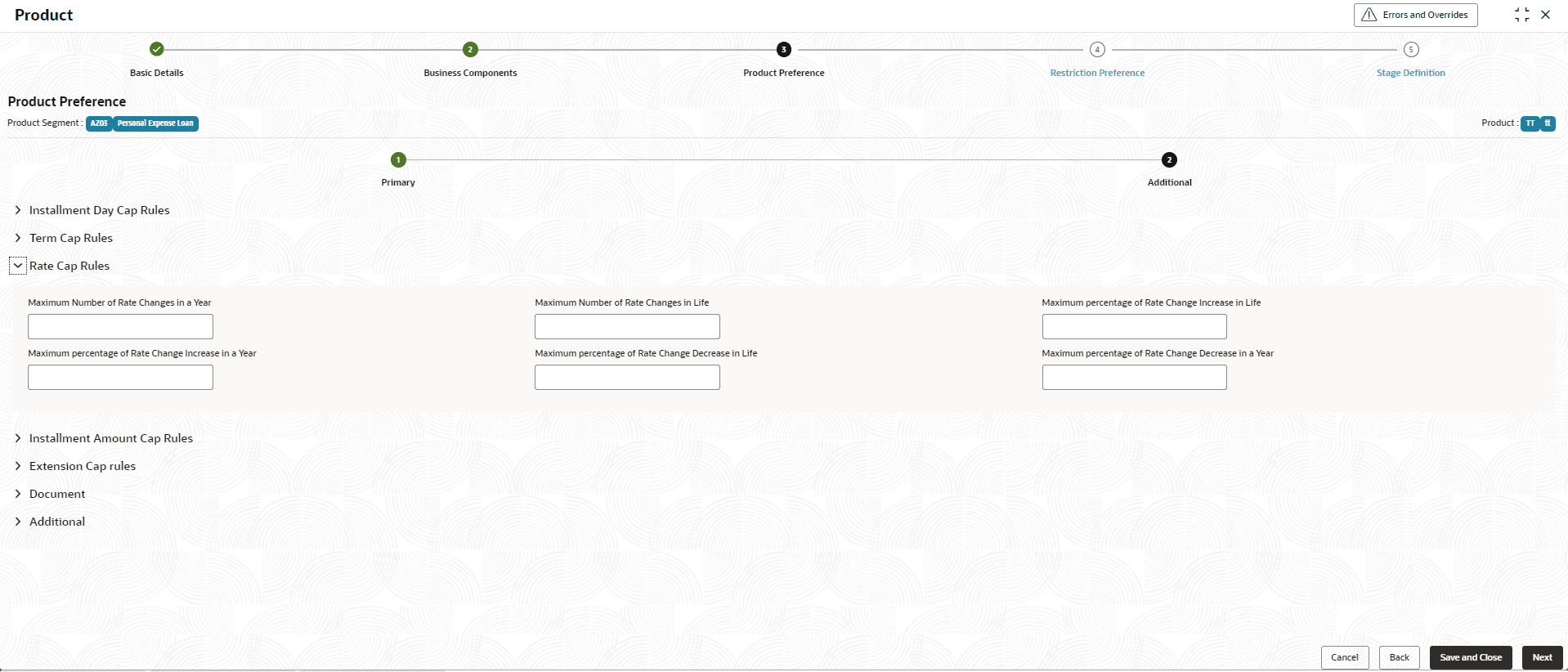
Figure 2-55 Rate Cap Rules
Note:
This section is not supported for Line of Credit products.For more information on fields, refer to the field description table.Table 2-55 Rate Cap Rules - Field Description
Field Description Maximum Number of Rate Changes in a Year Specify the maximum number of rate changes allowed in a year. For an interest rate change, the system tracks the occurrence count within a year. If the number of changes exceeds the allowed limit, the system will display the error message: Interest Rate Increase is not allowed as it exceeds the maximum number of rate changes allowed in a year. This validation will only be applied if the field value is not blank; if the field is blank, the validation will be skipped.
Maximum Number of Rate Changes in Life Specify the maximum number of rate changes allowed in a lifetime. For an interest rate change, the system tracks the occurrence count over the entire life term. If the number of increases exceeds the allowed limit, the system will display the error message: Interest Rate Increase is not allowed as it exceeds the maximum number of interest rate increases allowed during the life term. This validation will only be applied if the field value is not blank; if the field is blank, the validation will be skipped.
Maximum percentage of Rate Change Increase in Life Specify the maximum percentage of rate changes allowed in a lifetime. For the maximum number of term increases allowed in a year, the system tracks the difference (including spread or net interest) from the original interest rate value. If the cumulative difference exceeds the specified field value over the life term, the system will display the error message: Interest Rate Increase is not allowed as it exceeds the maximum percentage of rate change increase in the life term. This validation will only be applied if the field value is not blank; if the field is blank, the validation will be skipped.
Maximum percentage of Rate Change Increase in a Year Specify the maximum percentage of rate changes allowed in a year. For an interest rate increase, the system tracks the difference from the original value at the start of the year. If the difference (including spread or net interest) exceeds the specified field value within a year, the system will display the error message: "Interest Rate Increase is not allowed as it exceeds the minimum percentage of rate change increase in the life term." This validation will only be applied if the field value is not blank; if the field is blank, the validation will be skipped.
Maximum percentage of Rate Change Decrease in Life Specify the maximum percentage of rate changes allowed in a lifetime. For an interest rate decrease, the system tracks the difference from the original value. If the decrease (including spread, i.e., net interest) exceeds the specified field value over the life term, the system will display the error message: Interest Rate Increase is not allowed as it exceeds the minimum percentage of rate change increase in the life term. This validation will only be applied if the field value is not blank; if the field is blank, the validation will be skipped.
Maximum percentage of Rate Change Decrease in a Year Specify the maximum percentage of rate changes allowed in a year. For an interest rate decrease, the system tracks the difference from the original value at the start of the year. If the decrease (including spread, i.e., net interest) exceeds the specified field value within a year, the system will display the error message: Interest Rate Increase is not allowed as it exceeds the minimum percentage of rate change increase in the life term. This validation will only be applied if the field value is not blank; if the field is blank, the validation will be skipped.
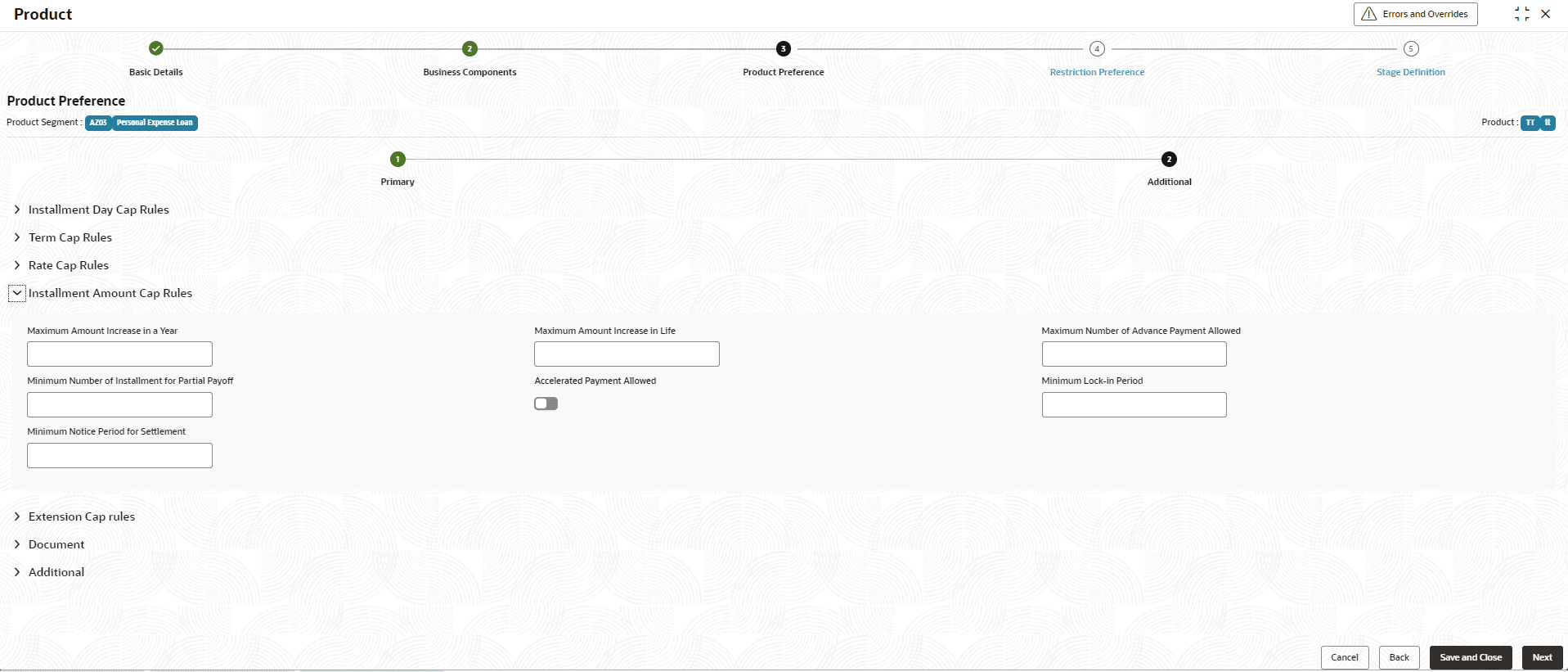
Figure 2-56 Installment Amount Cap Rules
Note:
This section is not supported for Line of Credit products.For more information on fields, refer to the field description table.Table 2-56 Installment Amount Cap Rules - Field Description
Field Description Maximum Amount Increase in a Year Specify the maximum amount increase allowed in a year. For an Installment/EMI Amount Increase, the system tracks the total amount of increase within a year. If the increase exceeds the value specified in the field, the system will display the error message: Installment Amount Increase is not allowed as it exceeds the maximum installment amount increase allowed in a year and log the error in the exception table. This validation is only applied if the field value is not blank; if the field is blank, the validation will be skipped.
Maximum Amount Increase in Life Specify the maximum amount increase allowed in a year. For an Installment/EMI Amount Increase, the system tracks the total amount of increase over the life term, starting from the original or initial value. If the increase over the life term exceeds the specified field value, the system will display the error message: Installment Amount Increase is not allowed as it exceeds the maximum installment amount increase allowed during the life term and log the error in the exception table. This validation will only be triggered if the field value is not blank; if the field is blank, the validation will be skipped.
Maximum Number of Advance Installments Allowed Specify the maximum number of installments that can be paid as advance payment. If it is maintained as zero, advance payment will be disallowed for all the accounts of this product. Minimum Number of Installment for Partial Payoff Specify the minimum number of installments for which partial payoff can be prepaid. Accelerated Payment Allowed Click the toggle status to allow the accelerated payment. This field is for future use.
Minimum Lock-in Period Specify the lock in period( in Days) which is the minimum period before which an early settlement of loans. This field is for future use.
Minimum Notice Period for Settlement Specify the minimum duration or notice period in the given unit (Days) for the early and final premature settlement of the loan. This field is for future use.
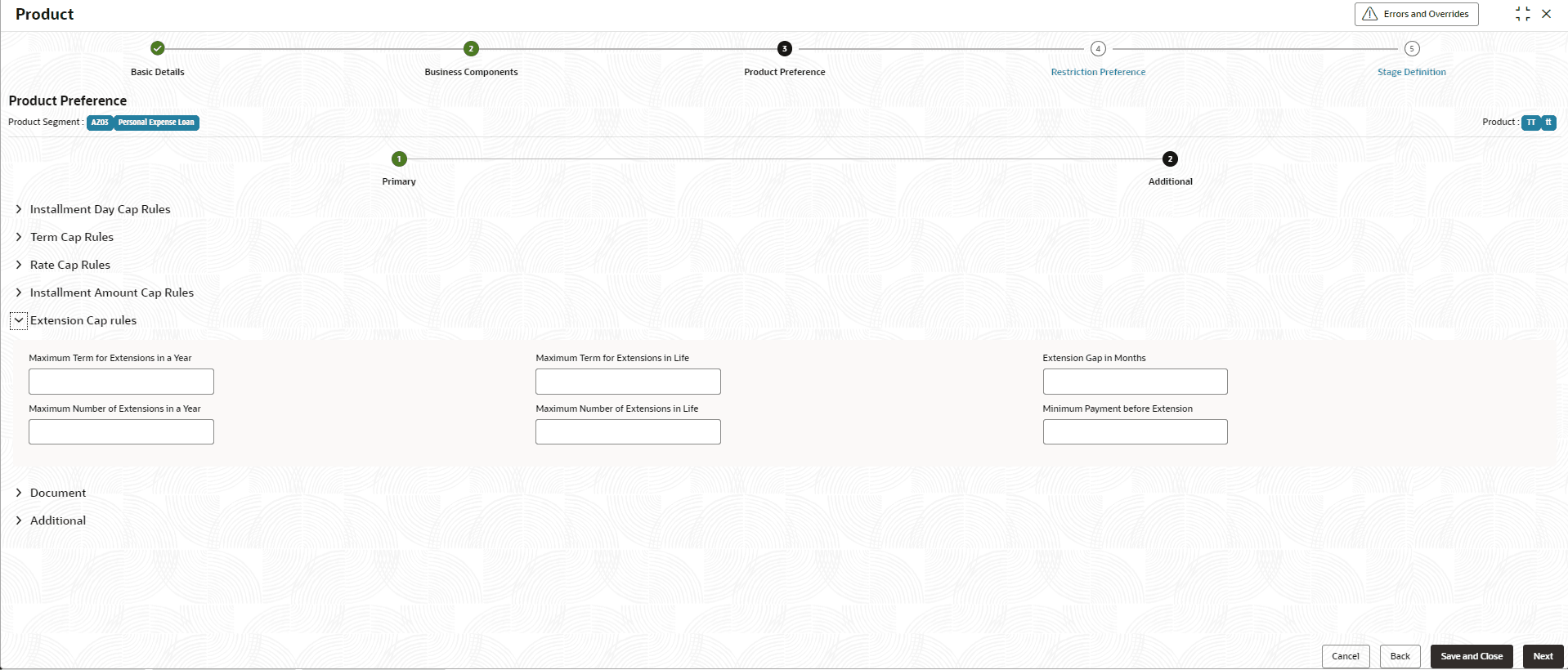
Figure 2-57 Extension Cap rules
Note:
This section is not supported for Line of Credit products.For more information on fields, refer to the field description table.Table 2-57 Extension Cap rules - Field Description
Field Description Maximum Term for Extensions in a Year Specify the maximum term(Days) of extension allowed in a year. During the payment suspension, the system will validate the gap in days between the maturity date and the revised maturity date upon extending the repayment holiday.
This field is for future use.
Maximum Term for Extensions in Life Specify the maximum term of extension allowed in Life. During payment suspension, the system will validate the gap in days between the maturity date and the revised maturity date following a repayment holiday extension.
This field is for future use.
Extension Gap in Months Specify the gap in months between two extension transactions. During payment suspension, the system will validate the gap in months.
This field is for future use.
Maximum Number of Extensions in a Year Specify the maximum term of extension allowed in a year. During payment suspension, the system will validate the count of extensions.
This field is for future use.
Maximum Number of Extensions in Life Specify the maximum term of extension allowed in a life. During payment suspension, the system will validate the count of extensions.
This field is for future use.
Minimum Payment before Extension Specify the minimum payment amount before posting extension. During a payment extension, the system will track the total payment amount received to date.
This field is for future use.
Document
This section is currently not supported
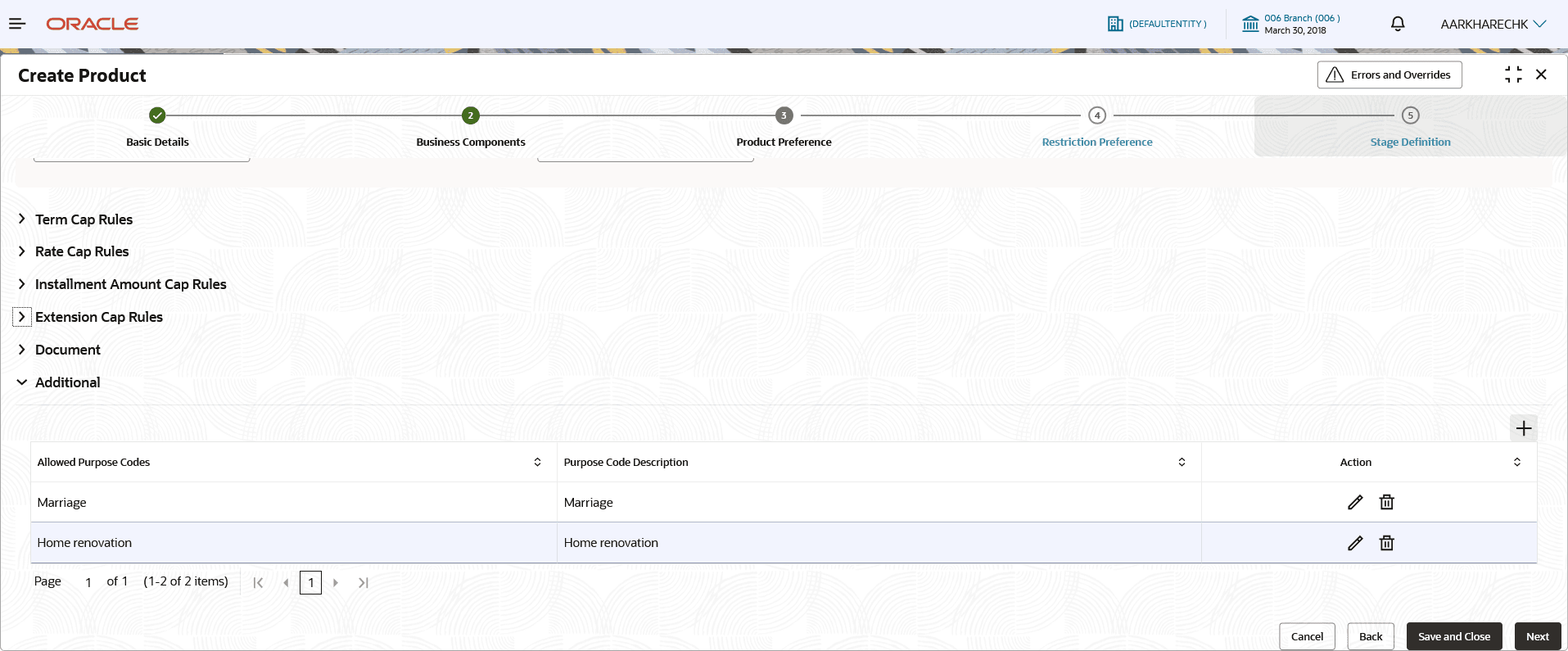
Additional
For more information on fields, refer to the field description table.Table 2-58 Additional - Field Description
Field Description Allowed Purpose Codes Select the allowed purpose code from the drop-down list. Purpose Code Description Displays the purpose code description for selected purpose code. Action Displays the actions to be taken for record. The available options are:- Edit - Click to edit the record. As user clicks this icon, the fields becomes editable. User can edit the required details and click Save.
- Delete - Click to delete the record
Parent topic: Create Product