2.7.1.4 Restriction Preference
This topic describes about configuring products to allowed or disallowed branches, customer categories and/or adhoc codes
These restrictions maintained at product level are validated while on-boarding loan account / Line of Credit.
Note:
- Branch Code restriction will be applicable on the branch where the account is getting opened.
- Customer category code restriction will be applicable on customer category of the primary customer of the loan account / Line of Credit.
- User can configure either the allowed list or the disallowed list for a product, but not both at the same time.
- Click Next in the Product
Preference screen to define the
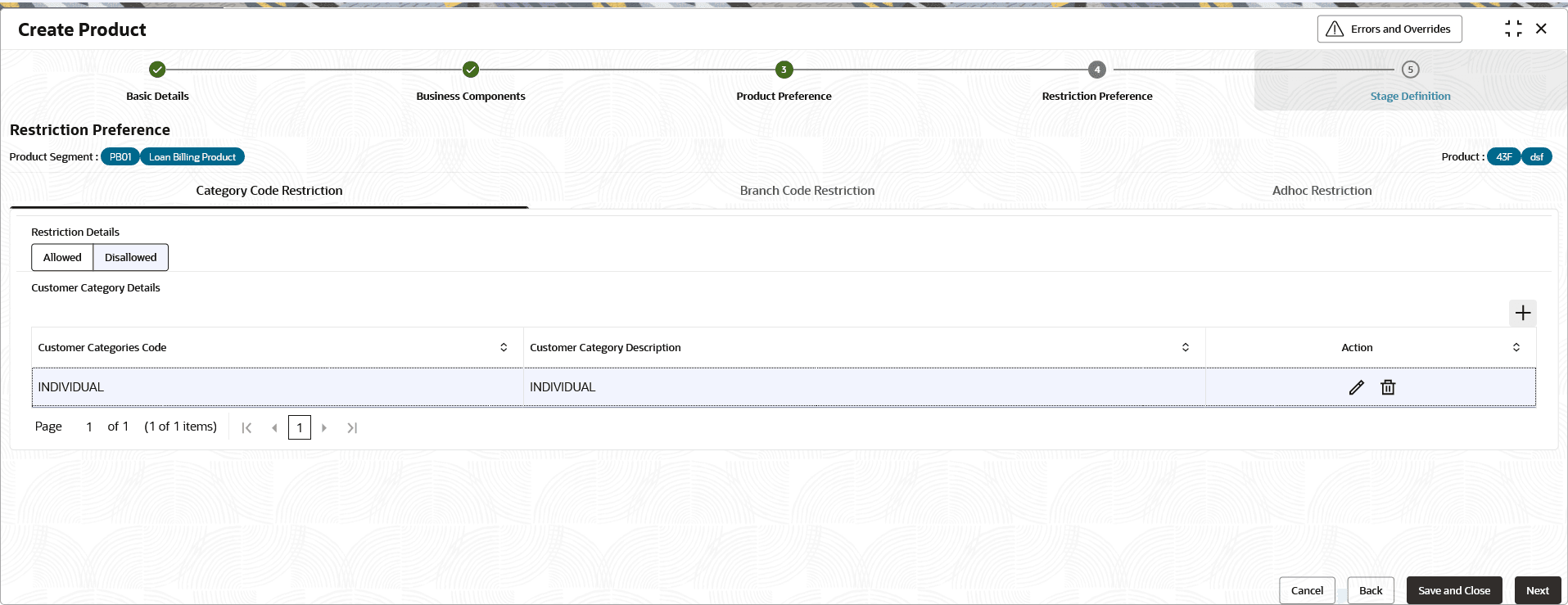
stage.The Restriction Preference screen is displayed.
Figure 2-59 Restriction Preference - Category Code Restriction
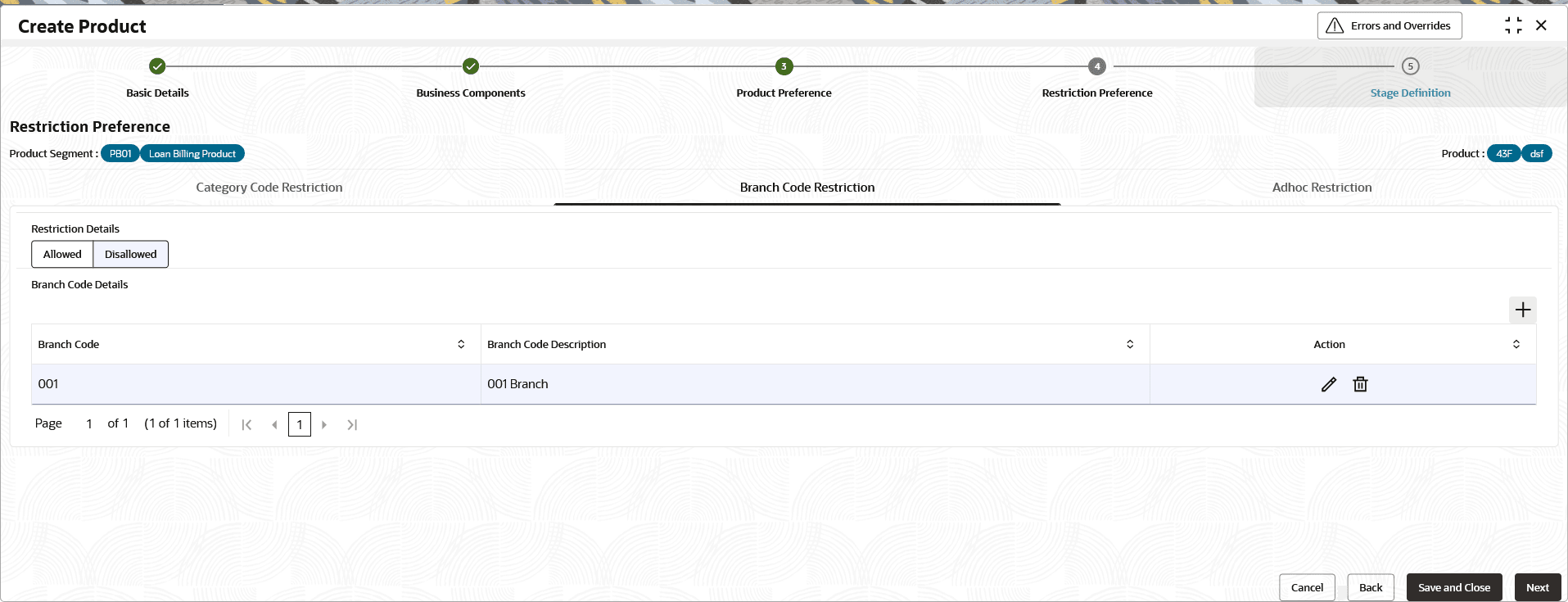
- Select the Branch Code Restriction tab.The Restriction Preference - Branch Code Restriction screen is displayed.
You can create a product with allowed/disallowed list of branch codes in Restriction preference.
- Select the appropriate option allow/disallow some products for configuring restriction preferences.
- Specify the fields on the Restriction Preference - Branch Code Restriction screen.
Figure 2-60 Restriction Preference - Branch Code Restriction
Table 2-60 Restriction Preference - Branch Code Restriction - Field Description
Field Description Restriction Details Select the restriction details from the drop-down list. The available options are:- Allowed
- Disallowed
Note: The Allowed option requires a minimum of one branch code to be added. For the Disallowed option, you can add a list of branch codes, but this is not mandatory.
Branch Code Details The Branch Codes maintained in Core Maintenance → External Branch Parameters → View External Branch Parameters screen are shown in the list of adding the branch codes. + button Click to add a row. Delete Click to delete a row that is already selected. Branch Code Specify the allowed/disallowed branch code from the drop-down list. Branch Description Displays the branch description, Action Displays the actions to be taken for restriction preference. The available options are:- Edit - Click to edit the restriction preference. As user clicks this icon, the fields becomes editable. User can edit the required details and click Save.
- Delete - Click to delete the restriction preference record.
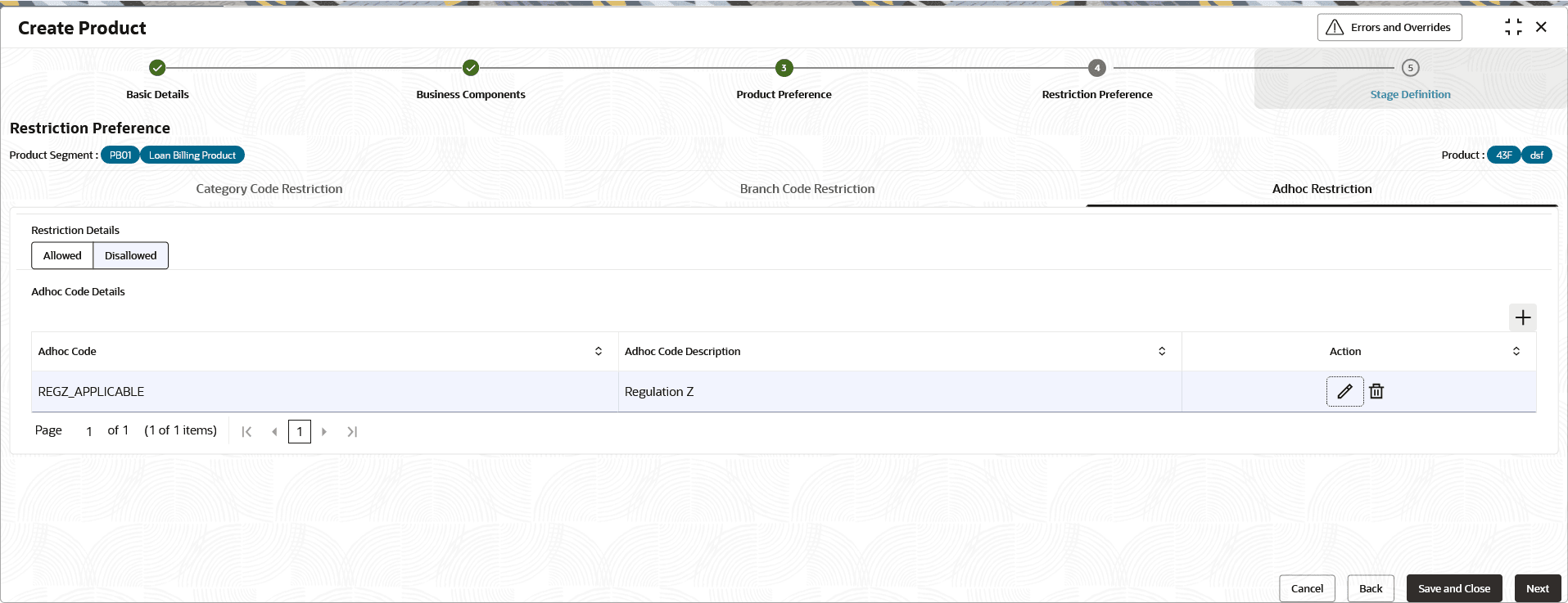
- Select the Adhoc Restriction tab.The Restriction Preference - Adhoc Restriction screen is displayed.
User can create a product with allowed/ disallowed list of Adhoc codes in Restriction preference. The allowed values of adhoc codes are defined by the lookup type ADDL_RESTRICTION
- Select the appropriate option allow/disallow some products for configuring restriction preferences.
- Specify the fields on the Restriction Preference - Adhoc Restriction screen.
Figure 2-61 Restriction Preference - Adhoc Restriction
Table 2-61 Restriction Preference - Adhoc Restriction - Field Description
Field Description Adhoc Code Details This section enables the configuration of products subject to Regulation Z (Reg Z) and Insider exposure limit. + button Click to add a row. Delete Click to delete a row that is already selected. Adhoc Code Specify the allowed/disallowed adhoc code from the drop-down list. The available options are:- REGZ_APPLICABLE- If attached, the product is categorized as Reg Z-enabled, and corresponding compliance features shall be triggered. This is to identify whether the Product is RegZ applicable or not
- INSIDER_LIMIT_APPLICABLE - If attached to a product, insider lending limit validations will apply. The Insider Exposure Service aggregates the balances of all accounts under this product to calculate the total party exposure.
Adhoc Code Description Displays adhoc code description. Action Displays the actions to be taken for restriction preference. The available options are:- Edit - Click to edit the restriction preference. As user clicks this icon, the fields becomes editable. User can edit the required details and click Save.
- Delete - Click to delete the restriction preference record.
Parent topic: Create Product