10 Configure Oracle Banking Retail Lending Servicing UI Domain and Cluster

The configurations for the new domain and cluster need to be completed as a part of the installation of the Oracle Banking Retail Lending Servicing.

The prerequisites are as follows:
  1. The machine should have Java JDK has installed.

  2. The machine should have Fusion Middleware Configuration Wizard installed.

    Note:

    For the exact version to be installed, refer to the Software Pre-requisites section in the Oracle Banking Retail Lending Servicing License Guide.

To configure the domain and cluster:

  1. On the Fusion Middleware Configuration Wizard window, click Create Domain.

    The Create Domain segment is displayed.

  2. On the Configuration Type segment, select Create a new domain, and specify the file path of the domain in the Domain Location field.
  3. Click Next.

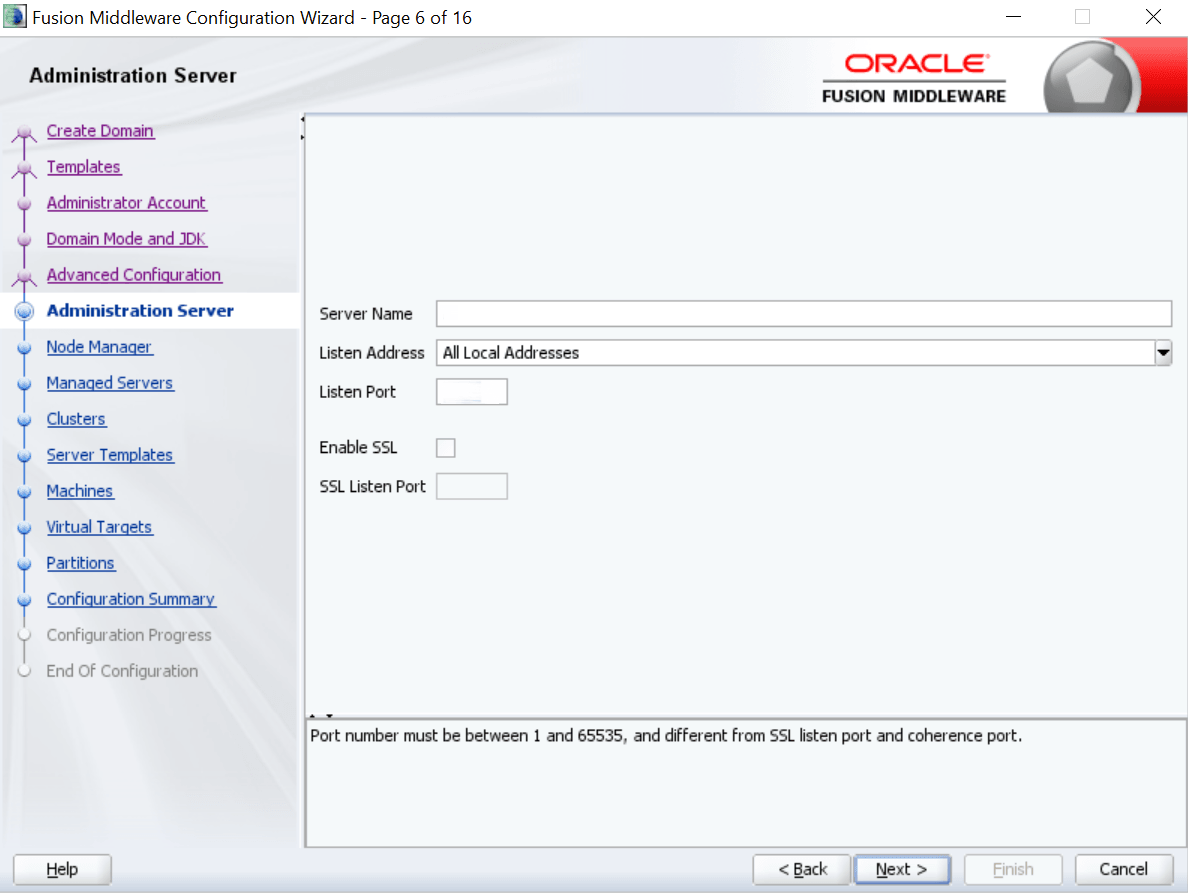
    The Administration Server segment is displayed.

    Figure 10-2 Administration Server Details


  4. In the Administration Server segment, specify the fields. For more information on fields, refer to the field description table.

    Table 10-1 Administration Server - Field Description

    Field Description

    Server Name

    Specify the name of the server.

    Listen Address

    Select All Local Addresses from the drop-down values.

    Listen Port

    Specify the listen port.

    Enable SSL

    Select if the SSL needs to be enabled.

    SSL Listen Port

    Specify the SSL listen port.

    Note:

    This field is enabled only if Enable SSL is selected.
  5. Click Next.

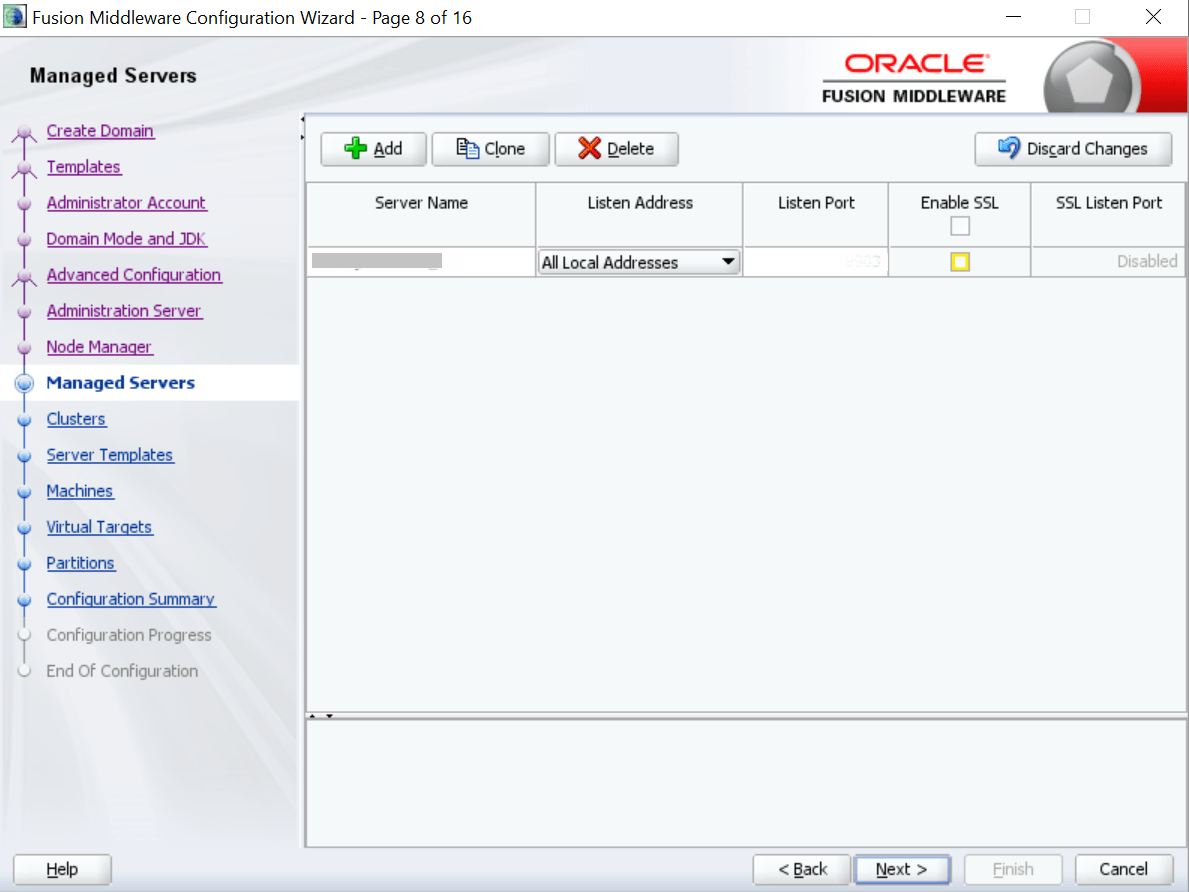
    The Managed Servers segment is displayed.

  6. In the Managed Servers segment, add an entry for the managed server. For more information on fields, refer to the configure-oracle-banking-retail-lending-servicing-ui-domain-cluster.html.
  7. Click Next.

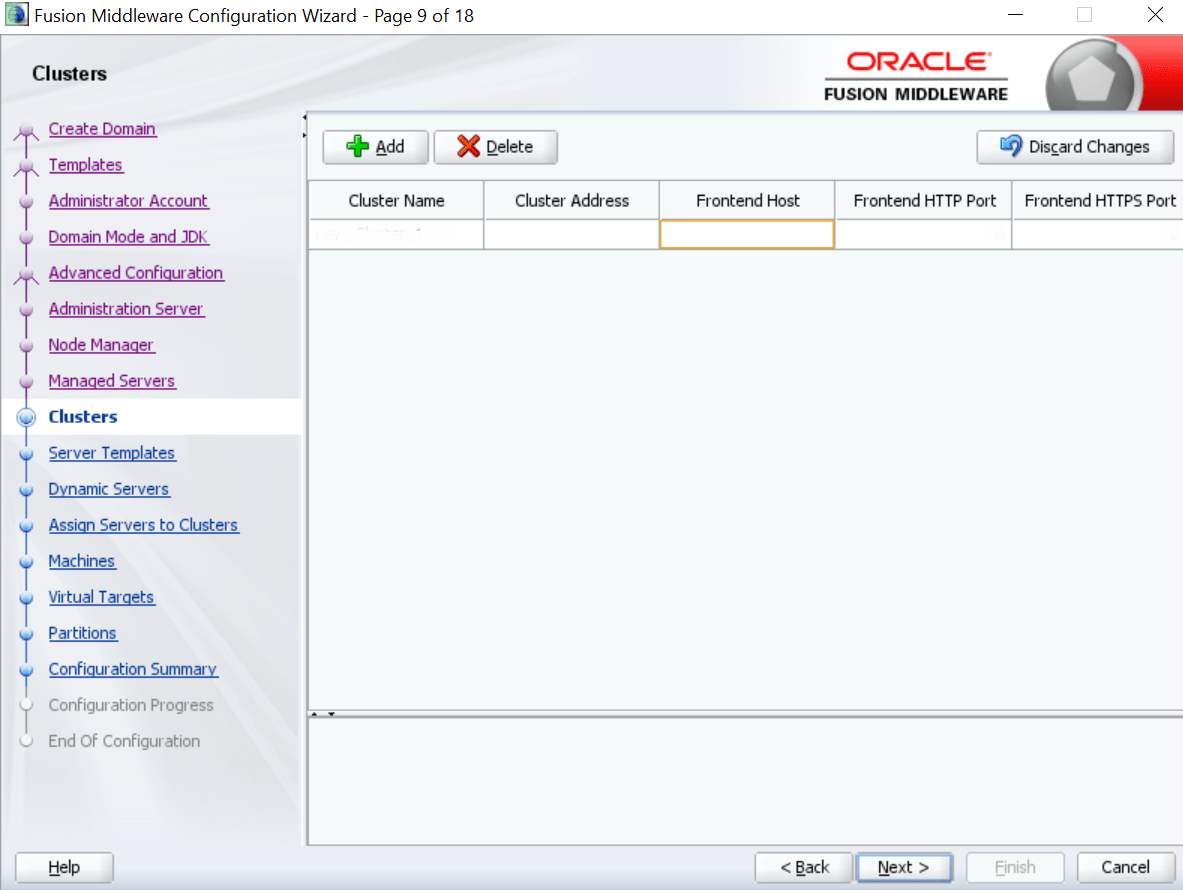
    The Clusters segment is displayed.

  8. In the Clusters segment, add an entry for the cluster. For more information on fields, refer to the field description table.

    Table 10-2 Clusters - Field Description

    Field Description

    Cluster Name

    Specify the name of the cluster.

    Cluster Address

    Specify the address of the cluster.

    Frontend Host

    Specify the value of the front-end host.

    Frontend HTTP Port

    Specify the value of the front-end HTTP port.

    Frontend HTTPS Port

    Specify the value of the front-end HTTPS port.

  9. Click Next.

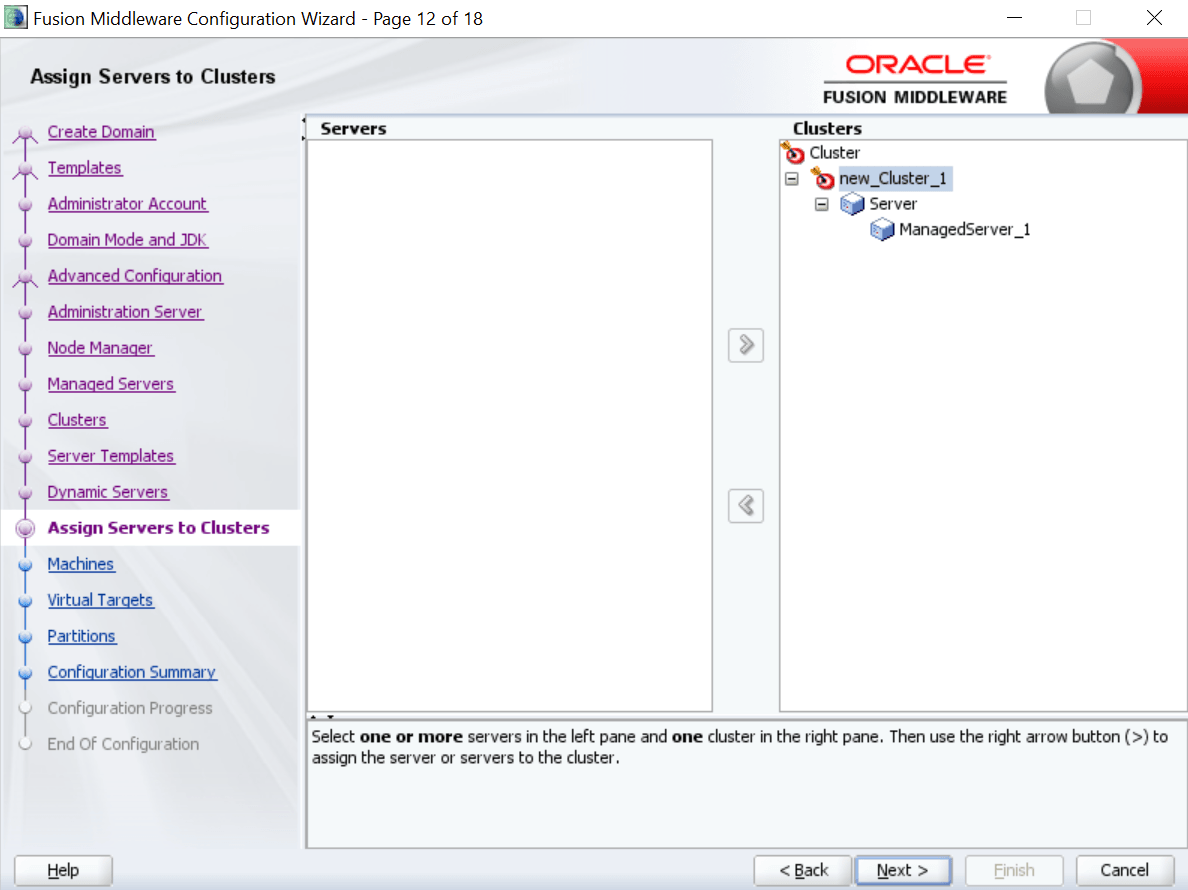
    The Assign Servers to Clusters segment is displayed.

    Figure 10-5 Assign Servers to Clusters


  10. In the Assign Servers to Clusters segment, assign the necessary servers.
  11. Click Next.

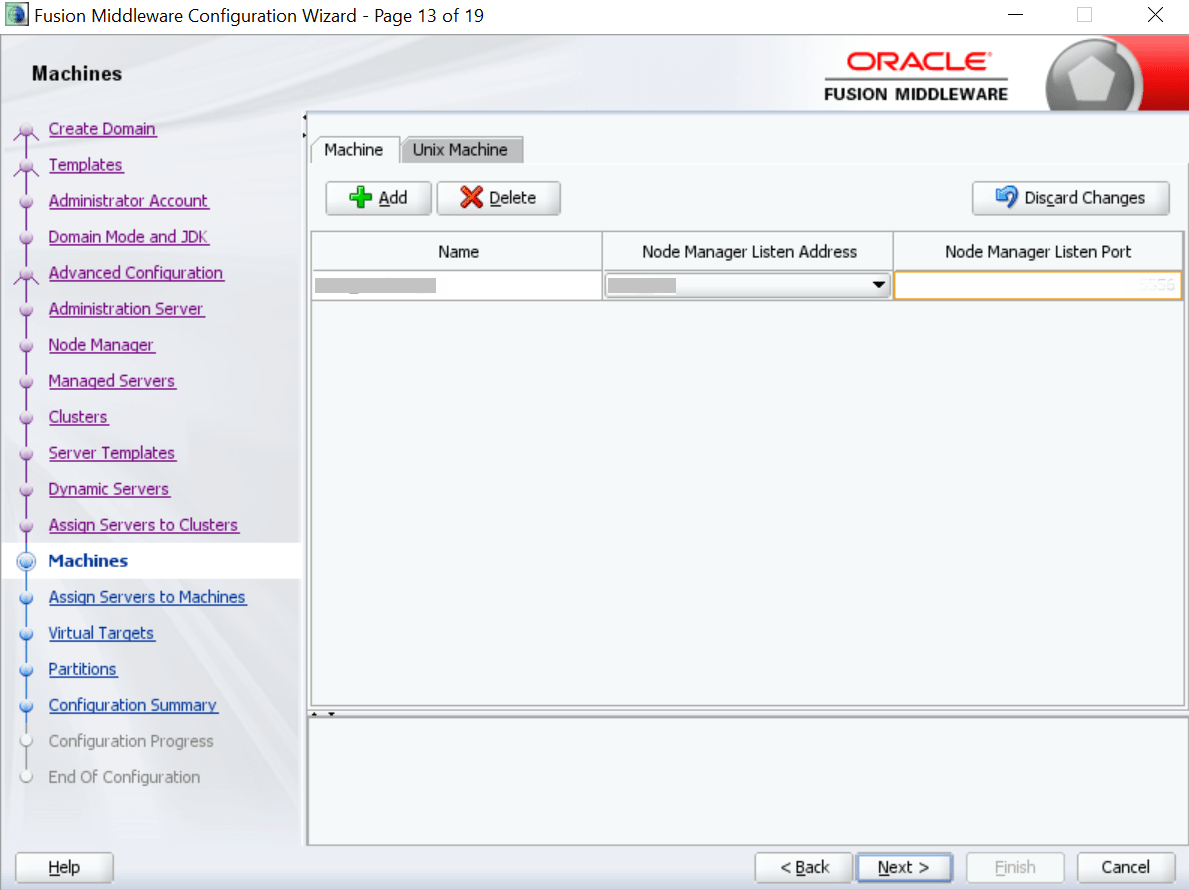
    The Machines segment is displayed.

  12. In the Machines segment. add an entry for the machine. For more information on the fields, refer to the field description table.

    Table 10-3 Machines - Field Description

    Field Description

    Name

    Specify the name of the machine.

    Node Manager Listen Address

    Select the listen address of the node manager from the drop-down values.

    Node Manager Listen Port

    Specify the listen port of the node manager.

  13. Click Next.

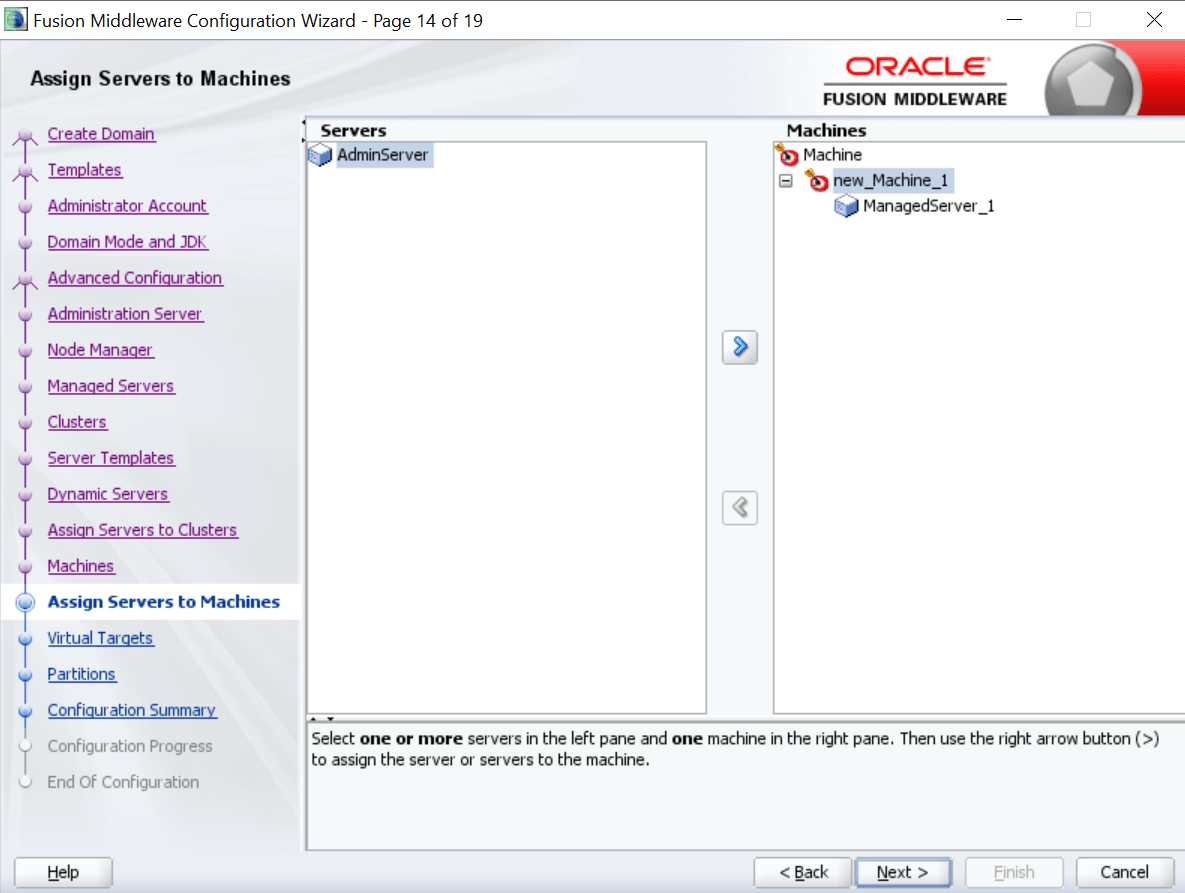
    The Assign Servers to Machines segment is displayed.

    Figure 10-7 Assign Servers to Machines


  14. In the Assign Servers to Machines segment, assign the required machine
  15. Click Next.

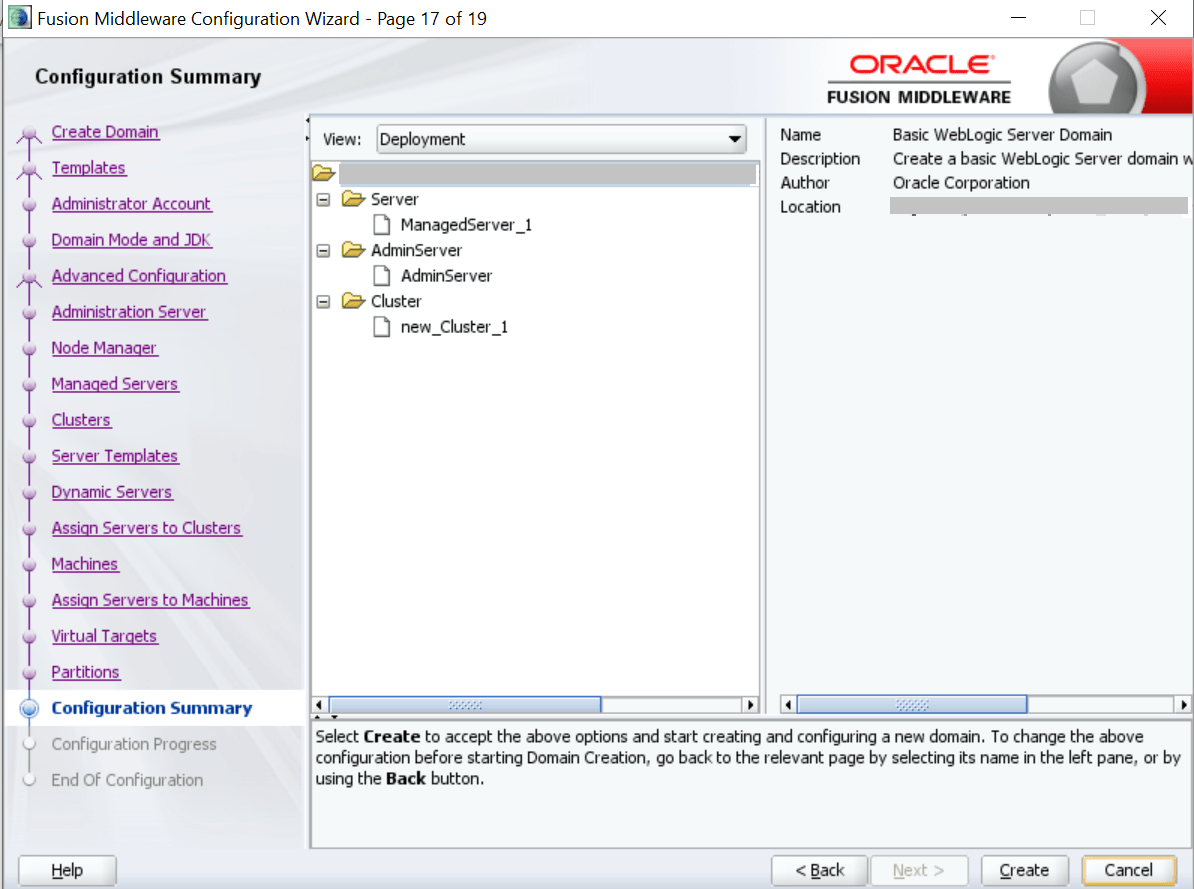
    The Configuration Summary segment is displayed.
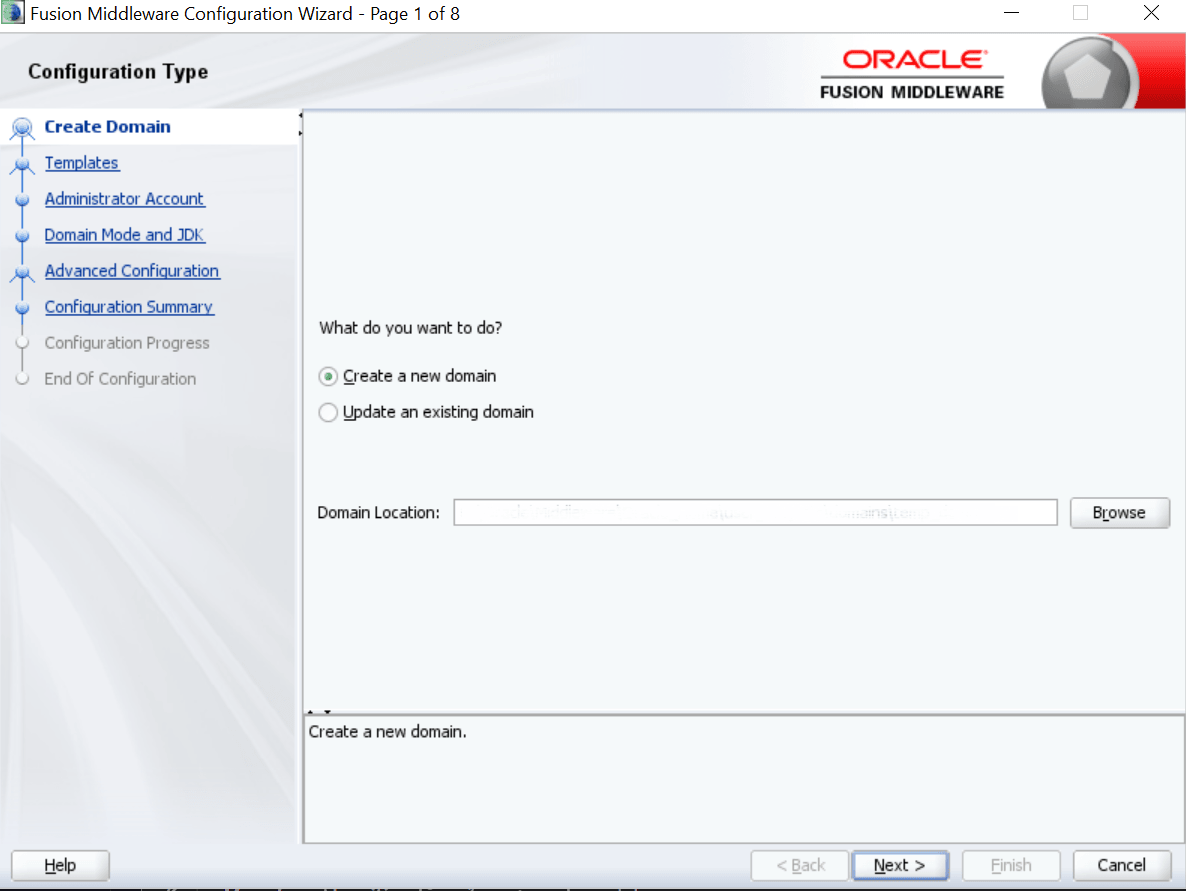
    Figure 10-8 Configuration Summary


  16. Click Create to configure a new domain.