1.5.1 Menu
Under Menu, access the various Transaction screens, Queries,
Maintenances etc. through this menu based on the user profile eligibility.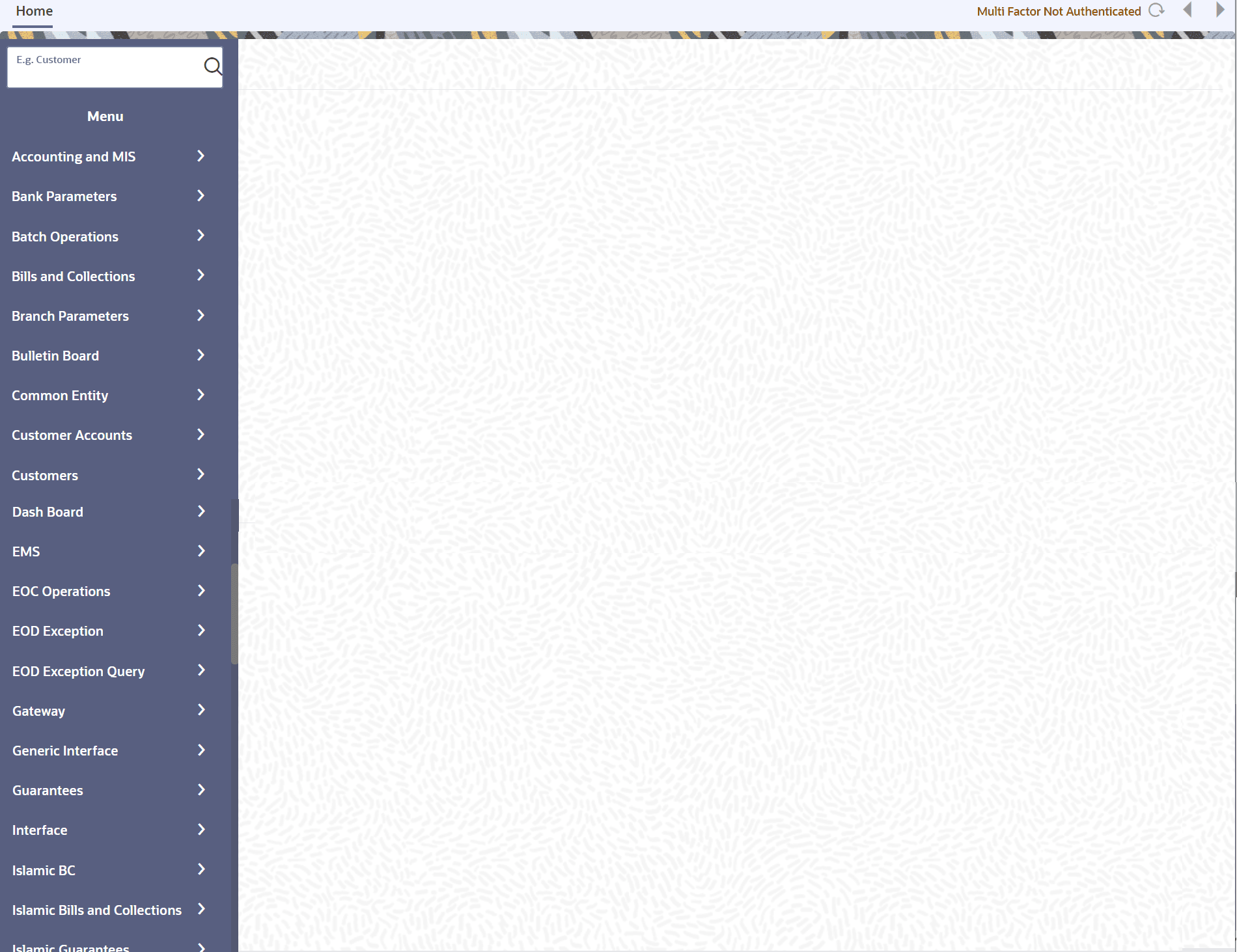
Description of the illustration 2.5.1_menu.png
Initially, only the module names are displayed. To open a screen, hover over a
module and click. The list of functions for the selected module is displayed. Click a
function to view the related sub-functions or options in the adjacent pane.
Click on the required option. The screen for the particular option is displayed. If there are no options for a particular function, the function is activated.
Only those functions having access rights in a module are displayed. If user is not having access rights to the module then the module is not displayed.
When an existing record is opened from the Application Browser, the screen is displayed in view mode and modifications are not allowed. To make changes, click Unlock to unlock the record. Once unlocked, the required modifications can be made.
Click Unlock, all action buttons become disabled except the Save button. After required changes, click Save icon to save the record. If changes are not saved, click Exit and the message “Do you want to cancel the operation?” gets displayed.
Click OK to return to the Application Browser or the screen from which the action was invoked, without saving the changes.
Parent topic: Home