Installing the Documaker Add-In for Word
The Documaker Add-In for Microsoft Word is an optional module that lets you create Documaker documents using Microsoft Word.
Note:
Before installing the Documaker Add-In for Word, you must make sure is installed on the computer.If you have older versions of Word installed on the computer that will run the Add-In, uninstall those versions of Word before you install the Add-In.
After you install Studio and the Documaker Add-In, be sure to run Word before you import files into Studio, otherwise the Documaker Add-In will not load when Studio starts Word as part of the import process. If the Documaker Add-In does not appear, see If the Documaker Add-In does not Appear in Word section below for more information.
Add-In requirements
| Item | Version |
|---|---|
| Microsoft .NET Framework | Version 3.5. You can have other versions of .NET Framework too, but you must have version 3.5. |
| Item | Version |
|---|---|
| Microsoft Visual Studio 2010 Tools for Office Runtime (x64) Setup | Version 3.0 with Service Pack 1 or higher |
Note that the Microsoft .NET Framework must be installed before the VSTO Runtime.
In addition, Microsoft .NET Programmability Support for Word must be enabled. For more information, see Checking for.NET Programmability Support.
Note:
You can only install one copy of the Documaker Add-in for Word on a computer. For best results, use the same version of Studio and the Add-In. For example, a new feature in version 13.0.0 of the Add-In might not be recognized in an earlier version of Studio.Configuring Resource Options
During installation, the Setup wizard lets you override default resource location options. You can override these locations at this time or you can change the locations as needed while working in the Add-In by choosing Options from the Documaker ribbon.
| Option | Description |
|---|---|
| Workspace Service URL | (Optional) Enter the default web address for the Docupresentment web service. This service can be used to download workspace definition files. |
| Workspace Definition Folder | Enter the default location for storing workspace definition files (WDF). |
| Resource File | Enter the name of the local resource file for this installation. This XML file contains all of your locally created resources. The default is: localresources.xml
If this file is missing, the system generates a new copy of it. |
| Graphics Folder | Enter the default location for storing graphic files. |
| Default Graphic | Enter the file name and extension for the default graphic, also called the placeholder image. The Add-In displays this graphic if it cannot find a specified graphic. |
| Log Folder | Enter the default location for storing log files. These files contain error and other operational messages which can be useful when diagnosing problems. |
Updating Microsoft Word
For best results, make sure you have installed the latest updates to your version of Microsoft Word.
Starting the Documaker Add-In for Word
After you install the Documaker Add-In for Microsoft Word, the next time
you start Microsoft Word, you will see this message if you have Internet access: 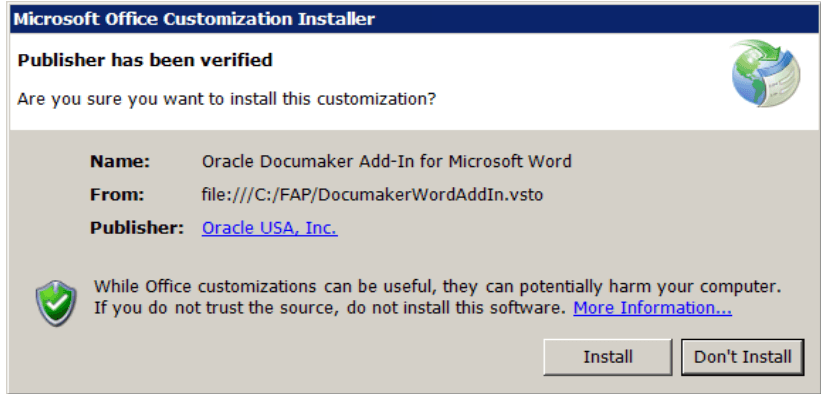
Publisher cannot be verified.
Are you sure you want to install this customization?
To continue, click Install.
Click Install to continue. Then make sure
the Documaker tab appears as the last tab on the Microsoft Word ribbon.
If the Documaker Add-In does not Appear in Word
- Click the Microsoft Office button and select Word Options.
- On the left pane of the Word Options window, click Add-Ins.
- At the bottom of the Word Options window, for Manage select COM Add-ins, then
click Go.

- Click the Oracle Documaker Add-In for Microsoft Word entry to enable it. Then click OK.
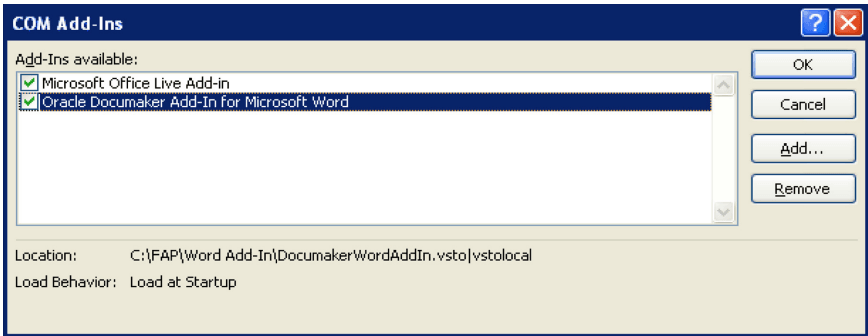
imageNote:
If the Oracle Documaker Add-In for Microsoft Word entry does not appear, see If the Documaker Add-In does not appear as an inactive add-in section below.The Documaker tab should now appear in Word. If it does not, close and reopen Word.
If the Documaker Add-In does not appear as an inactive add-in
- Scroll down the list of add-ins until you see the Disabled Application Add-Ins
section.
If Oracle Documaker Add-In for Microsoft Word appears in the Disabled Application Add-Ins section, complete these remaining steps:
- At the bottom of the Word Options window, on the Manage list, select Disabled Items, then click OK.
- Click the Oracle Documaker Add-In for Microsoft Word entry to highlight it. Then click Enable.