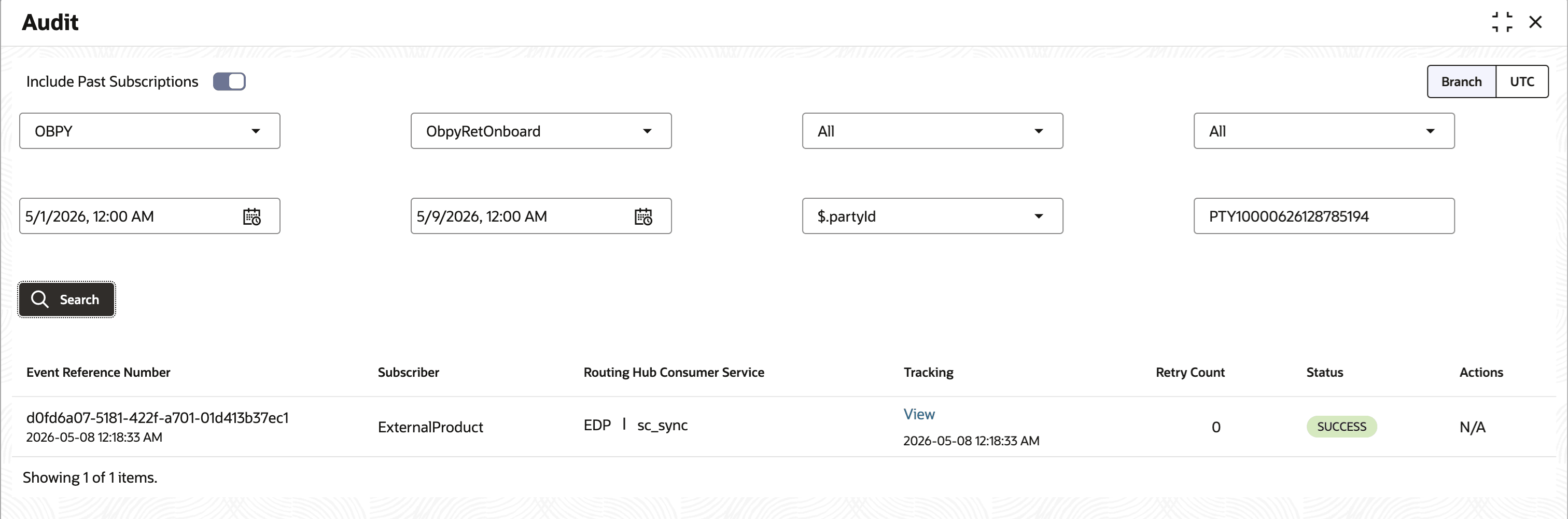
5 Audit screen

This topic describes the systematic instructions to audit events.

  1. From Homescreen, click Event Delivery. Under Event Delivery, click Audit.

To view the messages of the external products:

  1. Select the search criteria to filter out the messages.
    1. From the Select Publisher drop-down list, select the publisher product.
    2. From the Select Published Event drop-down list, select the published event for the product.
    3. From the Select Subscriber drop-down list, select the subscriber.

      Note:

      Since there can be multiple subscribers to a single event, user can select All or any Subscriber.
    4. From the Select Status drop-down list, select the status of the event.
    5. From the From Date and Time date calendar, specify the start date and time.
    6. From the To Date and Time date calendar, specify the end date and time.
    7. From the Select JSON Search Key drop-down list. select the json key.

      Note:

      This field appears, when the Select Status is selected as Failure or Unsubscribed.
    8. From the Enter JSON Search Value, specify the json search value.
  2. Click Search, based on search criteria the search result appears.
    The Audit Search with Filters screen appears.
    1. Include Past Subscription Toggle on Audit Screen: When turned on, user can see the audit for deleted subscriptions or deleted topics. If false, user only sees audit for topics which have active subscription (current behaviour).
    2. Time Zone Configurability on Audit Screen: There is now a toggle on right hand side of audit screen. User can see the audits in Branch time zone or UTC timezone, whichever is selected.
    3. Date Range configurability: There is default 72 hour window to select the date range in audit screen filters. When an exact field is given in filter to search with, then the date window can expand to 15 days.