3 Annexure: File Synchronization FAQs
This section provides answers to common questions encountered during the configuration of file-based data synchronization between systems.
These Frequently Asked Questions (FAQs) are designed to help you successfully navigate your implementation journey. They address common issues and configuration challenges that other implementation teams have encountered. By anticipating and understanding these topics, you can proactively avoid potential pitfalls and ensure a smoother implementation experience.
1. What are the steps we need to follow to configuration data sync between two systems.
Let’s understand this through an example to understand the steps clearly, assume a legacy system (called LEGACYSYS) is sending the party data in the CSV format that needs to be updated in the Oracle Banking Party Management system (called OBPY).
Step 1: Create the Source System (LEGACYSYS)
In the first step of the integration setup, the user must create the source system from which the file will be received in interconnect. Enter basic identification details like unique System Code, a meaningful System Name and System Description and selecting the appropriate Date Format that the system uses for data exchange. System code provided here, must be referenced in the incoming file name for system identification.
As a next step, the user proceeds to define one or more source transactions under it. Each transaction requires inputs such as a Transaction Code, Transaction Name, and a brief description explaining its purpose. An Alias must also be provided, which will be referenced in the incoming file name for transaction identification. You can define multiple transactions for a single Source System.
Then select the medium through which files will be received, such as a folder-based pickup or an API-based transfer and provide the details related to the selected mode.
Note:
- Multiple Data Definitions are allowed to be created, as source transaction can send the file in multiple formats. Provide a unique alias to each data definition which will be referenced in the incoming file name for format identification.
- For the source data definition only field names are required, as the data validations will happen based on the target data fields which are mapped to the defined source format field.
- For EBCDIC file formats, the data definition can directly be imported by uploading the Cobol copybook file.
Step 2: Create the Target System (OBPY)
In this step, the user must set up the target system in which the data should be sent by the interconnect. Enter basic details of the system such as system code, name, description and date format in which the system processes the date fields.
The user then creates the target transaction by entering essential details such as the transaction code, name, and description. Provide the appropriate data exchange method—API or Service which will be used to send the file to the target system, along with its required attributes like application details, consumer/service parameters, chunk size, and retry settings to enable accurate processing at the target system. You can create multiple transactions for a single target System if you need to support different data uploads.
Next, define the data structure which the interconnect will send to the target system for the respective transaction. Define all the fields along with its attributes—such as allowed values, mandatory flag, data type and length constraints—ensuring that field can be accurately interpreted and processed by the target system.
Refer section – ‘Intended Configuration for Data Definition’ to create the structure for the incoming data.
Note:
The system offers an upload feature that enables automatic import of the data structure by extracting the API definition from the uploaded file.Step 3: Create Integration (LEGACYSYS~OBPY)
In the final step, use the Create Integration screen to link the source and target transactions by selecting both systems, their roles (Source/Target), and the required format. This should be followed by configuring the data field mappings in alignment with the data definitions of the respective source and target transactions.
Note:
The system offers an AI map feature that intelligently analyses the field names, types, and context from both source and target sides and automatically maps fields based on semantic similarity and data pattern recognition.Intended Data Definition Configuration
Record Level - The root object (ROOT) is a kind of record level which represents the top-level entity, such as a Payment, Product, Loan, or Insurance Product.
- Scalar fields (basic attributes with Flat records)
- Segment objects (attributes inside a segment – nonrepeating entity)
- Child arrays (for repeating entities)
Let’s understand various use cases along with an example to clearly understand the configuration required in the system.
Use Case 1: A record with all scalar fields. (Applicable for both source and target data definition)
Example: Payment details with each record consist of debit, credit and transfer information. (All are scalar fields)
{
  "paymentDetails": [
{
   "debitAccount": "918246974",
   "valueDate": "2005-12-31",
   "transactionCode": "DOM",
   "creditAccount": "2139856495",
	 "currency": "EUR",
   "amount": "25.00",
},
{
   "debitAccount": "25352353",
   "valueDate": "2005-12-31",
   "transactionCode": "DOM",
   "creditAccount": "91352721313",
	 "currency": "EUR",
   "amount": "50.00",
}
 ]
}
This structure represents when a record consists of only the scalar fields.
Add a record (paymentDetails) and define all the scalar fields for this record.
Use Case 2: A record with all scalar fields though few scalar fields are grouped called Segments. (Applicable only in target data definition)
Example: Payment details with each record consist of debit, credit, transfer details and creditor address details. Debit, credit and transfer details are scalar fields, and the address fields are segment fields.
{
  "paymentDetails": [
{
   "debitAccount": "918246974",
   "valueDate": "2005-12-31",
   "transactionCode": "DOM",
   "creditAccount": "2139856495",
	 "currency": "EUR",
   "amount": "25.00",
   "addressDetails": {
       "addressLine1": 12, Boulevard
       "addressLine2": Fan Street
       "city":London
       "country": UK
   }
},
{
   "debitAccount": "25352353",
   "valueDate": "2005-12-31",
   "transactionCode": "DOM",
   "creditAccount": "91352721313",
	 "currency": "EUR",
   "amount": "50.00",
   " addressDetails ": {
       "addressLine1": 12, Boulevard
       "addressLine2": Fan Street
       "city":London
       "country": UK
   }

}
 ]
}
- Add a record (paymentDetails) and define all the non-grouped fields for this record.
- Add a segment (addressDetails) to a record (paymentDetails) and define all grouped fields in it.
Use Case 3: A record with scalar fields and child with scalar fields. (Applicable for both source and target data definition)
Example: A record consisting of payment details. Each payment has some invoices attached to it with invoice details.
Payment, PAY123,2025-11-24,EUR,5000,ABC Corp
Invoice,INV001,2025-10-01,2000
Invoice,INV002,2025-10-05,1500
Invoice,INV003,2025-10-10,1500
- Add a record (paymentDetails) and define all record fields.
- Add a child (invoiceDetails) to a record (paymentDetails) and define all child fields in it.
Use Case 4: A complex data structure where a record with scalar fields and segment fields are present. A child is also present, and this child also has a child associated to it.
Note: The example we are taking here is for target data structure. Though source data structure can also have similar complexity given it cannot have segment.
{
  "ROOT": {                                    --Record
    "productCode": "1234512345",
    "productDate": "2005-12-31",
    "transactionCode": "MTEST2",
    "productId": "123",
    "productName": "SNAME",
    "basicDetails": { ... },                   --Segment-1 of Record
    "componentPreference": { ... },            --Segment-2 of Record
    "interestProductMapping": [ ... ],         --Child-1 of Record
    "chargesProductMapping": [ ... ]           --Child-2 of Record
  }
}
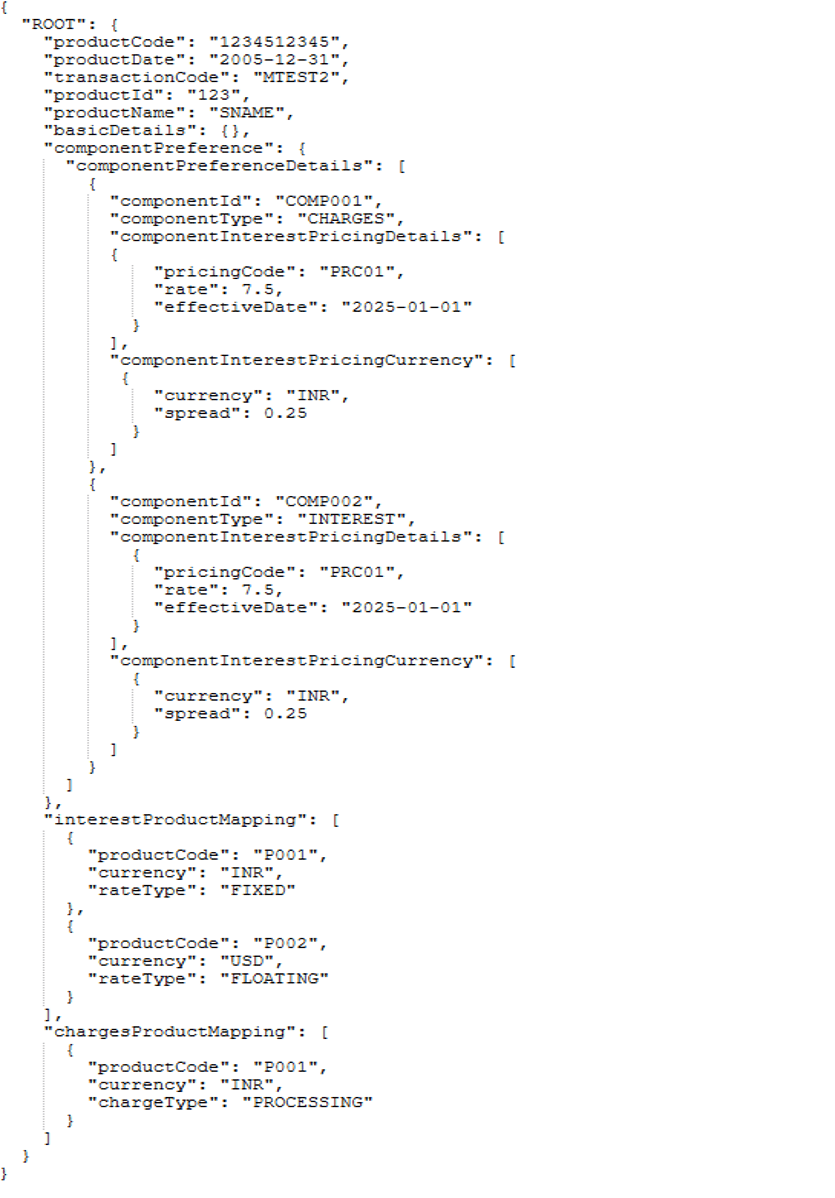
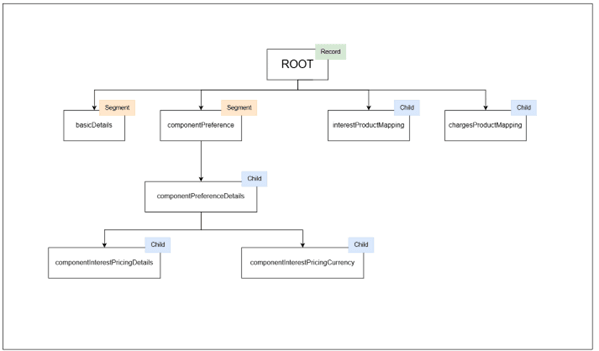
- Add a record (ROOT) and define all the non-grouped fields for this record.
- Add a segment (basicDetails) to a record (ROOT) and define all fields of basic details in it.
- Add a segment (componentPreference) to a record (ROOT) and define all scalar fields of component preference details in it.
- Add a child (componentPreferenceDetails)to a segment (componentPreference)and define all scalar fields of componentPreferenceDetails in it.
- Add a child (componentInterestPricingDetails)to a child (componentPreferenceDetails)and define all scalar fields of componentInterestPricingDetails in it.
- Add a child (componentInterestPricingCurrency)to a child (componentPreferenceDetails)and define all scalar fields of componentInterestPricingCurrency in it.
- Add a child (interestProductMapping) to a record (ROOT) and define all scalar fields of interestProductMapping in it.
- Add a child (chargesProductMapping) to a record (ROOT)and define all scalar fields of chargesProductMapping in it.
Note:
- A segment is allowed to include a nested segment or child element.
- A child element may also include a nested segment or another child.
- Interconnect supports a maximum hierarchical depth of three levels.
Summary of Hierarchical Rules
Table 3-1 Summary of Hierarchical Rules
| Level | Type | Example | Remarks |
|---|---|---|---|
| RECORD | Object | Product, Loan, Insurance | Contains SEGMENTS and CHILDS |
| FIELD | Primitive | productCode, rate, currency | Scalar fields |
| SEGMENT | Object | componentPreference, productPreferenceMaster | Nested under RECORD |
| CHILD | Array of objects | componentPreferenceDetails, chargesProductMapping | Direct children of RECORD |
| NESTED CHILD | Array of objects | componentInterestPricingDetails inside componentPreferenceDetails | Children of SEGMENT or CHILD |
Note:
- User can create multiple children or segments as siblings under Record.
- User can create multiple children or segments under a segment or children.
- Assign unique field names across arrays to avoid pre-parse errors.
Yes. You can multiple transactions for a System.
Yes. You can create and associate multiple source formats for a single source transaction. Ensure that each format is assigned a unique format alias so the system can correctly identify the appropriate format during processing.
No. A target transaction can be associated with only one format. Multiple formats are not supported for target transactions, as the system expects a single, consistent target structure for transformation and mapping.
This occurs when new elements are added under the previously created node instead of the intended parent.
Ensure that each new child or segment is explicitly created as a direct node of the parent, not of the last added element, to maintain the correct hierarchy structure.
Yes. You can rename, delete, or edit nodes and fields within the data definition.
However, it is recommended to avoid renaming attributes after source to target fields mapping has been completed, as it may lead to inconsistencies or mapping errors.
This occurs when the Data Integration screen is open. Close the Data Integration screen, then open the System Detail view. The associated transactions and their configured formats will be visible and available for editing there.
Uploading a file in the target file format means submitting a file that follows the data structure, schema, and field definitions defined for the target system so that the system can process it directly without transformation.
When you upload a file in the target format, you are uploading a file that:
- Is a CSV file with comma separator.
- Matches the target system’s data structure.
- Contains the exact field names and order defined in the target data definition.
- Uses the configured data types and constraints (for example: text, number, date).
Since the file already matches the target structure, the system will not transform or map the data before sending it to the target system.
Note:
Enrichments are not applicable for the target file upload.