2.7 Global Configuration

This topic describes the global configuration settings required to enable and manage system-wide features.

  1. From Home screen, click Interconnect. Under Interconnect, click File Exchange.
  2. Under File Exchange, click Global Configuration.
    The Global Configuration screen displays.

    Figure 2-31 Global Configuration


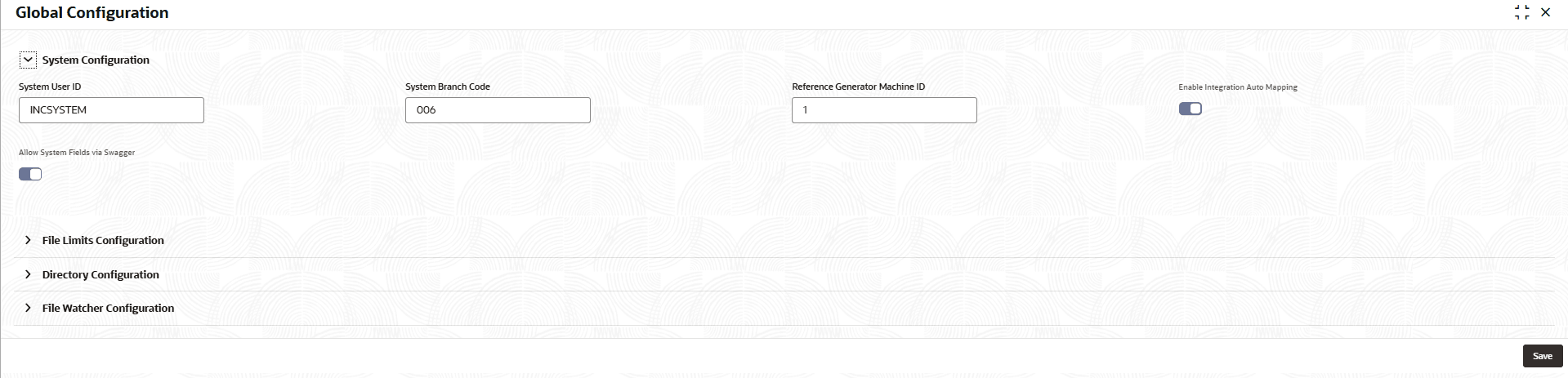
  3. Click System Configuration to specify the system configuration details.
    The System Configuration screen displays.

    Figure 2-32 System Configuration


  4. Specify the fields on System Configuration screen.

    For more information on fields, refer to the field description table.

    Table 2-27 System Configuration - Field Description

    Field Description
    System User ID Specify the system-level user ID used by the application to perform automated operations and integration processes.
    System Branch Code Specify the branch code associated with the system user for processing transactions.
    Reference Generator Machine ID Specify the machine identifier used by the system to generate unique reference numbers.
    Enable Integration Auto Mapping Click the toggle status to enable automatic mapping of fields between the source and target systems during integration.
    Allow System Fields via Swagger Click the toggle status to allow data definition fields to be uploaded through Swagger API.
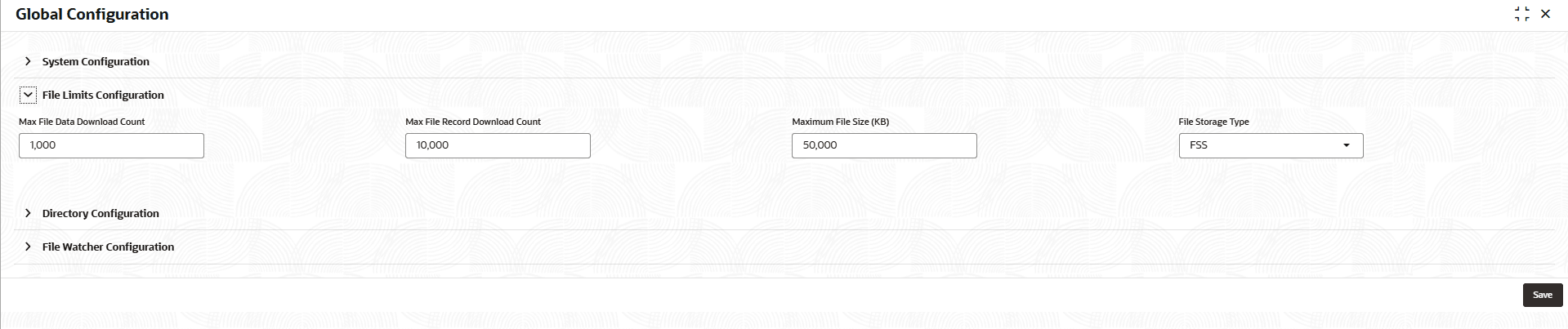
  5. Click File Limits Configuration to specify the file limits configuration details.
    The File Limits Configuration screen displays.

    Figure 2-33 File Limits Configuration


  6. Specify the fields on File Limits Configuration screen.

    For more information on fields, refer to the field description table.

    Table 2-28 File Limits Configuration - Field Description

    Field Description
    Max File Data Download Count Specify the maximum number of file inquiry entries that can be downloaded in a single request.
    Max File Record Download Count Specify the maximum number of records that can be downloaded in a file.
    Maximum File Size (KB) This field defines the maximum allowed size of a file that can be allowed in system for processing, measured in kilobytes.
    File Storage Type Specify the storage mechanism used by the system to store uploaded files.
  7. Click Directory Configuration to specify the directory configuration details.
    The Directory Configuration screen displays.

    Figure 2-34 Directory Configuration


  8. Specify the fields on Directory Configuration screen.

    For more information on fields, refer to the field description table.

    Table 2-29 Directory Configuration - Field Description

    Field Description
    Upload Directory Specify the directory path where files are uploaded and stored before processing.
    Processing Directory Specify the directory path where uploaded files are moved for processing by the system.
    Completed Directory Specify the directory path where files are moved after successful processing.
    Error Directory Specify the directory path where files are moved when an error occurs during processing.
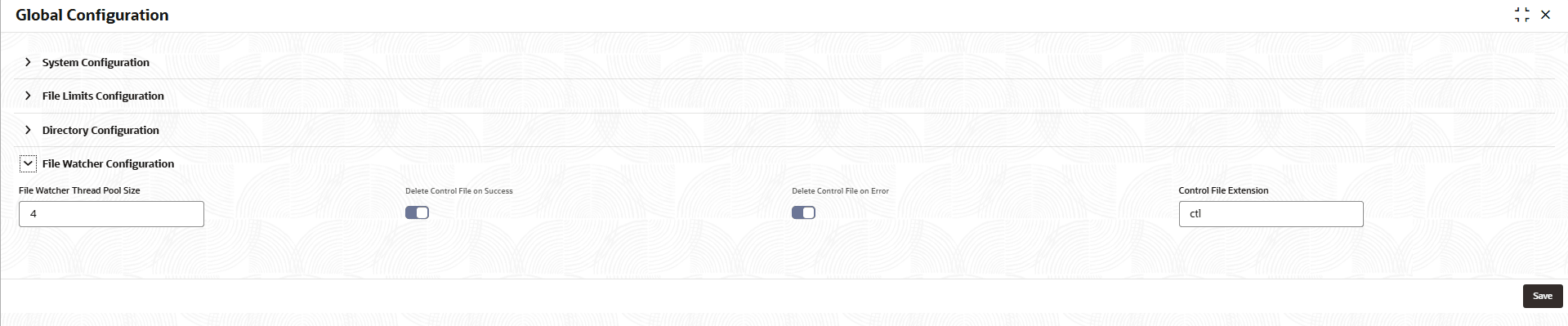
  9. Click File Watcher Configuration to specify the file watcher configuration details.
    The File Watcher Configuration screen displays.

    Figure 2-35 File Watcher Configuration


  10. Specify the fields on File Watcher Configuration screen.

    For more information on fields, refer to the field description table.

    Table 2-30 File Watcher Configuration - Field Description

    Field Description
    File Watcher Thread Pool Size Specify the number of threads allocated for monitoring and processing files in the configured directories.
    Delete Control File on Success This toggle indicates whether the control file is automatically deleted after the associated file is successfully processed.
    Delete Control File on Error This toggle indicates whether the control file is automatically deleted when an error occurs during file processing.
    Control File Extension Specify the file extension used for control files that trigger file processing by the file watcher.
  11. Click Save to save the configuration details.