2.6 File Inquiry
This topic provides information on how to view and verify the details of uploaded files.
- Under File Exchange, click File
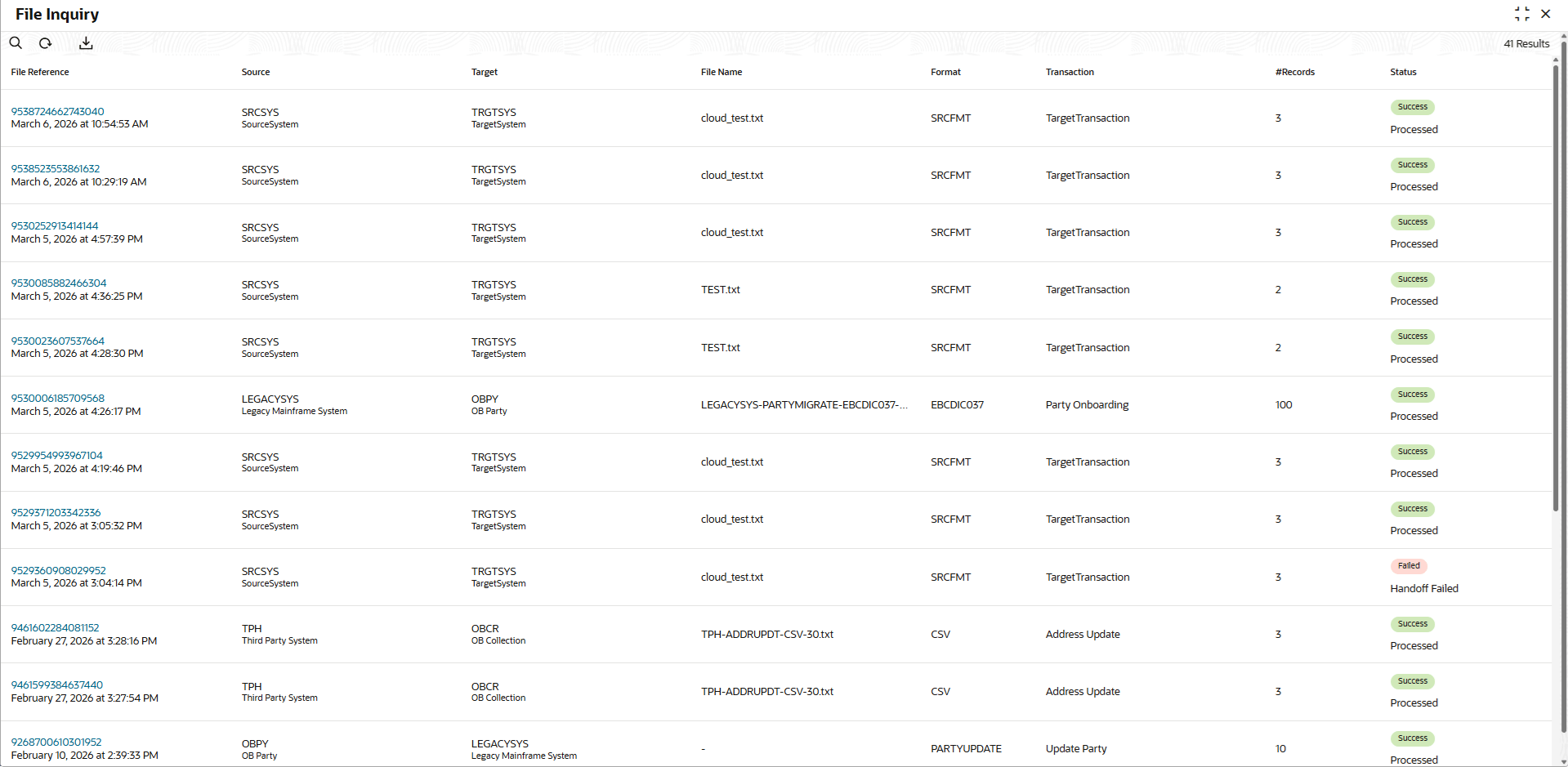
Inquiry.The File Inquiry screen displays. For more information on fields, refer to the field description table.
Table 2-24 File Inquiry - Field Description
Field Description File Reference & Date Time Displays the unique identifier assigned to the uploaded file and .the date and time when the file was uploaded or processed. Source System Code & Name Indicates the source system code and name from which the file is uploaded. Target System Code & Name Displays the target system code and name for which the file is uploaded. File Name Displays the name of the uploaded file, including its format and version details. Format Displays the file type or structure (for example, CSV, XML, or JSON). Transaction Refers to the Target transaction associated with the uploaded file. #Records Displays the total number of records contained in the uploaded file. Status Indicates the processing status of the file (for example, Success, Failed, or In Progress). - On File Inquiry screen, click
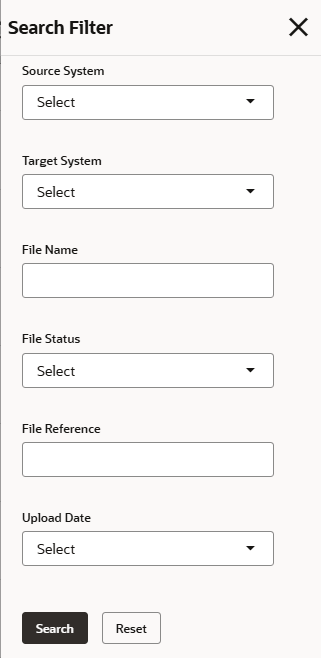
 icon.The File Inquiry - Search screen is displayed.
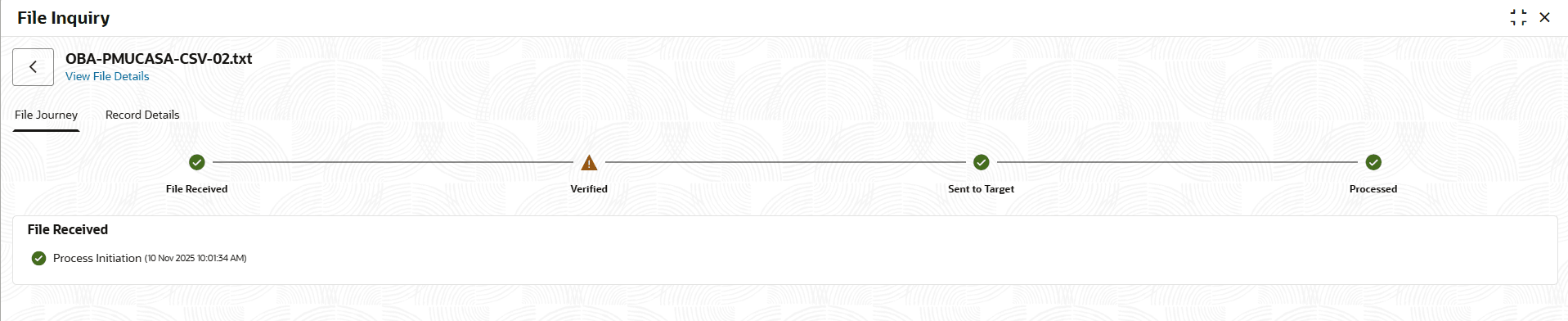
 - Click the hyperlink for each record to view its file details.The View File Details - File Journey screen displays.
Figure 2-28 View File Details - File Journey
Review the file processing steps:
- File Received - Indicates that the file has been successfully received by the system.
- Verified - Indicates that the uploaded file has been verified by the system.
- Sent to Target - Indicates that the file has been sent to the target system for processing.
- Processed - Indicates that the file has been successfully processed by the target system.
- Click the Record Details tab to specify the required
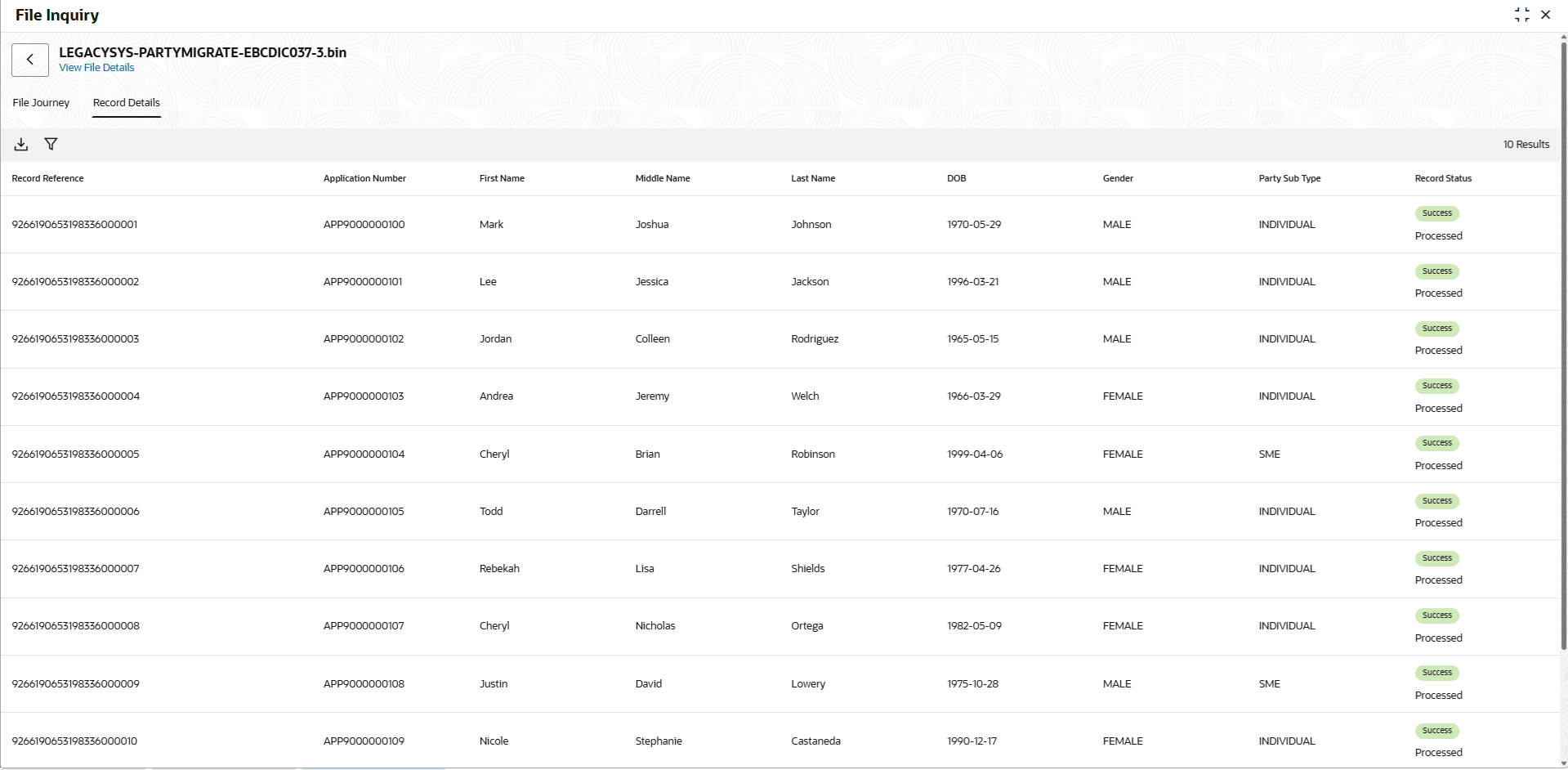
details.The View File Details - Record Details screen displays.For more information on fields, refer to the field description table.
Figure 2-29 View File Details - Record Details
Table 2-26 View File Details - Record Details - Field Description
Field Description Record Reference Displays the unique identifier assigned to the record. Dynamic Columns Columns are dynamic based on the configuration in the target. If selected to show on inquiry, those columns will appear here. Record Status Displays the current status of the record. Processing Status Indicates the outcome of the record processing. - On the selected file details, click the View File
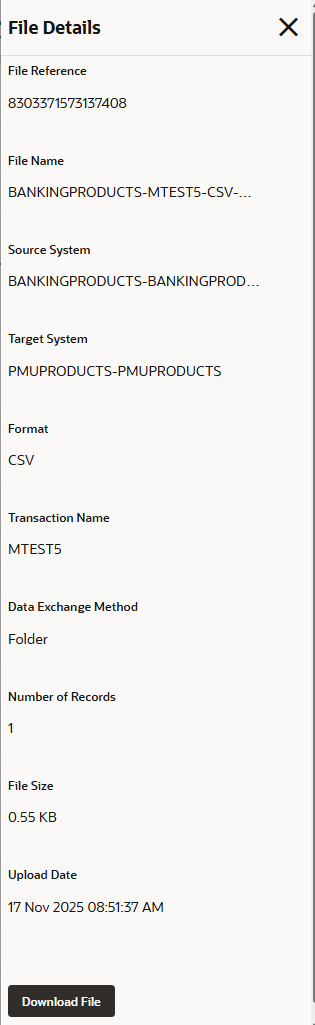
Details hyperlink to view the file information.The File Details - Download File screen displays.
Parent topic: File Exchange