2.1 Create System
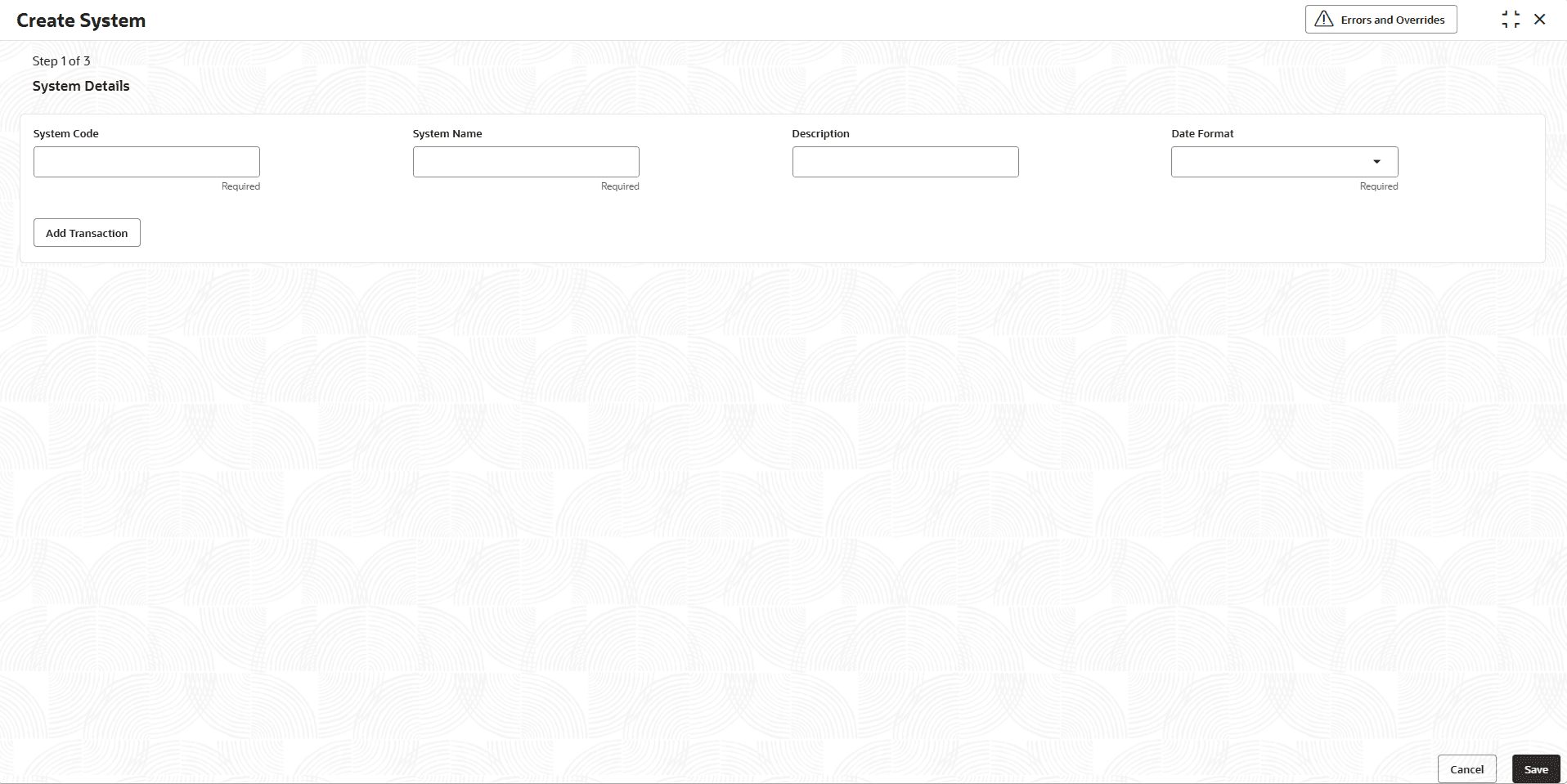
This topic describes the Create System component, which allows users to define and configure system definitions for source and target systems.
- Under File Exchange, click Create
System.The Create System screen displays.
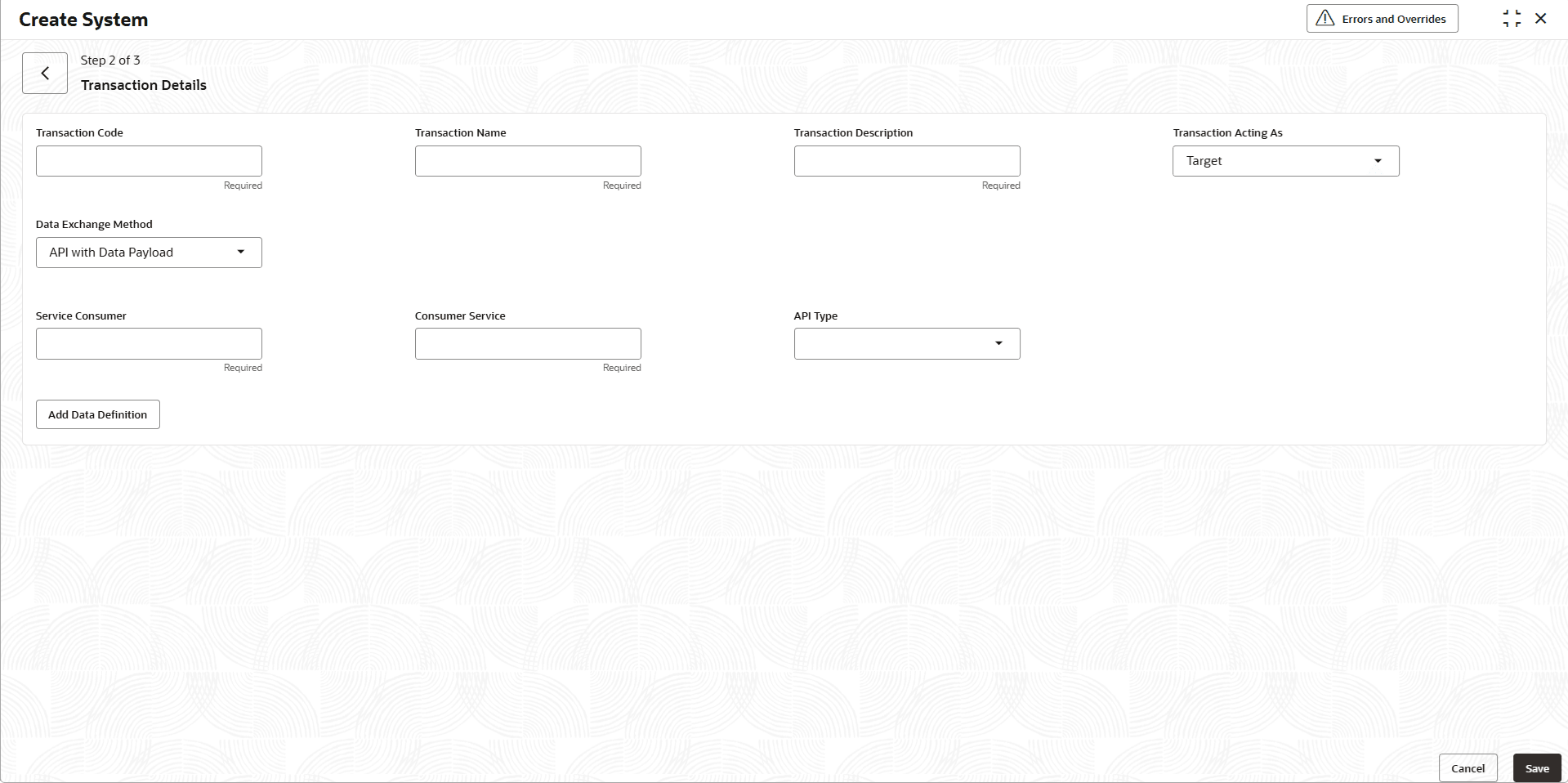
- Click the Add Transaction button to specify and
configure the integration details between the selected source and target
systems.The Transactions Details screen displays.
Note:
Users are allowed to add multiple transactions for the system. At one go, user can add a single transaction.For more information on fields, refer to the field description table.Note:
The fields marked as Required are mandatory.Table 2-2 Transaction Details - Field Description
Field Description Transaction Code Specify the unique code assigned to identify the transaction. Transaction Name Specify the name of the transaction being configured between the source and target systems. Transaction Description Specify the brief description of the transaction and its purpose. Transaction Acting As Select the role of the transaction in the integration. The options are:- Target
- Source
Transaction Alias Specify an alias to the transaction, used to reference the transaction when the file is uploaded in the system. This field value should come in the file name of the file uploaded. This field is enabled only when the Transaction Acting As is selected as Source.
File Transfer Method Select the file transfer from the drop-down list. The options are:- Folder
- API
This field is enabled only when the Transaction Acting As is selected as Source.
Incoming Folder Displays the directory or folder location where incoming files are received for processing. This field is enabled only when the File Transfer Method is selected as Folder.
File Naming Convention Displays the rules or pattern for naming files to ensure consistency and proper identification during processing. This field is enabled only when the File Transfer Method is selected as Folder.
Error Processing Threshold Specifies the maximum number of errors allowed during file processing before the operation is stopped. Data Exchange Method Defines how data is exchanged between systems. The options are:- API with Data Payload
- Service with Data Payload
- API with File Payload
- Service with File Payload
- File Exchange to a Folder
This field is enabled only when the Transaction Acting As is selected as Target.
Service Consumer Specifies the consumer component or application that consumes the service or API. This field is enabled only when the Data Exchange Method is selected as API with Data Payload or API with File Payload.
Consumer Service Indicates the specific service that the consumer application interacts with during the transaction. This field is enabled only when the Data Exchange Method is selected as API with Data Payload or API with File Payload.
API Type Select the API type from the list. The options are:- Single
- Batch
This field is enabled only when the Data Exchange Method is selected as API with Data Payload.
Application Name Specify the name of the application involved in the integration. This field is enabled only when the Data Exchange Method is selected as Service with Data Payload or Service with File Payload.
Application Id Specify the unique identifier assigned to the application. This field is enabled only when the Data Exchange Method is selected as Service with Data Payload or Service with File Payload.
Implementation Name Specify the name of the specific implementation or configuration for the application. This field is enabled only when the Data Exchange Method is selected as Service with Data Payload or Service with File Payload.
User Id Specifies the user identifier used to access the application. This field is enabled only when the Data Exchange Method is selected as Service with Data Payload or Service with File Payload.
Chunk Size Defines the number of records or data units processed together in a single batch or chunk. This field is enabled only when the Data Exchange Method is selected as Service with Data Payload.
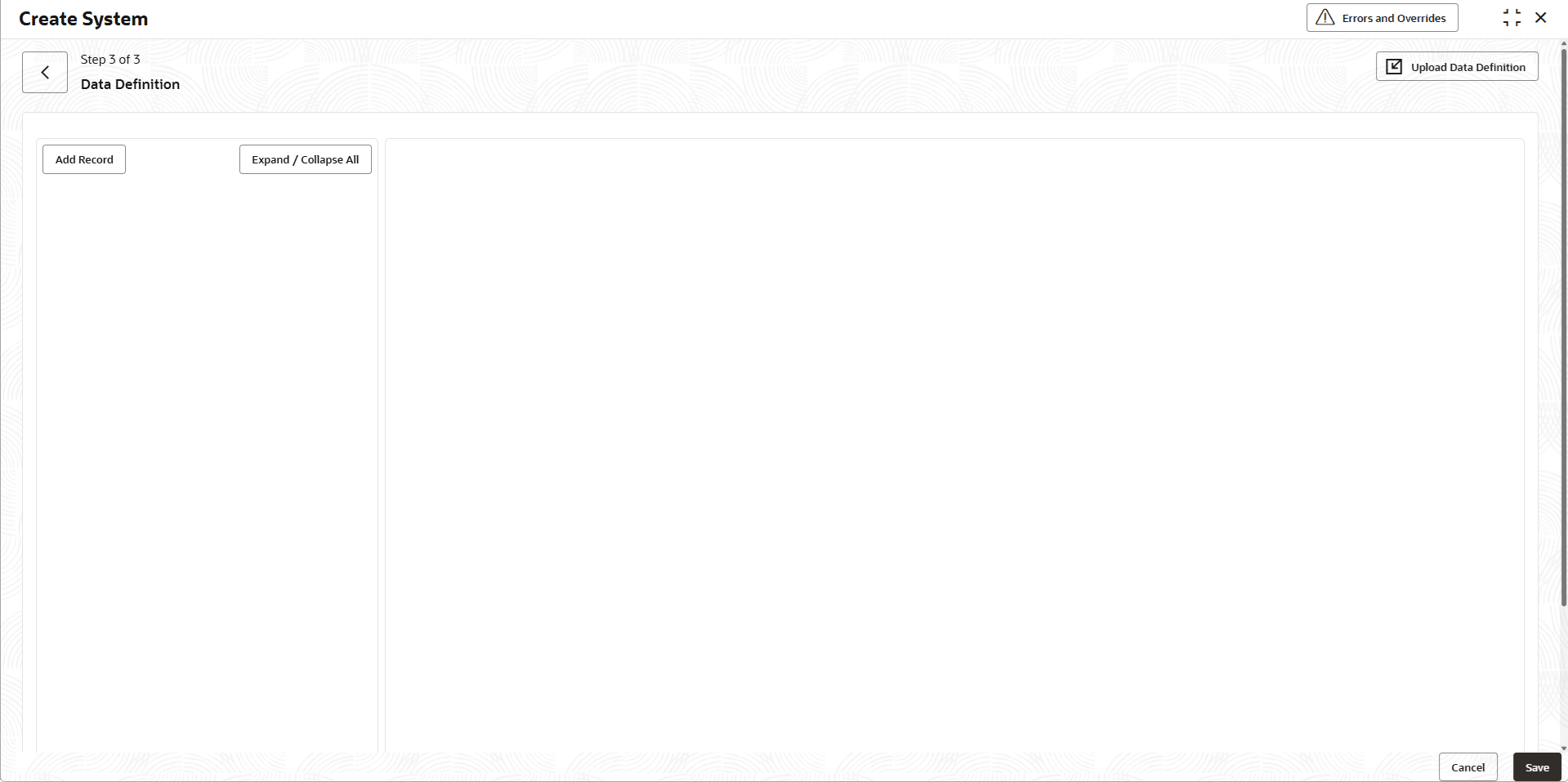
- Click the Add Data Definition button to specify and
configure the data definition details between the selected source and target
systems.The Add Data Definition screen displays. For more information on fields, refer to the field description table.
Table 2-3 Add Data Definition - Field Description
Field Description Upload Data Definition Click this button to upload the API file data definition in the appropriate file format. This field is enabled only when the Transaction Acting As is selected as Target.
Format Alias Specify an alias for the file format to reference it easily in the system. Used to identify the format when the file is uploaded using file name. This field is enabled only when the Transaction Acting As is selected as Source.
Format Type Select the type of file format used for the transaction. The available options are:- Delimited File
- EBCDIC File
- XML File
- JSON
This field is enabled only when the Transaction Acting As is selected as Source.
Separator Select the separator from the drop-down list. The available options are:- Dot (.)
- Underscore (_)
- Dash (-)
- Caret (^)
- Colon (:)
- Comma (,)
- Pipe (|)
- Semicolon (;)
- Tab (\t)
- Tilde (~)
This field is enabled only when the Format Type is selected as Delimited File.
Data Structure Select the data structure type from the list. The options are:- Flat
- Mixed
This field is enabled only when the Format Type is selected as Delimited File.
Select a file or drop one here Select a file from your system or drag and drop a file into this area to upload. This field is enabled only when the Format Type is selected as EBCDIC File.
XML Type Displays the type of XML file to be uploaded or processed. This field is enabled only when the Format Type is selected as XML File.
Currently, only Generic XML is supported.
- Click the Add Record button to add a new record.The Add Record screen displays.For more information on fields, refer to the field description table.
Note:
User can add multiple records when Data Structure is Mixed. Add button is disabled in case Data Structure is selected as Single, as only single record is allowed.Table 2-4 Add Record - Field Description
Field Description Code Specify a unique code or identifier for the record. This field is mandatory when Data Structure is selected Mixed.
Label Provides a descriptive label for the record, making it easier to identify. This field is mandatory when Data Structure is selected Mixed.
# Displays the sequence number or index of the record in the list. This field is enabled only when the Transaction Acting As is selected as Target.
Field Name Specify the name of the field in the record. Type Select the type from the drop-down list. The options are:- Fixed
- Dynamic
Values Enter the allowed values for the field, in a comma separated fashion with a space after comma. This field is enabled only when the Type is selected as Fixed.
Mandatory Click the toggle to indicate whether entering a value in the field is required. Data Type Select the data type from the drop-down list. The options are:- Text
- Alphabets Only
- Alphanumeric
- Number
- Decimal
- Date
- Custom
Regex Specify a regular expression to validate the input for the field. This field is enabled only when the Data Type is selected as Custom.
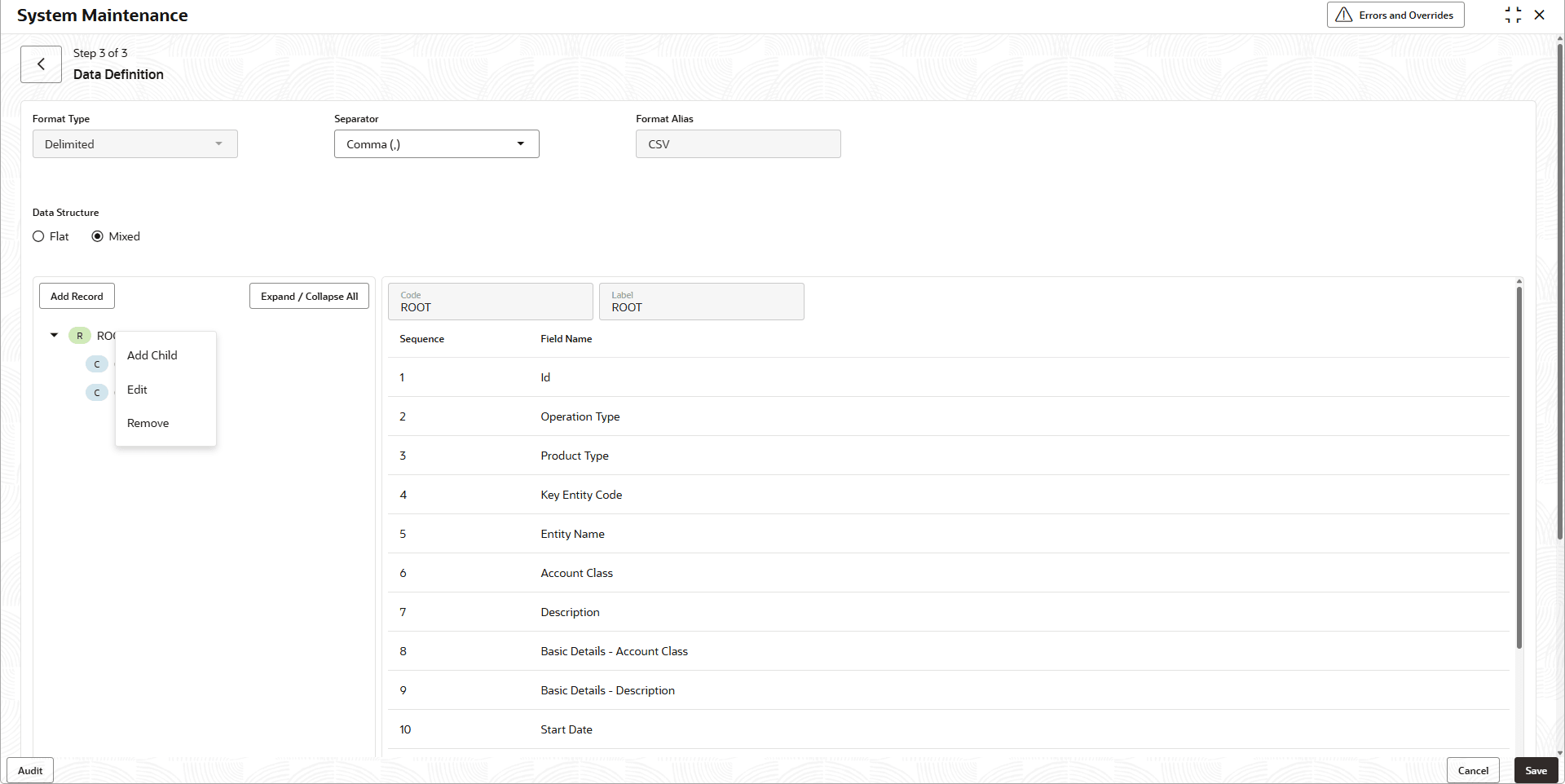
Min Specifies the minimum allowable value or length for the field. Max Specifies the maximum allowable value or length for the field. Action Provides options to perform actions on the record, such as Edit or Delete. Save Click this button to save the record after entering all required details. - The created records are displayed in a tree structure. Right-click a record to
perform the available actions.The Created Record - Add Child screen displays.
- Click Add Child to add the child record.
- Click Edit to edit the record.
- Click Remove to remove the record.

Parent topic: File Exchange