2.2 View System
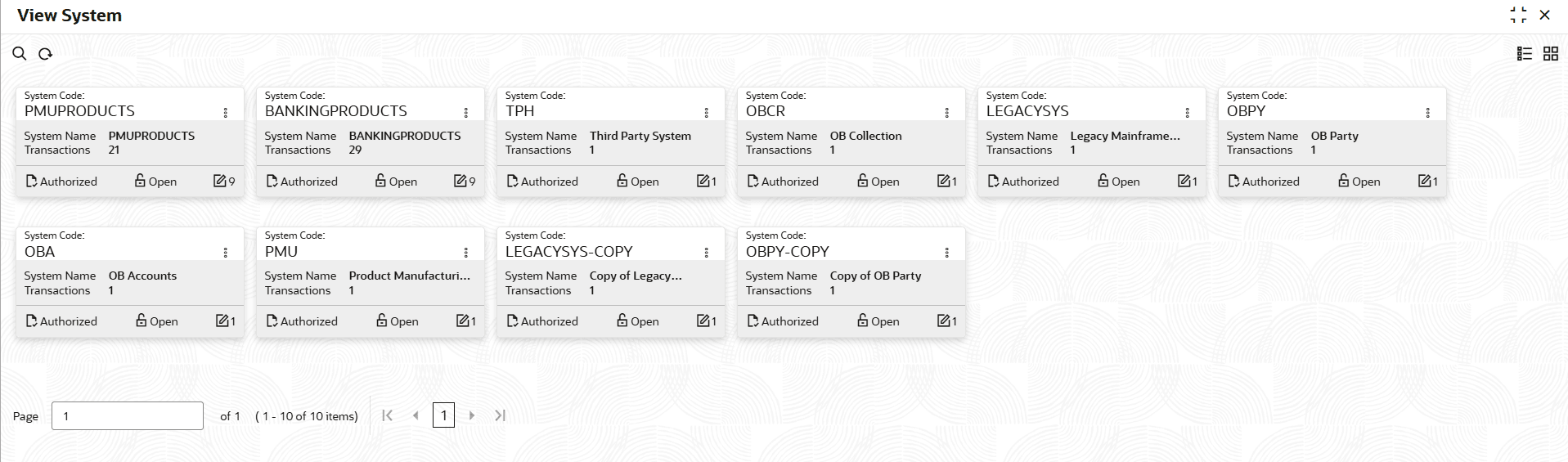
This topic describes the View System component, which enables users to view and manage system configurations and integration details.
- Under File Exchange, click View
System.The View System screen displays.
- On View System screen, click
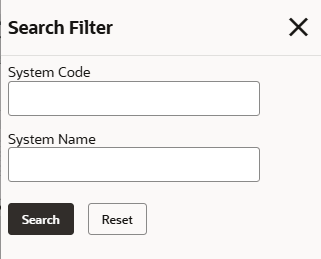
 icon.The View System - Search screen is displayed.
 - On View System screen, click
 icon to Unlock, Delete,
Authorize or View the created
system details.
icon to Unlock, Delete,
Authorize or View the created
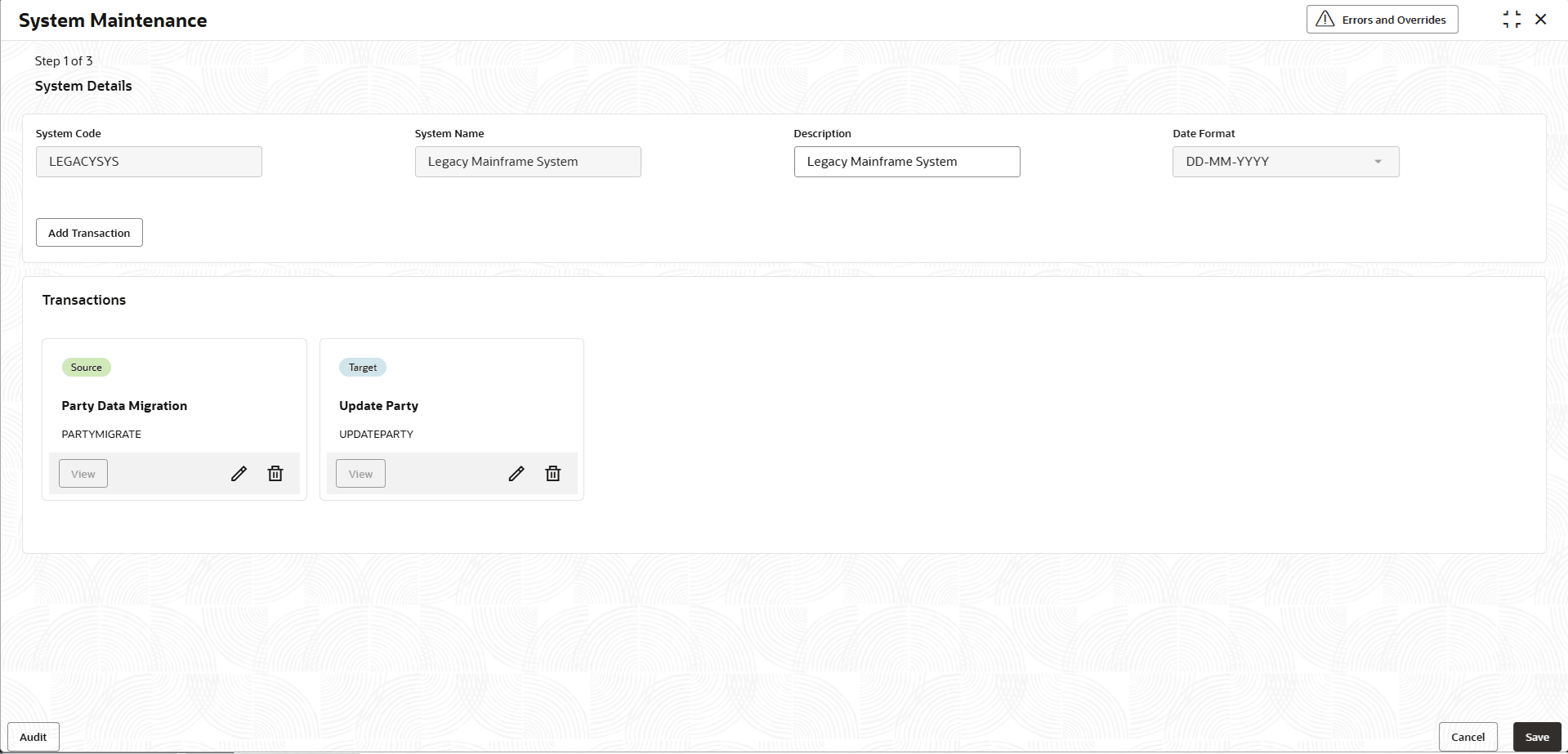
system details. - Click Unlock to modify the borrowing capacity.The System Maintenance - System Details - Modify screen is displayed.
Figure 2-8 System Maintenance - System Details - Modify
For more information on fields, refer to the field description table.
Table 2-7 System Maintenance - System Details - Field Description
Field Description System Code Displays the unique code assigned to identify the system. System Name Displays the name of the system associated with the integration or transaction. Description Displays the brief explanation or purpose of the system. User can modify the same.
Date Format Displays the date format used by the system. Add Transaction Click to add a new transaction to the selected system configuration. - On System Maintenance - System Details screen, click
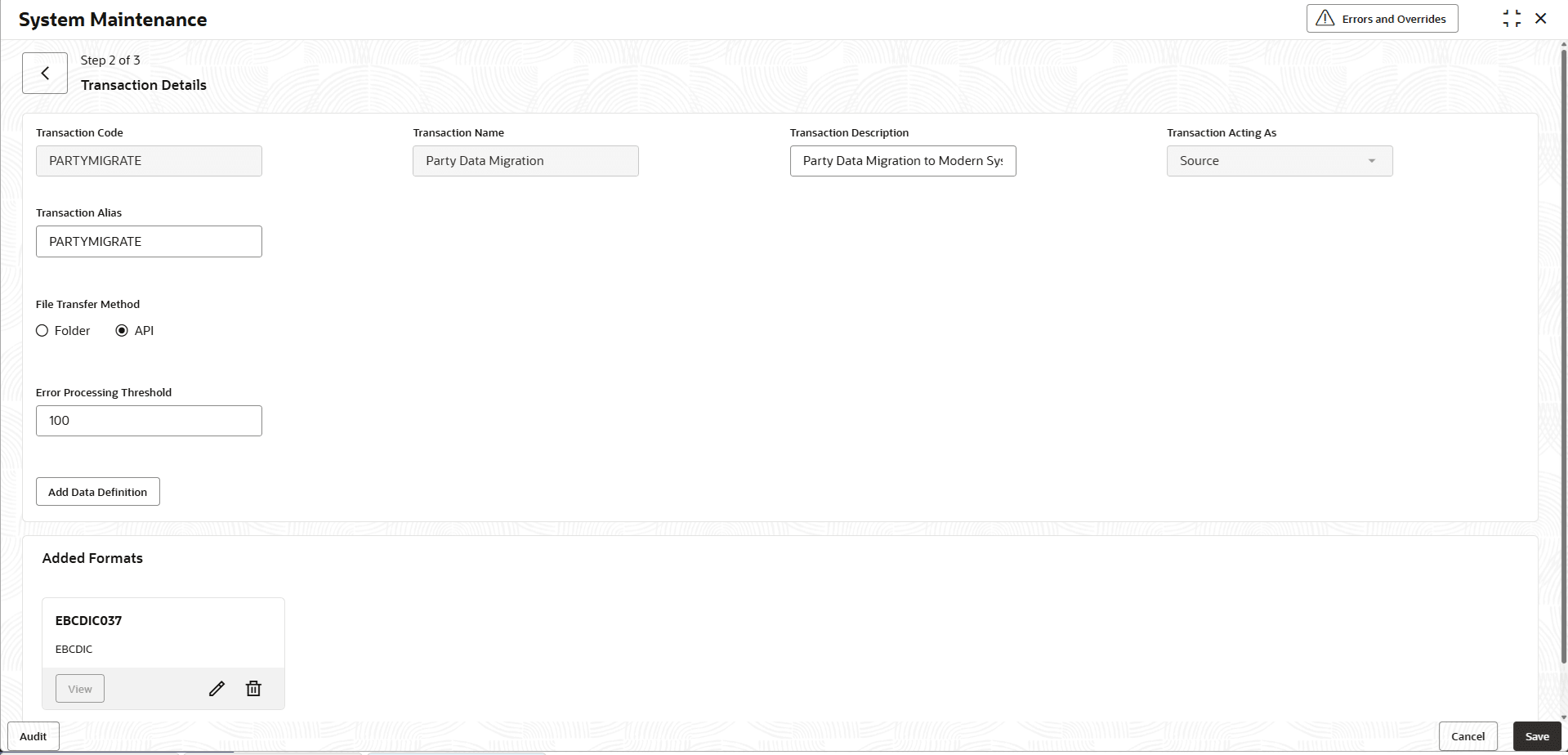
Edit to modify the transaction details.The System Maintenance - Transaction Details screen displays.
Figure 2-9 System Maintenance - Transaction Details
For more information on fields, refer to the field description table.
Table 2-8 System Maintenance - Transaction Details - Field Description
Field Description Transaction Code Displays the unique code assigned to identify the transaction. Transaction Name Displays the name of the transaction being configured between the source and target systems. Transaction Description Displays the brief description of the transaction and its purpose. User can modify the same.
Transaction Acting As Displays the role of the transaction in the integration. Transaction Alias Displays an alias to the transaction, used to reference the transaction when the file is uploaded in the system. This field is enabled only when the Transaction Acting As is selected as Source.
User can modify the same.
File Transfer Method Displays the file transfer from the drop-down list. This field is enabled only when the Transaction Acting As is selected as Source.
User can modify the same.
Incoming Folder Displays the directory or folder location where incoming files are received for processing. This field is enabled only when the File Transfer Method is selected as Folder.
File Naming Convention Displays the rules or pattern for naming files to ensure consistency and proper identification during processing. This field is enabled only when the File Transfer Method is selected as Folder.
Error Processing Threshold Displays the maximum number of errors allowed during file processing before the operation is stopped. Data Exchange Method Displays how data is exchanged between systems. This field is enabled only when the Transaction Acting As is selected as Target.
Application Name Displays the name of the application involved in the integration. This field is enabled only when the Data Exchange Method is selected as Service with Data Payload or Service with File Payload.
Application Id Displays the unique identifier assigned to the application. This field is enabled only when the Data Exchange Method is selected as Service with Data Payload or Service with File Payload.
Implementation Name Displays the name of the specific implementation or configuration for the application. This field is enabled only when the Data Exchange Method is selected as Service with Data Payload or Service with File Payload.
User Id Displays the user identifier used to access the application. This field is enabled only when the Data Exchange Method is selected as Service with Data Payload or Service with File Payload.
Service Consumer Displays the consumer component or application that consumes the service or API. This field is enabled only when the Data Exchange Method is selected as API with Data Payload or API with File Payload.
User can modify the same.
Consumer Service Displays the specific service that the consumer application interacts with during the transaction. This field is enabled only when the Data Exchange Method is selected as API with Data Payload or API with File Payload.
User can modify the same.
API Type Displays the API type from the list. This field is enabled only when the Data Exchange Method is selected as API with Data Payload.
User can modify the same.
Chunk Size Displays the number of records or data units processed together in a single batch or chunk. This field is enabled only when the API Type is selected as Batch or when the Data Exchange Method is selected as Service with Data Payload.
- On System Maintenance - Transaction Details screen,
click Edit to modify the data definition details.The System Maintenance - Data Definition screen displays.
Figure 2-10 System Maintenance - Data Definition
For more information on fields, refer to the field description table.
Table 2-9 System Maintenance - Data Definition - Field Description
Field Description Format Alias Displays an alias for the file format. This field cannot be modified. Format Type Displays the type of file format used for the transaction. This field cannot be modified Separator Displays the separator for the delimited format type. User can modify the separator. Data Structure Displays the data structure type. This field cannot be modified. XML Type Displays the type of XML file to be uploaded. This field cannot be modified. - Click View to view the system details. The System Maintenance – System Details - View screen displays. For more information on fields, refer to the field description table.
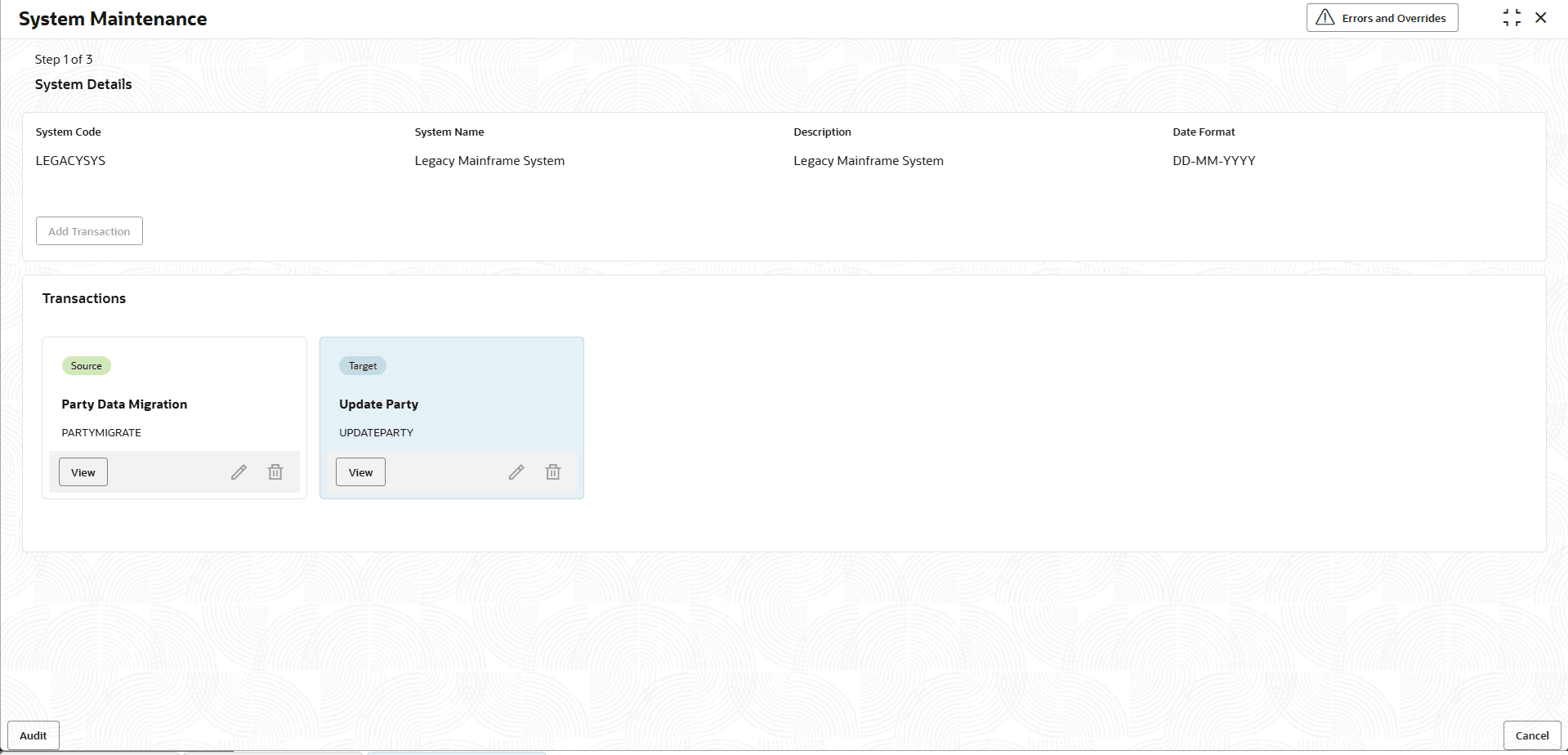
Table 2-10 System Maintenance - System Details - View - Field Description
Field Description System Code Displays the unique code assigned to identify the system. System Name Displays the name of the system associated with the integration or transaction. Description Displays the brief explanation or purpose of the system. Date Format Displays the date format used by the system. - On System Maintenance - System Details screen, click
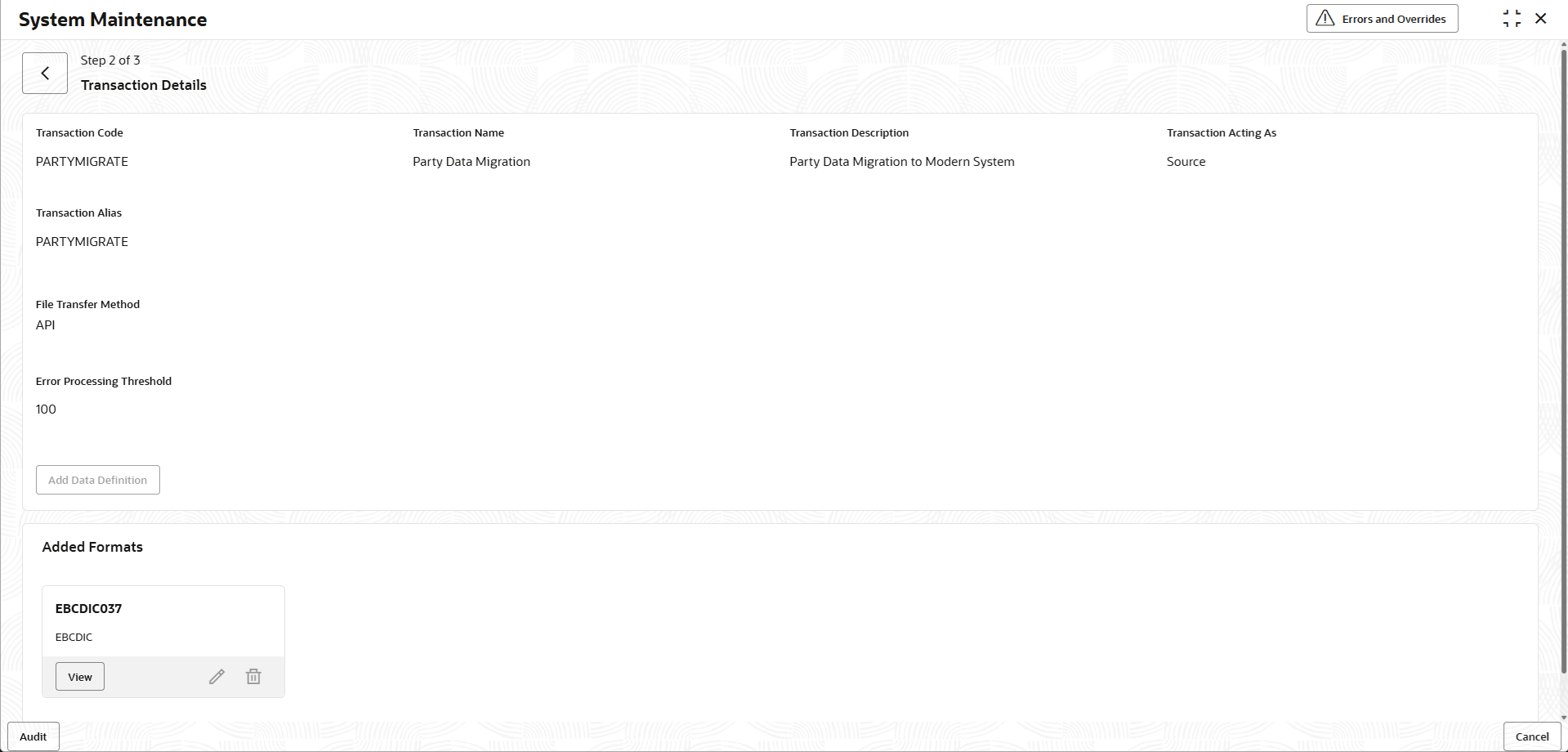
View to view the transaction details.The System Maintenance - Transaction Details - View screen displays.
Figure 2-12 System Maintenance - Transaction Details - View
For more information on fields, refer to the field description table.
Table 2-11 System Maintenance - Transaction Details - View - Field Description
Field Description Transaction Code Displays the unique code assigned to identify the transaction. Transaction Name Displays the name of the transaction being configured between the source and target systems. Transaction Description Displays the brief description of the transaction and its purpose. Transaction Acting As Displays the role of the transaction in the integration. Transaction Alias Displays an alias to the transaction, used to reference the transaction when the file is uploaded in the system. This field is enabled only when the Transaction Acting As is selected as Source.
File Transfer Method Displays the file transfer from the drop-down list. This field is enabled only when the Transaction Acting As is selected as Source.
Incoming Folder Displays the directory or folder location where incoming files are received for processing. This field is enabled only when the File Transfer Method is selected as Folder.
File Naming Convention Displays the rules or pattern for naming files to ensure consistency and proper identification during processing. This field is enabled only when the File Transfer Method is selected as Folder.
Error Processing Threshold Displays the maximum number of errors allowed during file processing before the operation is stopped. Data Exchange Method Displays how data is exchanged between systems. This field is enabled only when the Transaction Acting As is selected as Target.
Application Name Displays the name of the application involved in the integration. This field is enabled only when the Data Exchange Method is selected as Service with Data Payload or Service with File Payload.
Application Id Displays the unique identifier assigned to the application. This field is enabled only when the Data Exchange Method is selected as Service with Data Payload or Service with File Payload.
Implementation Name Displays the name of the specific implementation or configuration for the application. This field is enabled only when the Data Exchange Method is selected as Service with Data Payload or Service with File Payload.
User Id Displays the user identifier used to access the application. This field is enabled only when the Data Exchange Method is selected as Service with Data Payload or Service with File Payload.
Service Consumer Displays the consumer component or application that consumes the service or API. This field is enabled only when the Data Exchange Method is selected as API with Data Payload or API with File Payload.
Consumer Service Displays the specific service that the consumer application interacts with during the transaction. This field is enabled only when the Data Exchange Method is selected as API with Data Payload or API with File Payload.
API Type Displays the API type from the list. This field is enabled only when the Data Exchange Method is selected as API with Data Payload.
Chunk Size Displays the number of records or data units processed together in a single batch or chunk. This field is enabled only when the API Type is selected as Batch or when theData Exchange Method is selected as Service with Data Payload.
- On System Maintenance - Transaction Details screen,
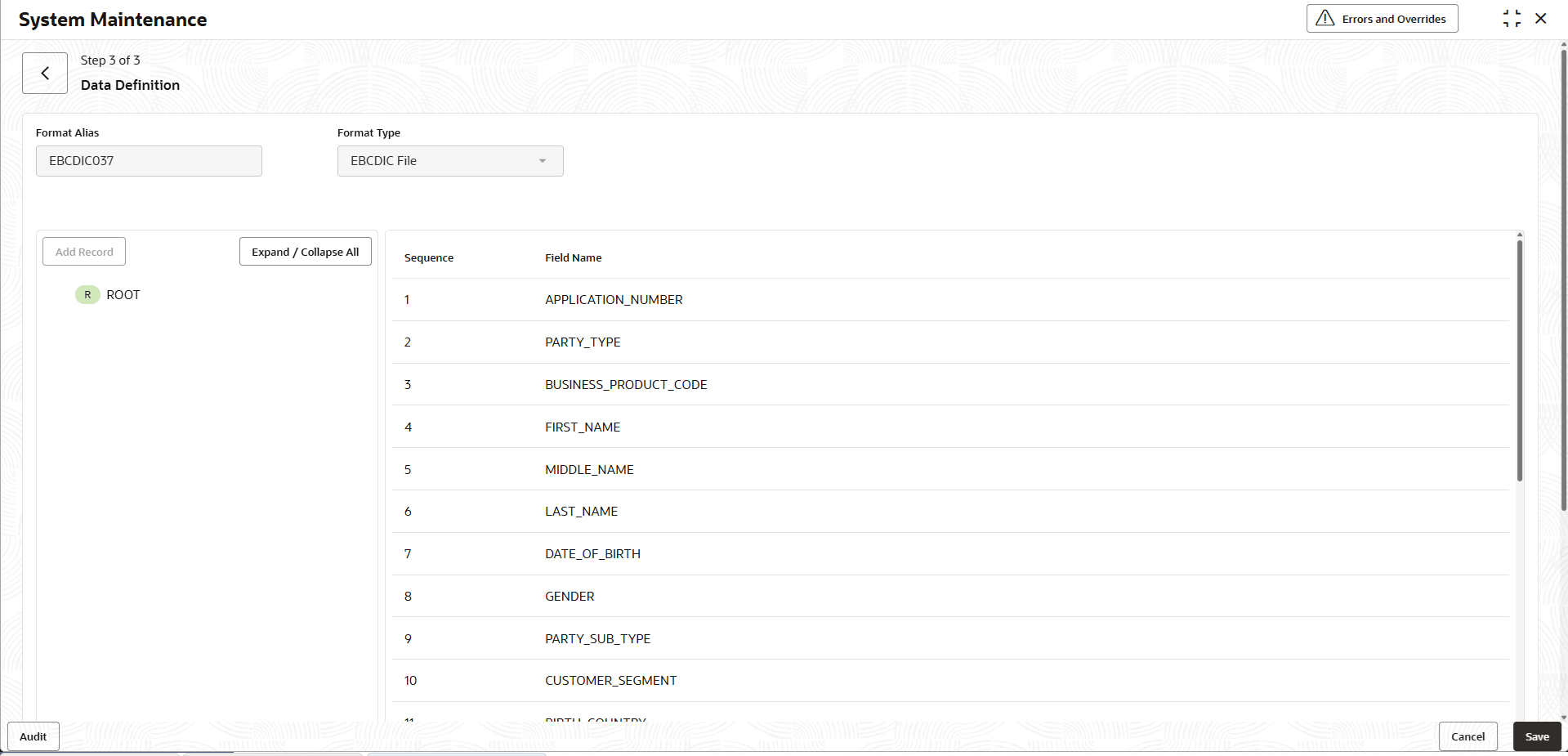
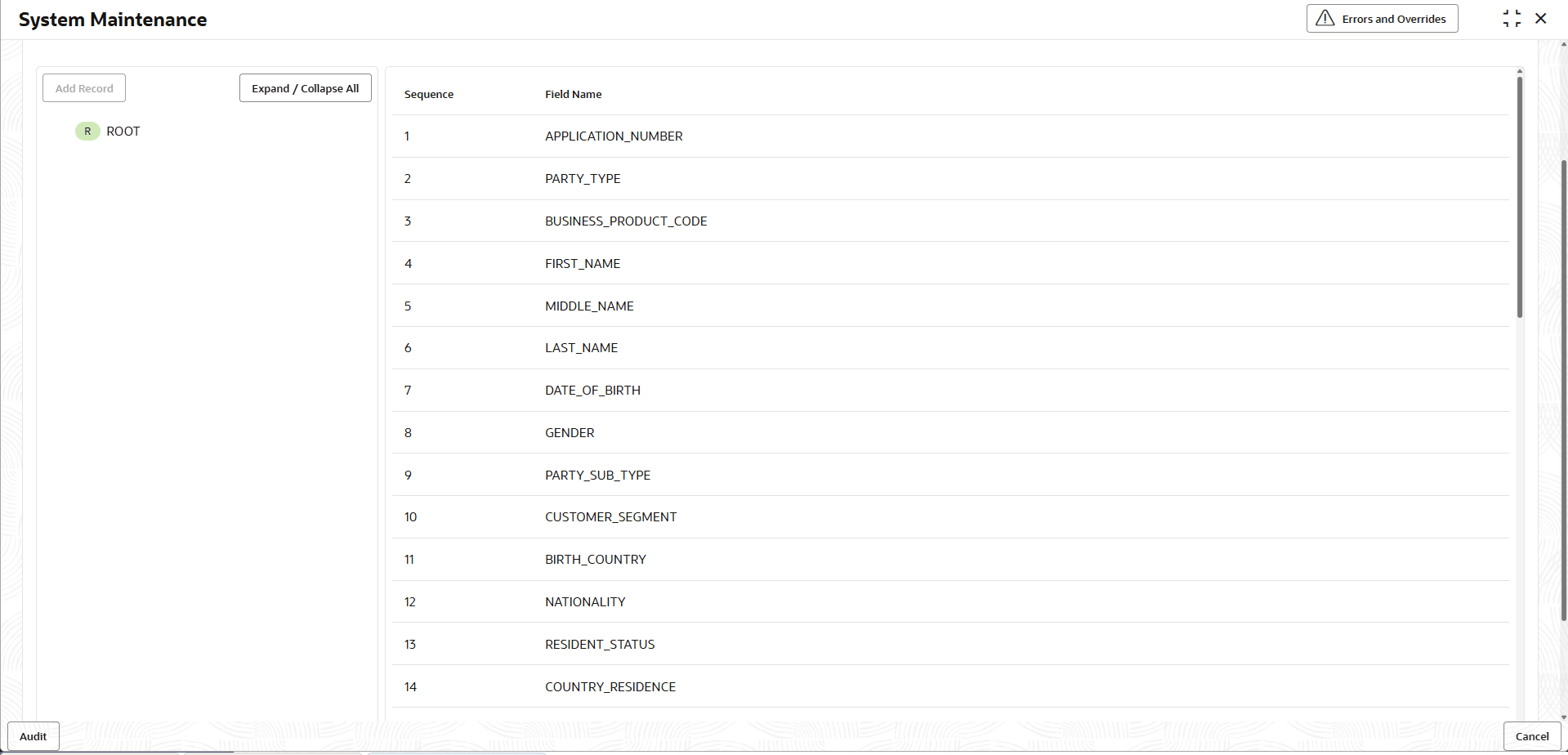
click View to view the data definition details.The System Maintenance - Data Definition - View screen displays.
Figure 2-13 System Maintenance - Data Definition - View
For more information on fields, refer to the field description table.
Table 2-12 System Maintenance - Data Definition - View - Field Description
Field Description Format Alias Displays an alias for the file format to reference it easily in the system. Used to identify the format when the file is uploaded using file name. This field is enabled only when the Transaction Acting As is selected as Source.
Format Type Displays the type of file format used for the transaction. This field is enabled only when the Transaction Acting As is selected as Source.
Separator Displays the separator from the drop-down list. This field is enabled only when the Format Type is selected as Delimited.
Data Structure Displays the data structure type from the list.
Parent topic: File Exchange