2.3 Create Integration
This topic describes the Create Integration component, which enables users to define and configure integrations between source and target systems.
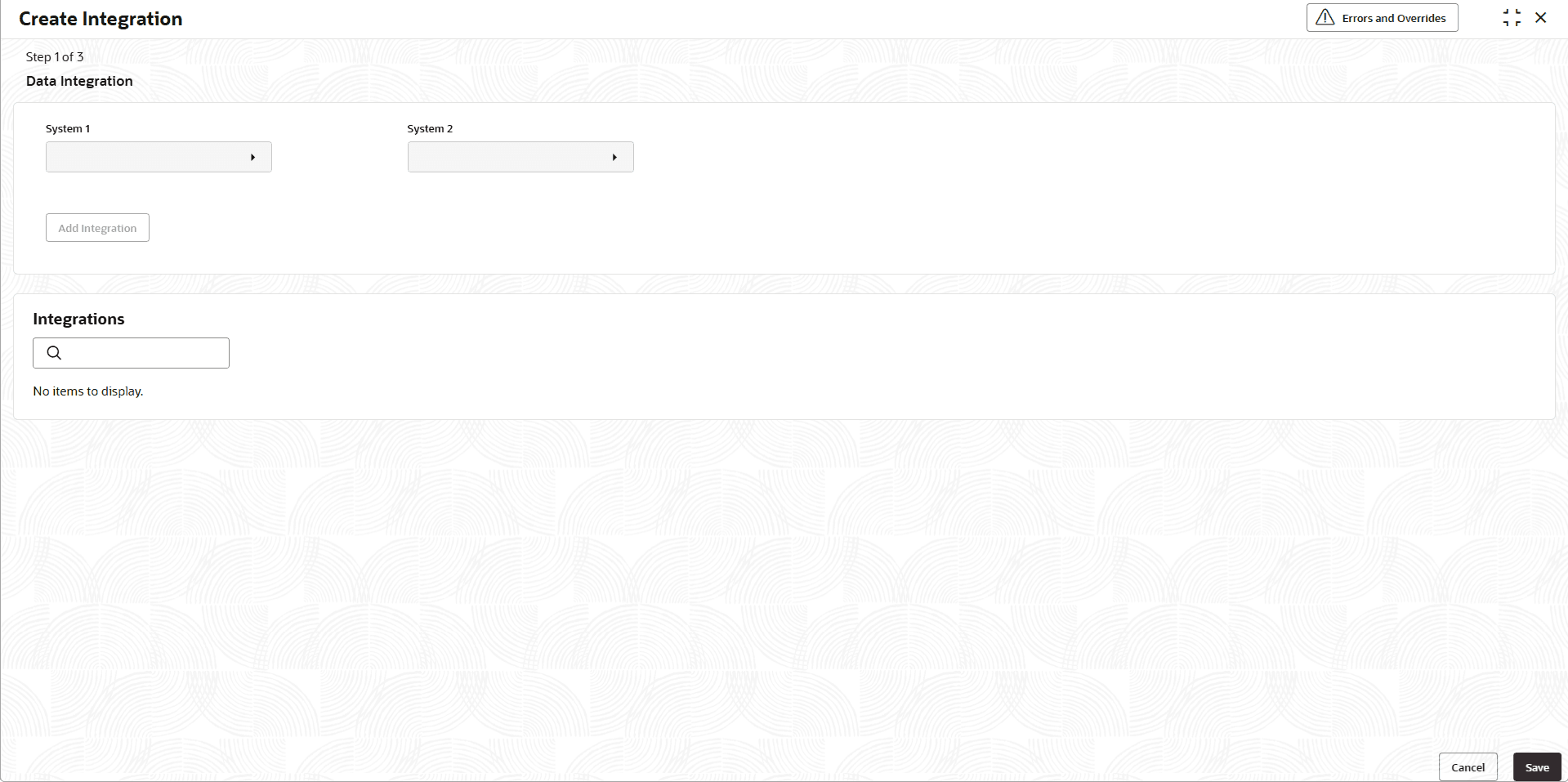
- Under File Exchange, click Create
Integration.The Create Integration screen displays.
- Click the Add Integration button to specify and
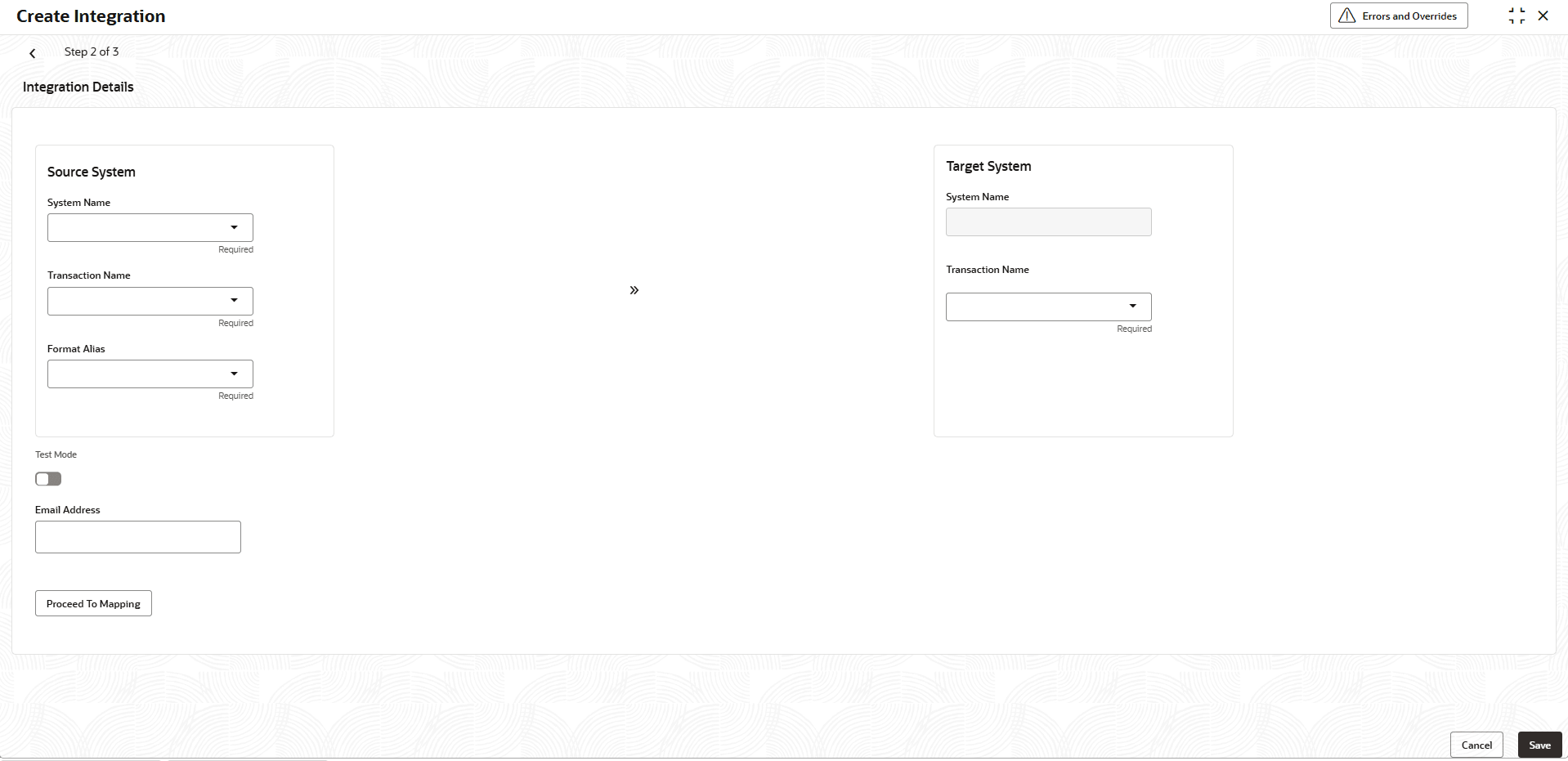
configure the integration details between the selected source and target
systems.The Integration Details screen displays.For more information on fields, refer to the field description table.
Note:
The fields marked as Required are mandatory.Table 2-14 Integration Details - Field Description
Field Description System Name Select the source system name from the drop-down list participating in the integration process. Transaction Name Select the name of the transaction being integrated between the selected systems from the list. It displays all the source transactions configured under the selected source system. Format Alias Select the format or mapping alias used to identify the data structure or schema for the integration from the list. It displays all the formats or data definition configured under the selected transaction. System Name Select the target system involved in the integration. It defines where the data will be received or processed. Transaction Name Select the transaction name associated with the target system to ensure accurate mapping and data flow. Test Mode Click the toggle to enable test execution of the integration setup. This allows you to validate the configuration before deploying it to the production environment. Email Address Specify the email addresses to which system notifications or test results related to the integration are sent. Proceed To Mapping Click this button to continue to the next step and configure the data mapping between the source and target transaction. - Click the Proceed to Mapping to define and configure the
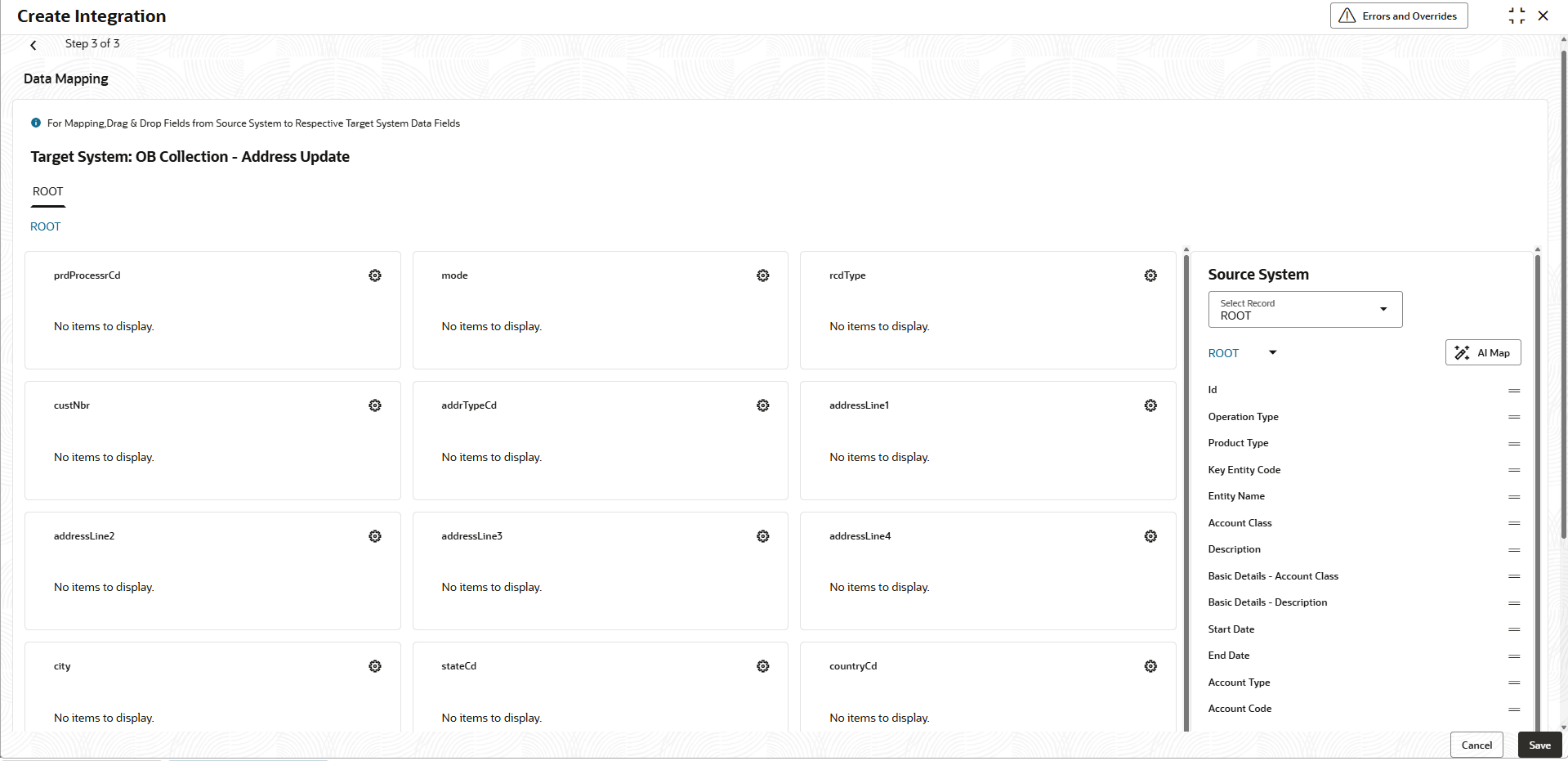
data mapping between the source and target systems.The Date Mapping screen displays.
- Click this
 button to automated mapping of fields between the source and target
systems using AI-based matching logic. This helps speed up the mapping process
by intelligently pairing similar fields.
button to automated mapping of fields between the source and target
systems using AI-based matching logic. This helps speed up the mapping process
by intelligently pairing similar fields. - Click this
 icon to `manually map the fields using drag and drop components beneath
the root.
icon to `manually map the fields using drag and drop components beneath
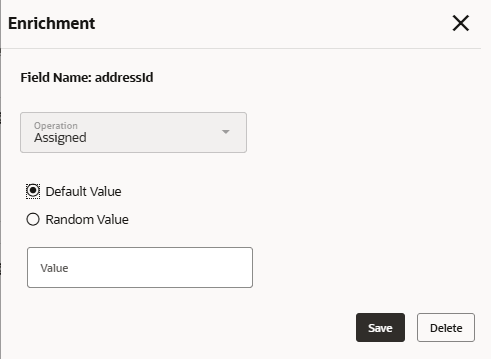
the root. - Click the Settings icon to specify the enrichment
details.The Enrichment screen displays. For more information on fields, refer to the field description table.
Table 2-15 Enrichment - Field Description
Field Description Field Name Displays the name of the field for which enrichment is being configured. Operation Displays the operation to be applied to the selected field during enrichment. Currently 2 operations are supported - Assigned and Transform Value.
If no field is mapped, Assigned operation will come and if a field is mapped Transform Value operation will come.
Based on the operation further values will be selected.
Perform one of the following actions:- Click Save to save the enrichment configuration for the selected field.
- Click Delete to remove the configured enrichment for the selected field.
Parent topic: File Exchange