2.4 View Integration
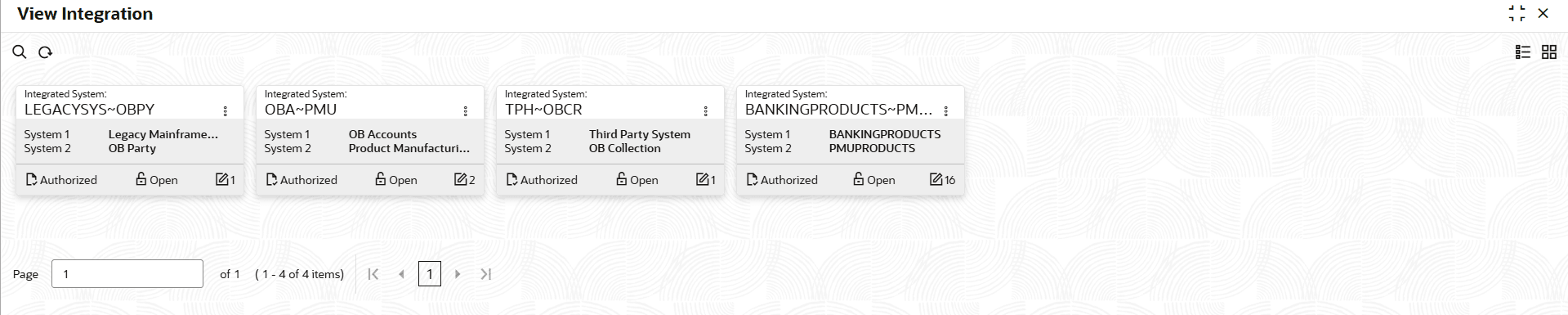
This topic describes the View Integration component, which allows users to view and manage details of integrations between systems.
- Under File Exchange, click View
Integration.The View Integration screen displays.
- On View Integration screen, click
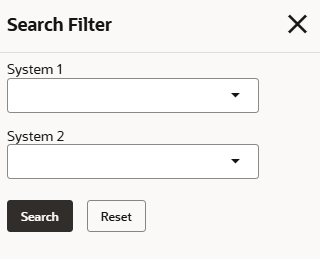
 icon.The View Integration- Search screen is displayed.
 - On View Integration screen, click
 icon to Unlock, Delete,
Authorize or View the created
integrated details.
icon to Unlock, Delete,
Authorize or View the created
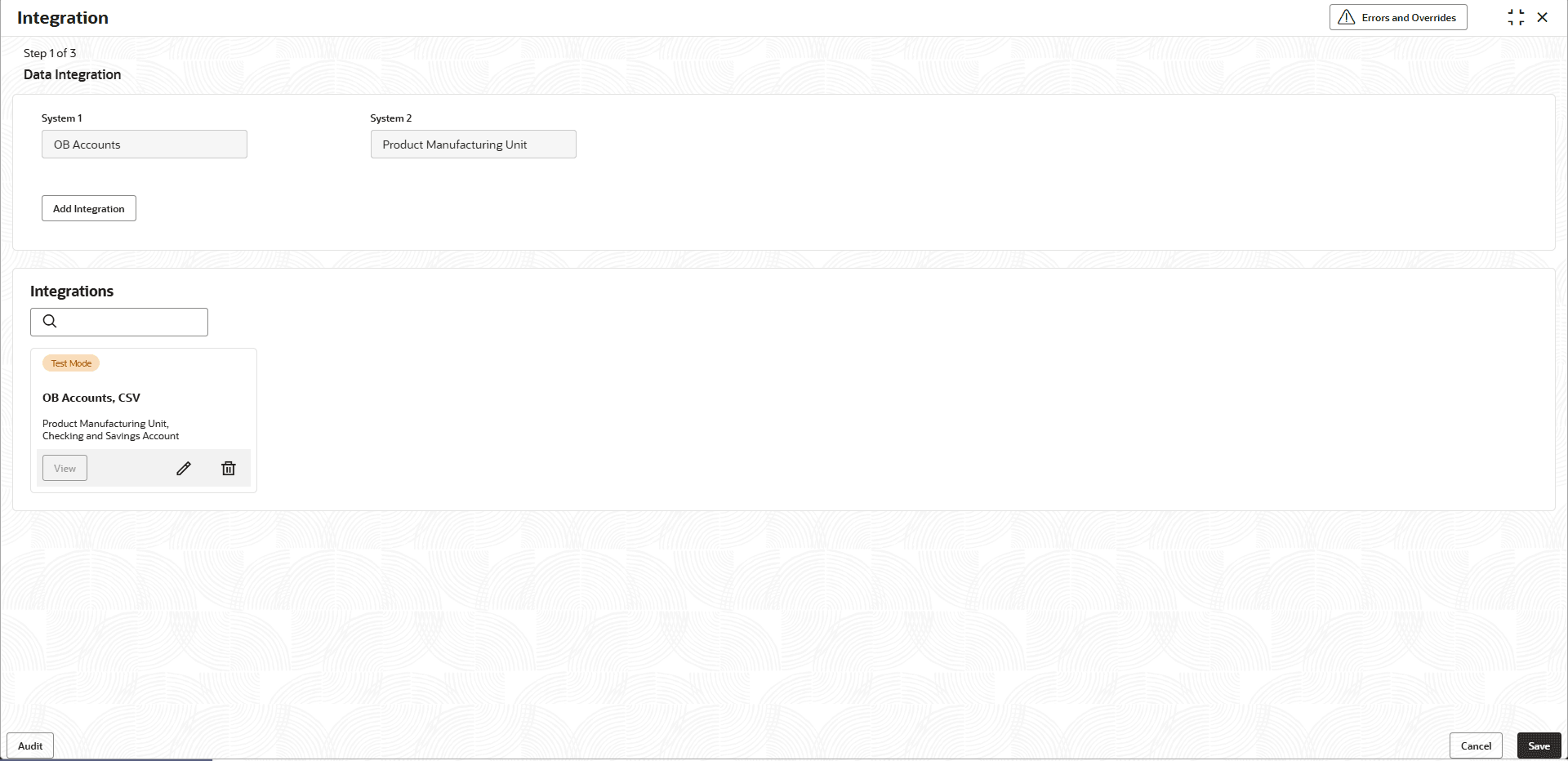
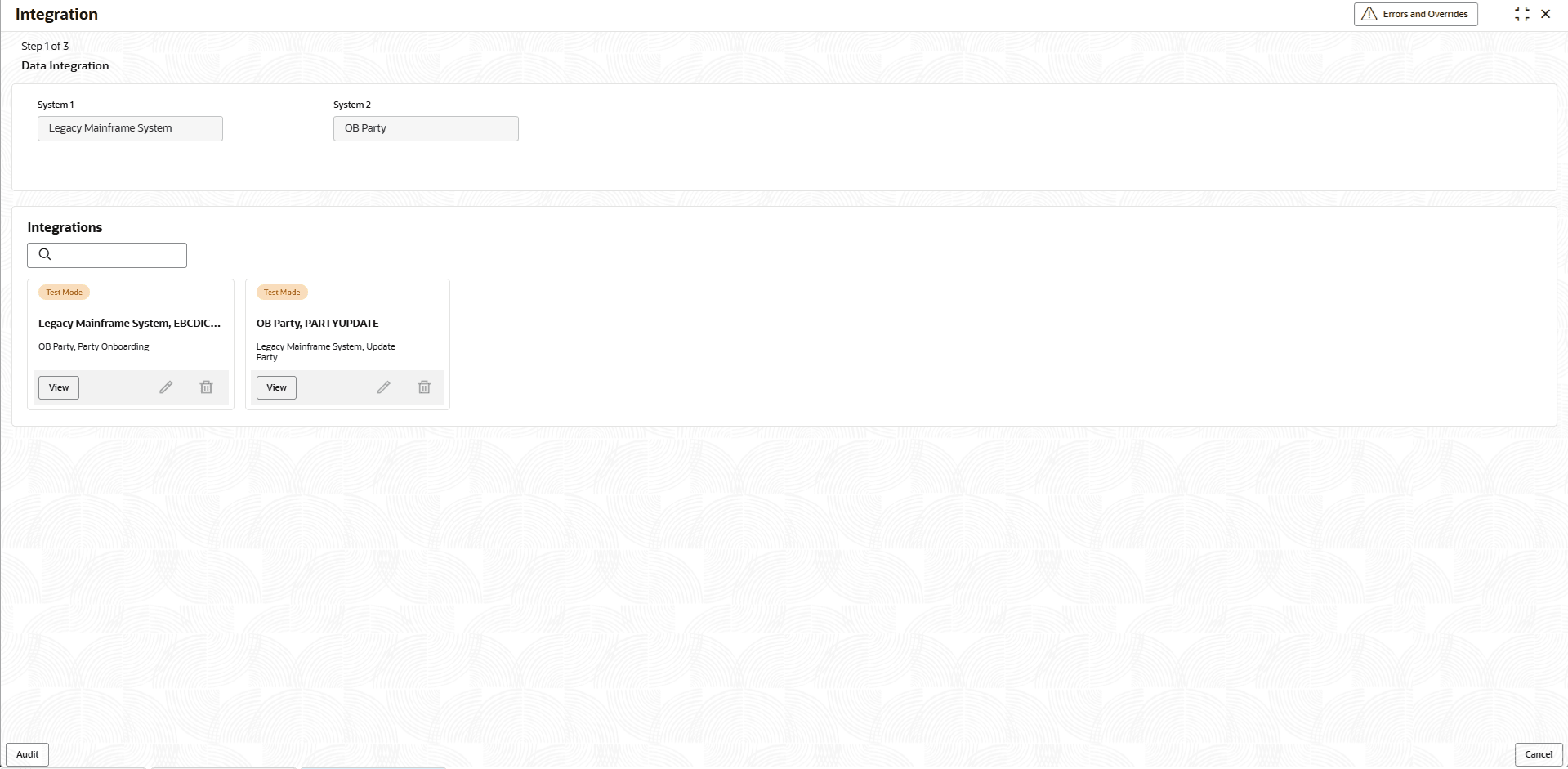
integrated details. - Click Unlock to modify the integration details.The Integration - Data Integration - Modify screen is displayed.
Figure 2-20 Integration - Data Integration - Modify
For more information on fields, refer to the field description table.
Table 2-18 Integration - Data Integration - Field Description
Field Description System 1 Displays the source system details. System 2 Displays the target system details. - On Integration - Data Integration screen, click
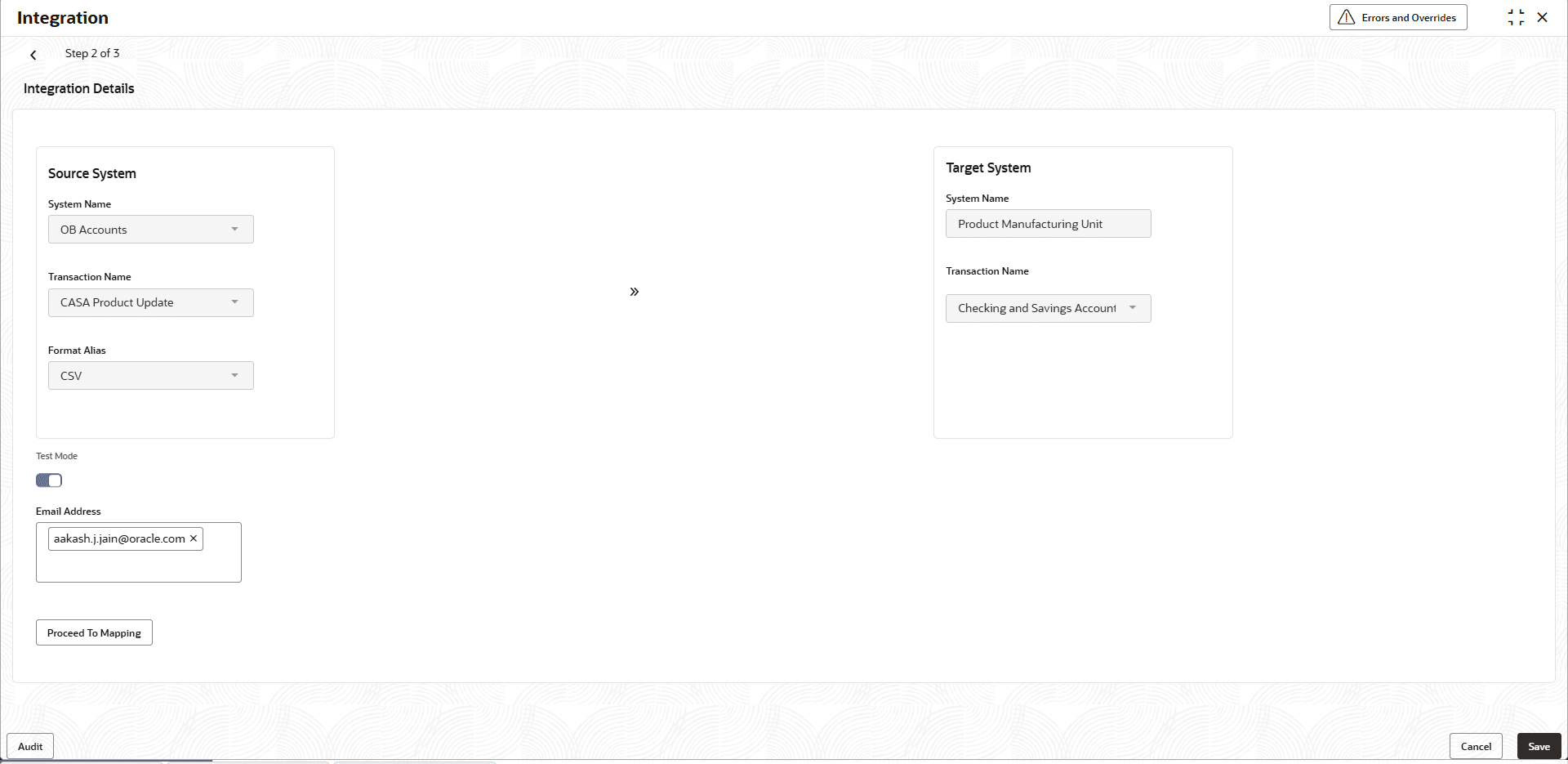
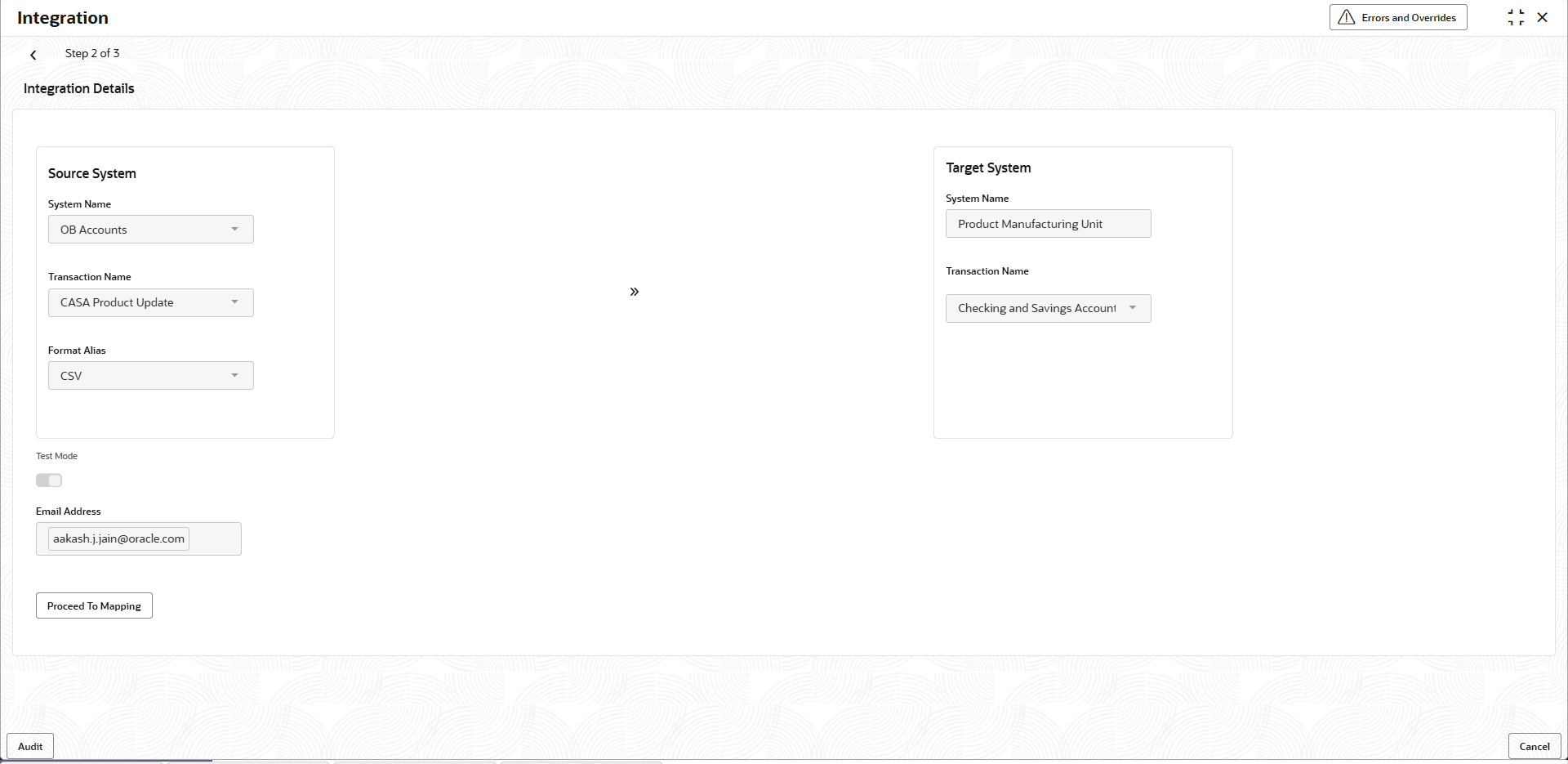
Edit to modify the transaction details.The Integration - Integration Details - Modify screen displays.
Figure 2-21 Integration - Integration Details - Modify
For more information on fields, refer to the field description table.
Table 2-19 Integration - Integration Details - Field Description
Field Description System Name Displays the source system name from the drop-down list participating in the integration process. Transaction Name Displays the name of the transaction being integrated between the selected systems from the list. Format Alias Displays the format or mapping alias used to identify the data structure or schema for the integration from the list. System Name Displays the target system involved in the integration. It defines where the data will be received or processed. Transaction Name Displays the transaction name associated with the target system to ensure accurate mapping and data flow. Test Mode Displays the toggle to enable test execution of the integration setup. User can modify the same.
Email Address Displays the email addresses to which system notifications or test results related to the integration are sent. User can modify or add the same.
- Click View to view the system details. The Integration – Data Integration - View screen displays.For more information on fields, refer to the field description table.
Figure 2-22 Integration – Data Integration – View
Table 2-20 Integration - Data Integration - Field Description
Field Description System 1 Displays the source system details. System 2 Displays the target system details. - On Integration - Data Integration screen, click
View to view the transaction details.The Integration - Integration Details - View screen displays.
Figure 2-23 Integration - Integration Details - View
For more information on fields, refer to the field description table.
Table 2-21 Integration - Integration Details - Field Description
Field Description System Name Displays the source system name from the drop-down list participating in the integration process. Transaction Name Displays the name of the transaction being integrated between the selected systems from the list. Format Alias Displays the format or mapping alias used to identify the data structure or schema for the integration from the list. System Name Displays the target system involved in the integration. It defines where the data will be received or processed. Transaction Name Displays the transaction name associated with the target system to ensure accurate mapping and data flow. Test Mode Displays the toggle to enable test execution of the integration setup. Email Address Displays the email addresses to which system notifications or test results related to the integration are sent.
Parent topic: File Exchange