6.2 Entering a Credit Application
This topic provides information on entering a credit application. It covers capturing application details, requesting a credit bureau report, and validating the credit application through the applications screen.
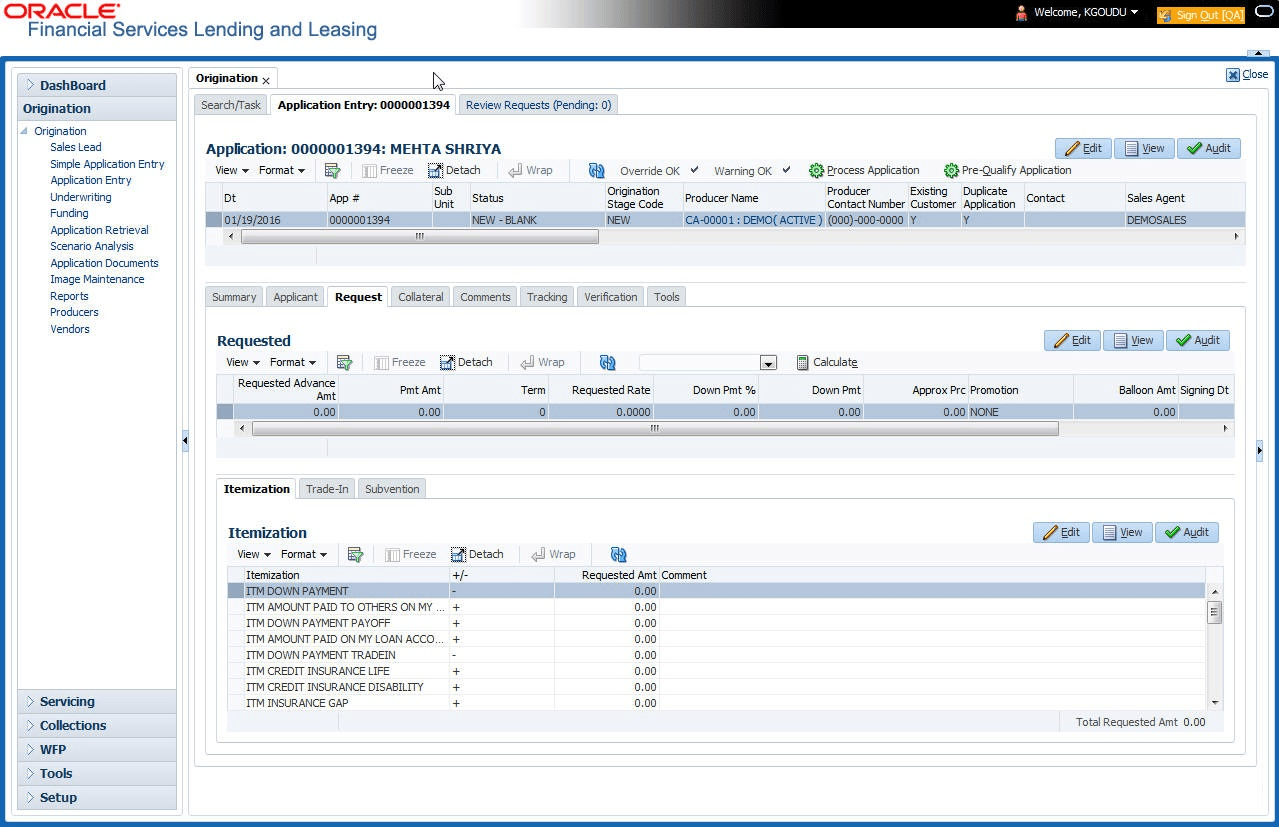
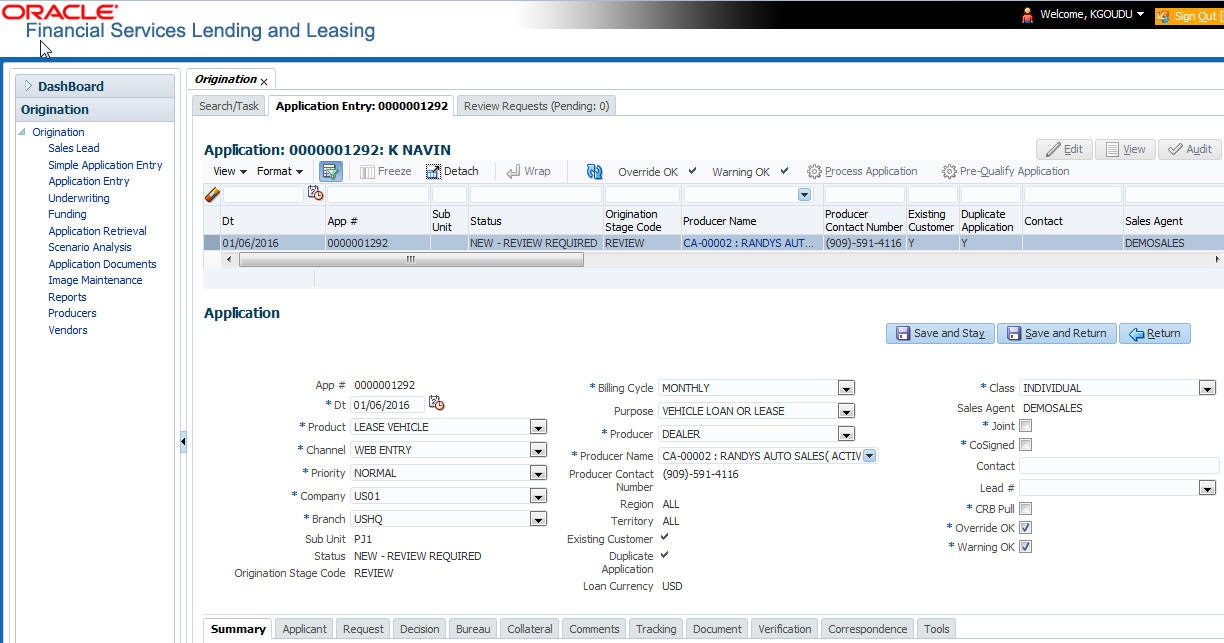
- Select product type and producer at the top of the Application screen in Applications section. The product defines the type of credit application: Lease as well as any collateral, such as vehicles or homes, associated with the Lease. When user save the application, system activates the links on Applications screen that are associated with the product, streamlining the application process. The producer is the dealer supplying the application. When selected, the status of the Producer is displayed along with Producer Name.
- Enter information regarding the primary applicant, such as name, social security number, address, place of employment and financial assets and liabilities. Enter this same information for any other applicants, such as co-signers or joint applicants, if they exist. System displays the error message as The Application does not exist, if the provided details does not match with any application details.
- Enter information about the requested credit for the Lease such as Lease amount and number of terms.
- Enter information about the collateral.
User can also enter credit application data into Oracle Financial Services Lending and Leasing Application using the Fax-In container. For more details, refer to Application Entry using Fax- In section.
Once the basic details are entered, the user has to check whether the application pre-qualifies or not. Once the pre-qualified edits are satisfied, click Submit in the Application screen. Pre-qualification edits can be viewed from the Verification sub tab.
When finished, Oracle Financial Services Lending and Leasing checks the application for completeness using a predefined set of edits. These edits search for errors and warnings based on user system setup. Status change of the application can be determined by credit bureau and scoring model of the application. The pre-screening checks ensure that automatic credit bureau reports are pulled only for applications which meet set criteria, thus saving cost.
After an application clears the edits check, click Process Application in the Applications section. The system begins the processes of pre-screening the application and pulling a credit bureau while user can begin entering the next application in user queue.
- On the Origination, click
Origination. Under Origination,
click Application
Entry.
The Application Entry screen displays.
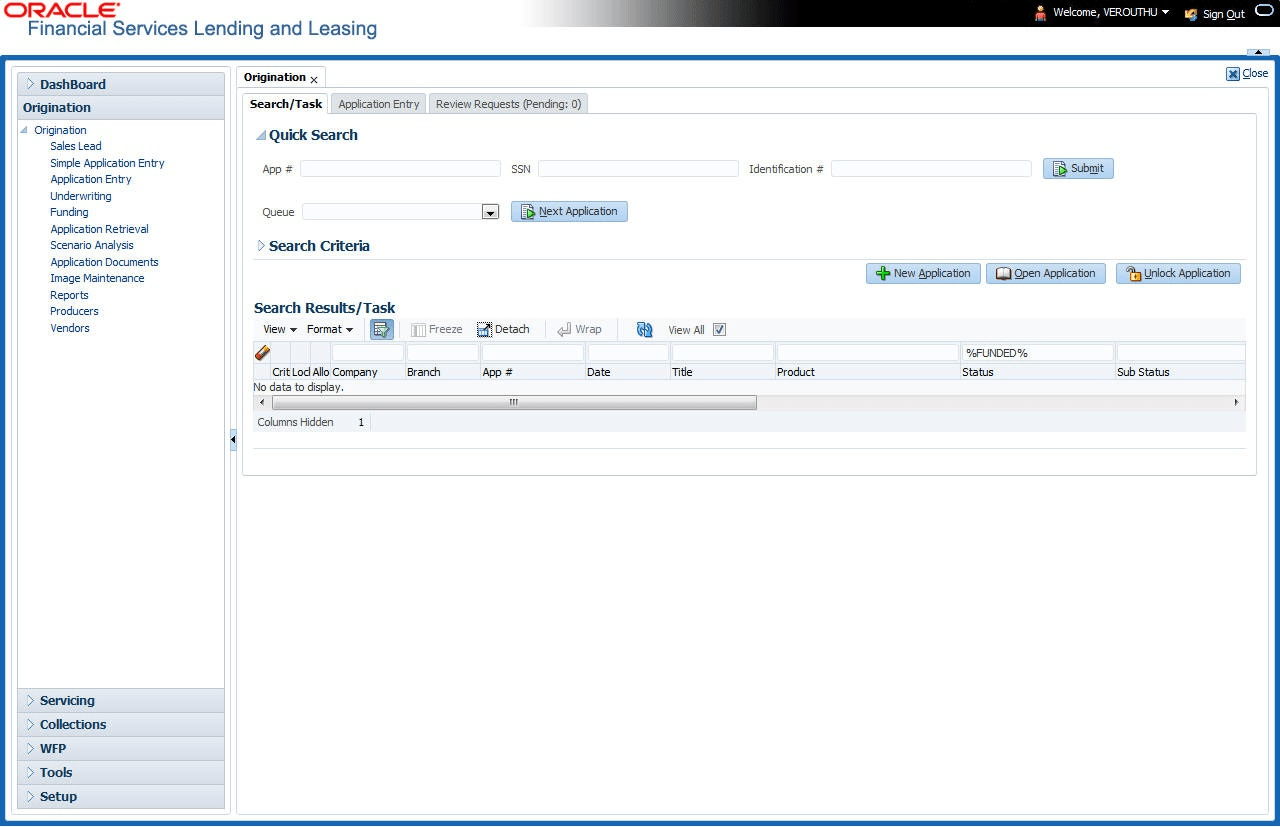
- The Application Entry screen appears, click
Search/Task screen.
The Recreate Instance button appears only when the BPEL parameter is YES.
- In the Results tab’s Quick Search section, click New
Application. The Search link’s Applications Entry screen opens
at the Application Entry tab.
For details on this screen refer Applications section in Underwriting chapter.
Parent topic: Application Entry