12.2.1 Attaching a Document to an Application from a Server

This topic provides information on the attaching a document to an application from a server.

To attach a document to an Application from a server
  1. On the Origination, click Origination. Under Origination, click Application Documents.
    The Application Documents screen displays.
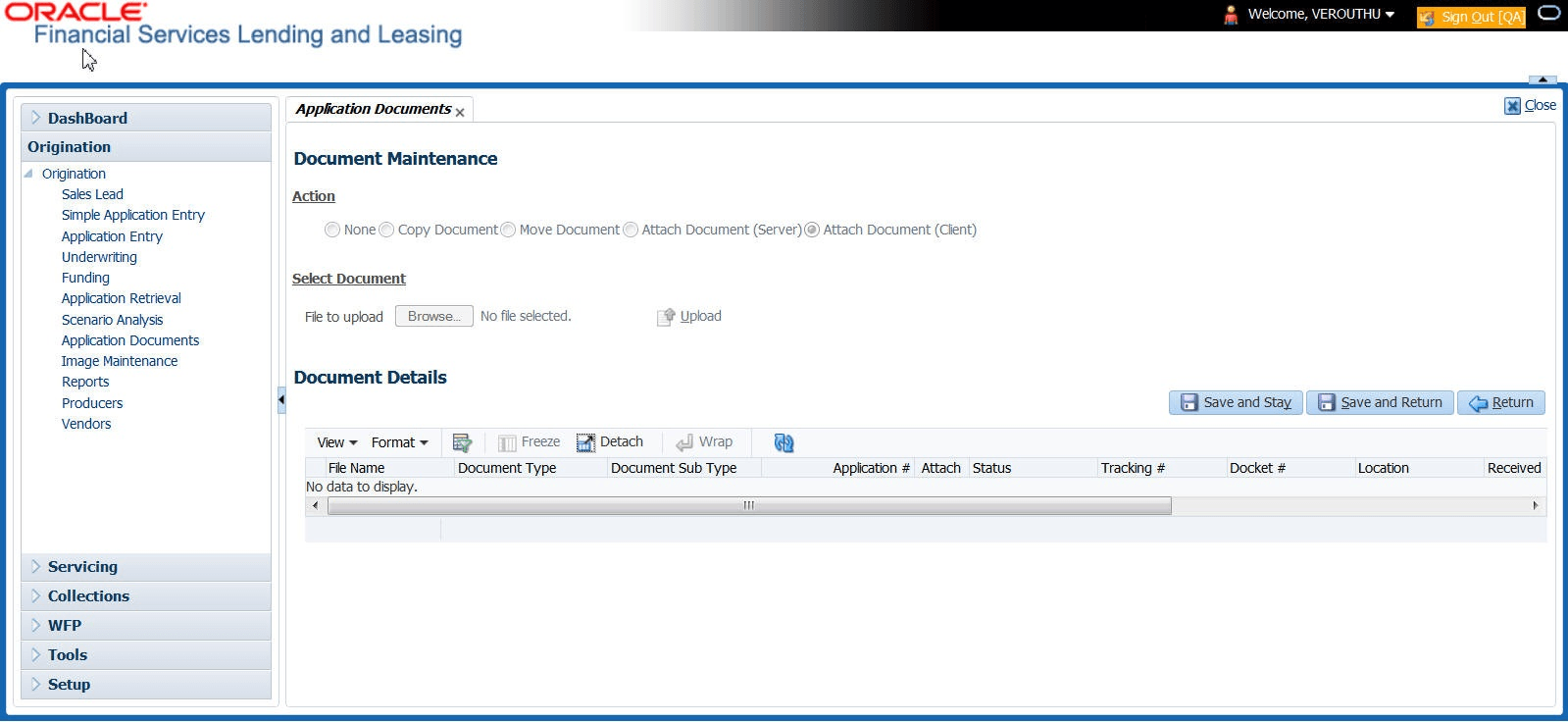
    Figure 12-1 Application Documents


  2. In the Action sub-section, click Attach Document (Server).
  3. In the Select Document sub-section, use the default image directory in the Directory Path field. (The default path is the value for the system parameter UIX_DEFAULT_IMAGE_PATH). -or-
  4. In the Directory Path field, specify the full path name to the document on the server that user want to attach to an account.
    User can click Reset Path at any time to return to the default image directory.
  5. In the Select Document section, click List File.
    The system displays the files from the entry in the Select Document section Directory Path in the Document Maintenance record.
  6. In the Document Details record, select the record user want to work with and click Edit in the Details column.
  7. In the Document Details record, specify, view or edit the following information:

    Table 12-1 Document Details record

    Field Description
    File Name View the file name for the document.
    Document Type Select the type for the document.
    Document Sub Type Select the sub type for the document.
    Application # Select the application number to attach/copy/move the document image.
    Attach Attach the document.
    Status View the status of the document.
    Tracking # Specify the tracking number of the document.
    Docket # Specify the docket number of the document.
    Location Specify the location of the document.
    Received Dt View the document image received date.
    Effective Dt Specify the effective date of the document.
    Expiry Dt Specify the expiration date of the document.
    Comment Specify any comments regarding the document.
  8. Select the Attach check box to attach the file to the account.
  9. Click Save And Return.
  10. In the Action sub-section, click Post.
    The system attaches the document to the application.
User can view the document in a browser by clicking View Document in the Document Details section.