12.2.2 Attaching a Document to an Application from a Client Machine

This topic provides information on the attaching a document to an application from a client machine.

To attach a document to an application from a client machine
  1. On the Origination, click Origination. Under Origination, click Application Documents.
    The Application Documents screen displays.
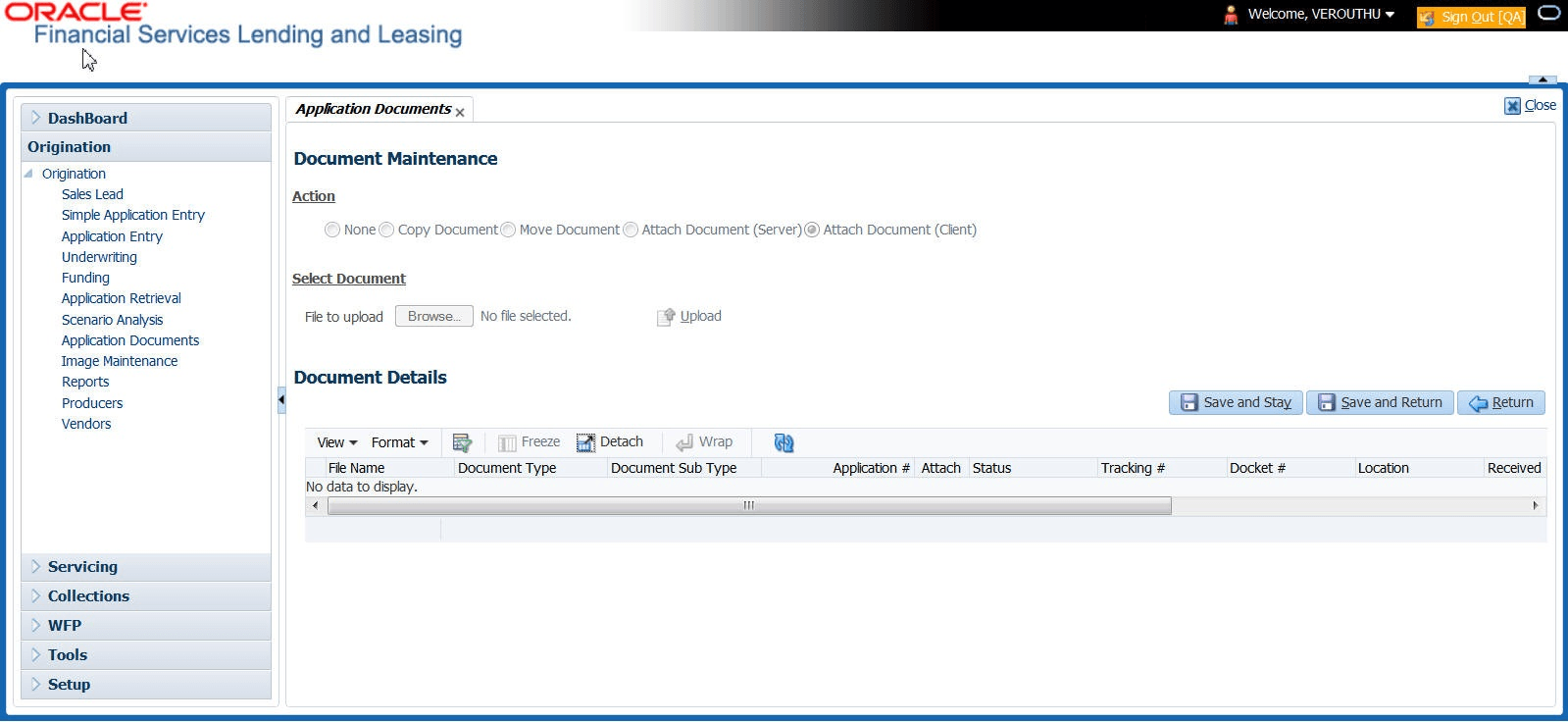
    Figure 12-2 Application Documents


  2. In the Action sub-section, click Attach Document (Client).
  3. In the Select Document section, click Browse in File to upload field. The system opens a Choose File to Upload dialog box.
  4. In the Choose File to Upload dialog box, locate the document user want to attach to the account. User can select multiple files by holding the Ctrl or Shift key on your keyboard.
  5. When user have located the document user want to attach to the account in the Open dialog box’s File name: field, click Open.
  6. The selected files appear in the Select Document sub-section’s File to Upload field.
  7. In the Select Document sub-section, click Upload.
  8. In the Document Details record, select the file uploaded from your server and click Edit.
  9. In the Document Details section, enter, view or edit the following information:

    Table 12-2 Document Details

    Field Description
    File Name View the file name for the document.
    Document Type Select the type for the document.
    Document Sub Type Select the sub type for the document.
    Application # Select the application number to attach/copy/move the document image.
    Status View the status of the document.
    Comment Specify any comments regarding the document.
    Tracking # Specify the tracking number of the document.
    Docket # Specify the docket number of the document.
    Location Specify the location of the document.
    Received Dt Specify the received date of the document.
    Effective Dt Specify the effective date of the document.
    Expiry Dt Specify the expiration date of the document.
    Comments Specify any comments regarding the document.
  10. Select the Attach check box to attach the file to the account.
  11. Click Save And Return.
  12. In the Action sub-section, click Post.
    The system attaches the document to the application.
User can view the document in a browser by choosing View Document in the Action section.