5.6 Collateral Tab
This topic provides information on the collateral tab. It enables users to capture, manage, and track collateral details linked to an application.
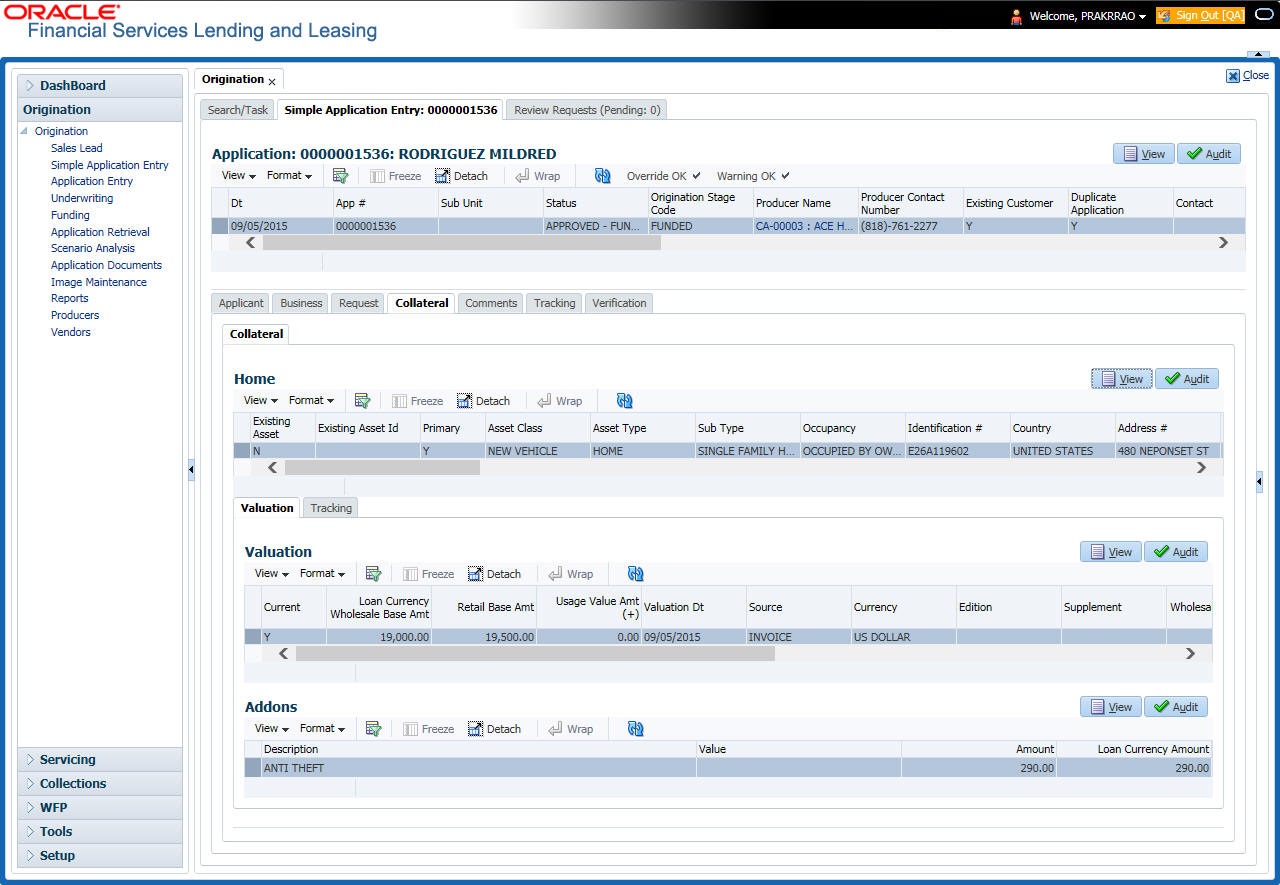
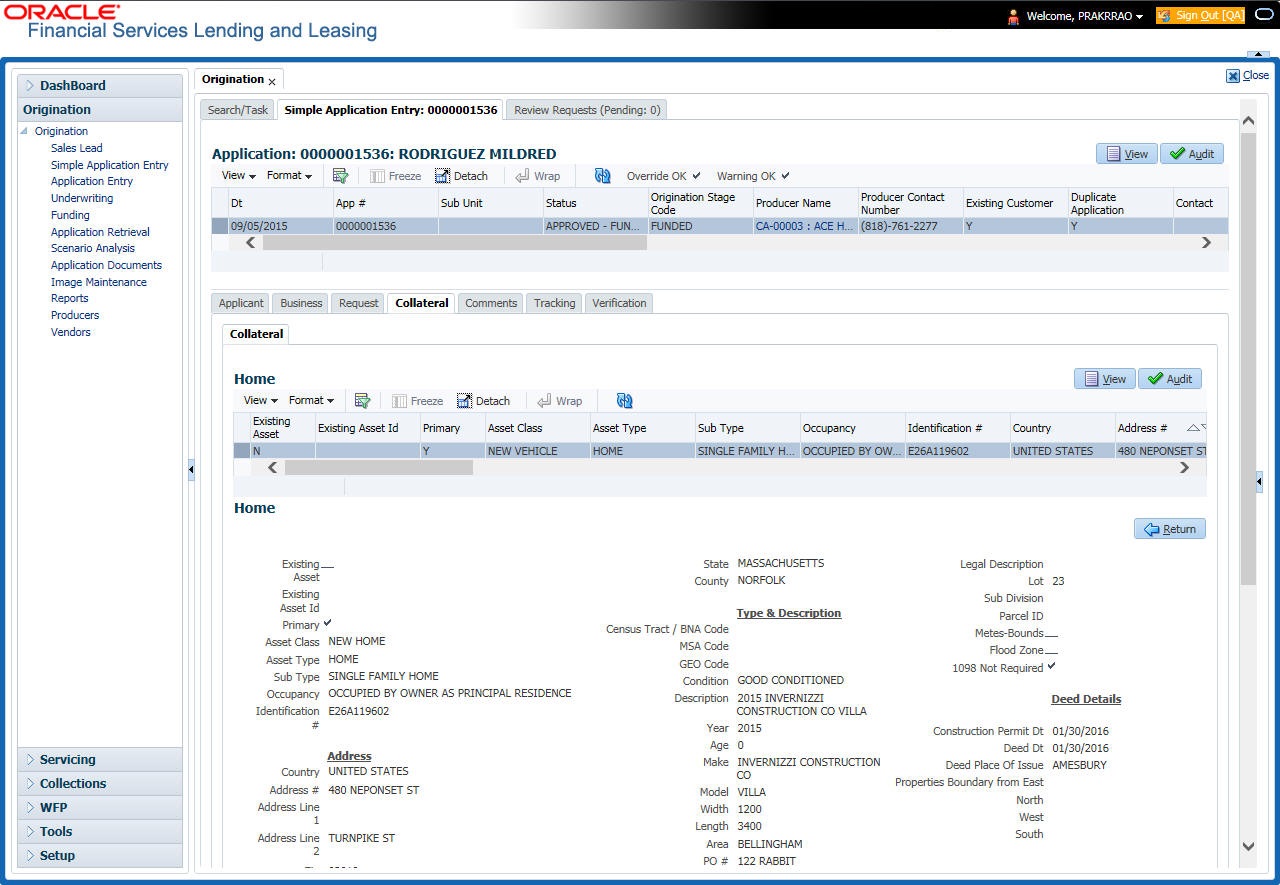
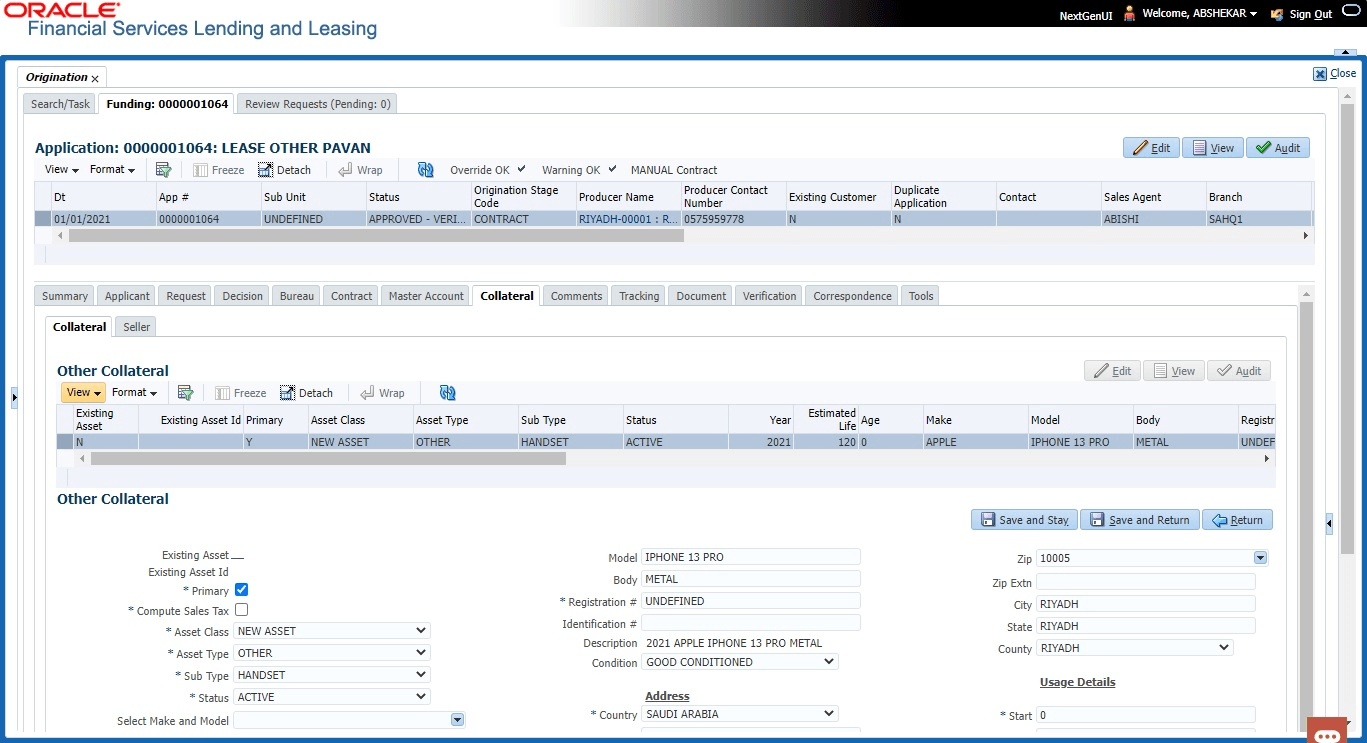
Depending on the type of product or producer user select, the Collateral tab opens one of the three following collateral screens: a vehicle information screen, a home information screen or an other information screen. Complete the screen that is available on user Applications screen. After that, complete the Valuation and Tracking sub screen, which the Collateral screens share. If user are entering an unsecured Loan, the Collateral tab is present but inactive. In which case, skip this step.
- On the Origination, click
Origination. Under Origination,
click Simple Application Entry. Under Simple
Application Entry, click
Collateral.
The Collateral screen displays.
To enter home information from the Collateral tab
- On the Origination, click Origination. Under Origination, click Simple Application Entry.
- Under Simple Application Entry, click
Collateral. Under Collateral,
click
Collateral.
The Collateral screen displays.
If collateral is any other, the Collateral link displays information about that collateral.For details on this screen, refer Collateral Tab of the Underwriting chapter.
Parent topic: Simple Application Entry