7.13 Comments Tab
This topic provides information on the Comments, which allows users to record and review notes or feedback.
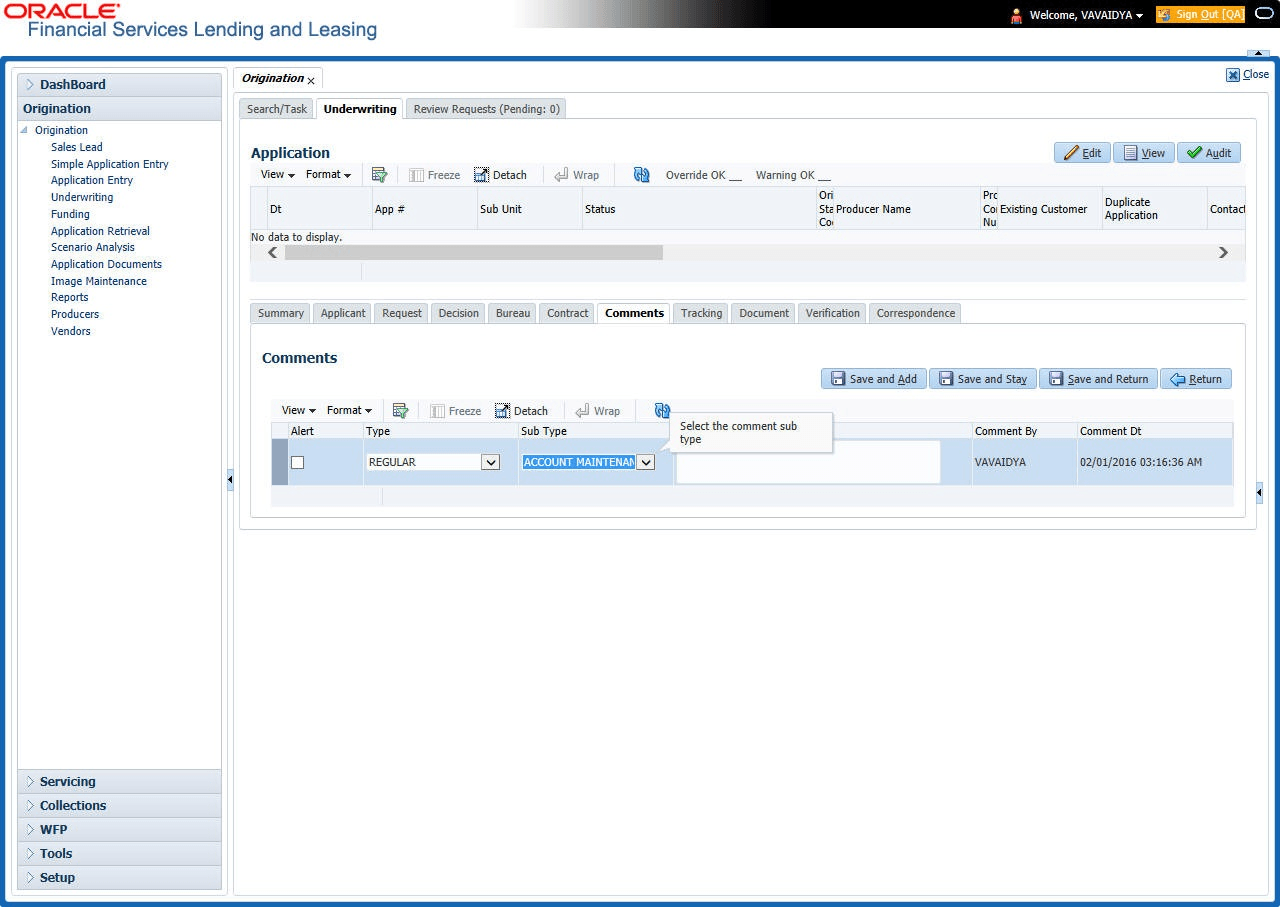
When using the Underwriting screen, user can add/delete comments to an application at any time in the underwriting process by using the Comments screen.
Whenever an application is decisioned by a proxy user, a system generated comment with timestamp is inserted in the comments tab in the format <User 1> actioned as proxy for Underwriter <User2>. Here, User 1 refers to the logged in user who has acted on behalf of User2, who is the concerned Underwriter. The concerned Underwriter’s name will also be selected in Application section Proxy for Underwriter field.
- On the Origination, click Origination. Under Origination, click Underwriting. Under Underwriting, click Underwriting tab.
- Under Underwriting tab, click
Comments sub
tab.
The Comments screen displays.
- Perform any of the Basic Operations mentioned in Preface.
A brief description of the fields is given below:
Table 7-57 Comments
Field Description Alert Check this box to make the comment appear on the Customer Service screen Alert section. Type Select the type of comment user are adding. Sub Type Select the sub type of comment user are adding. Comment Specify the comment. Comment By The system displays user ID. Comment Dt The system displays commented date and time stamp. - Perform any of the Basic Actions mentioned in Preface.
This section consists of the following topic:
- Deleting Comments
This topic provides information on deleting comments, which enables users to remove existing notes or feedback from the record.
Parent topic: Underwriting