7.15 Document Tab
This topic provides information on the Document, which stores and manages related files and records.
The Document tab allows user to view documents attached to the application in the form of GIF files, PDF files, DOC files, XLS files and TXT files and add comments regarding a selected.
- On the Origination, click Origination. Under Origination, click Underwriting. Under Underwriting, click Underwriting tab.
- Under Underwriting tab, click
Document sub
tab.
The Document screen displays.
- In the Application Document section, perform any of the Basic Operations mentioned in Preface.
A brief description of the fields is given below.
Table 7-61 Application Document
Field Description Document Type View the document type. Comment Specify any comments regarding the document. Table 7-62 Application Document
Field Description Document Sub Type Displays the document sub type. Version Displays the version. (Version numbers will be incremental by batch job, first version will start with 1.0). Page # Displays the page number. Document File Type Displays the document file type. Tracking # Displays the tracking number of the document. Docket # Displays the docket number of the document. Location Displays the location of the of the document. Received Dt Displays the effective date of the document. Effective Dt Displays the effective date of the document. Expiry Dt Displays the expiration date of the document. Comment Any comments regarding the document. - Perform any of the Basic Actions mentioned in Preface.
- Click View Document.
The system opens a browser to display the actual document (which browser appears depends on what type of document user selected and what browsers are set up to work in conjunction with user system).
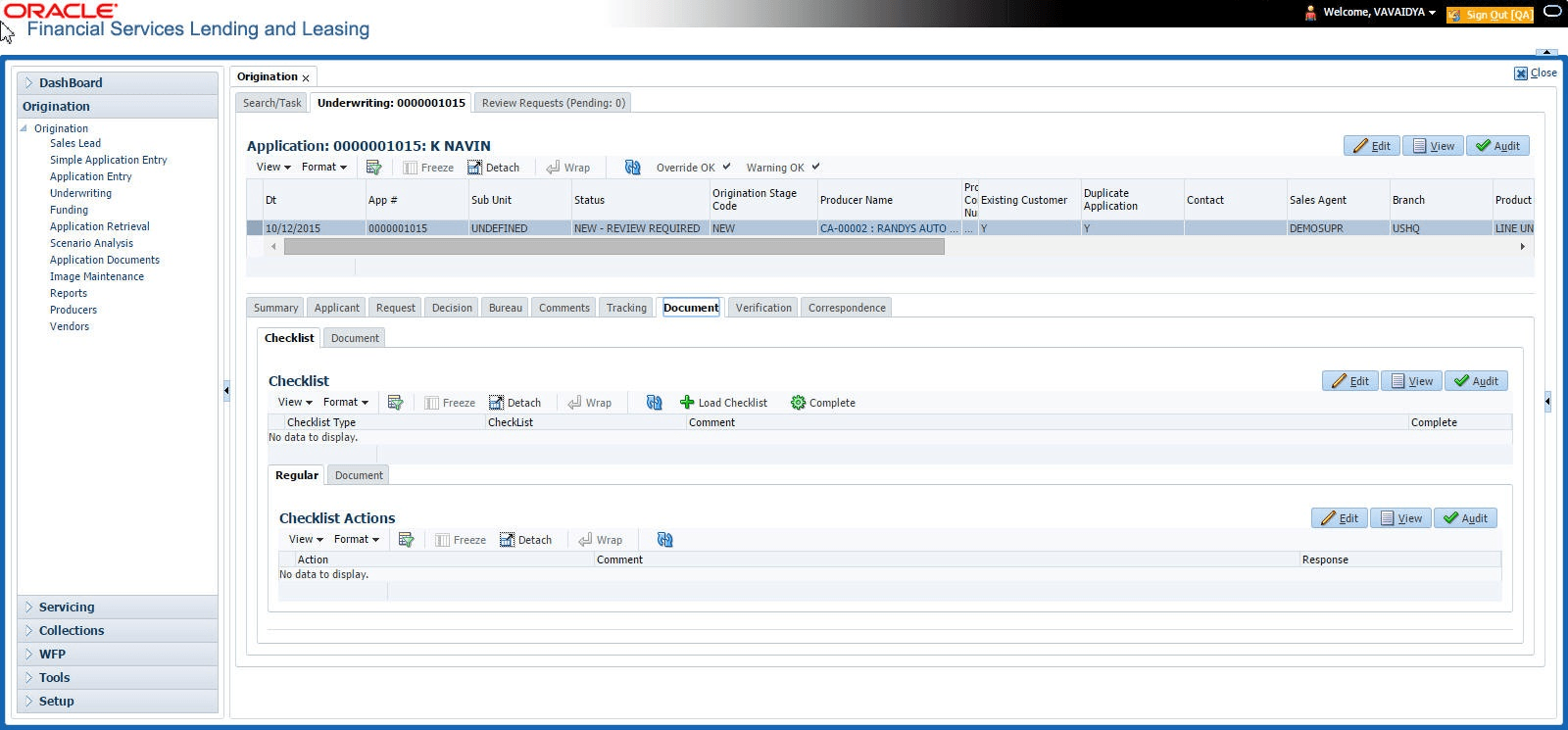
This section consists of the following topic:
- Checklist Sub Tab
This topic provides information on the Checklist, which records task items and tracks their completion status.
Parent topic: Underwriting