3.4.1 Monitoring Batch Jobs
This topic provides information on monitoring batch jobs. It explains that batch processes are tracked, managed, and reviewed within the system.
The system tracks the success of each batch process on the Batch Job. If either a set of batch jobs or specific batch job should fail, user can resubmit it on this screen and review the results in Request Details section.
- Batch Job Sets
- Batch Jobs
- Batch Jobs Threads
- Request Details
- Request Results
- On the Dashboard, click Dashboard.
Under Dashboard, click System
Monitor. Under System Monitor, click
Batch
Jobs.
The Batch Jobs screen displays.
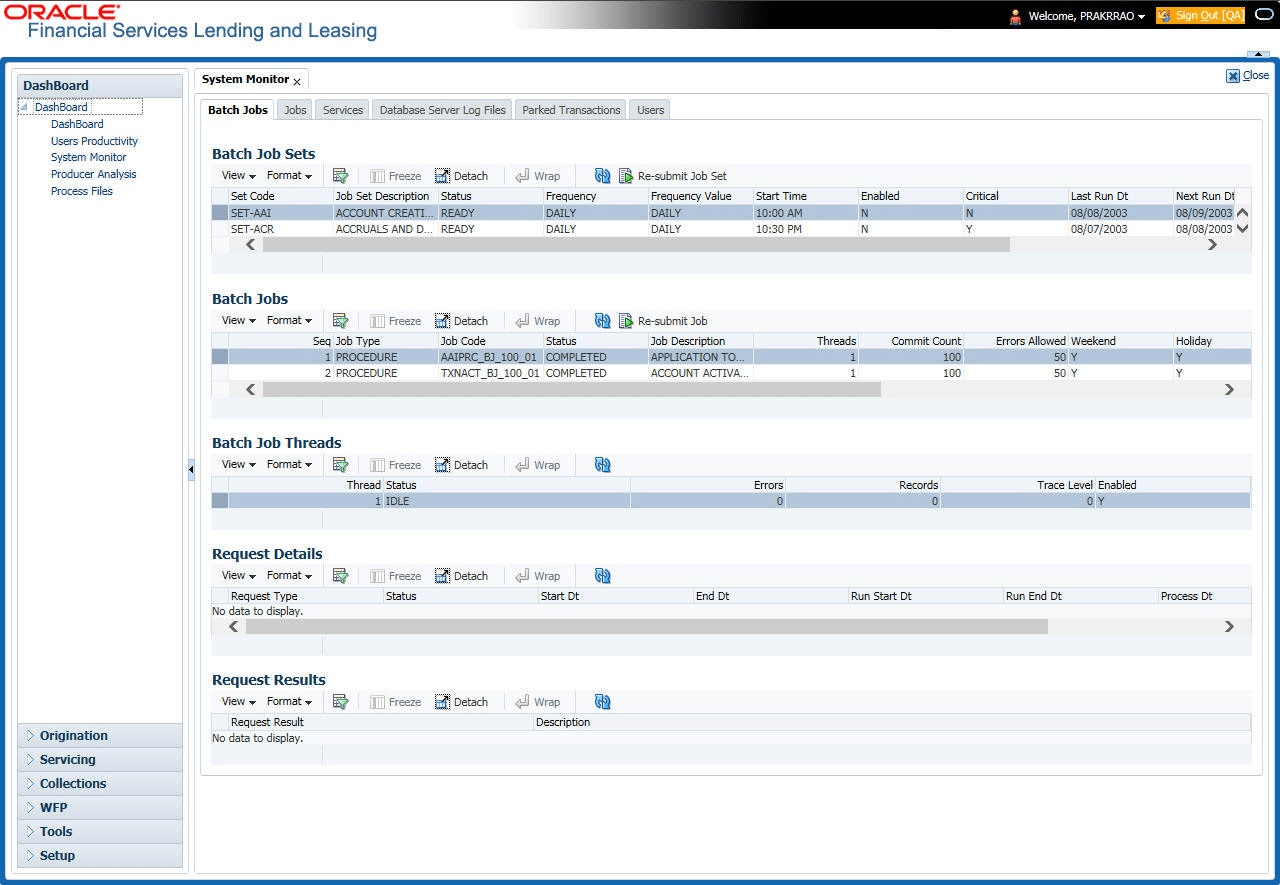
Table 3-1 Batch Jobs Sets
| Field | Description |
|---|---|
| Set Code | Displays the code for batch job set. |
| Job Set Description | Displays the description for batch job set. |
| Status | Displays the job set status. |
| Frequency Code | Displays the frequency at which the job set is to be executed. |
| Frequency Value | Displays the value of frequency code chosen for the job set. |
| Start Time | Displays the start time for the job set. |
| Enabled | Displays if the job set is enabled or not. |
| Critical | Displays if this job set is critical or not. |
| Last Run Dt | Displays the date of last run of the job set. |
| Next Run Dt | Displays the next run date for job set. |
| Parent | Displays the preceding job set. |
| Dependency | Displays the type of dependency on predecessor. |
To resubmit a batch job set
Whenever a batch job set fails, it is best to resubmit it after correcting the errors that caused the failure. Resubmitting a set causes system to re-perform the batch job set and dependent batch jobs.
To do so, in the Batch Job Sets section, choose the batch job set to resubmit (only a batch job set with a status of FAILED can be resubmitted), then click Resubmit Job Set button.
The Batch Job screen also allows user to resubmit jobs which are in READY or COMPLETED or FAILED status, if user have access key privileges define for user responsibility. If provisioned, then a Force Resubmit Job Set button is available instead of Resubmit Job Set button to resubmit the jobs with above status.
The Batch Jobs section lists the batch jobs within a job set. The status, threads, commit count, dependencies, enabled indicator and the holiday and weekend runtime indicators are shown for each job.
Table 3-2 Batch Jobs
| Field | Description |
|---|---|
| Seq | Displays the batch job sequence number. |
| Job Type | Displays the batch job request type. |
| Job Code | Displays the batch job request code. |
| Status | Displays the job status. |
| Job Description | Displays the batch job description. |
| Threads | Displays the number of threads used by the job. |
| Commit Count | Displays the number of rows after which auto-commit is triggered. |
| Errors Allowed | Displays the number of errors allowed. |
| Weekend | Displays if the batch job will execute job on weekend or not. |
| Holiday | Displays if the batch job will execute job on a holiday or not. |
| Enabled | Displays if the job is enabled or not. |
| Parent | Displays the preceding job. |
| Dependency | Displays the type of dependency on predecessor. |
| Command | Displays the command line for the job. |
| Rollback Segment | Displays the rollback segment for job. |
To resubmit a batch job
- In the Batch Jobs section, choose the batch job to resubmit (only a batch job with a status of FAILED can be resubmitted), then choose Resubmit Job Set.
The Batch Job Threads section displays the status of individual threads.
Table 3-3 Batch Job Threads
| Field | Description |
|---|---|
| Thread | Displays the name of thread. |
| Status | Displays the status of thread. |
| Errors | Displays the number of errors in the thread. |
| Records | Displays the number of records in the thread. |
| Trace Level | Displays the SQL trace level (0, 1, 4, 8, 12). |
| Enabled | Displays if the job thread is enabled or not. |
The Request Details section displays the status and runtime for each instance the selected job has run.
Table 3-4 Request Details
| Field | Description |
|---|---|
| Request Type | Displays the job request type. |
| Status | Displays the job request status. |
| Start Dt | Displays the job request is valid from this date and time. |
| End Dt | Displays the job request is valid till this date. |
| Run Start Dt | Displays the date and time on when the job run started. |
| Run End Dt | Displays the date and time at which the job run ended. |
| Process Dt | Displays the transaction is posted with this General Ledger effective date. |
| Description | Displays the job request description. |
If a particular job requires that a result message be created, then that message appears in the Request Results section. A message is usually created in the event of an error.
Table 3-5 Request Results
| Field | Description |
|---|---|
| Request Results | Displays the result of job request. |
| Description | Displays the result details. |
Parent topic: System Monitor