3.4.7 Monitoring Events
This topic describes the systematic instructions to monitoring events.
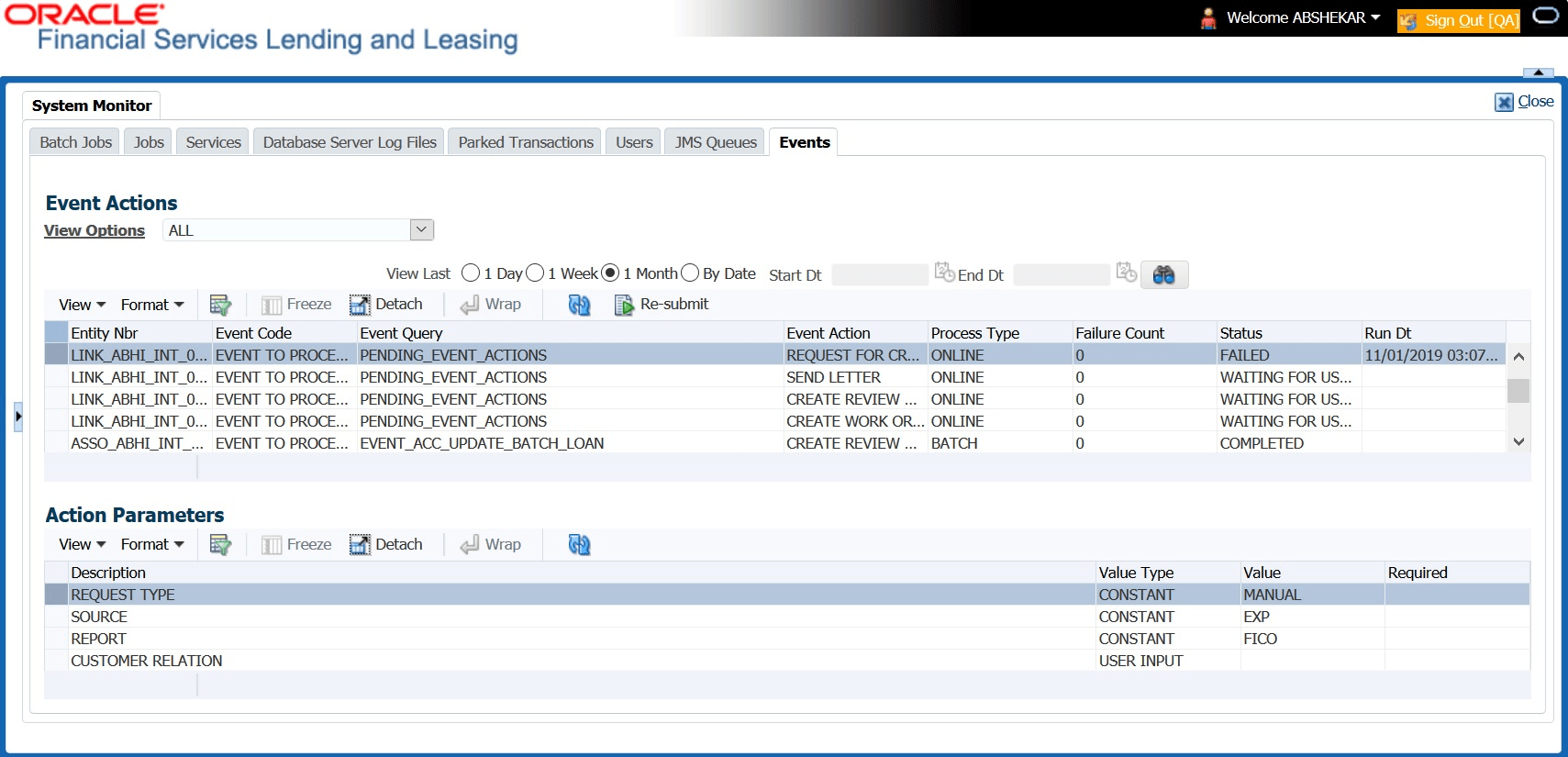
The Events screen is a dashboard to view all the Events triggered in the system. In the Events screen user can view the latest status of all the processed events and ‘Re-submit’ only failed events for re-processing. However, this is a display-only field and does not allow to modify the defined event action parameters.
- On the Dashboard, click
Dashboard. Under Dashboard,
click System Monitor. Under System
Monitor, click
Events.
The Events screen displays.
For more information on fields, refer to the field description table.Table 3-20 Events
Field Description View Options User can filter and view the list of events based on following Status: - All
- Submitted
- Waiting for user input
- Completed
- Failed
- Criteria not met
- Void
View Last User can further sort the volume of records displayed on the Events screen. 1 Day List of all events posted in last one-day. 1 Week List of all events posted in last one-week. 1 Month List of all events posted in last one-month. By Date List of all events posted between specific dates. User can specify a date range (within 3 months) in Start Dt and End Dt fields using the adjoining calendar. - By default, the Events screen displays all events posted in last one day.
- In the Event Actions section, view the following
information:
Table 3-21 Event Actions
Field Description Entity Nbr Entity Number on which event generated. Event Code Event Definition Description. Event Query Event Criteria Definition Description. Event Action Event Action Description. Process Type Event processing type as either Online/Batch fetched from EVENT_PROCESS_TYPE_CD lookup. Failure Count Number of times the event processing has failed. Status Event action with following execution status: - ALL
- SUBMITTED
- WAITING FOR USER INPUT
- COMPLETED
- FAILED
- CRITERIA NOT MET
- VOID
Run Dt Event Action Generation Date and Time. - In the Action Parameters section, view the following
information:
Table 3-22 Action Parameters
Field Description Description Event Action Parameter Description. Value Type Event Action Input Parameter Type. Value Value defined for the event action. Required Y/N indicating if the Action Parameter is mandatory.
Resubmit Failed Events
In the Events screen user can filter and re-submit only the FAILED status Online Event Actions for processing. An Event is marked with Failed status when the same could not be processed in the system due to setup/infrastructure issues. This is an additional option to re-process the event actions. On resubmitting an event, the Failure Count against the record is incremented by 1.
However, Resubmit option is not allowed for Webhook and SEND JMS MESSAGE actions since the same functionality is available in JMS Queues.
In the Event Actions section, select the required event record listed with status FAILED and click Resubmit. On triggering the event, the Run Dt column is updated with Event Action Generation Date and Time. Click Refresh to fetch the latest status.
Parent topic: System Monitor