3.4.5 Monitoring Users
This topic covers the process of monitoring users within a system, focusing on tracking their activities, access levels, and any potential security or performance issues.
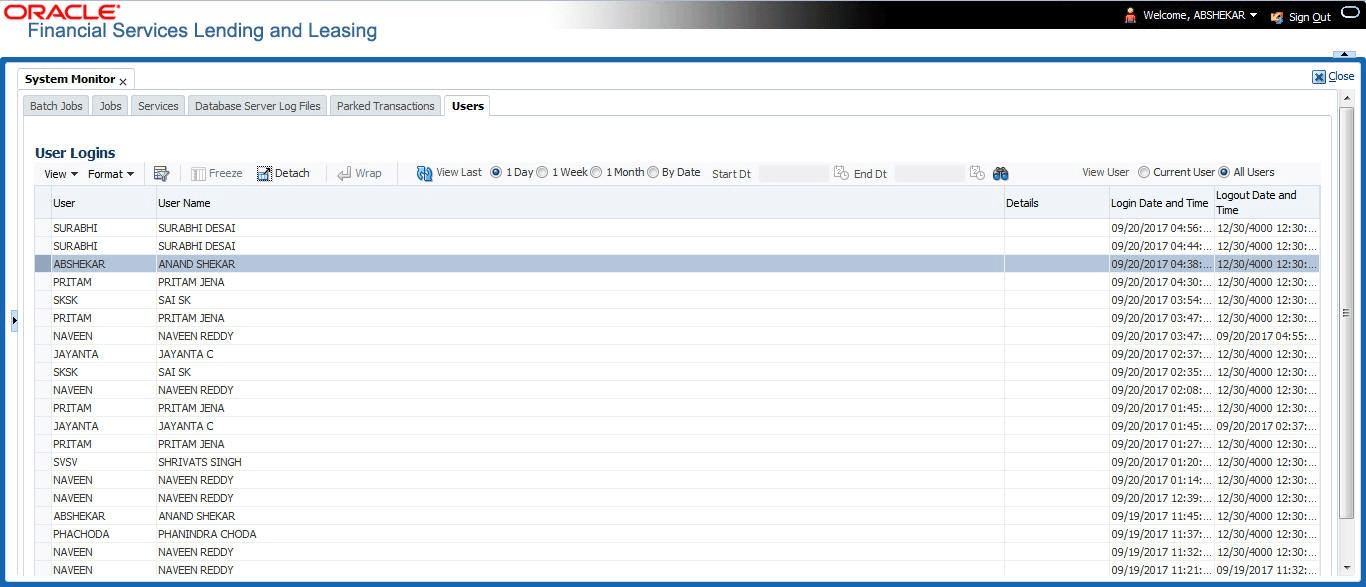
The User Login section allows user to view all users who have logged on to the system, along with the log on time stamp and logout time stamp. The information appears in reverse chronological order of the log on time stamp.
To monitor users who have logged on to the system
- On the Dashboard, click Dashboard.
Under Dashboard, click System
Monitor. Under System Monitor, click
Users.
The Users screen displays.
- In the Users section, select the time frame
based on elapsed days. User can select any of the following options:
Table 3-14 Users
Select System Displays 1 Day All the types of jobs selected in Jobs Type section in last one-day. 1 Week All the types of jobs selected in Jobs Type section in last one-week. 1 Month All the types of jobs selected in Jobs Type section in last one-month. By Date All the types of jobs selected in Jobs Type section for specific duration. User can specify a date range (within 3 months) in Start Dt and End Dt fields using the adjoining calendar. A brief description of the fields is given below:Table 3-15 User Login
Field Description User Displays the user ID. User Name Displays the user name. Details Displays the details. Login Date and Time Displays the login date time for the user. Logout Date and Time Displays the logout date time for the user.
Parent topic: System Monitor