3.4.4 Database Server Log Files
This topic provides information on database server log files. It explains that system logs are generated, organized, and accessed for monitoring errors, tasks, and performance.
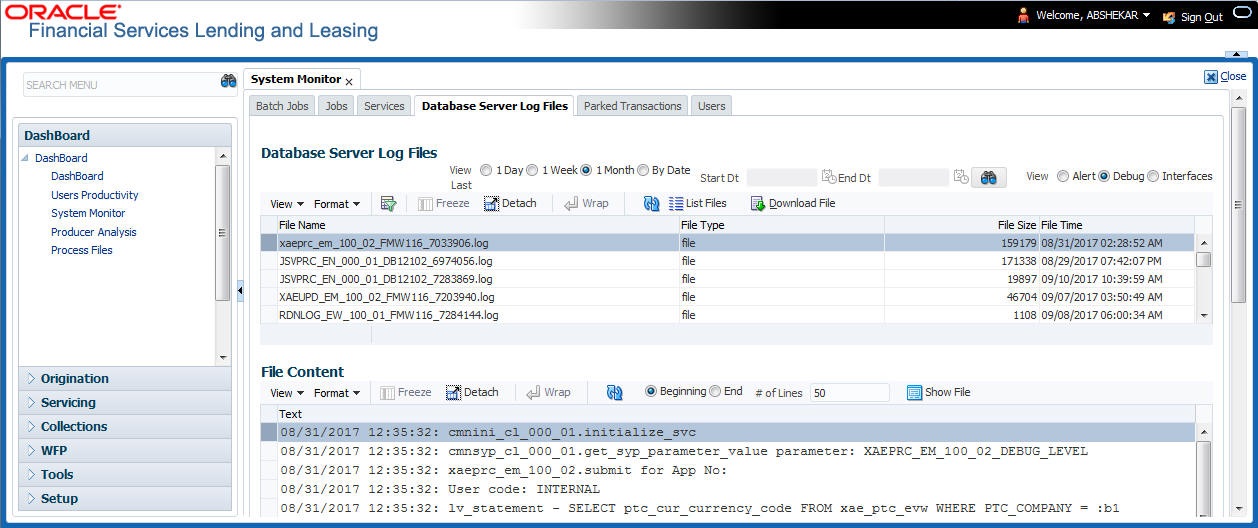
Various processes in the system create reports in different log files with regards to what tasks they performed and what they encountered (for example, errors, failures, erroneous data and so on). The Database Server Log files tab lists and describes all such log files within the system on the database server.
The alert log file captured by the system is split day-wise for ease of access and to avoid increasing the file size. In Alert Log:
- The error messages/exceptions are written into a static file named 'alert.log'.
- File name is created with SYSDATE appended to the word 'alert' to distinguish day-wise alert log files.
- The file name is updated every day when the system date changes. (Example: alert_MMDDYYYY.log).
- When there is no alert log file for the day, system creates with the alert_||SYSDATE.log and writes in the same file.
- If an alert log file exists, system appends to the same file until SYSDATE changes.
To view a log file on the database server
- On the Dashboard, click Dashboard.
Under Dashboard, click System
Monitor. Under System Monitor, click
Database Server Log
Files.
The Database Server Log Files screen displays.
- In the Database Server Log Files section, user can sort the list of logs to
be displayed based on following options:
Table 3-12 Database Server Log Files
Field Description 1 Day All the types of jobs selected in Jobs Type section in last one-day. 1 Week All the types of jobs selected in Jobs Type section in last one-week. 1 Month All the types of jobs selected in Jobs Type section in last one-month. By Date All the types of jobs selected in Jobs Type section for specific duration. User can specify a date range (within 3 months) in Start Dt and End Dt fields using the adjoining calendar. View Select the View option to further filter the list based on the type of logs to be displayed by selecting Alert/Debug/Interfaces. - Click on
 List Files button to view the list of logged files. A
brief description of the fields are given below:
List Files button to view the list of logged files. A
brief description of the fields are given below:
Table 3-13 List of Logged Files
Field Description File Name Displays the name of file. File Type Displays the type of file. File Size Displays the size of file. File Time Displays the date and time stamp of file. - To extract a local copy of debug details, click
 Download File button and save the file.
- In the File Content section user can view the content of the file selected
in the Database Server Log Files by clicking
 Show File button.
- To sort the view of file contents, select the order as either Beginning or End and specify the value for # of Lines to be displayed (default 50).
Parent topic: System Monitor