12.2.4 Moving a Document
This topic provides information on the moving a document.
The Action section’s Move Document command moves an existing document image from one application to another application. This command detaches the document image from the source application and attach to second application.
To move a document to an application from another application
- On the Origination, click
Origination. Under
Origination, click Application
Documents.The Application Documents screen displays.
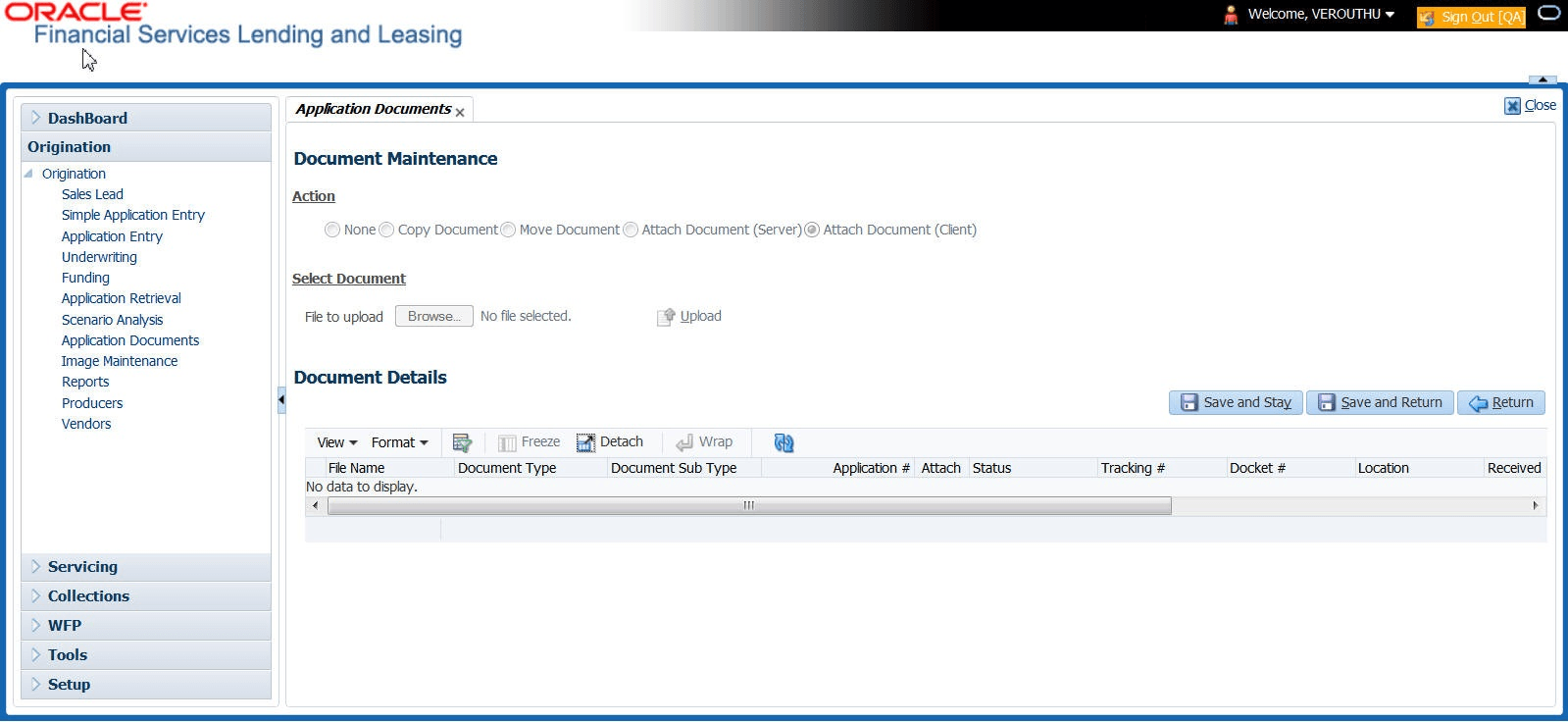
User can view the documents attached to a particular account by loading the
application on the Customer Service screen, then clicking the Customer
Service tab and then clicking on the Document
Tracking sub tab.
Parent topic: Application Document Screen