3.6.3 Outgoing Process File
This topic provides information on outgoing process files. It covers files sent to interfaced systems for validation, tracking, and further processing.
- On the Dashboard, click
Dashboard. Under Dashboard,
click Process Files. Under Process
Files, click Outgoing Process
File.
The Outgoing Process File screen displays.
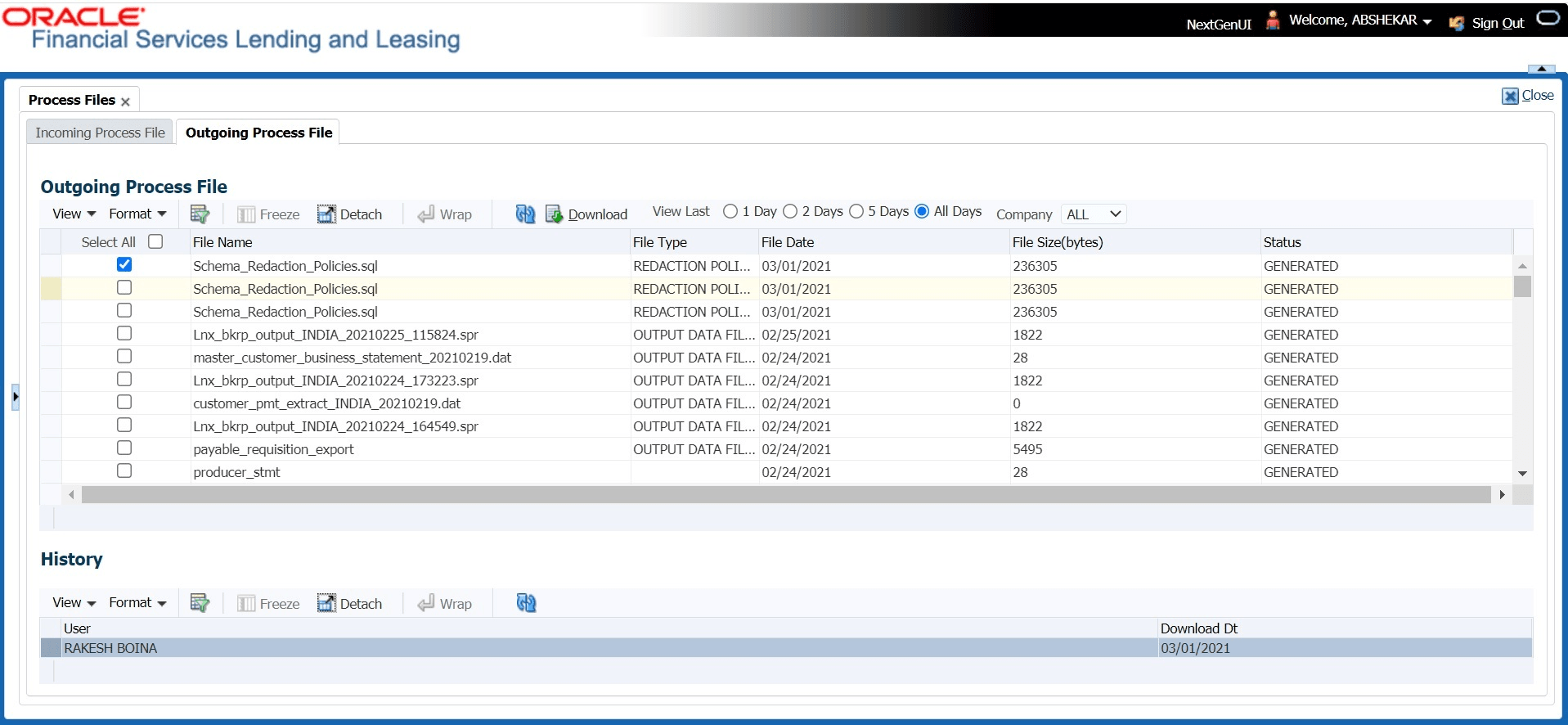
User can sort and view the list of files depending on the number of days based on Last 1 Day / 2 Days / 5 Days / All Days.
Table 3-25 Outgoing Process File
| Field | Description |
|---|---|
| Select All | Select this option to select all the listed files. |
| File Name | View the name of upload file. |
| File Type | View the type of file shared for upload. The file type is auto populated based on ODD (Output Data Definition) details maintained for the specific file type in OUTGOING_FILE_TYPE_CD lookup. |
| File Date | View the date and time when the file was shared for upload. |
| File Size(bytes) | View the size of upload file. |
| Status | View the status of upload file. |
- System displays the list of files shared for upload. User can click
 to refresh the grid data.
- In the Company drop-down list, select the portfolio company. Based
on the Company selected, system processes Incoming files. If the company is
selected is ALL, system processes the download file related to any company.
However, the Company list is populated only with those Company Definitions to which user have been provisioned access. This company is considered if system is setup to process batch jobs at Company level. For more information, refer to Appendix - Company Level GL Date Configuration section.
- Select the check box adjacent to the required file and click Download. User can also click Select All check box to download all the listed files.
History
Table 3-26 History
| Field | Description |
|---|---|
| User | View the login ID of User who downloaded the file. |
| Download Dt | View the date and time when the file was downloaded. |
Parent topic: Process Files