1.1.2 Screen Navigation
This topic explains screen navigation using panes and search options.
Left Window
In the left pane, system lists and provides drop-down links for various
modules available in the product. Click  to expand the Module Master Tabs and
  to collapse them.
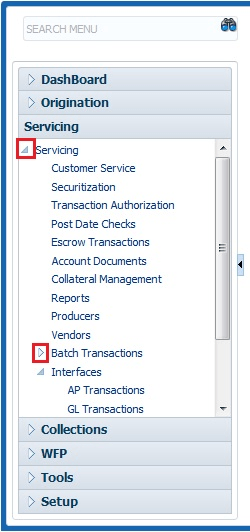
To open a screen, navigate to Module Master Tab to which the screen belongs, expand the tabs, and click the screen link user wish to open.
Menu Search in Left Window
In the left window user can make use of the search option to directly search and open the screen that user are familiar with, and avoid multiple steps of navigation from the LHS menu.
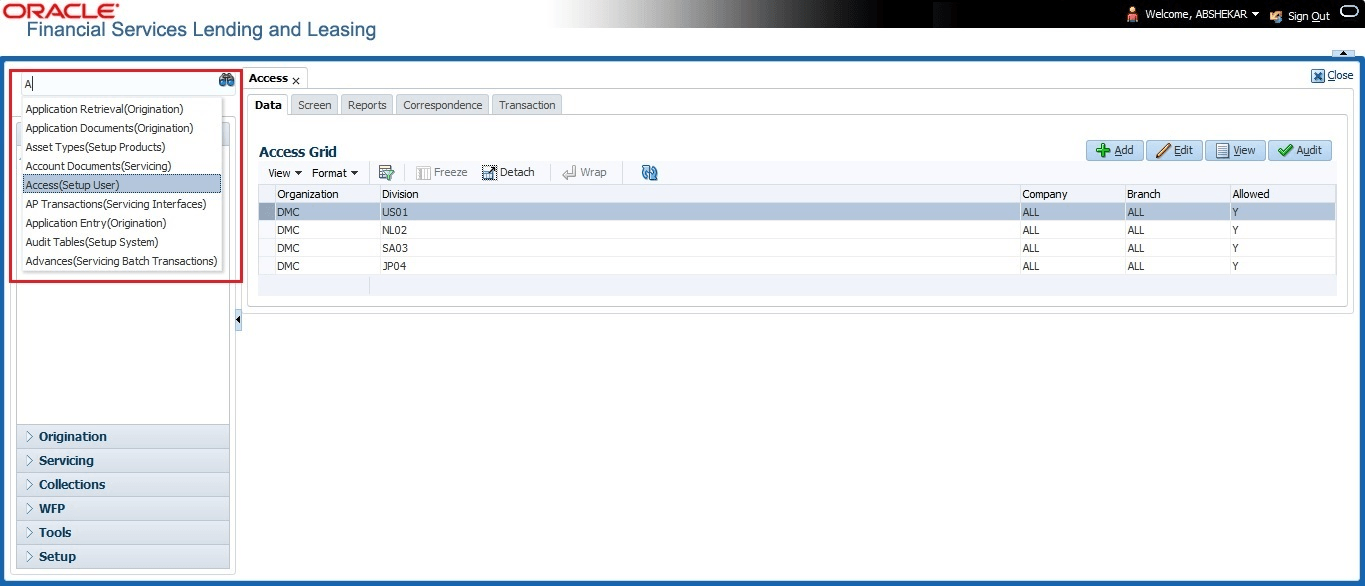
When there are multiple matches with same screen name, user can filter the results through the module from which the screen is accessed which is indicated in angular brackets. For example typing VEN displays the following options for selection - Vendors(Collections), Vendors(Origination), Vendors(Servicing), Vendors(Setup System). For subsequent search, user need to clear the data in the search field.
Right Window
The Right Window can also be termed as work area. When user click the screen link on left pane, system displays the corresponding screen in the right pane.
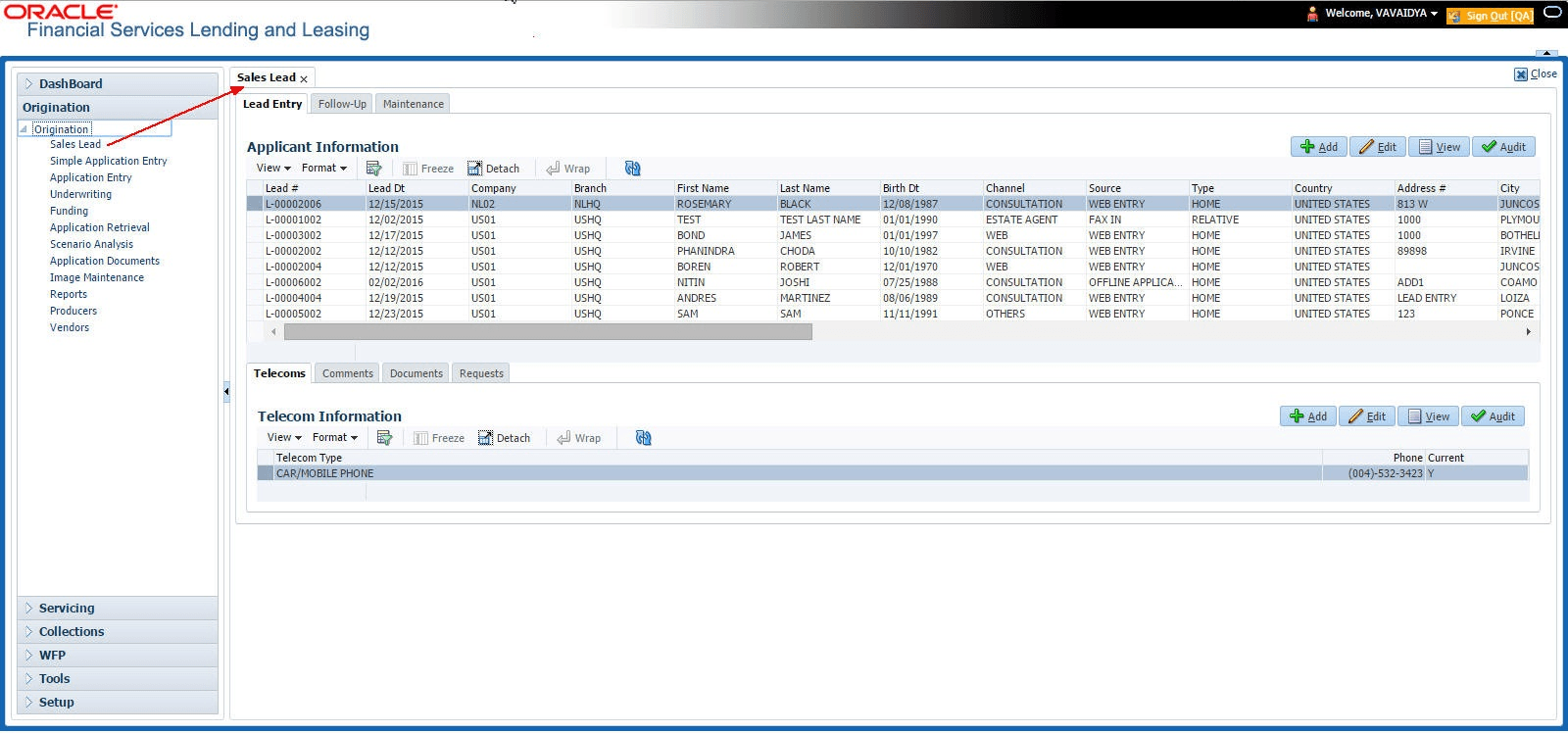
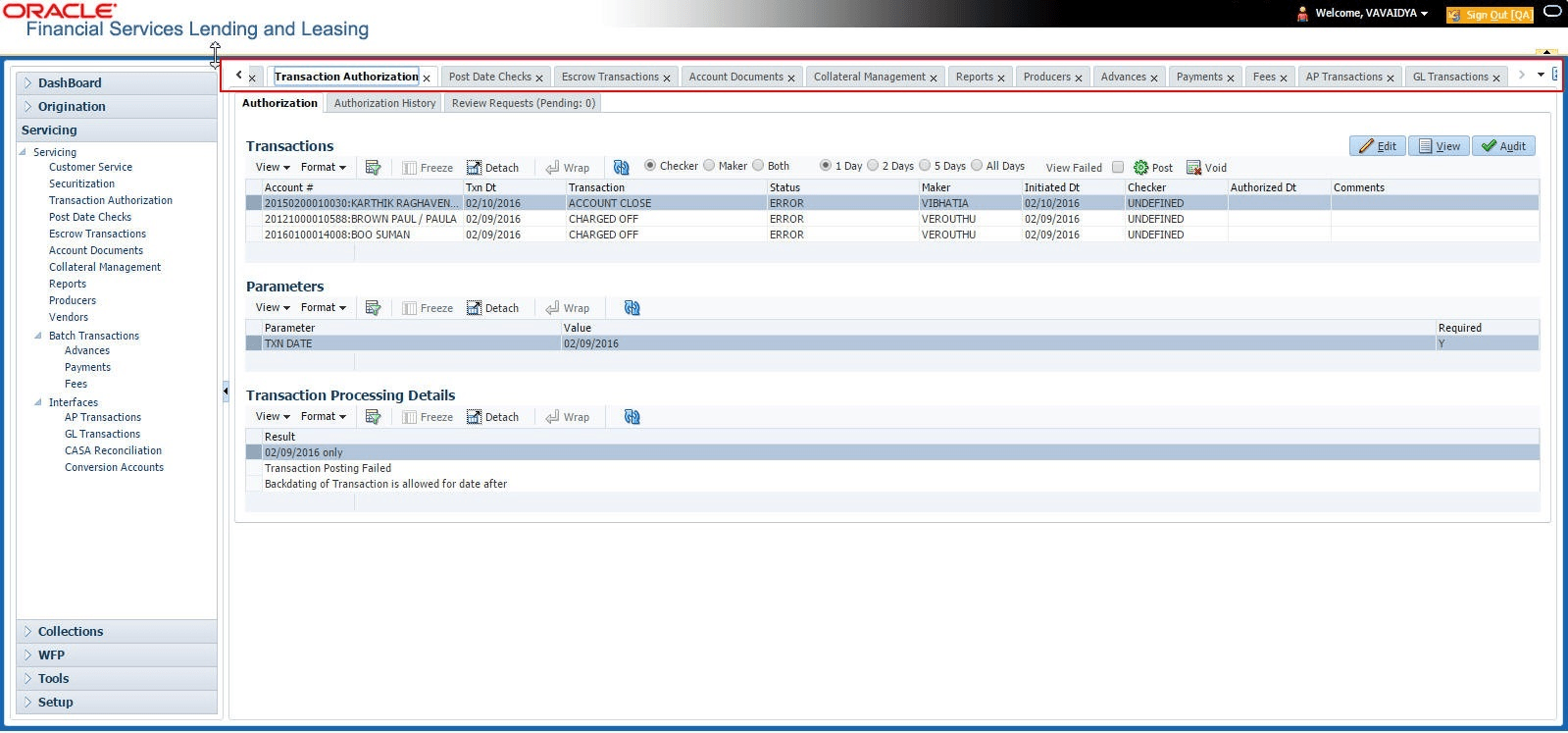
Each active screen is displayed as a tab at the top of right pane, across its width. To view a screen, click the screen tab. User can identify the active screen with its white background. Also, operation on any of the screen will not affect the data in other screens.
User can also open multiple Applications at the same time as separate tabs in the right window, provided the users system administrator has enabled the option 'Mac_Multi_tab_Ind' = 'Y’ in MENU_ACCESS table.
Having this option enabled user can view and update a maximum of 15 Applications in parallel tabs and Oracle Financial Services Lending and Leasing renders dynamic data across all the opened tabs.
However, this option is restricted only to the following screens in Origination Module Master Tab. In the Left Menu of Origination Module Master Tab, user can open multiple applications by click on the following links. Each successive click, opens a new Origination tab.
- Simple Application Entry
- Application Entry
- Underwriting
- Funding
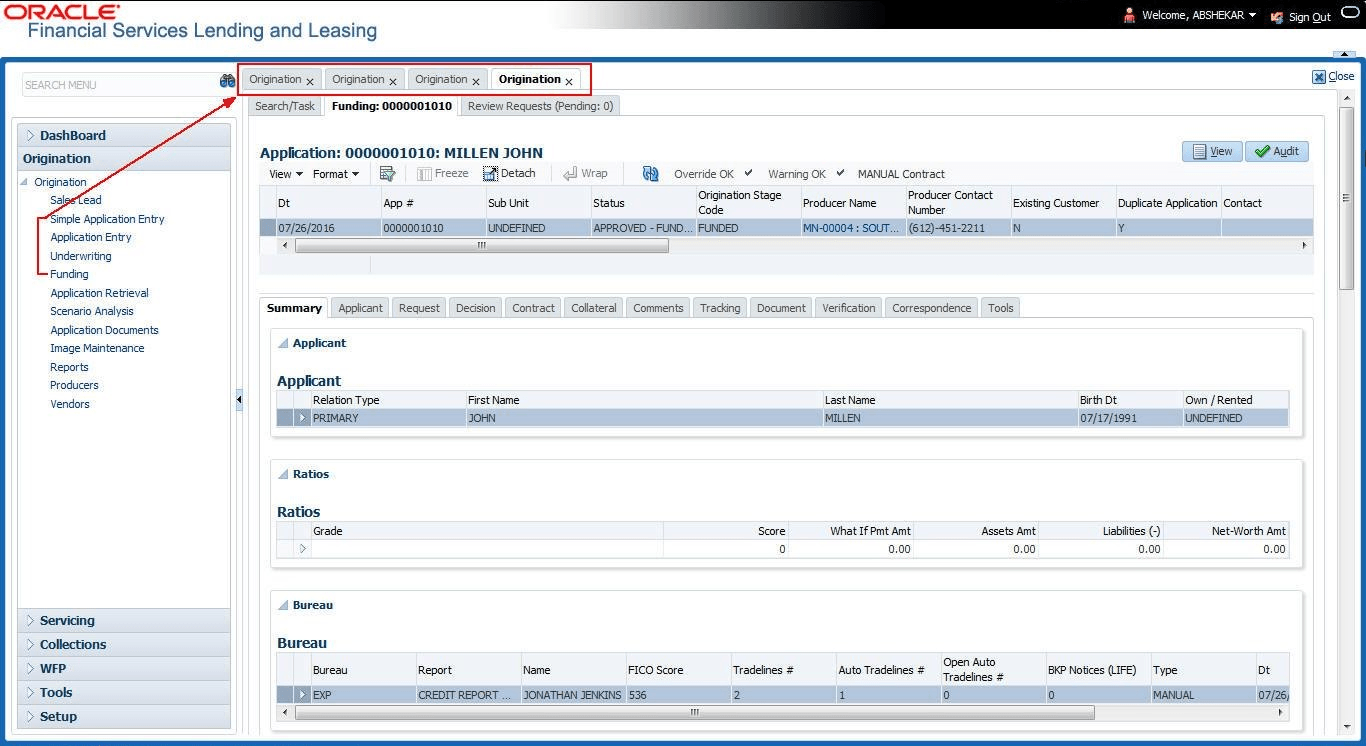
Few screens in Origination are identical and are linked. Hence, when multi tab option is not enabled, User can open only one screen at a time from the group. A sample of the grouping structure is given below, based on stages of the screens:
Origination:
- Simple Application Entry
- Application Entry
- Underwriting
- Funding
As per the above listing, user will be able to open only one screen in the corresponding list and need to close the same to open any other screen.
Right Splitter/Action Window
The Right Splitter/Action Window has quick access to search and other
options to avoid switching between tabs or navigating into sub tabs periodically. User
can access the Right Splitter/Action Window while working on Application screens. User can click  and
and  to toggle the view of Right Splitter/Action Window.
Origination Screens
- Navigate to Origination, click
Origination. Under
Origination, click Funding.
The user can use the Right Splitter/Action Window to do the following:
Figure 1-13 Right Split Window Application
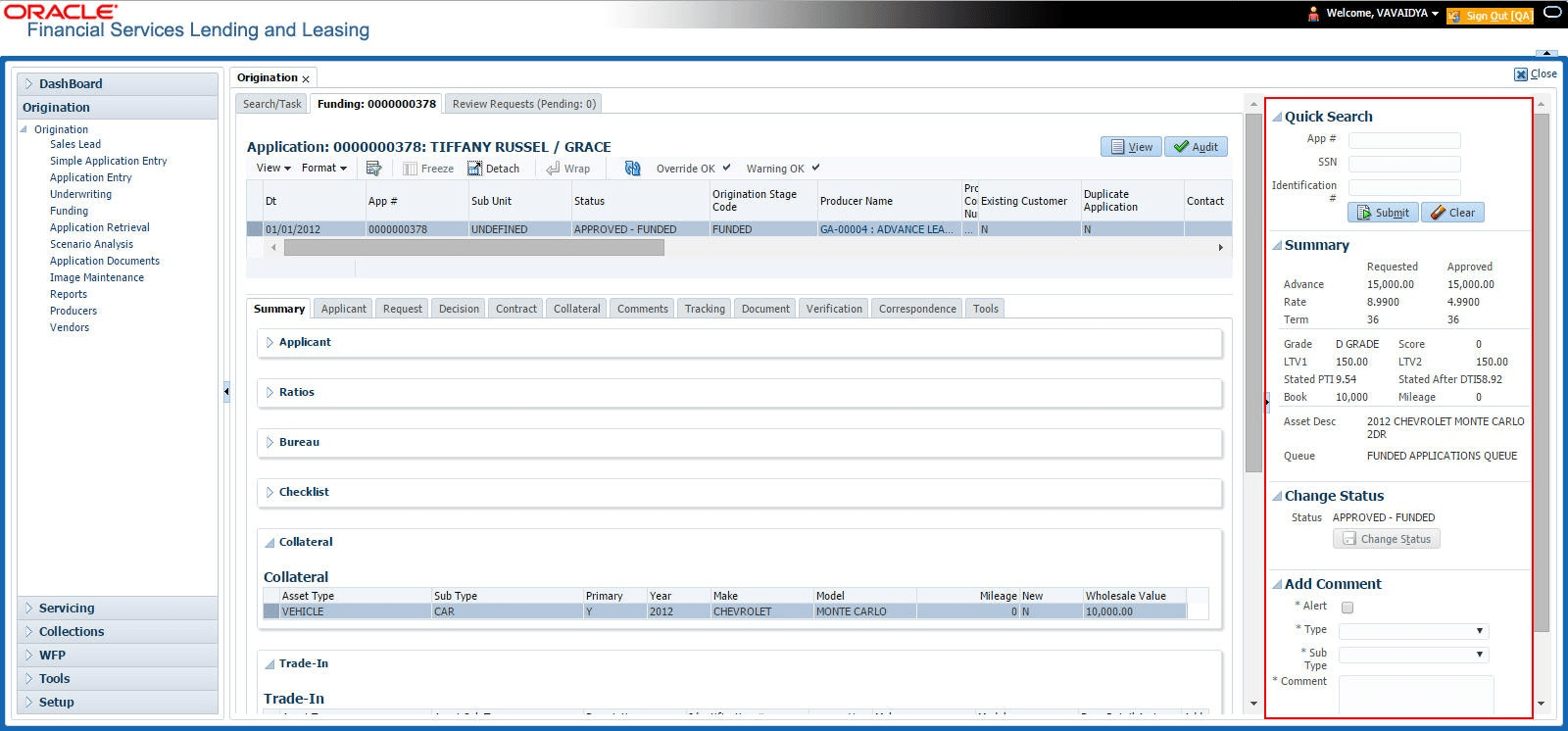
Table 1-4 Quick Search
| Field | Description |
|---|---|
| Quick Search | It displays the Quick Search section. |
| App# | Enter the unique Application Number to quickly search for a specific application. |
| SSN | Enter the last 4 digits of the applicant’s Social Security Number for application lookup. |
| Identification # | If multiple applications or accounts are found during Identification # search, the system displays an error message as “Multiple Matches found for the Identification #, Please use normal Search”. |
| Submit | Click to execute the search based on the entered criteria. |
| Clear | Click to reset the entered search fields for a new search. |
| Summary | Summary section displays critical information that has to be referred repeatedly during origination like – DTI, PTI, Book Value, Grade, FICO Score, Approved Advance, Rate and Term. |
| Change Status | Use Change Status section to change the application status to next level. If the application edit status is restricted, then the Change Status will be read-only. |
| Add Comment | Use Add Comment section to post an alert or comment during Underwriting and Funding stages. |
The height of Header and width of the Left and Right Panes do not change, with resizing of application screen.
The system facilitates toggling Header and Left and Right Panes of the home
screen to increase the visible area of the screens. Click  to toggle upper pane and to toggle left pane. To un-toggle click
  and respectively.
Parent topic: Template and Navigation