8 Configure Weblogic Server
This topic explains the steps for configuring Oracle WebLogic Application server for Oracle FLEXCUBE Investor Servicing.
To configure the Oracle WebLogic Application server, follow the steps given below:
- Specify the WebLogic Administrator Username,
Password and click
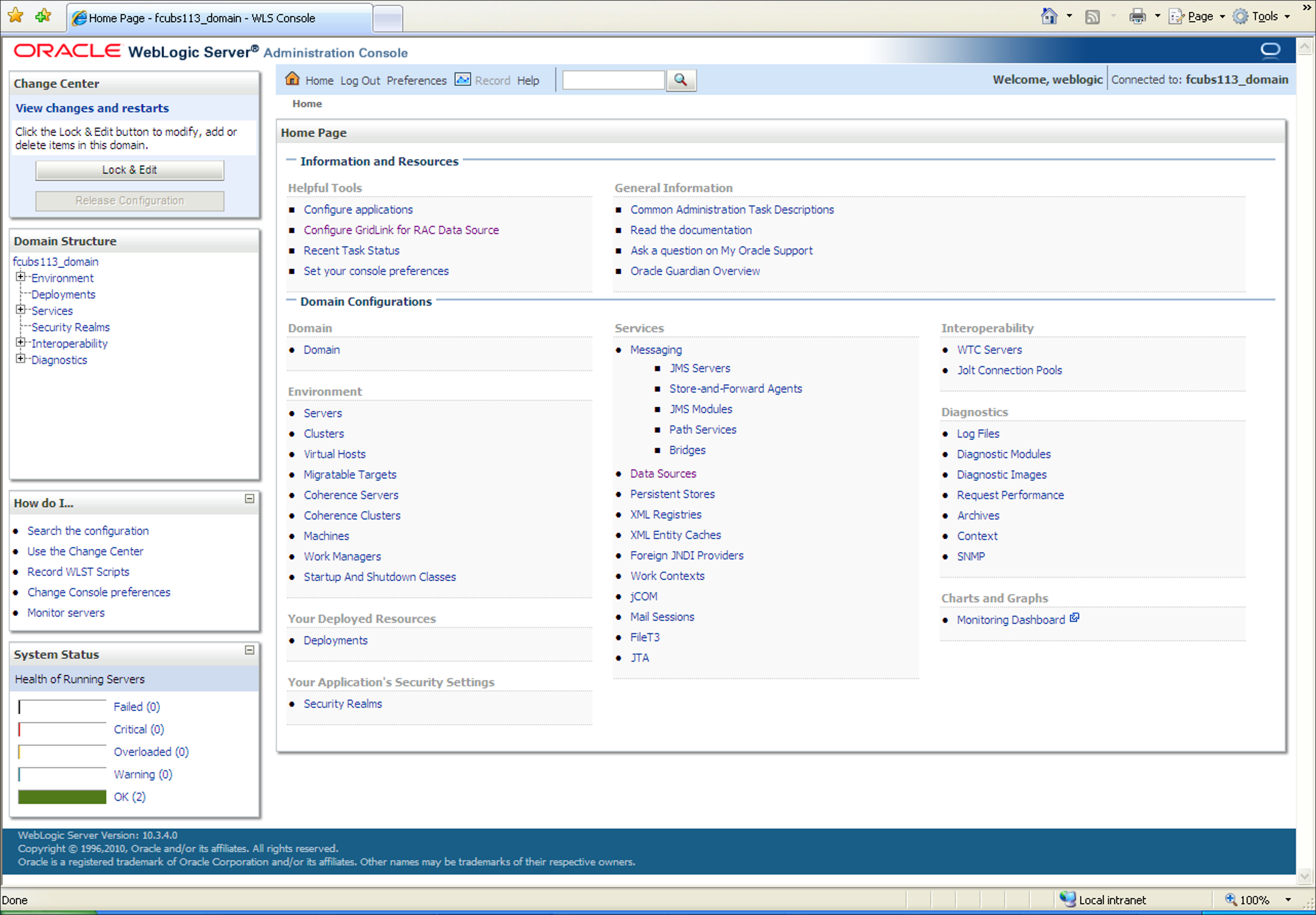
Login.Oracle Weblogic Server - Home Page screen is displayed.
Figure 8-1 Oracle Weblogic Server - Home Page
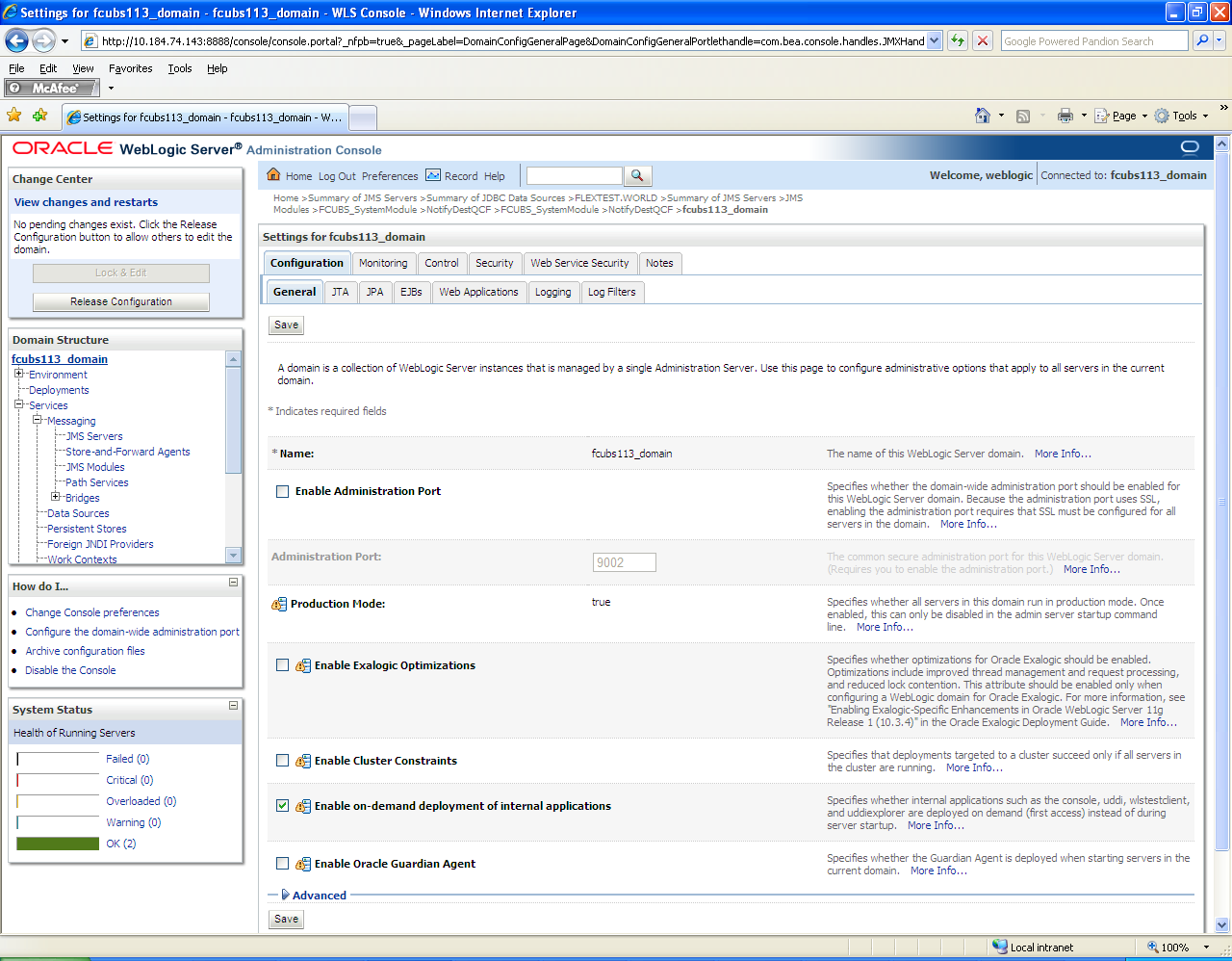
- Select the domain from the domain structure as shown below. (Eg:
fcis_domain).The Settings for fcubs113_domain is displayed.
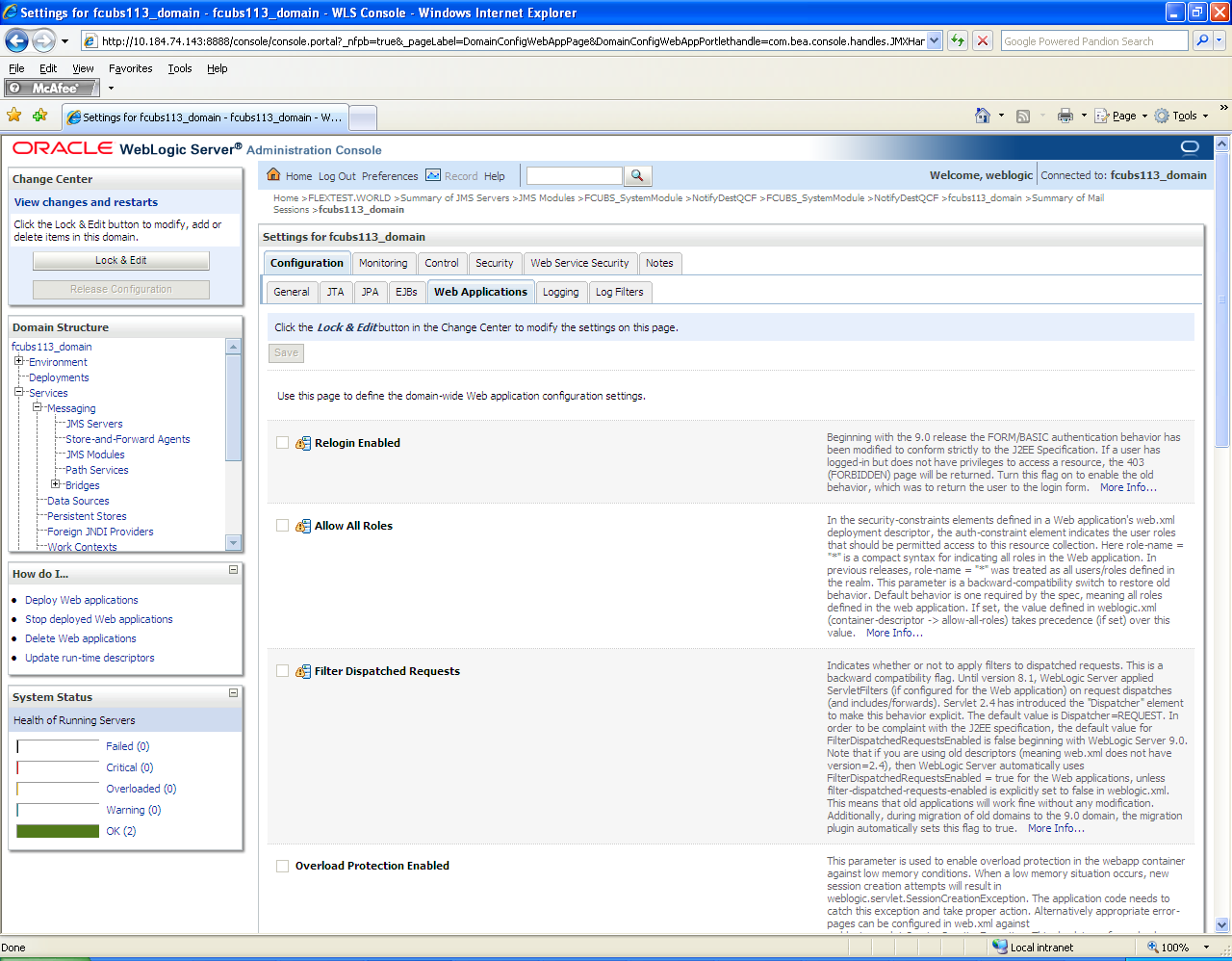
- Under the Configuration tab, select Web
Applications.Settings for fcubs113_domain - Web Applications tab is displayed.
Figure 8-3 Settings for fcubs113_domain_Configuration_Web Applications
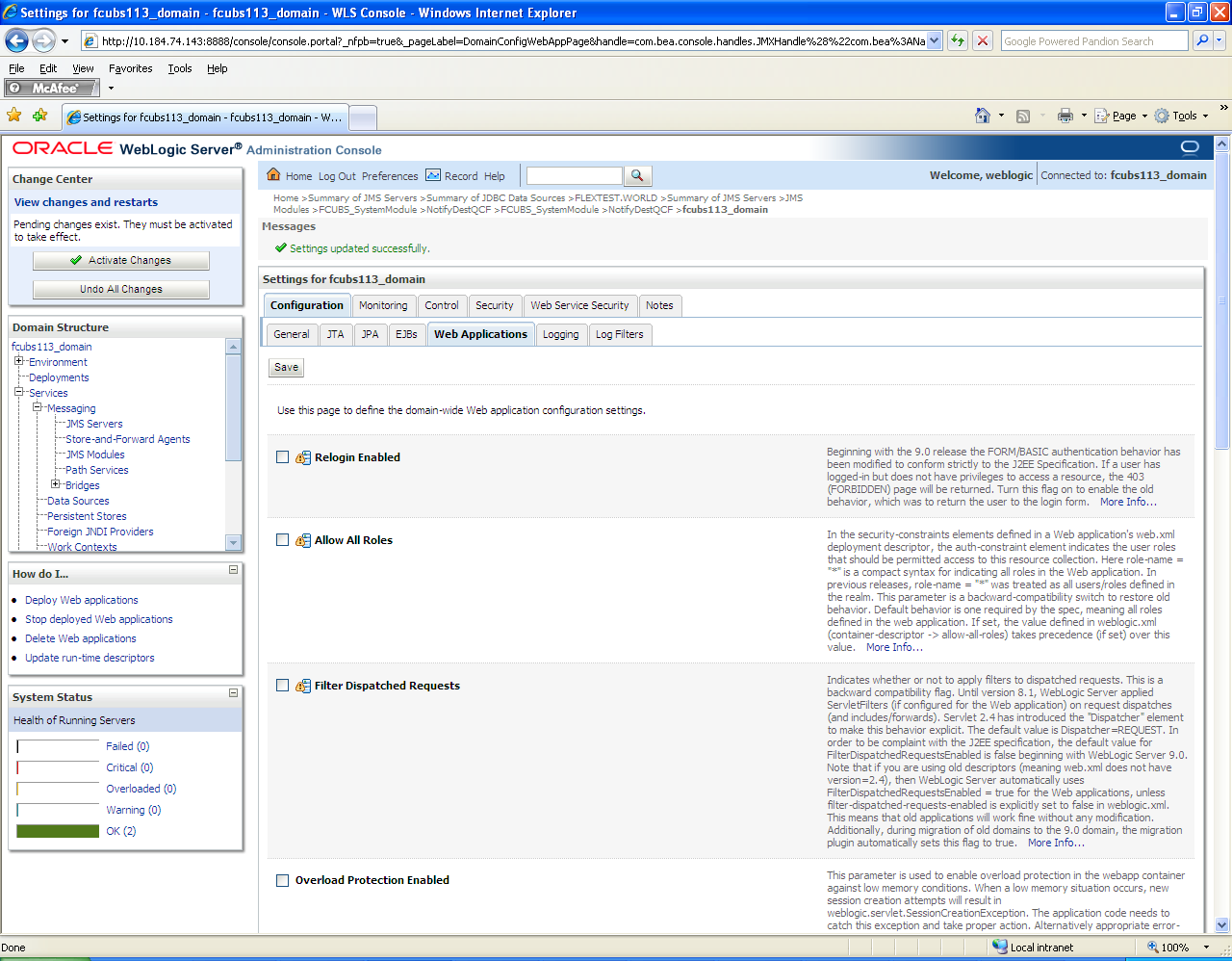
- Click on Save button and the message Settings are updated successfully is displayed.Settings for fcubs113_domain - Messages screen is displayed.
Figure 8-4 Settings for fcubs113_domain - Messages