7.6 Create JMS Connection Factory
This topic explains the systematic instructions to create the JMS Connection Factory in the Weblogic application server.
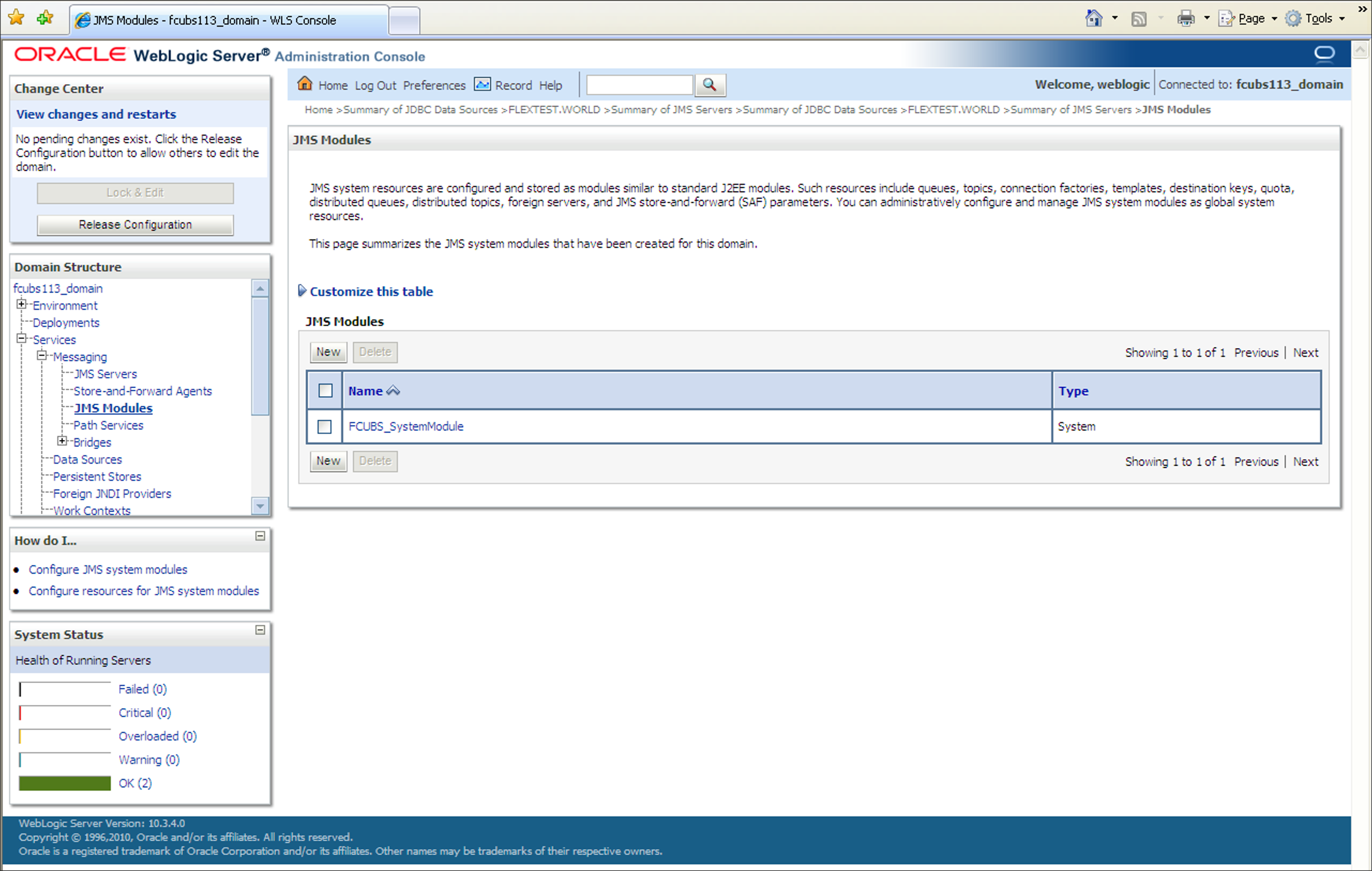
- Select the JMS Module created earlier in the JMS Modules
section.The screen displays the list of JMS modules created.
Figure 7-63 JMS Modules_Select JMS Moduled created
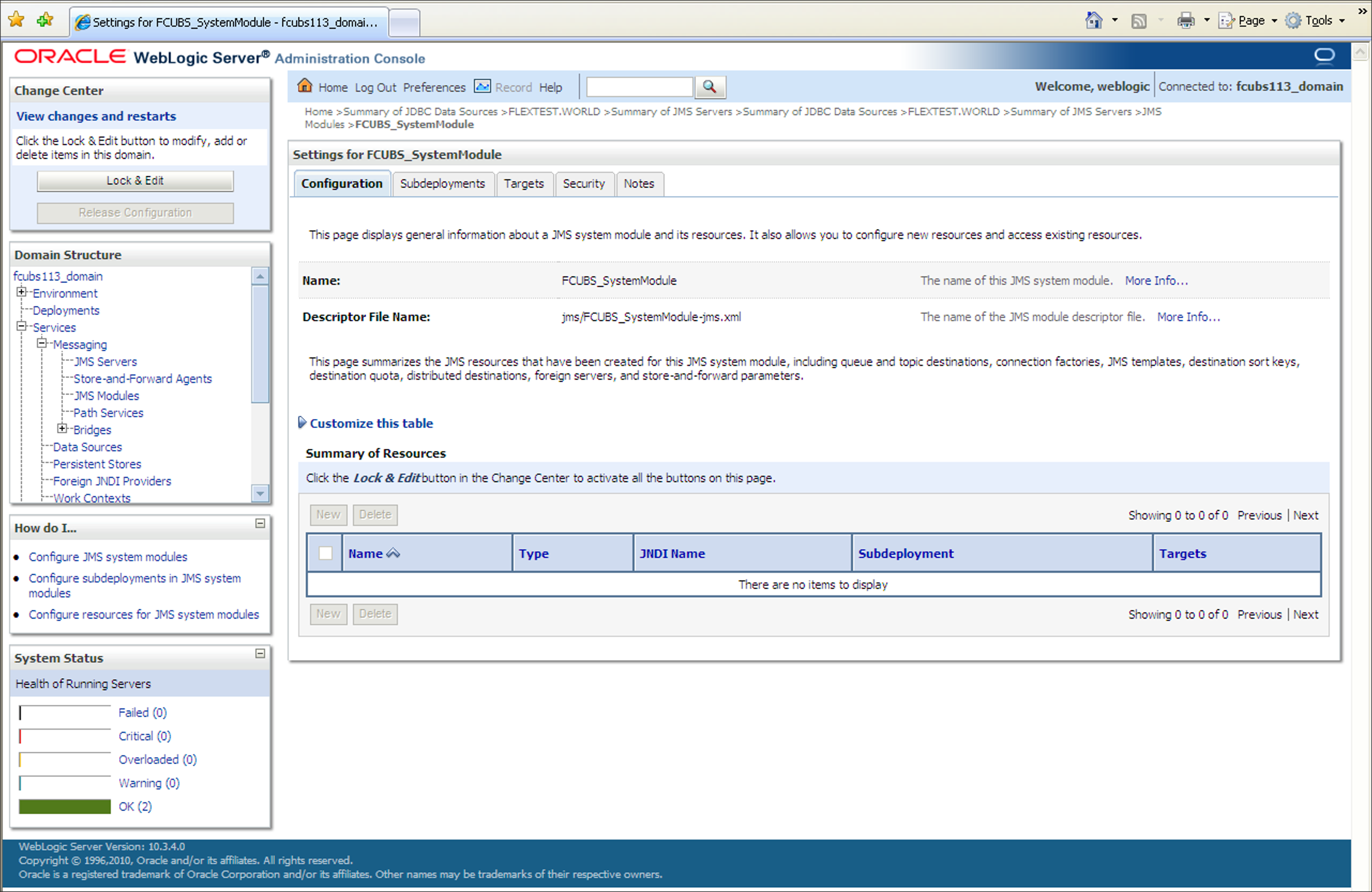
- On the Settings for the SystemModule screen, click the
Configuration tab to configure new resources or to
access the existing resources.Settings for the SystemModule_Configuration tab is displayed.
Figure 7-64 Settings for the SystemModule_Configuration
- Click the Lock & Edit button in the
Change Center. Click New in
the Summary of Resources section to create new
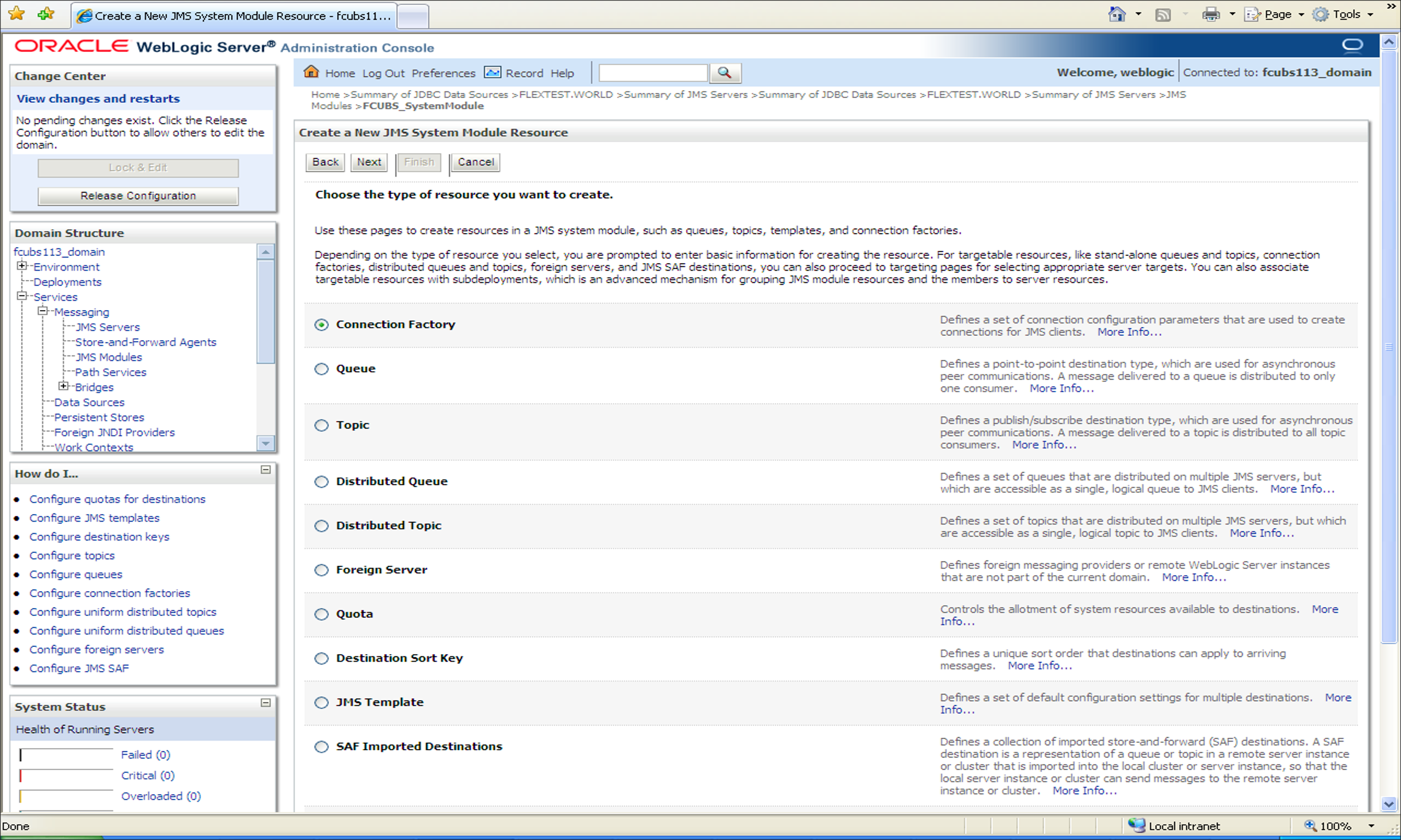
resources.Create a New JMS System Module Resource_Connection Factory screen is displayed.
Figure 7-65 Create a New JMS System Module Resource_Connection Factory
- Select the Connection Factory option and click
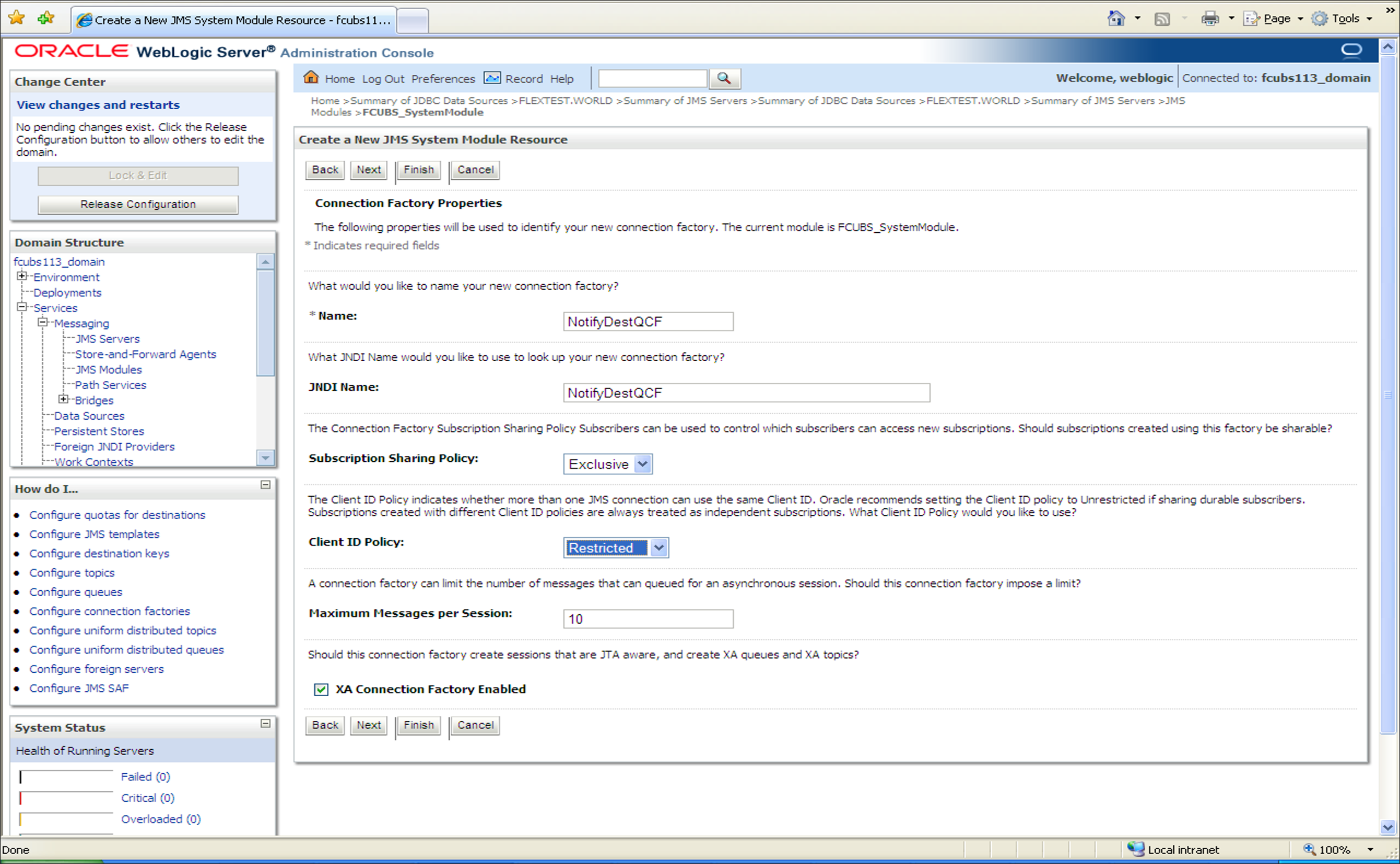
Next.Create a New JMS System Module Resource_Connection Factory Properties screen is displayed.
Figure 7-66 Create a New JMS System Module Resource_Connection Factory Properties
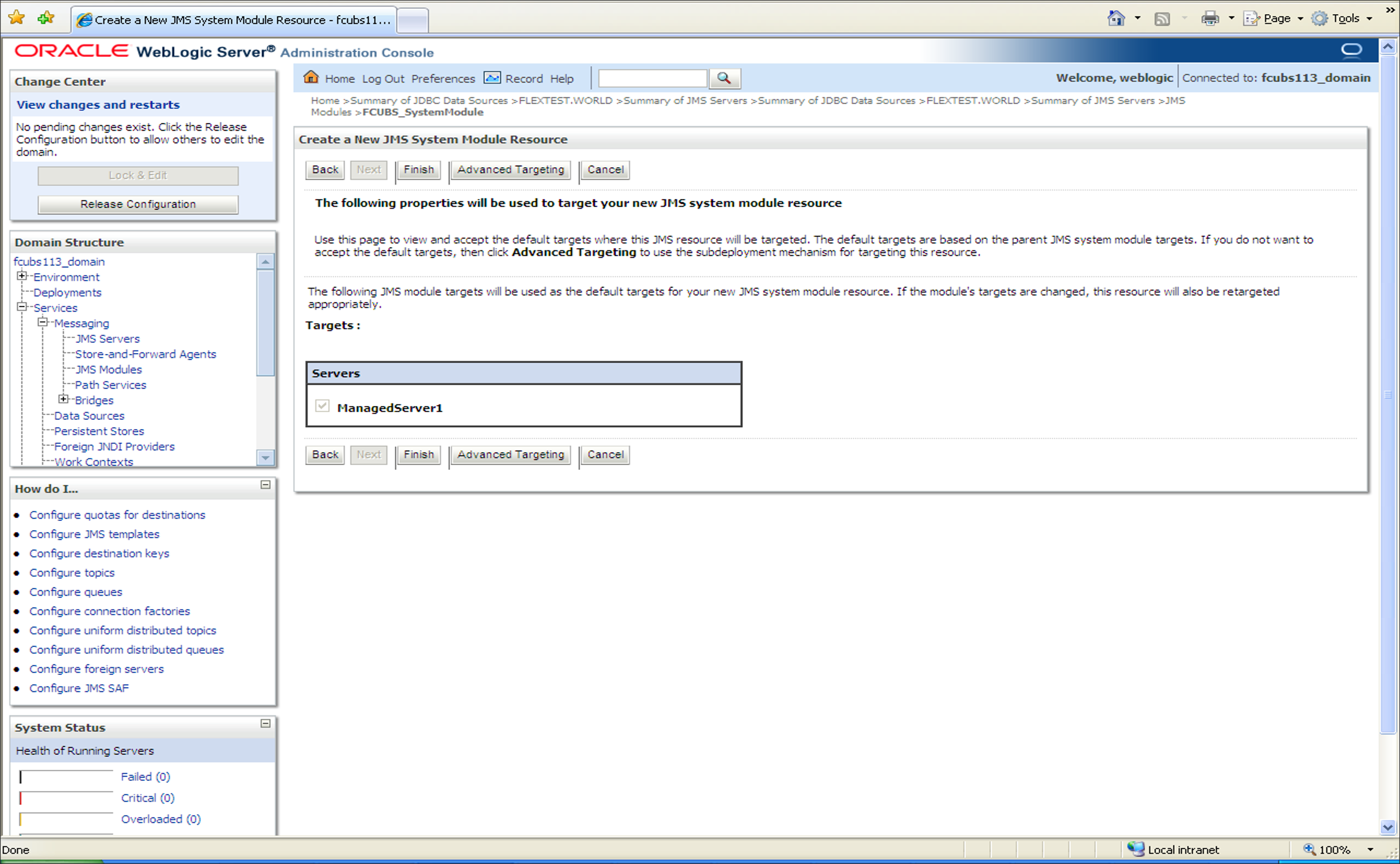
- Click Next to use the default target for new JMS system
module resource.The default targets are based on the parent JMS system module targets.Create a New JMS System Module Resource_Select Targets screen is displayed.
Figure 7-67 Create a New JMS System Module Resource_Select Targets
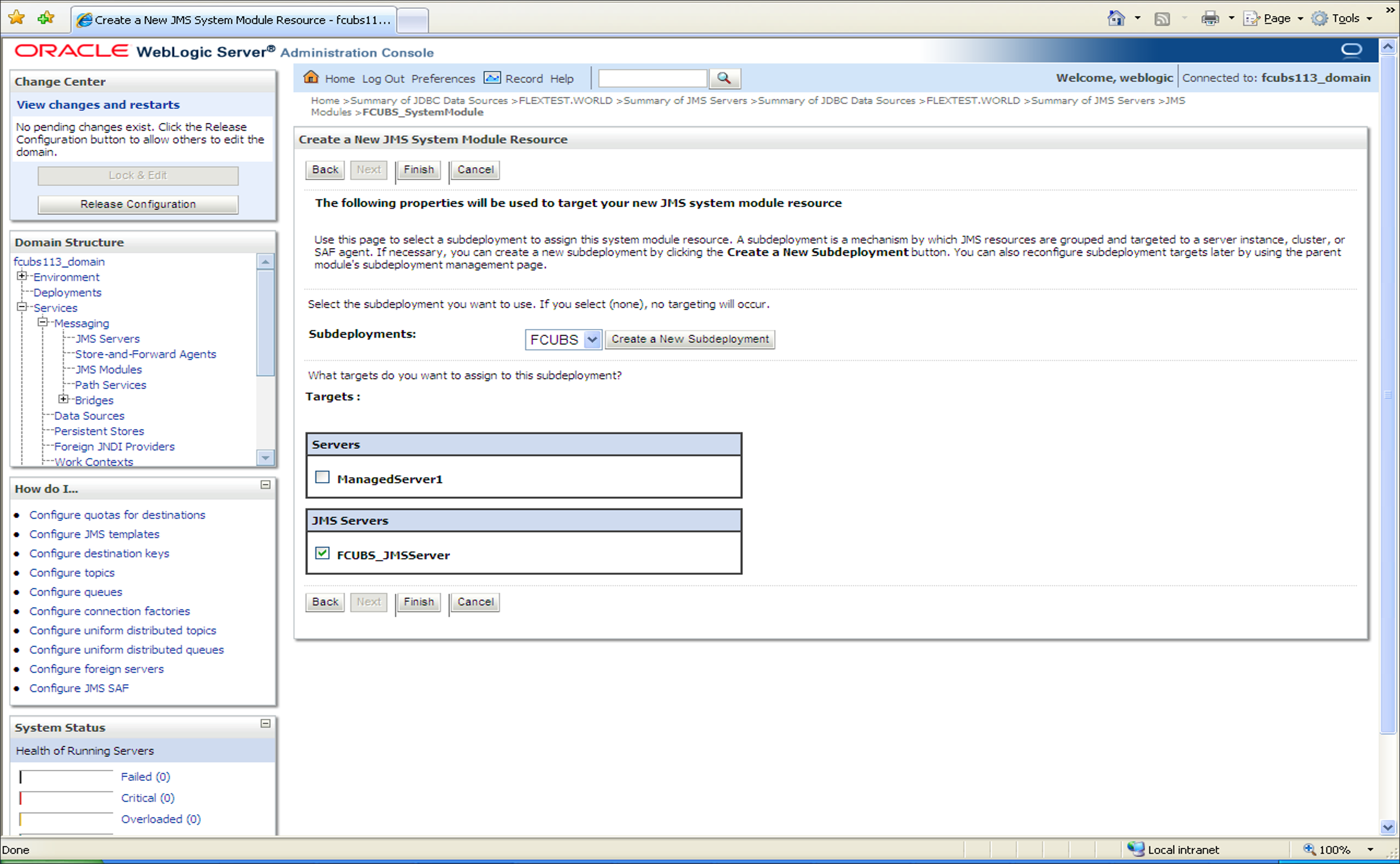
- Click Advanced Targeting to use the subdeployment
mechanism for targeting this source.The screen displays the targets you want to assign to this subdeployment.
Figure 7-68 Create a New JMS System Module Resource_Connection Factory_Subdeployments
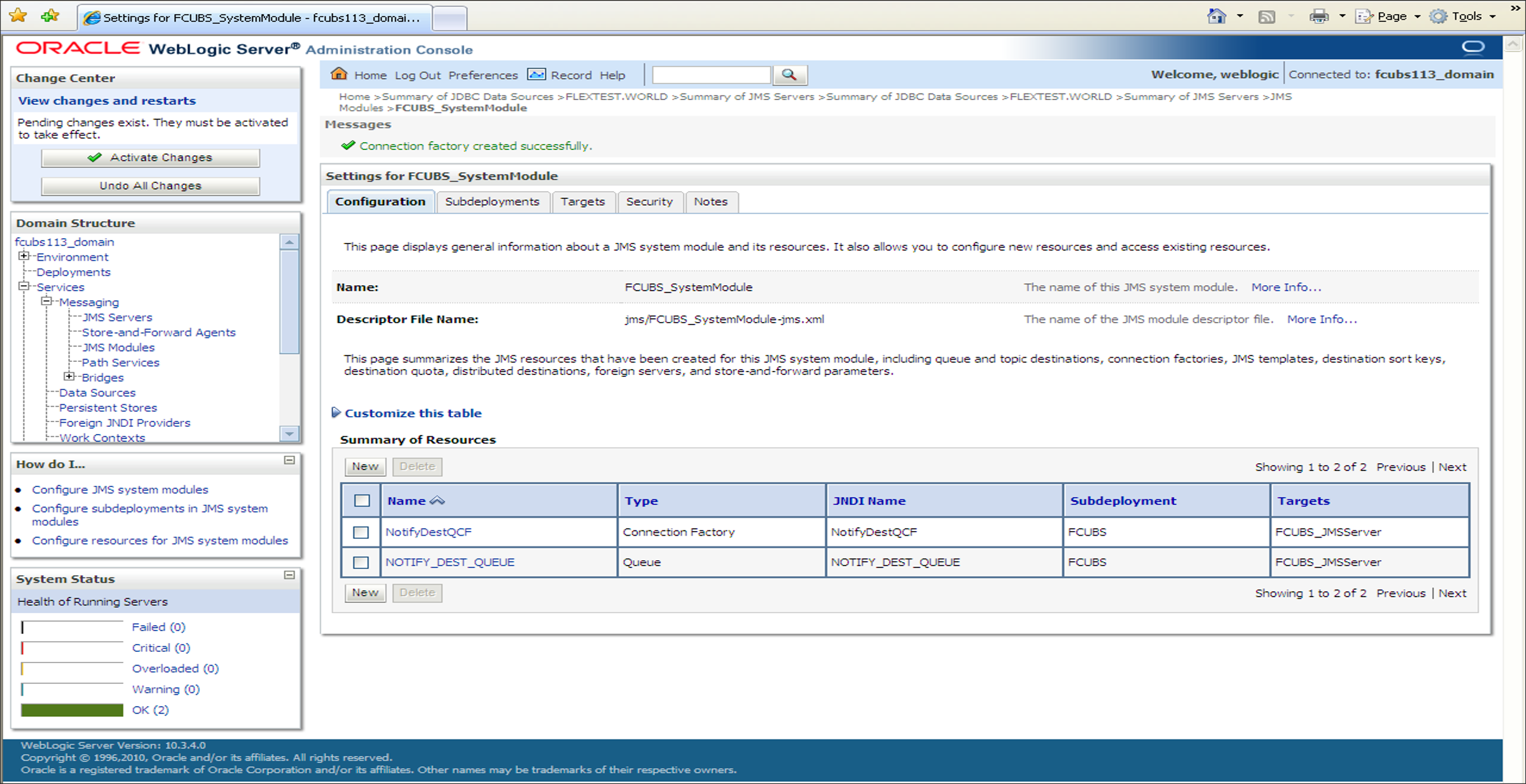
- Click Finish to create the Connection Factory.The message Connection Factory created successfully is displayed.
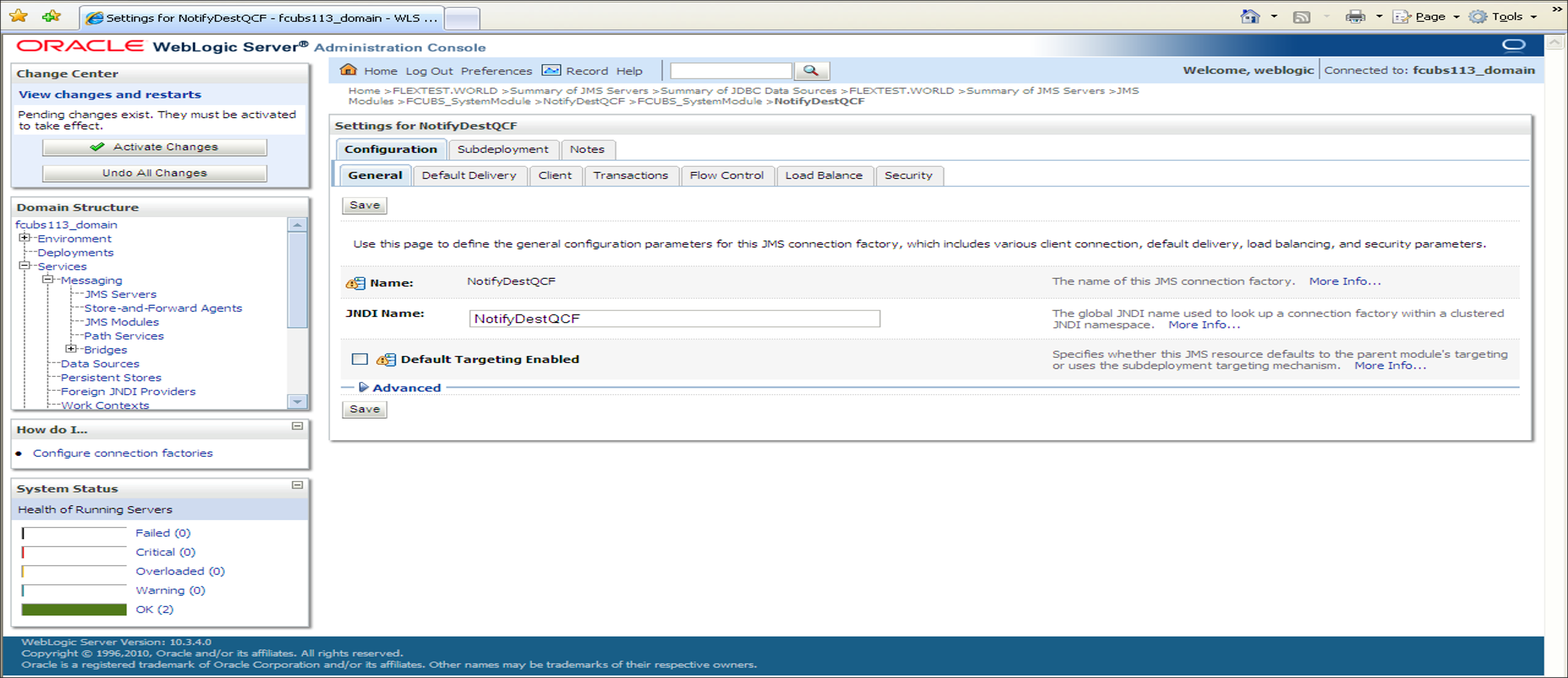
- Click the Connection Factory NotifyDestQCF to have the
XA Connection Factory enabled.Settings for NotifyDestQCF screen is displayed.
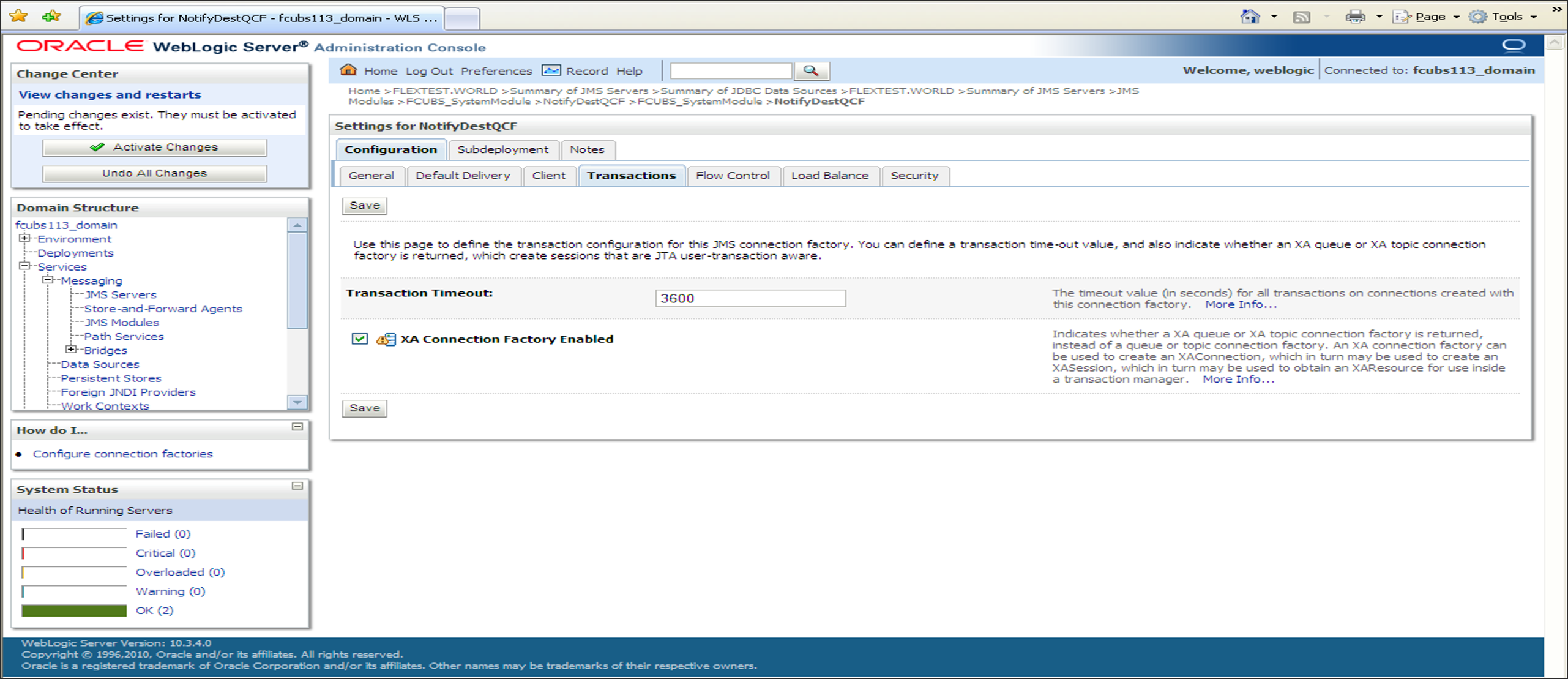
- Click the Transactions tab.Settings for NotifyDestQCF_Transactions screen is displayed.
Figure 7-71 Settings for NotifyDestQCF_Transactions
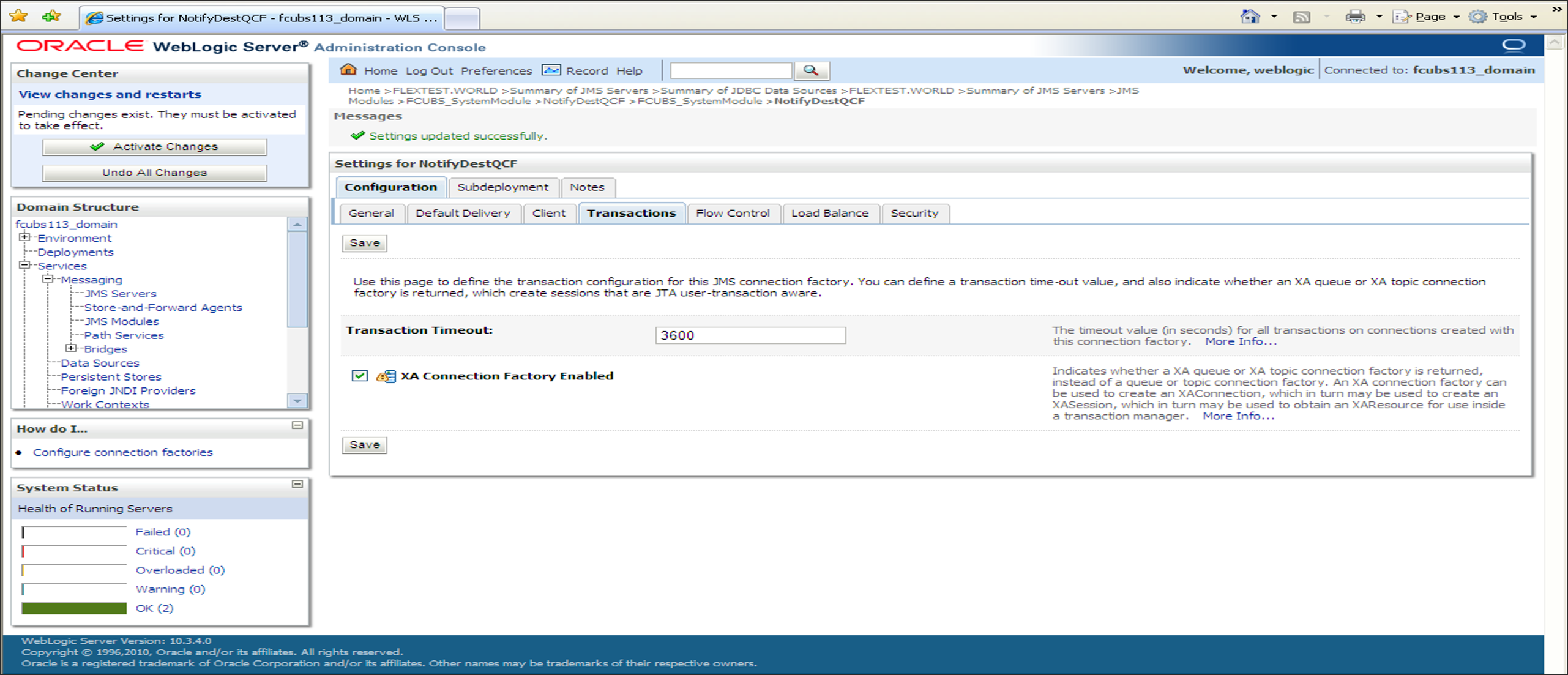
- Click Save.The message Settings updated successfully is displayed.Settings for NotifyDestQCF_Settings Updated Messages screen is displayed.
Figure 7-72 Settings for NotifyDestQCF_Settings Updated Messages
- Click the Activate Changes button in the
Change Center section of the screen to accept the
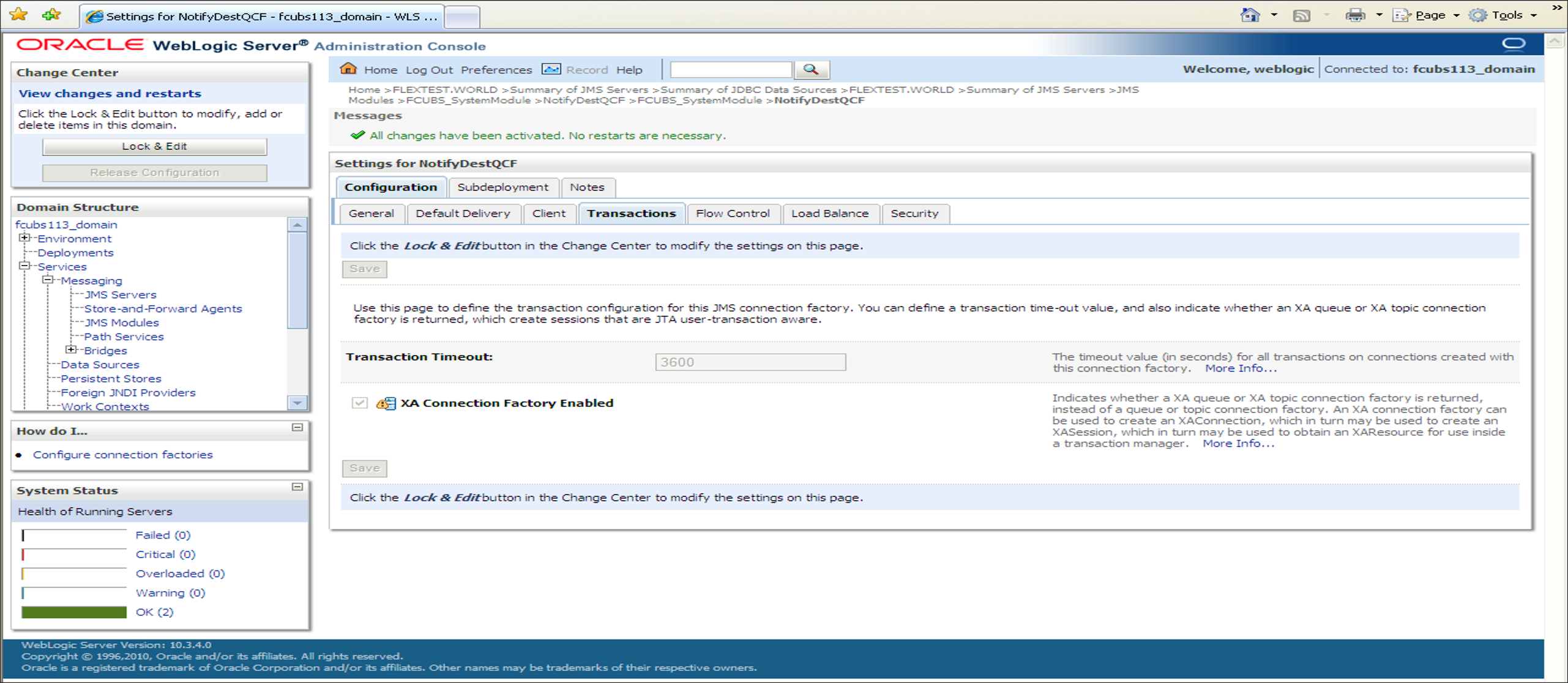
changes made.The message All the changes have been activated. No restarts are necessary. is displayed.
Figure 7-73 Settings for NotifyDestQCF_Activate Changes
Parent topic: Create Resources on Weblogic