1.3 Additional Field Maintenance
This topic describes the systematic instructions to configure and maintain the additional fields for the transaction screens.
- From Home screen, click Core Maintenance. Under Core Maintenance, click Additional Field Maintenance.The Additional Field Maintenance screen is displayed.
- View the details from the Additional Fields Maintenance screenFor more information on fields, refer to the field description table.
Table 1-6 Additional Field Maintenance - Field Description
Field Description UI Key Displays the UI key of the additional field. Application ID Displays the related application ID of the additional field. Description Displays the description of the additional field. Status Displays the status of the record. - On the Additional Field Maintenance screen, click + button.The Additional Fields Maintenance screen is displayed.
Figure 1-7 Additional Fields Maintenance
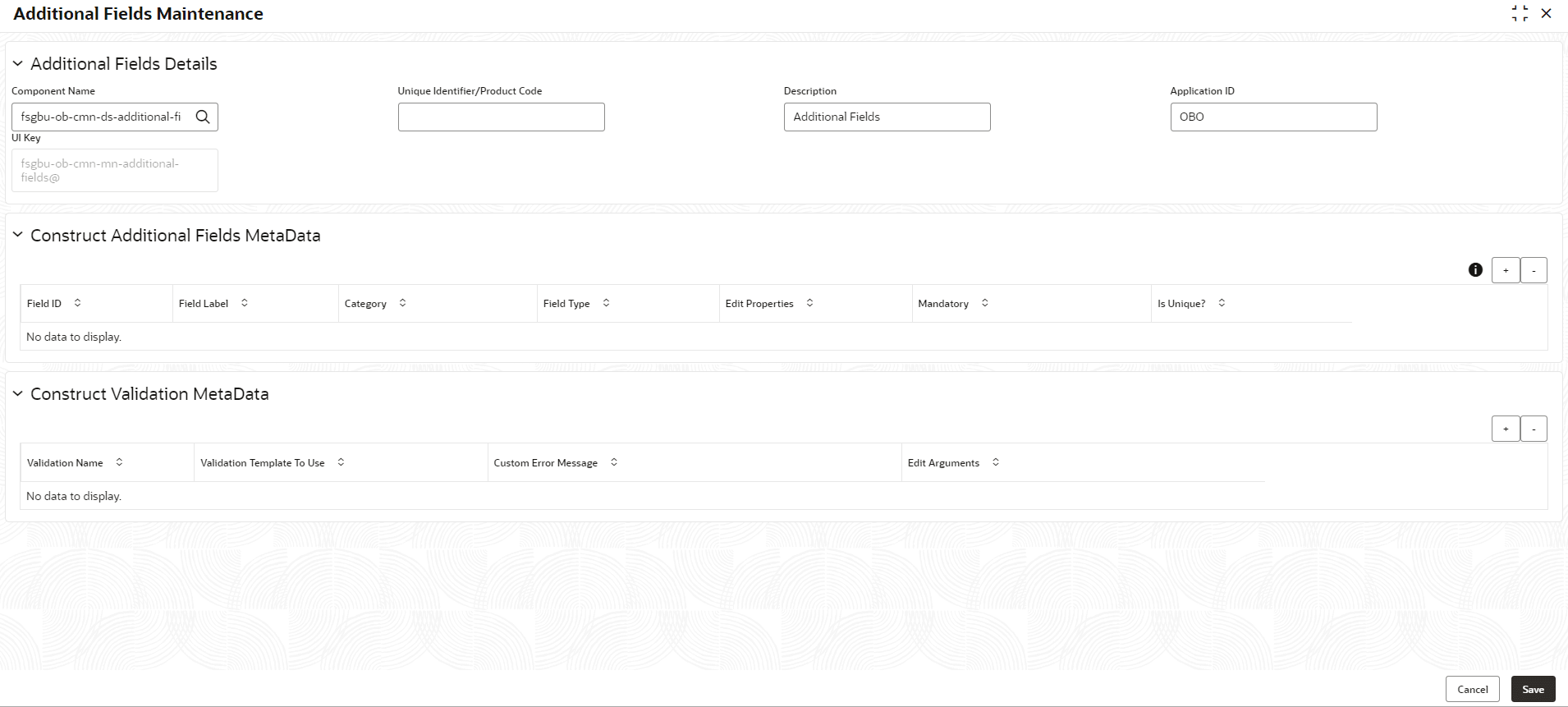
- Specify the fields on the Additional Fields Maintenance screen.For more information on fields, refer to the field description table.
Note:
The fields marked as Required are mandatory.Table 1-7 Additional Fields Maintenance – Field Description
Field Description Component Name Click Search icon to view and select the component name from the list. Unique Identifier/Product Code Specify the unique identifier or product code for selected component used as reference. Product Name Displays the product name for the specified product code. Description Displays the description as Additional Fields, and it can be modified. Application ID Displays the Application ID. UI Key Displays the UI key for the selected component. Construct Additional Fields MetaData Specify the details under this section to configure metadata for each field. Select Check this box to select/deselect a row to remove it using the - button. Field ID Specify the field ID. Field Label Specify the field label. Category Specify the category from the drop-down list. The options are:
- UDF
- CMIS
- FMIS
- TMIS
Field Type Select the field type from the drop-down list. The options are:
- Number
- Text
- Drop-Down
- Date
- Switch
- Text Area
- LOV
Edit Click this icon to add or edit the field properties. System shows the properties based on the field type. Mandatory Check this box if the field needs to be configured as mandatory. Is Unique? Check this box if the field needs to be configured as unique. Construct Validation MetaData Specify the details under this section for validations to be applied on configured fields. Select Check this box to select/deselect a row to remove the definition. Validation Name Specify the validation name. Validation Template To Use Select the template to be used for the validation. Custom Error Message Specify the error message that needs to be displayed for the list. Edit Arguments Click this icon to input the arguments related to Validation Template. - Click + to add the new row in the Construct Additional Fields MetaData or Construct Validation MetaData section.
Note:
Using OBRLS account onboarding, users can capture additional business-specific information through configurable User Defined Fields (UDFs). These fields are validated based on the setup maintained under OBRLSaccountCreateAPI, stored with the account record, and made available when viewing account information. - Perform one of the following action:
- Click Save to save the details.
The user can view the confirmation advice details in the Additional Field Maintenance.
- Click Cancel to discard the changes and close the screen.
- Click Save to save the details.
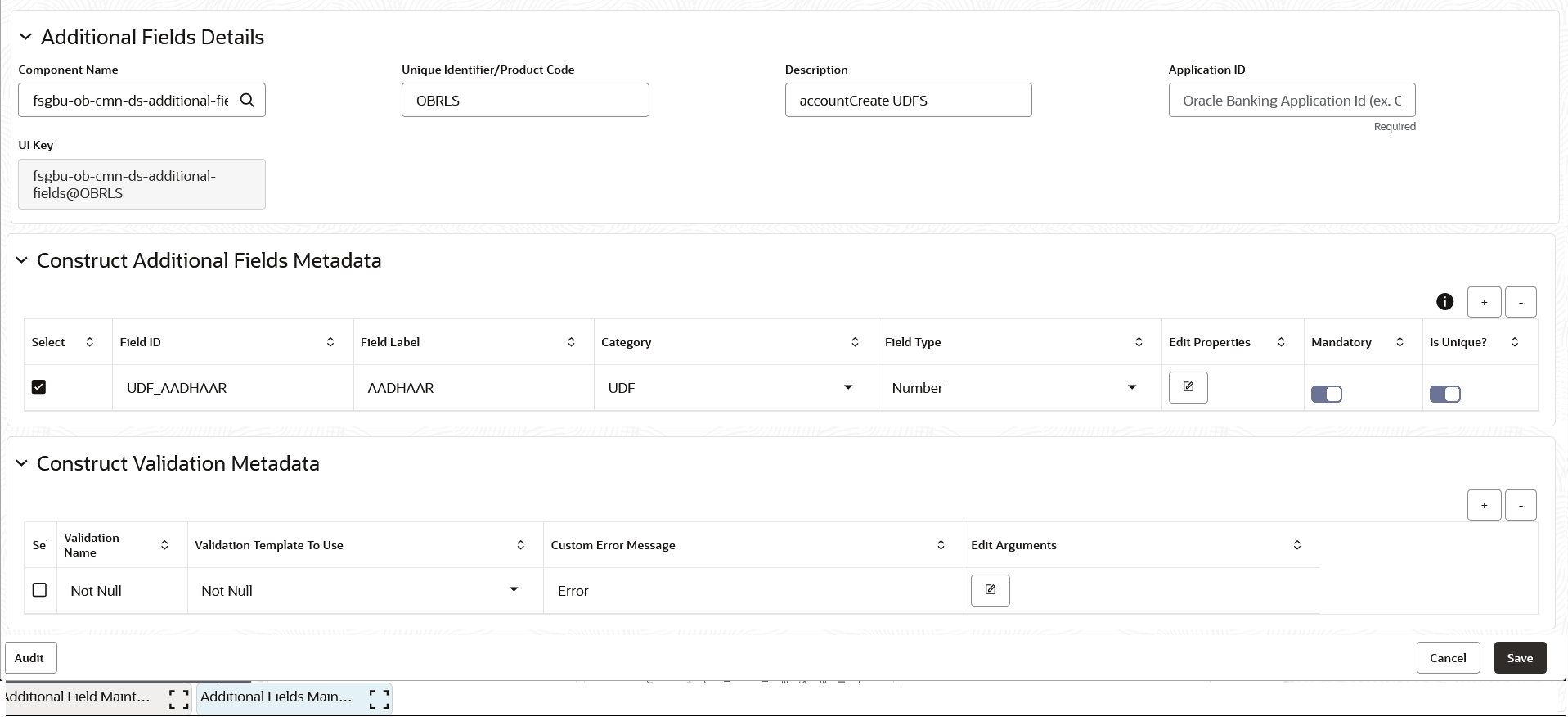
Parent topic: Core Maintenance