3.20.7 Create Transport Sources

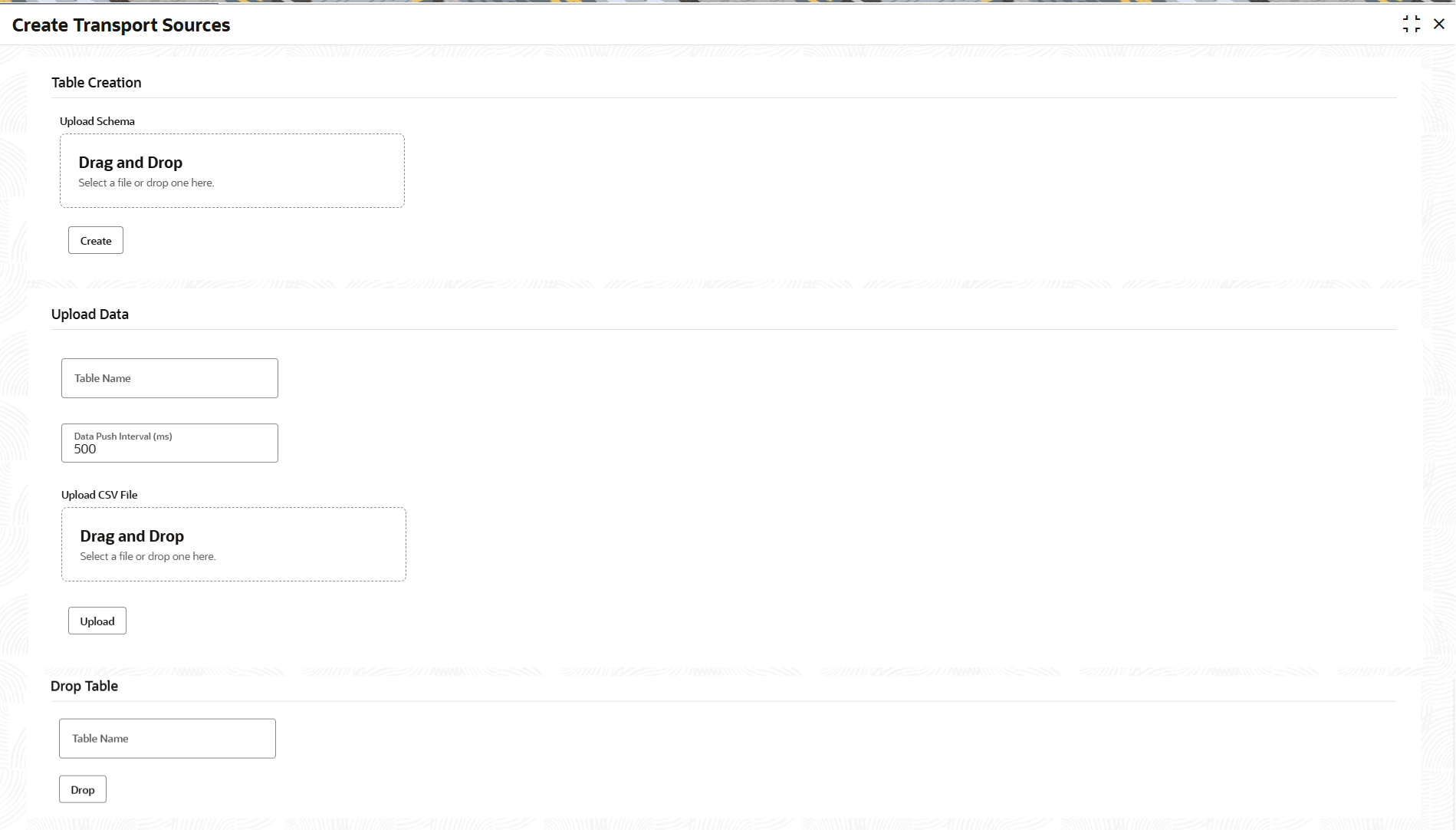
This topic describes the systematic instructions to dynamically create and manage source tables by uploading schemas and test data using Create Transport Sources screen.

  1. From Home screen, click Core Maintenance. Under Core Maintenance, click Credit Decision.
  2. Under Credit Decision, click Maintenance. Under Maintenance, click Relationship Pricing Test Studio, then click Create Transport Sources.
    The Create Transport Sources screen is displayed.

    Figure 3-174 Create Transport Sources


  3. Specify the fields on the Create Transport Sources screen.

    Note:

    The fields marked as Required are mandatory.
    For more information on fields, refer to the field description table.

    Table 3-143 Create Transport Sources - Field Description

    Field Description
    Upload Schema Drag-and-drop area browse a file to upload the table schema in JSON format.
    Create Click to create the table using the uploaded schema.
    Table Name Specify the target table name for data insert or drop actions.
    Data Push Interval (ms) Specify the time interval in ms between data insert events for testing streaming.
    Upload CSV File Drag-and-drop area or browse a file to upload the CSV data to populate into the table.
    Upload Click to trigger the data loading job into the specified table.
    Drop Click to drop/delete the specified table.
    Example - Schema.json
    {
      "tableName": "TESTING",
      "tableIdentifier": "br",
      "columns": [
        {
          "name": "ID",
          "dataType": "VARCHAR2(36)",
          "nullable": false
        },
        {
          "name": "PARTY_ID",
          "dataType": "VARCHAR2(20)",
          "nullable": false
        }
      ],
      "primaryKeys": [
        {
          "columnName": "ID"
        }
      ]
    }
    

    Table Creation

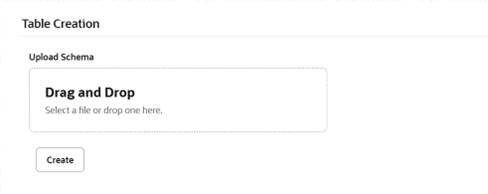
    This section allows you to create new source tables by uploading a schema file in JSON format.

  4. In the Table Creation section, click Drag and Drop under Upload Schema to select or drop your JSON schema file.
  5. Click the Create to generate the table based on your uploaded schema.

    Figure 3-175 Table Creation section


    Example - datasource.csv

    ID,PARTY_ID
    e1a2b3c4-d5f6-7g8h-9i0j-m3n4o5q4,PARTY1001
    e1a2b3c4-d5f6-7g8h-9i0j-m3n4o5q5,PARTY1002
    

    Upload Data

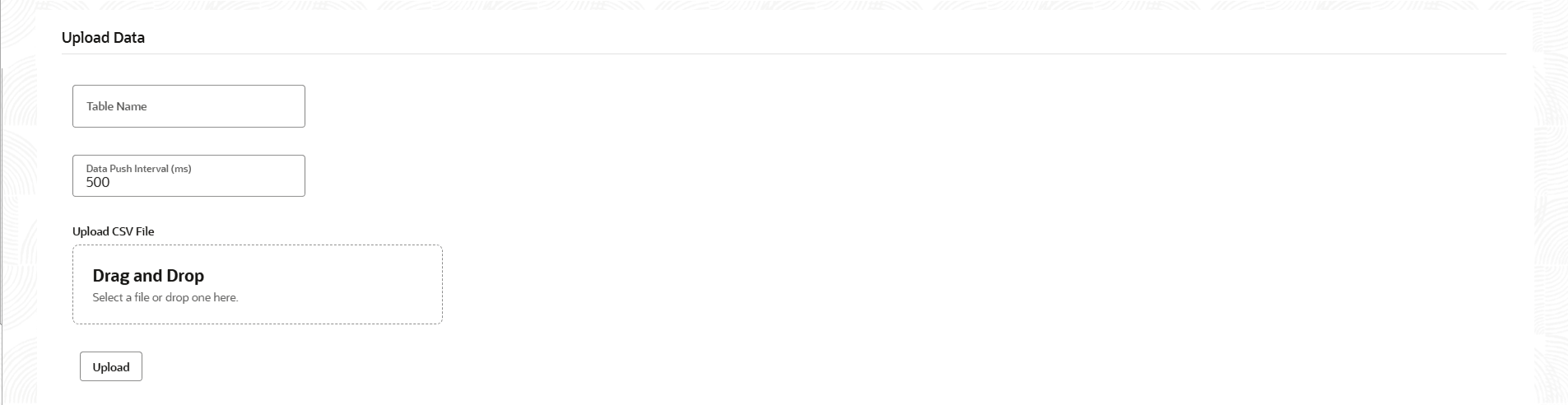
    This section is allows bulk insert data into a selected or newly created table.

  6. In the Upload Data section, specify the following:
    1. In the Table Name field, specify the name of the table to insert data into.
    2. In the Data Push Interval (ms) field, specify the interval in milliseconds to mimic data streaming behaviour (example, for Kafka testing).
  7. Under Upload CSV File section, drag and drop or browse to select the CSV data file.
  8. Click Upload to start the data insertion job.

    Figure 3-176 Upload Data section


    Drop Table

    This section allow to delete a source table that is no longer needed.

  9. In the Table Name field, specify the table name you want to drop.
  10. Click the Drop button to permanently remove the table.

    Figure 3-177 Drop Table section


    Additional Notes:
    • Ensure the JSON schema file structure aligns with the required format for table creation.
    • Ensure the CSV file must strictly adhere to the schema of the created table.
    • Use Data Push Interval (ms) to simulate the timing of real-time data ingestion.
    • Assign unique table names to prevent naming conflicts within the database.
    • Before using the Drop function, ensure it is no longer require the table or its data, as this operation performs a permanent deletion.