3.20.8 Dynamic Topic Subscription
This topic describes the systematic instructions to subscribe or manage dynamic event topics.
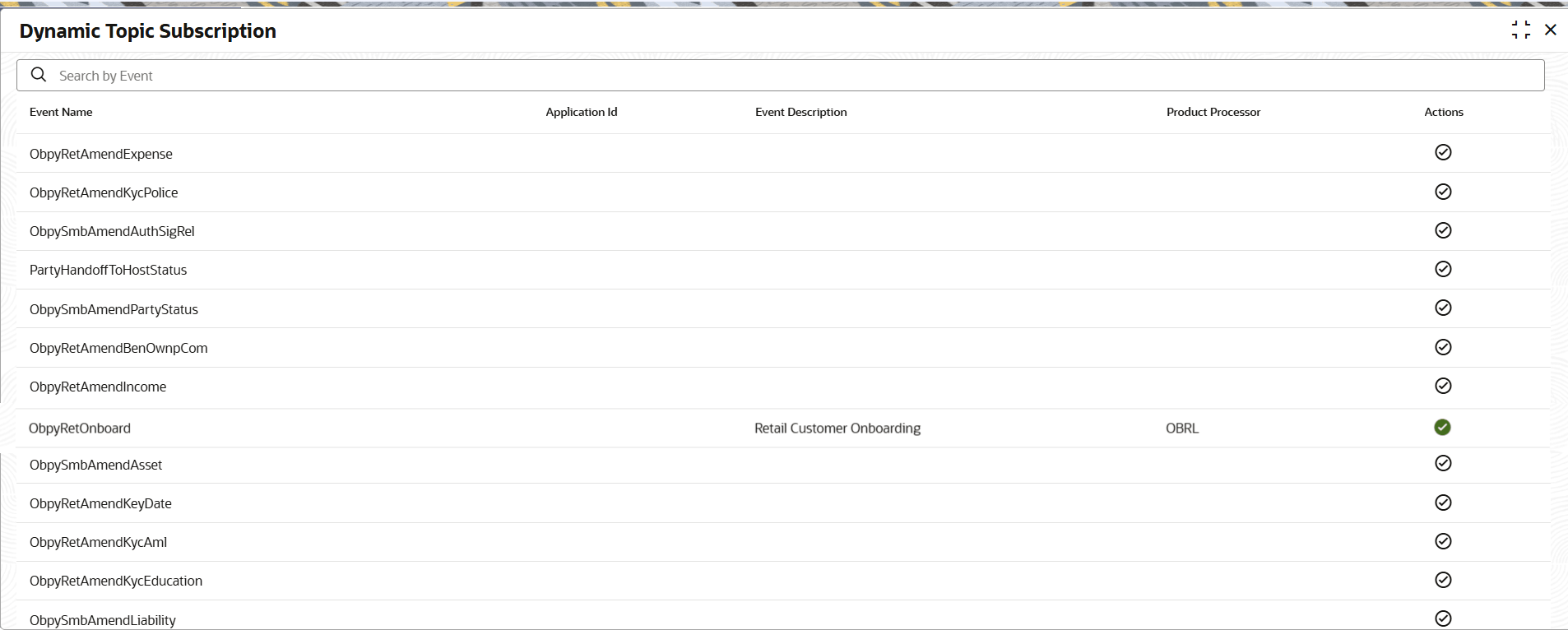
- Under Credit Decision, click Maintenance. Under Maintenance, click Dynamic Topic Subscription.The Dynamic Topic Subscription screen is displayed.For more information on fields, refer to the field description table.
Note:
The fields marked as Required are mandatory.Table 3-144 Dynamic Topic Subscription - Field Description
Field Description Event Name Displays the name of event which to be subscribed. Application ID Displays the application ID. Event Description Displays the description for the event . Product Processor Displays the product processor. Actions Displays the action which can be performed on record. The user can subscribed the event.
Subscribing an Event
- Enter search parameters, and click
 icon to search specific event from the event list.
 - In the Actions column, click the
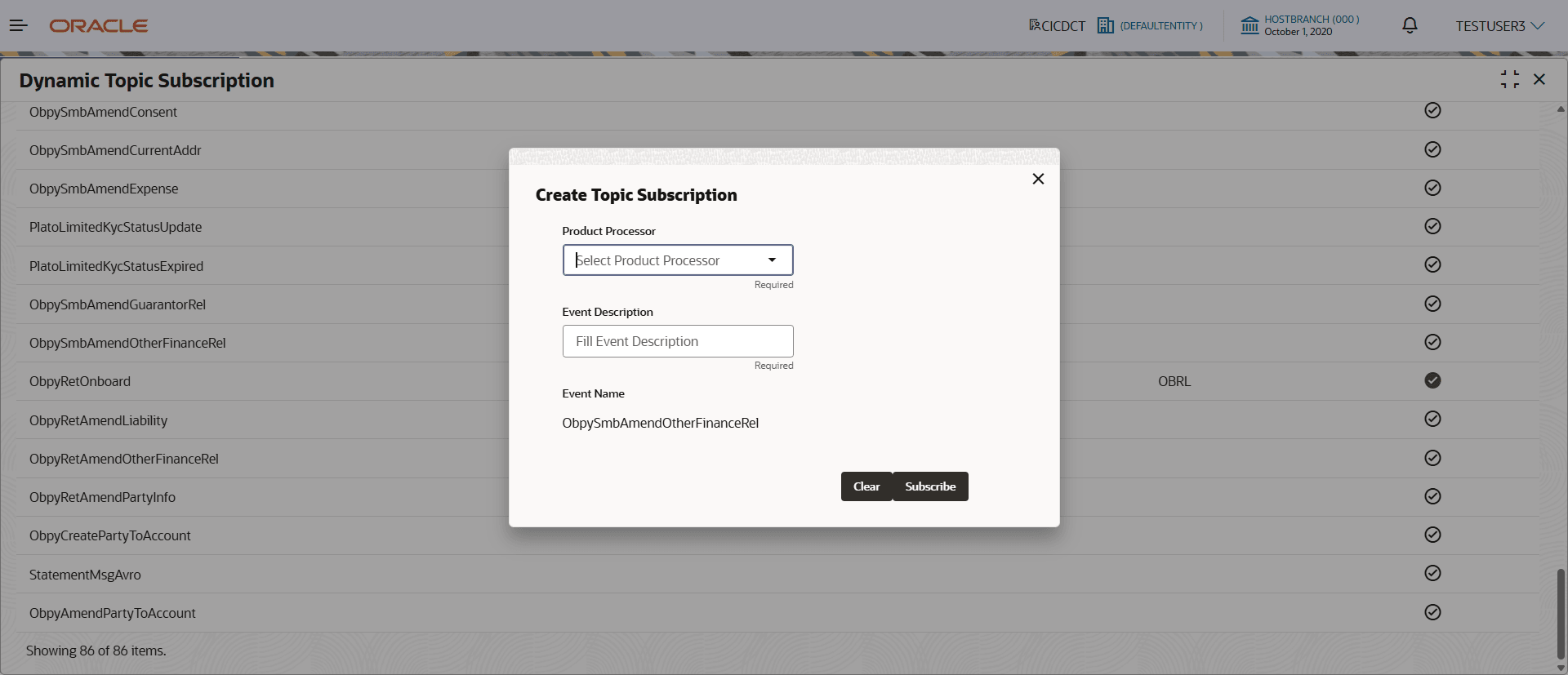
 icon against the event.The Create Topic Subscription dialog box is displayed.
Figure 3-179 Create Topic Subscription popup screen
Cancelling an Event Subscription
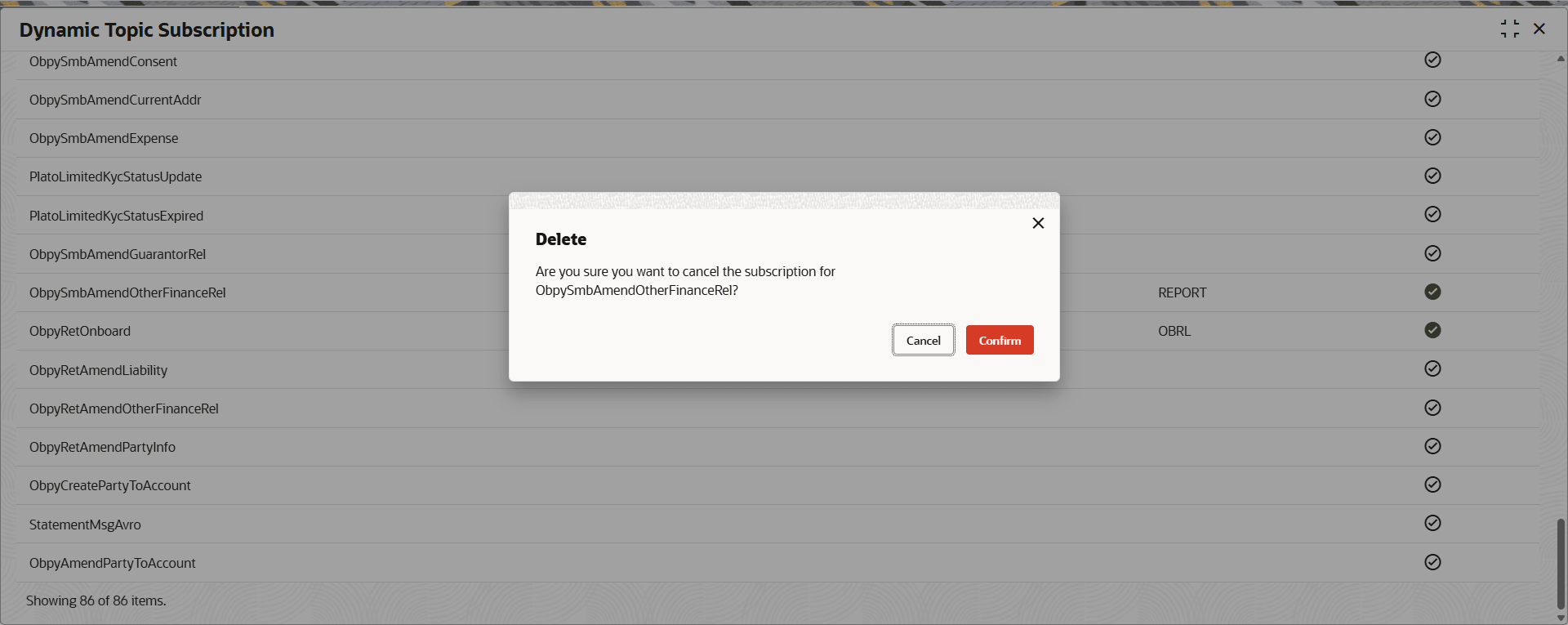
- In the Actions column, click on the green tick icon next to the event to manage subscribed event.A Delete confirmation popup screen is displayed.
Figure 3-180 Delete confirmation popup screen
Parent topic: Relationship Pricing