Create BIC to Customer Mapping
This topic describes the systematic instructions to assign a BIC Code to a customer.
- From Home screen, click Core Maintenance. Under Core Maintenance, click BIC to Customer Mapping.
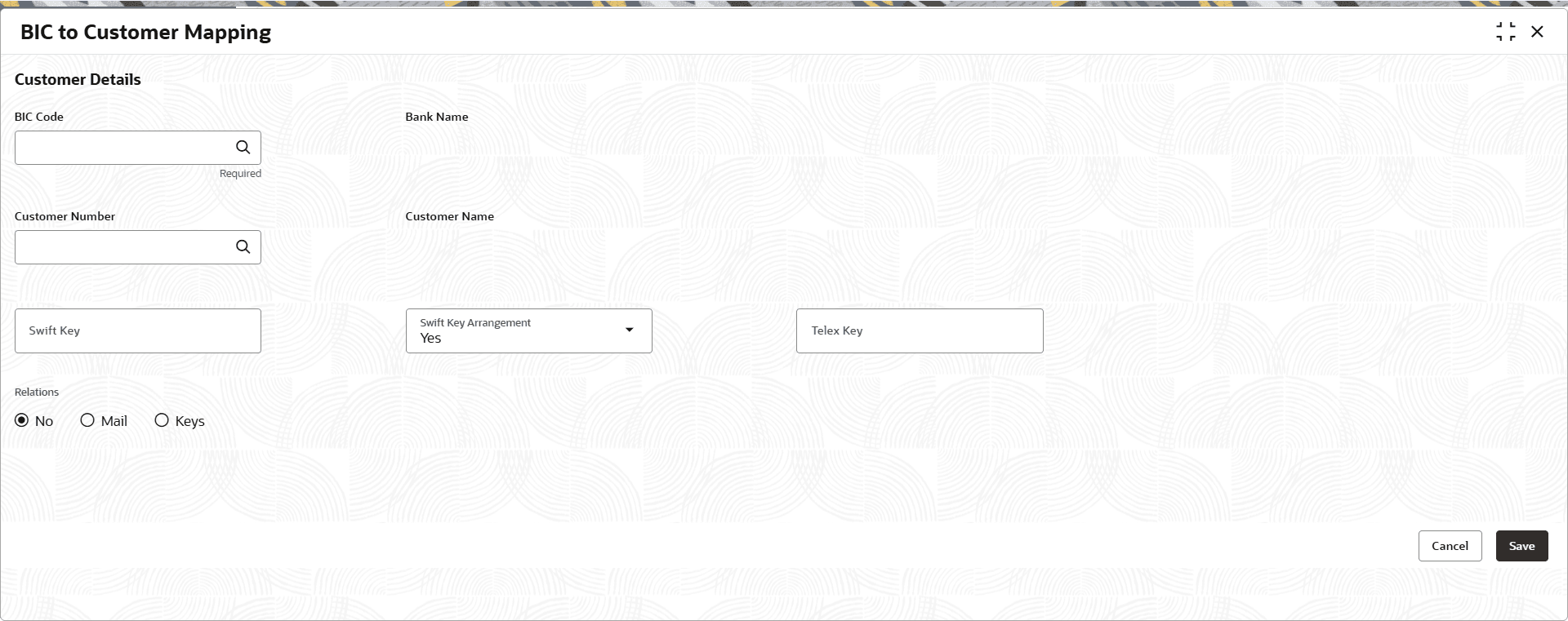
- Under BIC to Customer Mapping, click Create BIC to Customer Mapping.The Create BIC to Customer Mapping screen is displayed.
Figure 1-17 Create BIC to Customer Mapping
- Specify the fields on the Create BIC to Customer Mapping screen. For more information on fields, refer to the field description table.
Note:
The fields marked as Required are mandatory.Table 1-17 Create BIC to Customer Mapping – Field Description
Field Description BIC Code Search and select the required Business Identifier Code (BIC) code to identify the bank. Bank Name Displays the name of the bank associated with the selected BIC code. Customer Number Search and select the customer to be mapped to the selected BIC. Customer Name Displays the name of the selected customer. Swift Key Specify the SWIFT key associated with the BIC-to-customer mapping, where applicable. Swift Key Arrangement Specifies whether a SWIFT key arrangement applies to this mapping from the drop-down list. The available options are:- Yes
- No
Telex Key Specify the telex key associated with the BIC-to-customer mapping, where applicable. Relations Select the relationship type for the mapping from the drop-down list. The available options are:- No- no relationship
- Mail- mail relationship
- Keys- key relationship
- Perform one of the following action:
- Click Save to save the details.
The BIC is assigned to the customer successfully and can be viewed using the View Amount Text Language screen.
- Click Cancel to discard the changes and close the screen.
- Click Save to save the details.