B.2 Configure Resource Reference in WebLogic Application Server
This section describes how to configure Resource Reference in WebLogic Application server.
In the WebLogic server, you can create a Data Source in the following ways:
- For a non-RAC Database instance, a Generic Data Source must be created.
- For a RAC Database instance, a Gridlink Data Source must be created.
- When Load Balancing/Fail over is required, a Multi Data Source must be created.
Create Data Source
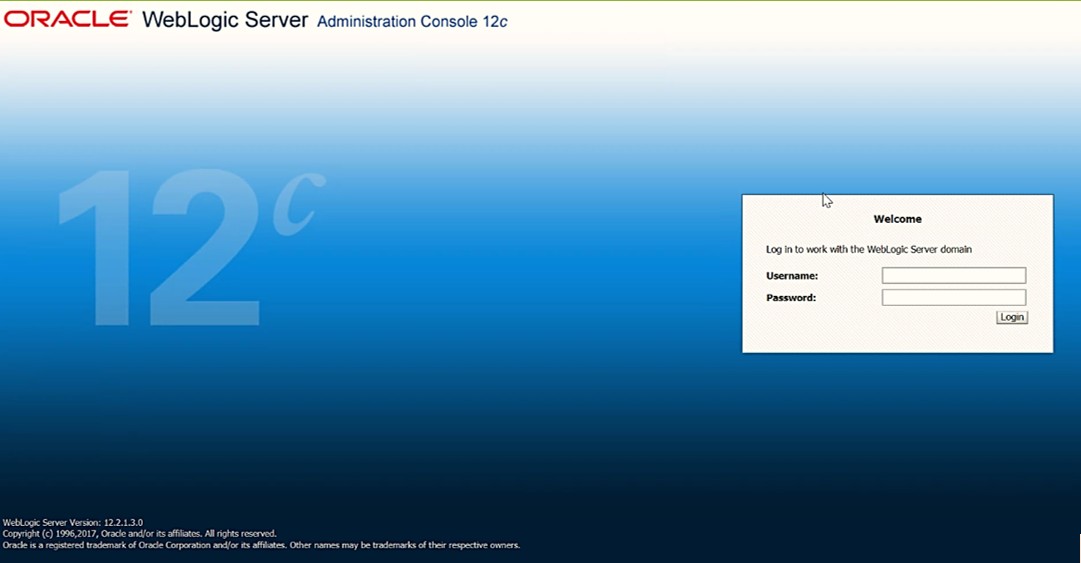
- Open the following URL in the browser window:
http://<ipaddress>:<administrative console port>/console. (https, if SSL is enabled). The Welcome window is displayed.
- Log in with the Administrator Username and Password.
Figure B-14 WLS Welcome screen
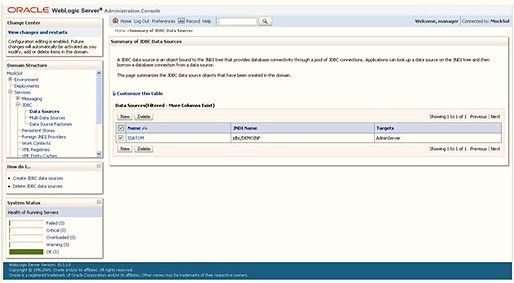
- From the LHS menu (Domain Structure), click Services > Data
Sources to display the Summary of JDBC Data Sources window.
Figure B-15 Summary of JDBC Data Sources
- Click New and select Generic Data Source to display the Create
a New JDBC Data Source window.
You can also select GridLink Data Source or Multi Data Source while creating a Data Source. For more information, see the Create Data Source or Configure Multi-data Sources sections below.
Figure B-16 Create a New JDBC Data Source
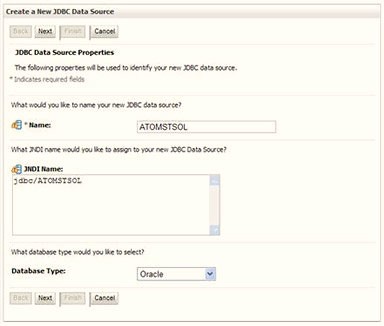
Figure B-17 JDBC Data Source Properties
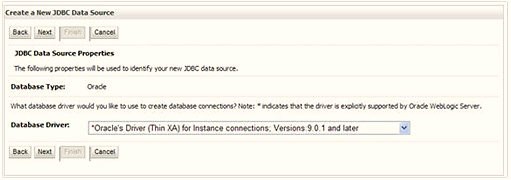
- Enter JDBC data source Name, JNDI Name, and select the Database Type from the drop-down list.
- Ensure the following:
- The JNDI Name field must be in the format jdbc/informationdomain
- The same steps must be followed to create a mandatory data source pointing to the configuration schema of infrastructure with jdbc/FICMASTER as JNDI name.
- JNDI Name is the same as mentioned in the web.xml file of OFSAAI Application.
- Required Database Type and Database Driver must be selected.
Data sources must be created for atomic and atomiccnf schemas following the same steps.
- Click Next.
Figure B-18 Transaction Options
- Select the Database Driver from the drop-down list. You must select
the Database Driver depending on database setup, that is, with or without
RAC. Click Next.
Figure B-19 Database Name
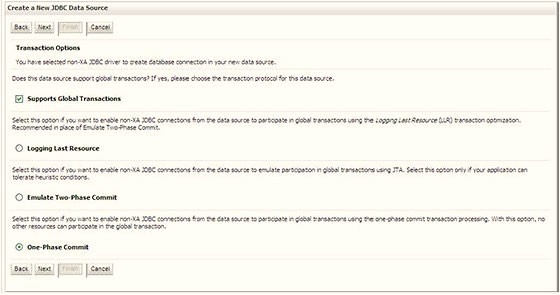
- Select the Supports Global Transactions check box and the One-Phase Commit option.
- Click Next to display the Connection Properties window.
Figure B-20 Database Details
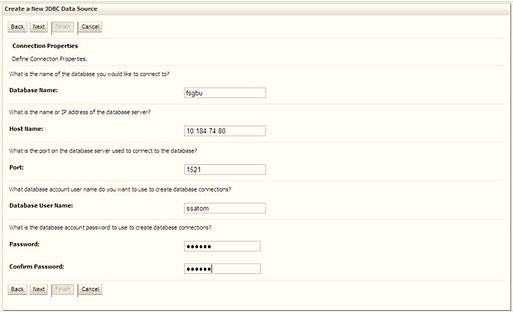
- Enter the required details such as the Database Name, Host Name, Port, Oracle User Name, Password, and Confirm Password.
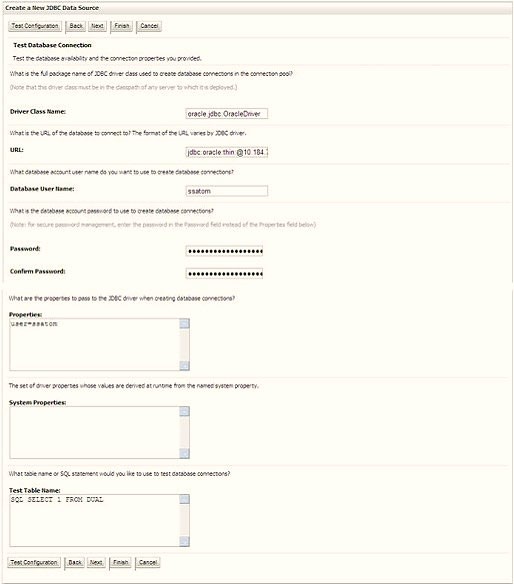
- Click Next to display the Test Database Connection window.
Figure B-21 Select Targets
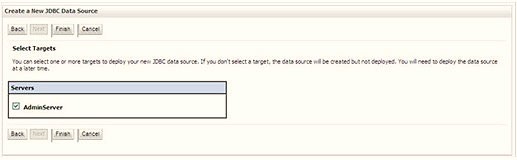
- Verify the details and click Test Configuration and test the configuration settings. A confirmation message is displayed stating Connection test succeeded.
- Click Finish. The created Data Source is displayed in the list
of Data Sources.
Note:
- User ID is the Oracle user ID that is created for the respective Information Domain.
- User ID specified for a data source with FICMASTER as JNDI name must be the Oracle user ID created for the configuration schema.
- Select the new Data Source and click the Targets tab.
Figure B-22 Data Source
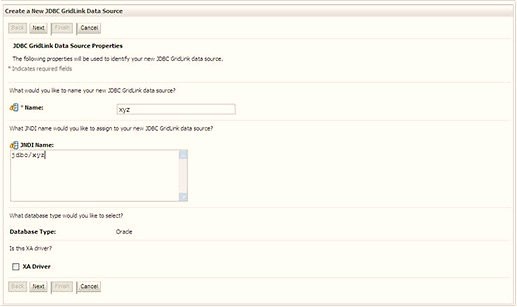
- Select the AdminServer option and click Finish.
Create GridLink Data Source
Figure B-23 GridLink Data Source
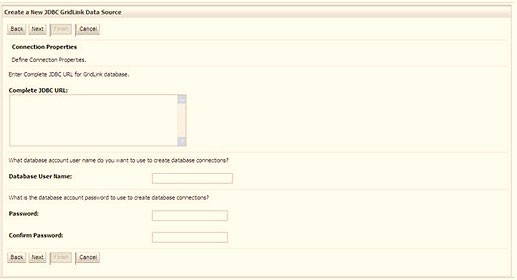
- Enter the Data Source Name and JNDI Name.
Ensure that the JNDI Name field is specified in the format jdbc/infodomname and the XA Driver checkbox is not selected. Click Next.
Figure B-24 JNDI Name
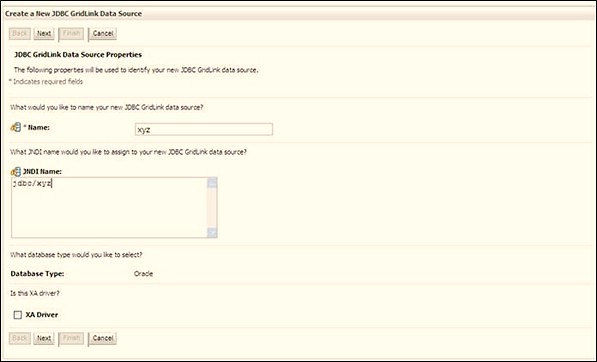
- Specify Complete JDBC URL, Database User Name, and Password.
- Click Finish. The created Data Source is displayed in the list of Data Sources.
Configure Multi-data Sources
A JDBC multi-data source is an abstraction around a group of data sources that provides load balancing and failover between data sources. As with data sources, multi-data sources are also bound to the JNDI tree. Applications can look up a multi-data source on the JNDI tree and then reserve a database connection from a data source. The multi-data source determines from which data source to provide the connection.
When the database used is Oracle RAC (Real Application Clusters), which allows Oracle Database to run across a set of clustered servers, then a group of data sources can be created for instances running on a set of clustered servers and a JDBC multi-data source can be created so that applications can look up a multi-data source on the JNDI tree to reserve database connection. If a clustered server fails, Oracle continues running on the remaining servers.- Open the WebLogic Admin Console in the browser window: http://<ipaddress>:<administrative console port>/console. (https if SSL is enabled). The Login window is displayed.
- Log in with the user ID with administrative privileges.
- In the LHS menu (Domain Structure), select Services > JDBC > Multi
Data Sources to display the Summary of JDBC Multi Data Sources
window.
Figure B-25 Multi Data Sources
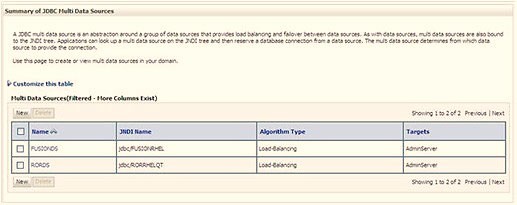
- Click New to display the New JDBC Multi Data Source window.
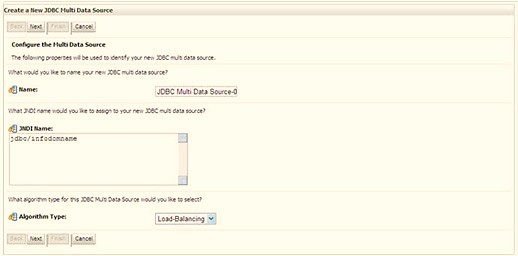
Figure B-26 Configure Multi Data Source
Note:
Ensure that the Data Sources which must be added to the new JDBC Multi Data Source are created. - Enter the JDBC Source Name, JNDI name, and select the
Algorithm Type from the drop-down list. Click Next.
Note:
- The JNDI Name must be specified in the format jdbc/infodomname.
- The JNDI Name of the Data Sources that is added to the new JDBC Multi data source must be different from the JNDI name specified during Multi Data Source.
- The same steps must be followed to create a mandatory data source pointing to the "configuration schema" of infrastructure with jdbc/FICMASTER as JNDI name for Data Source.
- The JNDI Name provided in the multi-data source must be the same name that is mentioned in the web.xml file of OFSAAI Application.
- You can select the Algorithm Type as Load-Balancing.
Figure B-27 JDBC Details
- Select the AdminServer check box and click Next.
Figure B-28 Select Data Source Type

- Select the type of data source to add to the new JDBC Multi Data Source.
Click Next.
Figure B-29 Add Data Sources
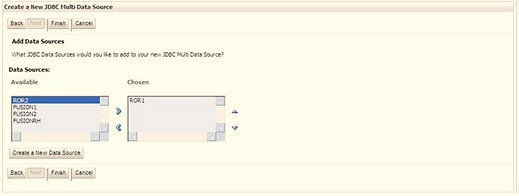
- Map the required Data Source from the Available Data Sources. Click Finish. The New JDBC Multi Data Source is created with added data sources.
Configure Advanced Settings for Data Source
- Click the new Data Source from the Summary of JDBC Data Sources window to display the Settings for <Data Source Name> window.
- Select the Connection Pooling tab given under Configuration.
- Navigate to the Advanced option at the bottom of the window, and
check the Test Connection of Reserve checkbox (enables WebLogic
Server to test a connection before giving it to a client).
To verify if the data source is valid, select Data Source Name.
For example: FICMASTER.
- Select the server and click Test Data Source. A message is displayed
indicating that the test was successful.
After the Data Source is created successfully, the following messages are displayed: All changes are activated. No restart is necessary.
Settings updated successfully. If not, follow these same steps to recreate the data source.
Configure JDBC Connection Pooling
- Click the newly created Data Source $DATA_SOURCE$ and navigate to the path: Home>Summary of Services: JDBC>Summary of JDBC Data Sources>JDBC Data Source-<INFODDOM_NAME>.
- Set the following values:
- Initial Capacity: 10
- Maximum Capacity: 100
- Capacity Increment: 1
- Statement Cache Type: LRU
- Statement Cache Size: 10
- Click Save.
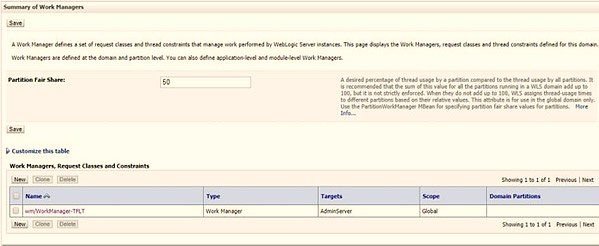
Create Work Manager
A Work Manager is used to re-trigger failed messages.
To create a Work Manager, follow these steps:
- The Name field must have the value wm/WorkManager-TFLT
- The Type field must have the value Work Manager
- The Targets field must have the value AdminServer
- The Scope field must have the value Global
- The Stuck Thread Action field must have the value Ignore stuck
threads. Click Save.
Figure B-30 Work Manager Screen 1
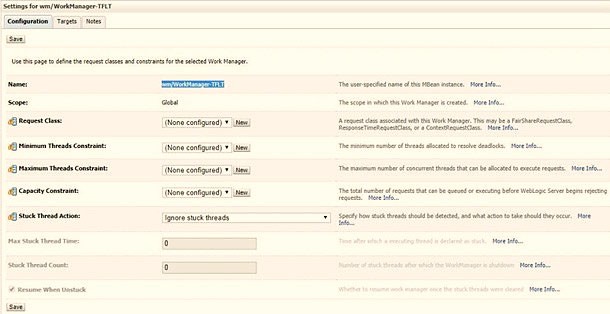
Figure B-31 Work Manager Screen 2