B.1 Configure Resource Reference in WebSphere Application Server
This section describes how to configure Resource Reference in WebSphere Application server.
This section is applicable only when the Web application server type is WebSphere.
Create a JDBC Provider
- Open the WebSphere admin console in the browser window: http://<ipaddress>:<administrative console port>/ibm/console (https, if SSL is enabled). The Login window is displayed.
- Log in with the user ID with administrative privileges.
- Expand the Resources option in the LHS menu and click JDBC >
JDBC Providers to display the JDBC Providers window.
Figure B-1 JDBC Providers
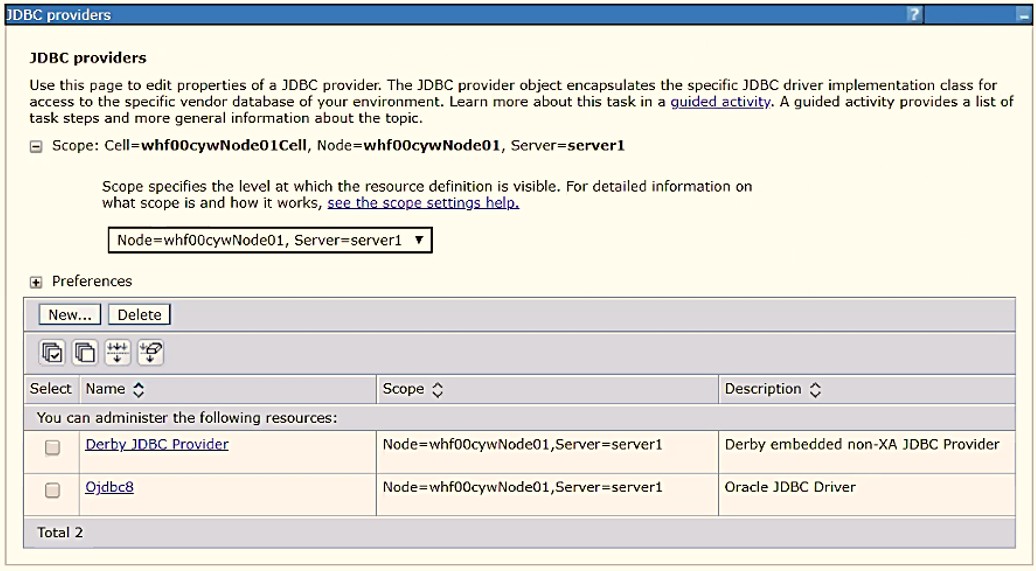
- Select the Scope from the drop-down list. The Scope specifies the level at which the resource definition is visible.
- Click New to add the new JDBC Provider under the Preferences section.
The Create new JDBC Provider window is displayed.
Figure B-2 Create new JDBC Provider
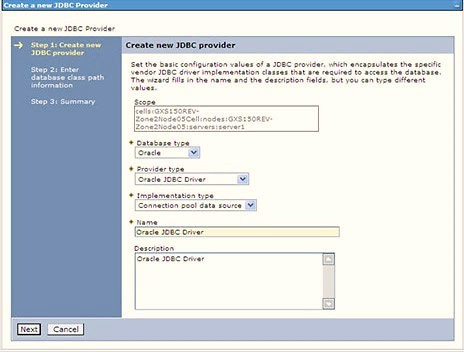
- Enter the following details:
- Database Type: Oracle
- Provider Type: Oracle JDBC Driver
- Implementation Type: Connection pool data source
- Name: The required display name for the resource.
- Description: The optional description for the resource.
- Click Next.
Figure B-3 Database Class Path Information
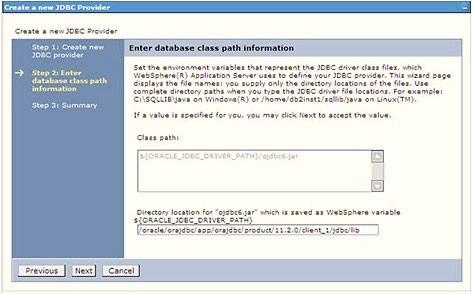
- Specify the directory location for the ojdbc<version>.jar file. Do not use the trailing slash file separators.
- The Oracle JDBC driver can be downloaded from the following Oracle Download
site:
- Oracle Database 18cg Release 3 JDBC Drivers
- Oracle Database 19c Release 3 JDBC Drivers
After downloading, you must copy the file in the required directory on the server.
Note:
See Hardware and Software Requirements to identify the correct ojdbc<version>.jar file version to be copied.
- Click Next to display the Summary window.
Figure B-4 Summary

- Verify the details and click Finish to create the JDBC Provider.
- The options to Save and Review are displayed. Click Save.
Create Data Source
The following steps apply to both config and atomic data source creation.
- Open the following URL in the browser window: http://<ipaddress>:<administrative console port>/ibm/console (https if SSL is enabled). The Login window is displayed.
- Log in with the user ID with administrative privileges.
- Expand the Resources option in the LHS menu and click
JDBC > Data sources to display the Data sources window.
Figure B-5 Data Sources
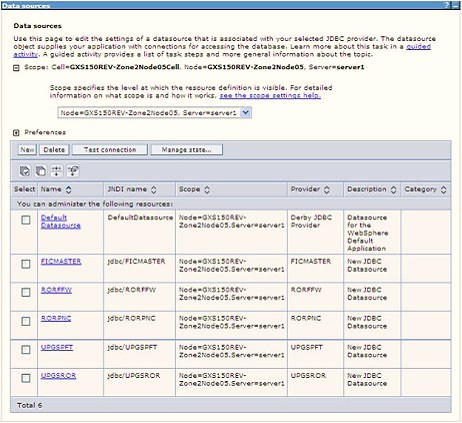
- Select the Scope from the drop-down list. The scope specifies the level at which the resource definition is visible.
- Click New to display the Create a Data Source window.
Figure B-6 Create Data Source
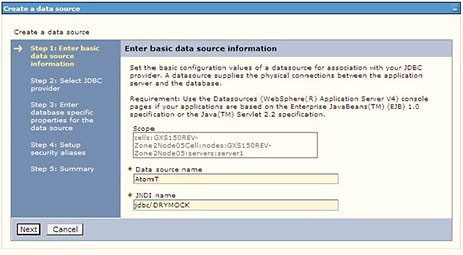
- Specify the Data source name and JNDI name for the new "Data Source".
- The JNDI name and Data source name are case sensitive and ensure that JNDI name is the same as the "Information Domain" name.
- Click Next to display the Select JDBC provider window.
Figure B-7 Select JDBC Provider
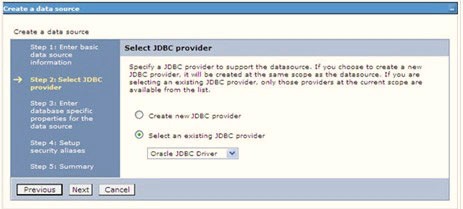
- Select the option Select an Existing JDBC Provider and select the
required JDBC provider from the drop-down list. Click Next.
Figure B-8 Database Specific Properties
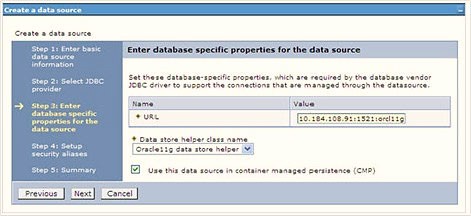
- Specify the database connection URL.
For example: jdbc:oracle:thin:@<DB_SEREVER_IP>:<DB_SERVER_PORT>:<SID>
- Select Data Store Helper Class Name from the drop-down list and
ensure that the Use this data source in container managed persistence
(CMP) check box is selected.
Note:
For RAC configuration, provide the RAC URL specified during installation.For example: jdbc:oracle:thin:@(DESCRIPTION=(ADDRESS_ LIST=(ADDRESS=(PROTOCOL=TCP)(HOST=10.11.12.13)(port=1521))(ADDRESS=(PRO TOCOL=TCP)(HOST=10.11.12.14)(PORT=1521))(LOAD_ BALANCE=no)(FAILOVER=yes))(CONNECT_DATA=(SERVICE_NAME=pqadb))).
- Click Next.
Figure B-9 Setup security parameters
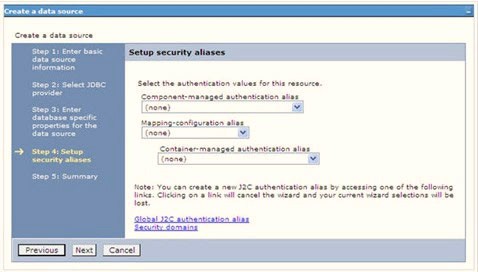
- Map the J2C authentication alias, if already created. If not, you can create
a new J2C authentication alias by accessing the link given (Global J2C
authentication alias) or you can continue with the data source
creation by clicking Next and then Finish.
Figure B-10 Create Data Source_Summary
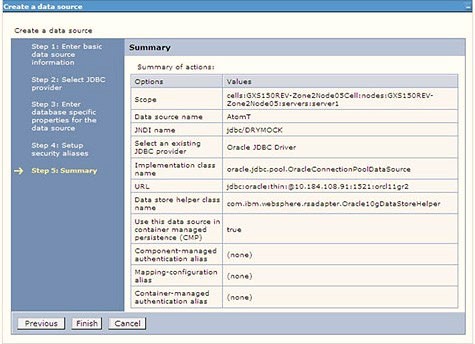
You can also create and map J2C authentication alias after creating the data source.
- You must create another Data source by following the same procedure with jdbc/FICMASTER as JNDI name pointing to the configuration schema of Infrastructure.
Create J2C Authentication Details
The following steps apply to create both config and atomic J2C Authentication.
- Select the newly created Data Source and click JAAS J2C authentication
data link under Related Items.
Figure B-11 JAASJ2C authentication data
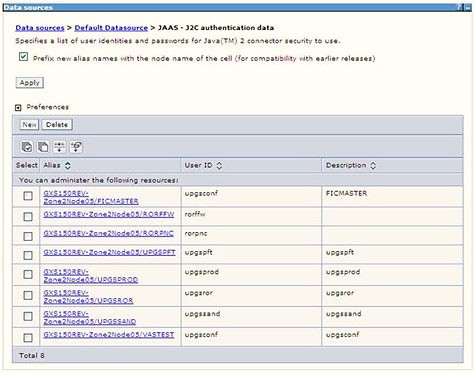
- Click New under the Preferences section.
Figure B-12 JAASJ2C authentication data New
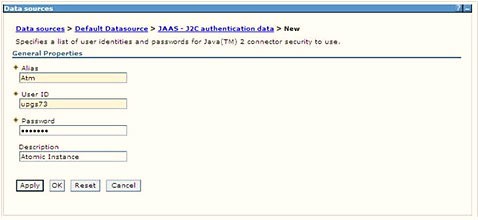
- Enter the Alias, User ID, Password, and
Description. Verify that the user ID is the Oracle user ID
created for the respective Config and Atomic Schema for the Information
Domain.
Specify the Config database user ID and password information for the jdbc/FICMASTER data source, and the Atomic database user ID and password information for the Atomic schema data source that you created earlier.
- Click Apply and save the details.
Define JDBC Connection Pooling
- Expand the Resources option in the LHS menu and click JDBC > Data sources option to display the Data sources window.
- Click the newly created Data Source $DATA_SOURCE$ and navigate to the
path Data sources > GAFUSION DATA_SOURCE >Connection pools.
Figure B-13 Connection Pools
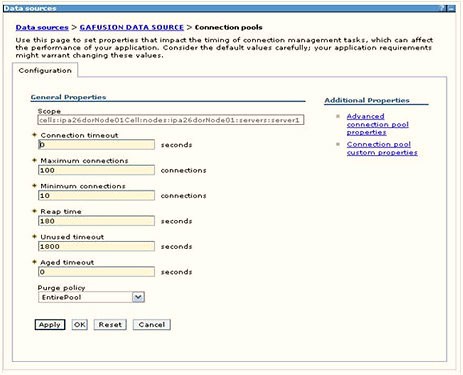
- Set the following values:
- Connection timeout: 0
- Maximum connections: 100
- Minimum connections: 10
You can also define Reap time, Unused timeout, and Aged timeout as required.