A.2 Configure WebLogic for Application Deployment
This section describes how to configure WebLogic for Application Deployment.
Note:
For deployment on Oracle WebLogic Server 12.1.3+ (64 bit) with Java 8, download and install patch 18729264.The following configuration is required only if OFS Big Data Processing is licensed and enabled in your OFSAA instance and OFSAA is deployed on Oracle WebLogic Server version 12.2.x:
The jersey-server-1.9.jar file must be copied to <HIVE_LIB_ PATH> path.
Updating WebLogic Server
Before proceeding with the domain creation, download and install the latest WLS PSU for 14.1.1 from MyOracle Support.
After applying this patch, set the java option flag -Dweblogic.http.disablehttp2=true before starting servers.
For more information, see Configure WebLogic for Application Deployment in AAI installation Guide.
Creating Domain in WebLogic Server
- Navigate to the directory <WLS_HOME>/wlserver/common/bin and
execute the command:
./config.shThe Welcome window of the Configuration Wizard is displayed.
Figure A-3 Configuration Type
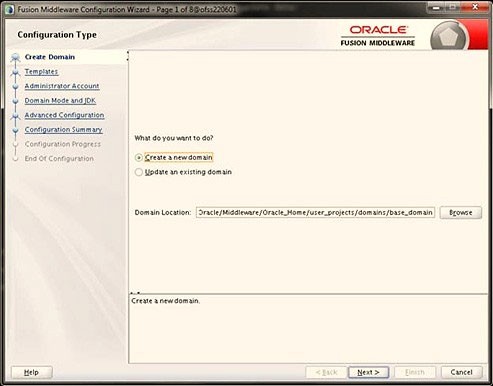
- Select Create a new domain option and click Next to the
Templates window.
Figure A-4 Templates
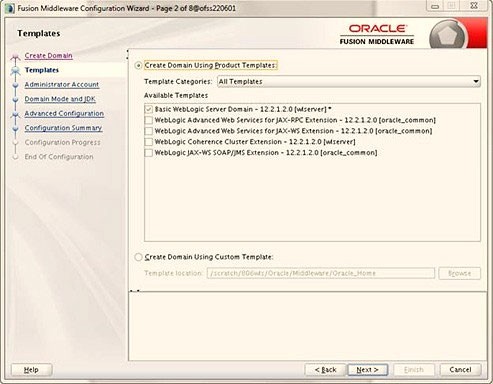
- Select the Create Domain Using Product Templates option and click
Next to display the Administrator Account window.
Figure A-5 Administrator Account
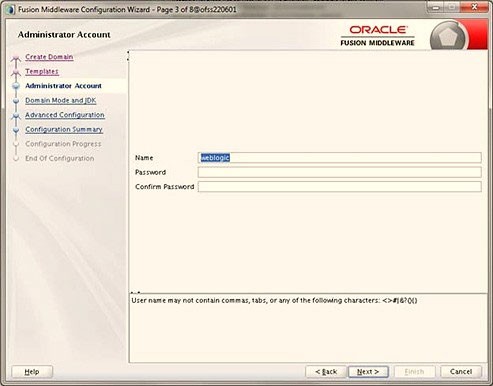
- Enter the user name to be assigned to the administrator, the password, and
confirm the password. Click Next to the Domain Mode and JDK
window.
Figure A-6 Domain Mode and JDK
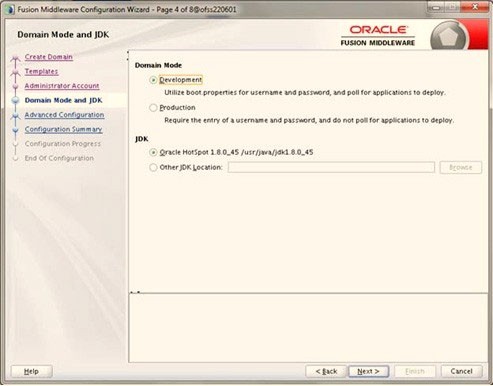
- Select from the following options:
- In the Domain Mode section, select the required mode (Development or Production).
- In the JDK section, select the required option. If you select Other JDK Location, click Browse, navigate to the JDK location, and select. Click Next to display the Advanced Configuration window.
Figure A-7 Advanced Configuration
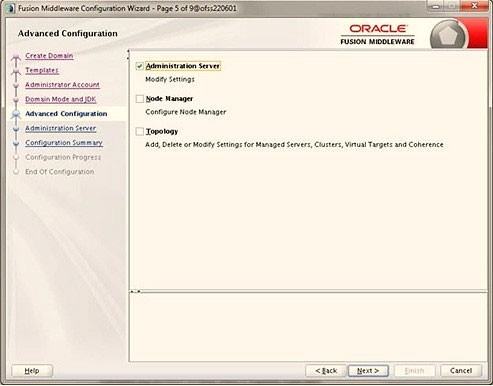
- Select the Administration Server. A WebLogic Server domain must have
an Administration Server. You can also select Manages Servers,
Clusters and Machines, and RDBMS Security Store if
required. Click Next to display the Administration Server window.
Figure A-8 Administration Server
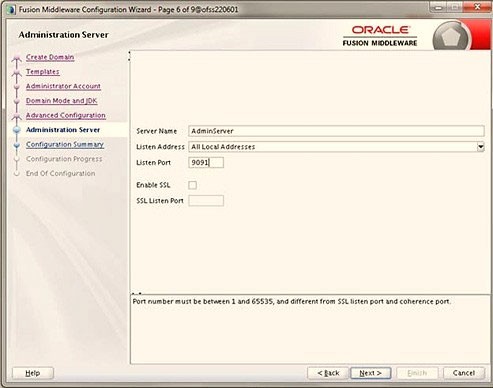
- Enter Administration Server details such as the Server Name,
Listen address, Listen Port, Enable SSL (for secure
login using https, select this check box), and SSL Listen Port. Click
Next to display the Configuration Summary window.
Note:
Make a note of the Listen Port or SSL Listen Port value (for example: 7007) since the same has to be re-entered in the Servlet port field during Infrastructure installation.Figure A-9 Configuration Summary
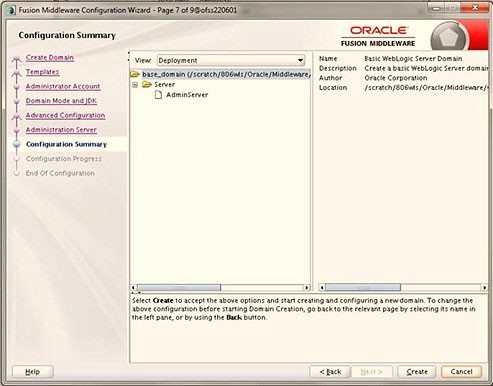
- Verify the configuration details of the WebLogic domain and click
Create to display the Configuration Progress window with the
status indication of the domain creation process.
Figure A-10 Creating Domain
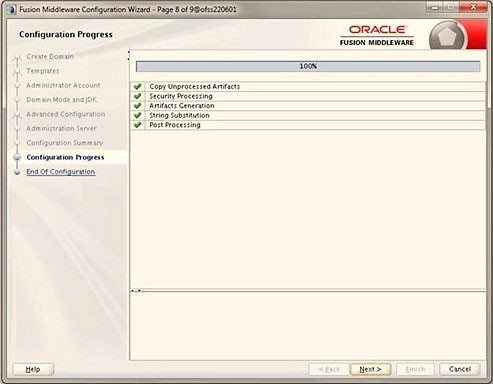
- Click Next when 100% of the activity is complete. The End of
Configuration window is displayed.
Figure A-11 End of Configuration
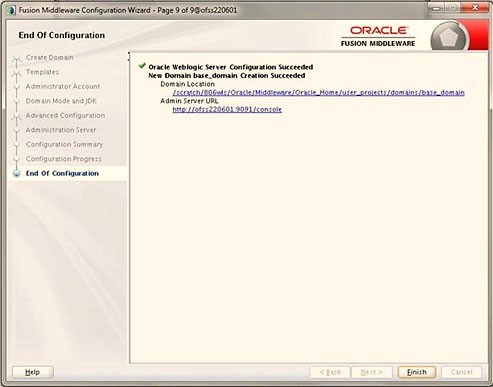
- Click Finish. The domain server is created enabling the deployment of
multiple Infrastructure applications on a single WebLogic.
Note:
- Record the HTTPS port specified during this process and use it as a servlet port or web server port during OFSAAI Installation.
- To enable https configuration on Infrastructure, assign value 1 to "HTTPS_ENABLE" in OFSAAI_InstallConfig.xml for silent mode OFSAAI installation.
- Add a java option entry -DUseSunHttpHandler=true in the WLS_HOME/bin/ "setDomainEnv.sh" file (Required only if a self-signed certificate is used).
- Add a Java option entry -Dweblogic.http.disablehttp2=true in the WLS_HOME/bin/ "setDomainEnv.sh" file , to ensure that the HTTP2 is disabled and only HTTP 1.1 is used as a protocol. Delete Domain in WebLogic
Deleting Domain in WebLogic
To delete a domain in WebLogic, follow these steps:
- Navigate to the following directory:
<WebLogic Installation directory>/user_projects/domains/<domain name>/ bin.
- Execute
stopWebLogic.shto stop the Weblogic domain. - Delete the WebLogicdomain.
Configuring WebLogic Memory Settings
To configure the WebLogic Memory Settings, follow these steps:
- Change the memory setting for Java Heap to
-Xms512m-Xmx3072min thesetDomainEnv.shfile, which resides in the<DOMAIN_HOME>/bindirectory and theCommEnv.shfile which resides in thecommon/bindirectory. - Edit this file for customizing memory settings and garbage collector settings depending on the available hardware configuration.
if [ "${JAVA_VENDOR}" = "Sun" ] ; then WLS_MEM_ARGS_64BIT="-Xms512m
        -Xmx1024m"export WLS_MEM_ARGS_64BIT WLS_MEM_ARGS_32BIT="-Xms512m-Xmx1024m"export WLS_MEM_ARGS_32BIT else WLS_MEM_ARGS_64BIT="-Xms512m-Xmx1024m" export WLS_MEM_ARGS_64BIT
WLS_MEM_ARGS_32BIT="-Xms512m -Xmx1024m"export WLS_MEM_ARGS_32BITJAVA_VM
=MEM_ARGS="-Xms256m -Xmx1024m"Configuring WebLogic for REST Services Authorization
- Open the config.xml file located in the domain where OFSAA is deployed -<domain_home>/ config/config.xml.
- Add the the security-configuration tag:
.<enforce-valid-basic-auth- credentials>false</enforce-valid-basic-auth-credentials>