A.1 Configuring Web Application Servers
This section describes how to configure the Web Application Servers.
Note:
For upgrade from OFS BD 8.0.2.0.0 to OFS BD 8.1.2.0.0 perform the following:
- Remove the persistence.xml from ficweb/webroot/WEB- INF/classes/META-INF/, regenerate the .ear and .war files, and re-deploy the application.
- Remove the AM folder if available from /ficweb/AM( example /ficweb/AM/AM ). Then regenerate EAR/WAR files and deploy.nd.
Configuring WebSphere Application Server for Application Deployment
You can deploy multiple OFSAA applications on different profiles of a stand-alone WebSphere application server. To create multiple WebSphere Profiles in a stand-alone server, use the command line option as explained in the following section. A profile is the set of files that define the runtime environment. At least one profile must exist to run the WebSphere Application Server.
Configuring WebSphere before Application Deployments
Before deployment, ensure that you follow these steps to configure PMF for websphere:
- Navigate to web.xml file in the <FIC_HOME>/ficweb/webroot/WEB-INFpath.
- Add com.ofs.aai.rest.v1.impl.WSService;com.ofs.aai.rest.v1.service.wf.P
MFService
as:
<param-value>com.ofs.aai.rest.v1</param-value> </init-param> <init-param> <param-name>jersey.config.server.provider.classnames</param-name> <param-value>com.ofs.aai.rest.v1.service.impl.UserService;com.ofs.a ai.rest.v1.service.impl.FunctionService;com.ofs.aai.rest.v1.service .impl.GroupService;com.ofs.aai.rest.v1.service.impl.RoleService;com .ofs.aai.rest.v1.service.impl.Infodom; com.ofs.aai.rest.v1.report.impl.I18nService;com.ofs.aai.rest.v1.rep ort.impl.ActionService;com.ofs.aai.rest.v1.report.impl.AuditTrailSe rvice;com.ofs.aai.rest.v1.report.impl.ReportService; com.ofs.aai.rest.v1.impl.DBDetailServices;com.ofs.aai.rest.v1.impl.LogService;com.ofs.aai.rest.v1.impl.Services;com.ofs.aai.rest.v1.im pl.WSService;com.ofs.aai.rest.v1.service.wf.PMFService </param-value> - Delete the .ear and .war files from<FIC_HOME>/ficweb.
- Execute the ant.sh file to recreate the .ear and .war files.
Create a New Profile in WebSphere
The Profile is created in WebSphere through the command line using the manageprofiles.sh that resides in the <WebSphere Install directory>/AppServer/bin directory.
"manageprofiles.sh-create -profileName <profile> -profilePath <profile_ path> -templatePath <template_path> -nodeName
<node_name> -cellName<cell_ name> -hostName <host_name>"$usr/home>./manageprofiles.sh -create -profileName mockaix-profilePath/websphere/webs64/Appserver/profiles/mockaix-templatePath/websphere/webs64/Appserver/profileTemplates/default-nodeName ipa020dorNode04 cellName ipa020dorNode04Cell -hostName
ipa020dor"manageprofiles.sh-create -profileName <profile> -profilePath <profile_ path> -templatePath <template_path> -nodeName
<node_name> -cellName
<cell_name> -hostName <host_name> -enableAdminSecurity true - adminUserName<Admin User Name>
-adminPassword < Admin User Password> - samplespassword<sample User
Password>"$usr/home>./manageprofiles.sh -create -profileName mockaix-profilePath/websphere/webs64/Appserver/profiles/mockaix-templatePath/websphere/webs64/Appserver/profileTemplates/default-nodeName ipa020dorNode04 -cellName ipa020dorNode04Cell -hostName ipa020dor-enableAdminSecurity true -adminUserName ofsaai -adminPassword ofsaai -samplespassword ofsaai"Note:
While using the manageprofiles.sh command to create a New Profile in WebSphere, you can also use -validate Ports to validate if the specified ports are not reserved or in use.
Additionally, you can specify new ports with -startingPort<base port> which specifies the starting port number to generate and assign all ports for the profile. For more information on using these ports, refer to the WebSphere manageprofiles command.
Manage IBM WebSphere SDK Java Technology Edition Versions
By default, WebSphere Application Server V8.5.5.X uses Java 6.0 SDK. You must upgrade to Java 7.X SDK or JAVA 8.X SDK.
Prerequisites: Install the IBM WebSphere SDK Java Technology Edition Versions 1.7.X_64 or 1.8.X_64. Follow these steps to check the java version and set it to JAVA 8.X SDK:
- Enter the WebSphere URL in the format http://HOST_NAME:PORT_ NUMBER/ibm/console
(use https if SSL is enabled).
For example: http://192.168.1.0:9000/ibm/console.
- Login with your Administrator User ID and Password.
- From the LHS menu, click Servers to expand and view the menu.
- Click Server Types to expand the menu further and then click WebSphere Enterprise Application Servers to view the Application Servers window.
- On Application Servers window, click the required Application Server link.
- Click the Java SDKs link from the Server Infrastructure section to view the list of Java SDKs.
- Select 8.0_64.
- Click Make Default and save to master repository.
- Restart the WebSphere Application Server to apply the changes to the IBM application profile.
Manage Applications in WebSphere
To manage the installed applications in WebSphere, follow these steps:
- Open the administrator console using the following
URL:
http://<ipaddress>:<Administrative Console Port>/ibm/console
For example: http://10.111.222.333:9003/ibm/console (https if SSL is enabled.)
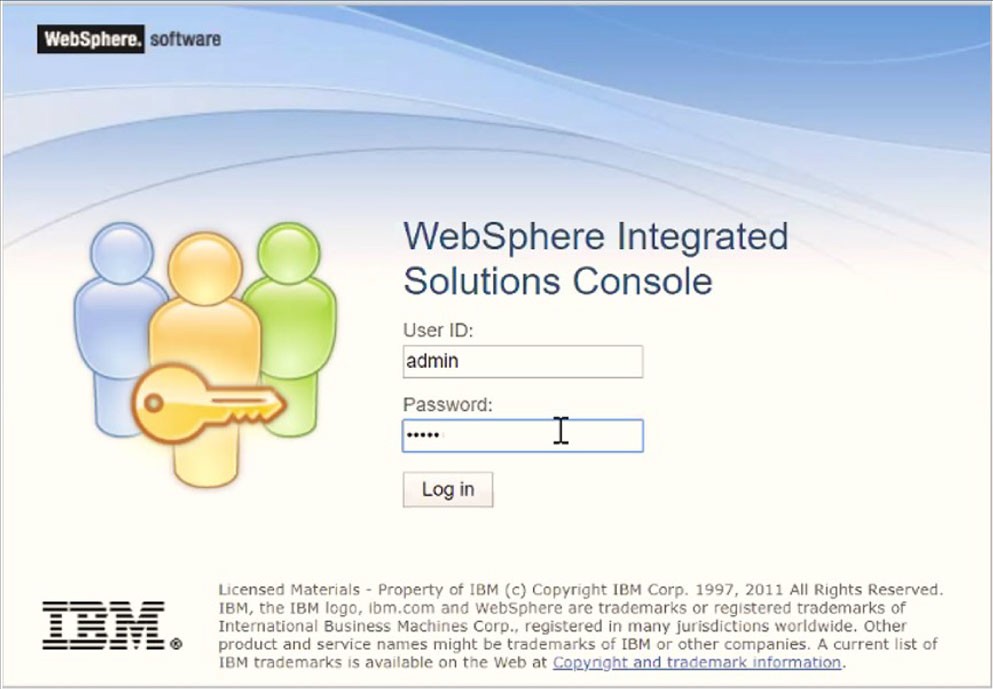
The Integrated Solutions Console Login window is displayed.
Figure A-1 Integrated Solutions Console Login
- Log in with the User ID provided with admin rights.
- From the LHS menu, expand the Applications > Application Type> WebSphere
Enterprise Applications to display the Enterprise Applications
window.
Figure A-2 Enterprise Applications
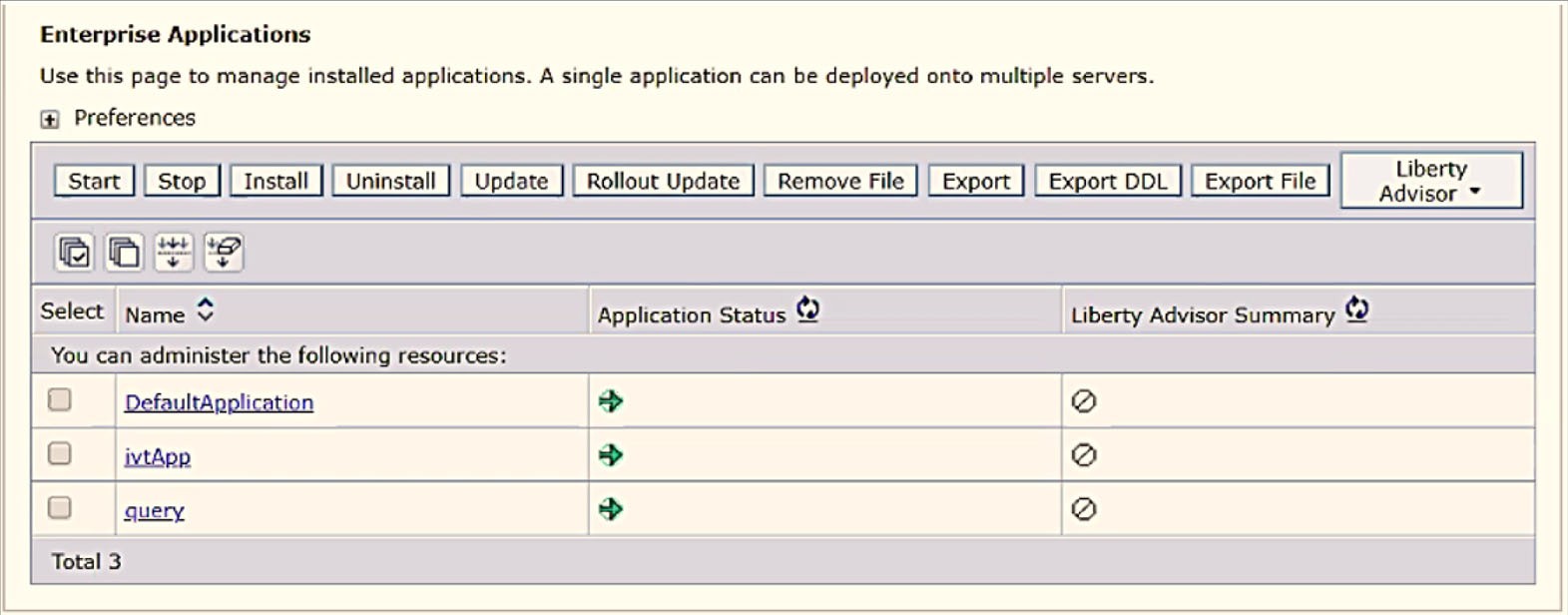
This Enterprise Applications window helps you to:
- Install new application
- Uninstall existing applications
- Start or Stop the installed applications
Configuring Websphere Application Server to Initialize Filters before Initializing Load-On-Startup Servlets and Allowing Empty Servlets Maps
Note:
This is a mandatory configuration for OFSAA with WebSphere for both fresh and upgrade installation.To configure custom properties for filters, follow these steps
- Enter the WebSphere URL in the format http://HOST_NAME:PORT_ NUMBER/ibm/console
(use https if SSL is enabled).
For example: http://192.168.1.0:9000/ibm/console.
- Log in with your Administrator User ID and Password.
- From the left menu, click Servers to expand the menu.
- Click Server Types to expand the menu further and then click WebSphere Enterprise Application Servers to view the Application Servers window.
- On the Application Servers window, click the required Application Server link.
- Click Web Container Settings and then Custom Properties to view the Custom Properties window.
- Click New and enter the following properties:
- com.ibm.ws.webcontainer.initFilterBeforeInitServlet to true
- com.ibm.ws.webcontainer.invokeFilterInitAtStartup to true
- com.ibm.ws.webcontainer.emptyServletMappings to true.
- Click OK and then click Save on the Console to save the customized configurations.
- Restart the WebSphere Application Server to apply the changes.
Configuring WebSphere Application Server Persistence to JPA Specification 2.0
The persistence configuration information in this section sets JPA 2.0 specification in WebSphere over the default JPA 2.1 specification.
To set the JPA 2.0 as the default persistence provider, follow these steps:
- Enter the WebSphere URL in the format http://HOST_NAME:PORT_ NUMBER/ibm/console
(use https if SSL is enabled.).
For example: http://192.168.1.0:9000/ibm/console
- Log in with your Administrator User ID and Password.
- From the LHS menu, click Servers to expand the menu.
- Click Server Types to expand the menu further and then click WebSphere Enterprise Application Servers to view the Application Servers window.
- On the Application Servers window, click the required Application Server link.
- Click Container Services and then click Default Java Persistence API settings to display the Configuration window.
- From the JPA Specification drop-down, select 2.0 to change the default JPA Specification from 2.1 to 2.0.
- Click OK and then click Save on the Console to save the customized configurations.
- Restart the WebSphere Application Server to apply the changes.
Configuring Websphere Application Server to Use a Load Balance or Proxy Server
The configuration prevents the process server from redirecting to an internal port when using a load balancer or proxy server.
The following steps describe the configuration:
- Enter the WebSphere URL in the format http://HOST_NAME:PORT_NUMBER/ibm/console
(use https if SSL is enabled).
For example: http://192.168.1.0:9000/ibm/console.
- Log in with your Administrator User ID and Password.
- From the LHS menu, click Servers to expand and view the menu.
- Click Server Types to expand the menu further and then click WebSphere Enterprise Application Servers to view the Application Servers window.
- On the Application Servers window, click the required Application Server
link.
For example: server1.
- Click Web Container Settings and then Custom Properties to view the Custom Properties window.
- Click New and enter the following properties:
- com.ibm.ws.webcontainer.extractHostHeaderPort:true
- Trusthostheaderport:true
- Click OK and then click Save on the Console to save the customized configurations.
- Restart the WebSphere Application Server to apply the changes.
Deleting WebSphere Profiles
This section describes how to delete WebSphere profiles.
To delete a WebSphere profile, follow these steps:
- Select the check-box adjacent to the required application and click Stop.
- Stop the WebSphere profile to be deleted.
- Navigate to the WebSphere
directory:
<WebSphere_Installation_Directory>/AppServer/bin/
- Execute the command:
.manageprofiles.sh -delete -profileName<profile_name> - Delete the profile directory.
For example: <WebSphere_Installation_Directory>/AppServer/profiles/<profile_ name>.
- Execute the command:
manageprofiles.sh-validateAndUpdateRegistry
Configuring WebSphere Shared Library to Support Jersey 2x and Jackson 2.9x Libraries
This section describes how to set up WebSphere shared library to support jersey 2x and Jackson 2.9x libraries.
To set up WebSphere shared library to support jersey 2x and Jackson 2.9x libraries, follow these steps:
- Click Environment from the menu on the left to expand and view the list.
- Click Shared Libraries to open the Shared Libraries window.
- Enter the following details:
- Name: Enter a unique identifiable name.
- Description: Enter a valid description.
- Classpath: Enter the absolute path where the JARs related to Jersey 2.x and Jackson 2.9x are copied. These jars are available in the <OFSAA_ HOME>/ficweb/webroot/externallib/ WEBINF/lib/ directory after creation of the EAR file. Another format of representation of the Path is <ofsaa_deployed_area_location>/externallib/WEBINF/lib/.
- Select Use an isolated class loader for this library.
- Click OK to save to master configuration.
- Select the application or module and map the shared libraries and click OK.
- From the Shared Library Mapping window, move the required shared libraries from Available to Selected.
- Click OK.
- Similarly, select the next application or module and repeat the procedure from steps 5 to7.
- Disable the built-in JAX-RS via JVM property.
- Navigate to the WebSphere admin console in Servers > WebSphere Application Servers > yourServerName.
- In the Server Infrastructure section, go to Java and Process Management > Process definition > Java Virtual Machine > Custom properties.
- Add the following property: com.ibm.websphere.jaxrs.server.DisableIBMJAXRSEngine=true.
- Restart the application.
Configuring WebSphere HTTPS
To configure an HTTPS Transport on WebSphere, follow these steps:
- Create a profile using the Profile Creation Wizard in WebSphere.
Note:
Record the https port specified during this process and use it as a servlet port or web server port during OFSAAI installation. - To enable https configuration on Infrastructure, assign value 1 to "HTTPS_ ENABLE" in OFSAAI_InstallConfig.xml for Silent mode OFSAAI installation.
Configuring WebSphere Memory Settings
To configure the WebSphere Memory Settings, follow these steps:
- Navigate to WebSphere applications server > Application servers > server1 > Process definition > Java Virtual Machine.
- Change the memory setting for Java Heap:
- Initial heap size =512
- Maximum heap size =3072
Configuring WebSphere for REST Services Authorization
For more information, see OFS Analytical Applications Infrastructure Administration Guide.
Configuring Application Security in WebSphere
This is a mandatory security procedure for WebSphere to restrict the unauthorized access of configuration files in directories. For more information, see OFS Analytical Applications Infrastructure Administration Guide..