C.2 Configure Work Manager in WebLogic Application Server
This section describes how to configure Work Manager in WebLogic Application Server.
To create the Work Manager in WebLogic application server, follow these steps:
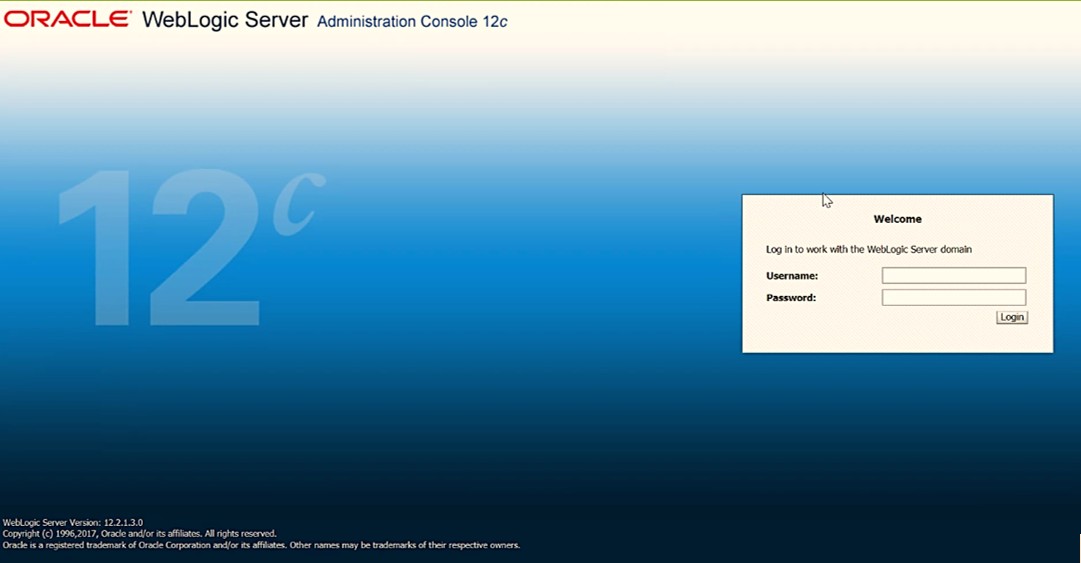
- Open the WebLogic admin console in the browser window:
http://<ipaddress>:<administrative console port>/console.
(https if SSL is enabled). The Welcome window is displayed.
Figure C-14 WebLogic Login page
- Log in with the user ID with administrative privileges.
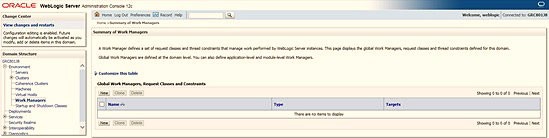
- From the Domain Structure menu in the LHS, expand Environment and select
Work Managers to display the Summary of Work Managers window.
Figure C-15 WebLogic Work Manager
- Click New to create a new Work Manager component.
Figure C-16 New WebLogic Work Manager
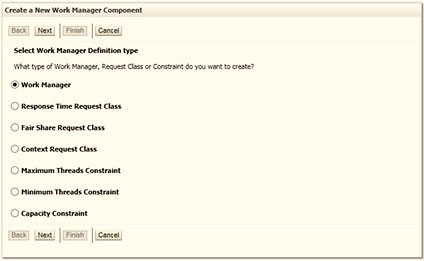
- Select the Work Manager and click Next.
Figure C-17 Summary of Work Manager
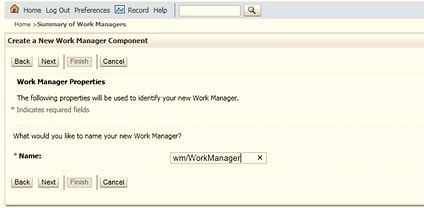
- Enter the Name as 'wm/WorkManager' and click Next.
Figure C-18 Select Deployment Targets
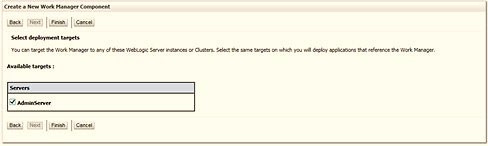
- Select the required deployment target and click Finish.
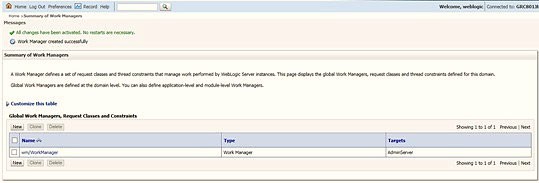
Figure C-19 Final Summary of Work Managers