C.1 Configure Work Manager in WebSphere Application Server
This section describes how to configure Work Manager in WebSphere Application Server.
Create Work Manager
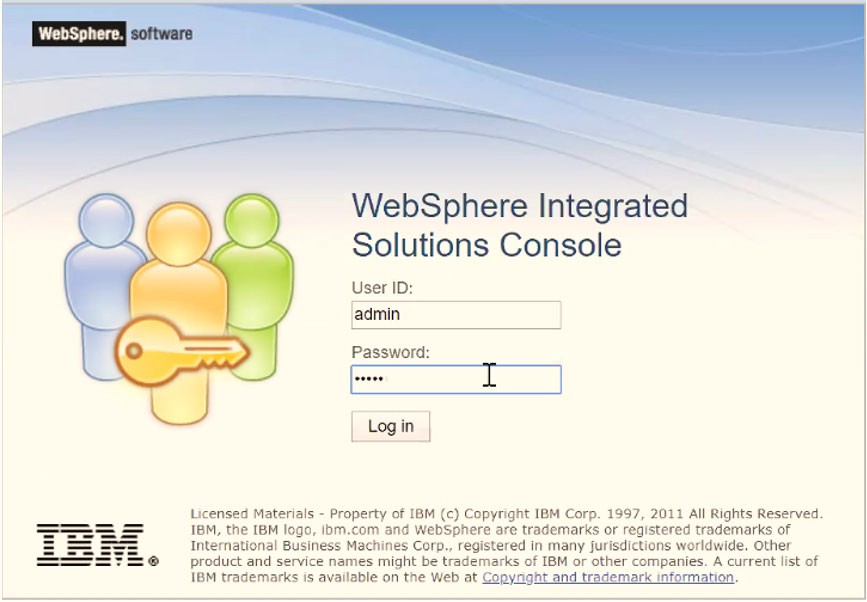
- Open the WebSphere admin console in the browser window:
http://<ipaddress>:<administrative console
port>/ibm/console. (https if SSL is enabled). The Login window is
displayed.
Figure C-1 WebSphere Login page
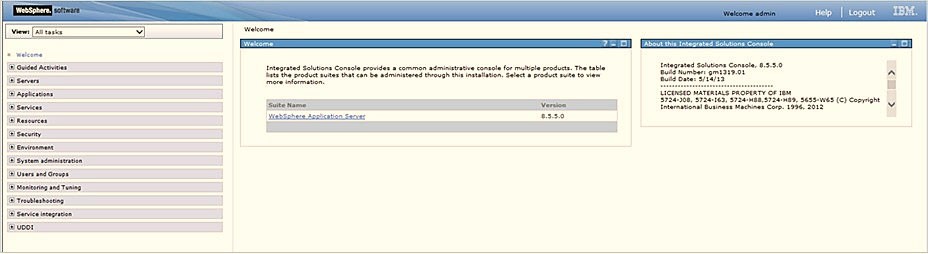
- Log in with the user ID with administrative privileges.
Figure C-2 WebSphere Home page
- From the LHS menu, expand Resources > Asynchronous beans and
select Work Managers.
Figure C-3 Work Managers
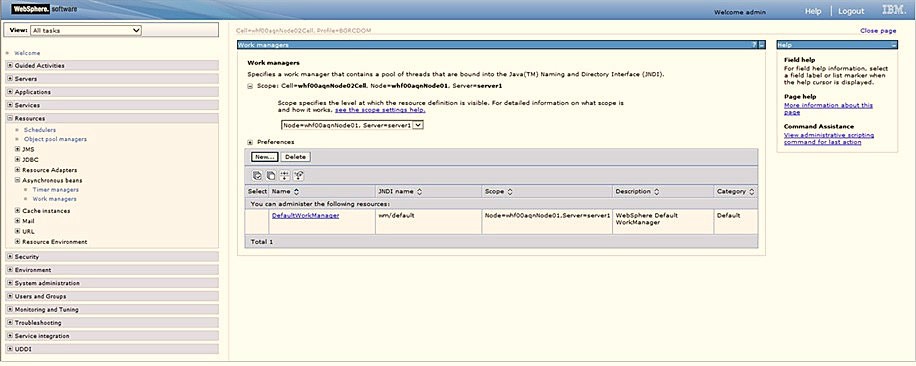
- Select the required Scope from the drop-down list.
For example: Node=whf00aqnNode01, Server=server1.
- Click New in the Preferences section.
Figure C-4 New Work Managers
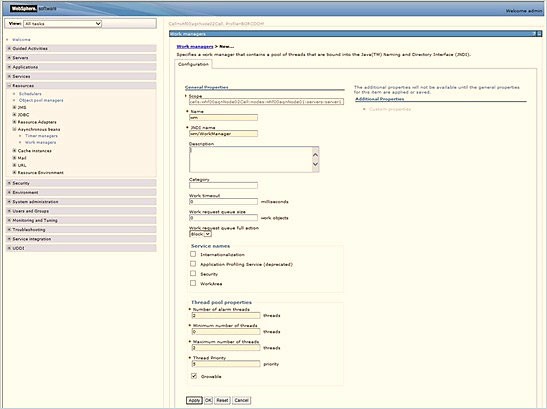
- Enter the Name as wm and JNDI name as wm/WorkManager in the respective fields.
- Enter the Thread pool properties.
- Click Apply.
Figure C-5 Configure Work Managers
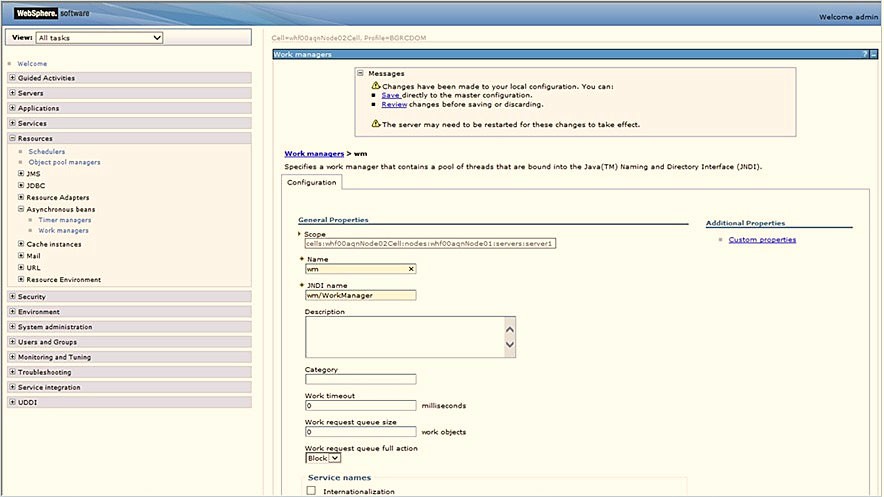
- Click Save.
Figure C-6 Work Managers Preferences
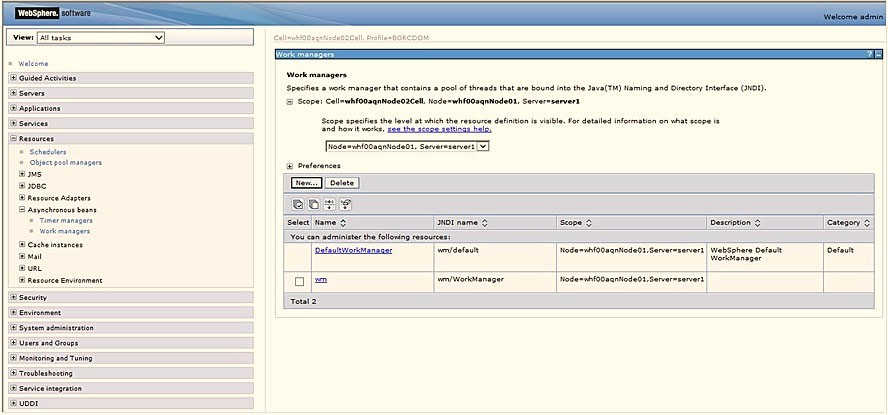
After creating the work manager, you must map it to an OFSAA instance.
Map Work Manager to OFSAA WebSphere Instance
- From the LHS menu, expand Applications > Application Types and
click WebSphere enterprise applications.
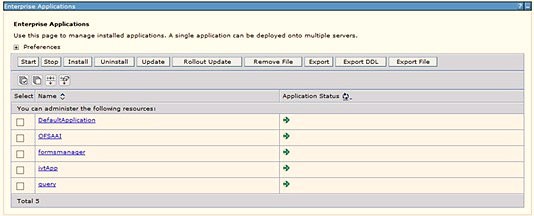
Figure C-7 Enterprise Applications
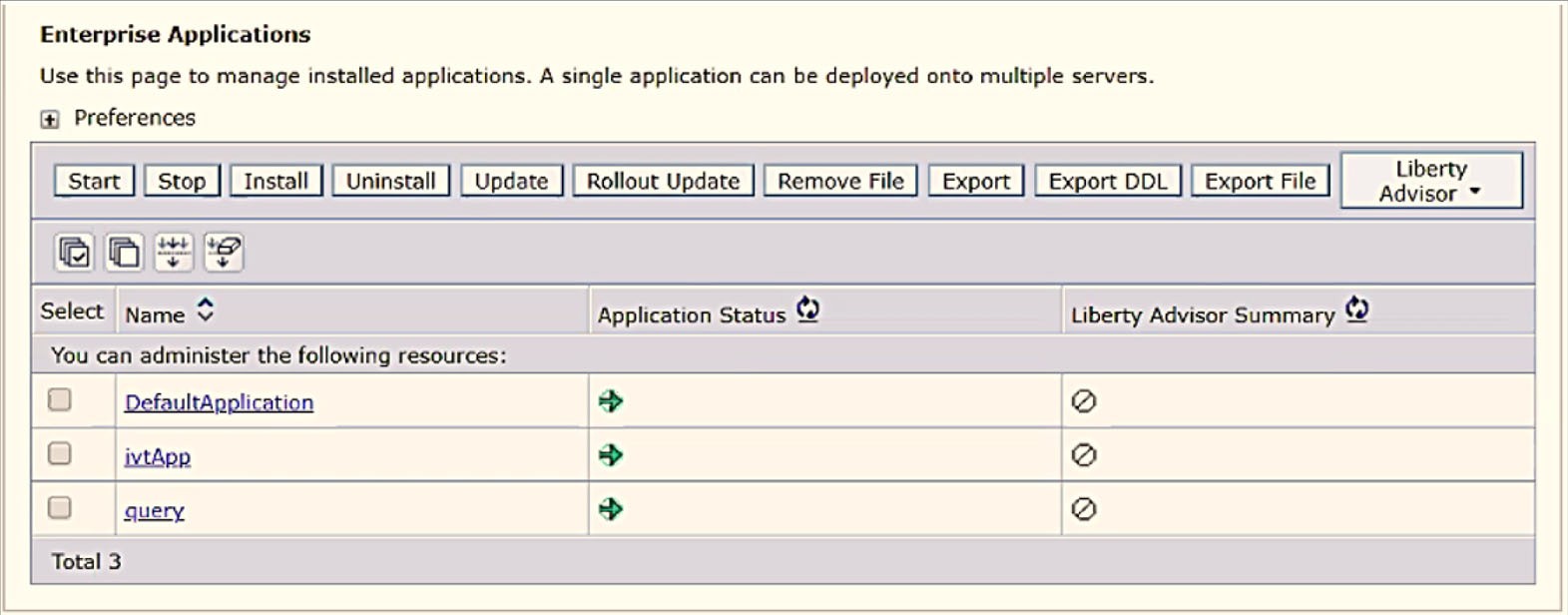
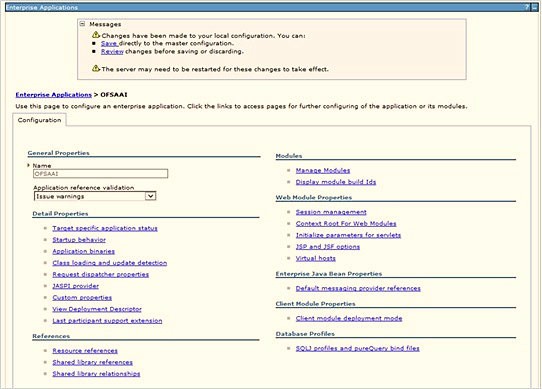
- Click the OFSAAI instance hyperlink.
Figure C-8 OFSAAI
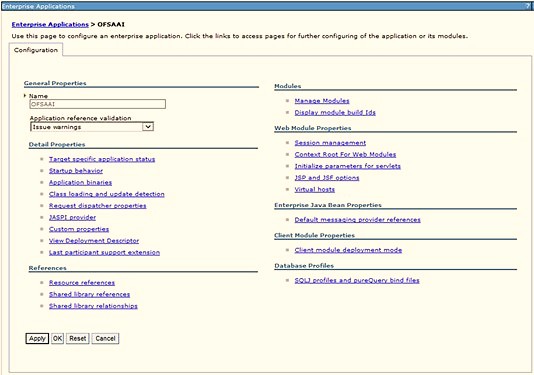
- Click the Resource references link under the References
section.
Figure C-9 Resource References
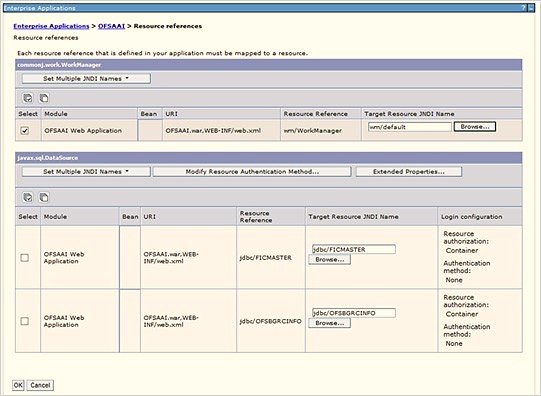
- Click Browse corresponding to the Work Manager Resource
Reference. The available resources are displayed.
Figure C-10 Available Resources
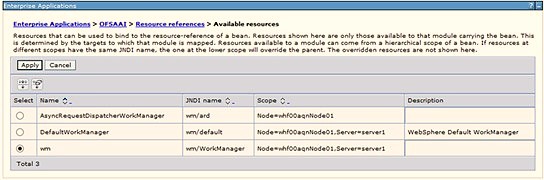
- Select the newly created Work Manager ('wm') and click Apply.
Figure C-11 Select Work Manager
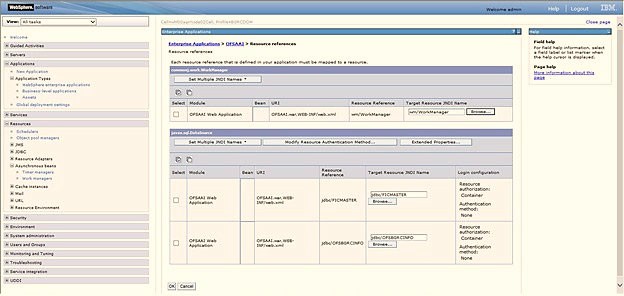
- Select the Work Manager ('wm/WorkManager') and click OK.
Figure C-12 OFSAAI Configuration
- Click Save.
Figure C-13 Enterprise Applications Preferences