D.2 Deploying EAR/WAR File
This section describes how to deploy the EAR/WAR file.
Note:
- Remove the existing Admin Tools deployment (which is integrated with OFS BD pack).
- Ensure to clear the application cache prior to the deployment of Applications Pack Web Archive. This is applicable to all Web servers (WebSphere, WebLogic, and Tomcat). For more information, see Clearing Application Cache section.
Deploying EAR/WAR Files on WebSphere
- Start WebSphere Profile by navigating to the path /<WebSphere_Installation_ Directory>/IBM/ WebSphere/AppServer/profiles/<Profile_Name>/bin/ and execute the command: ./ startServer.sh server1.
- Open the following URL in the browser:
http://<ipaddress>:<Administrative Console Port>/ibm/
console. (https if SSL is enabled). The login screen is displayed.
Figure D-2 WebSphere Login Screen
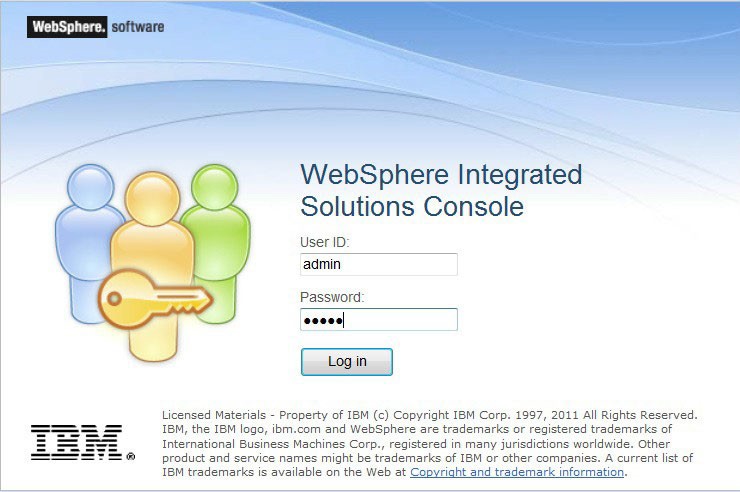
- Log in with the user ID with administrative privileges.
- From the LHS menu, select Applications and click New
Application. The New Application window is displayed.
Figure D-3 New WebSphere Application
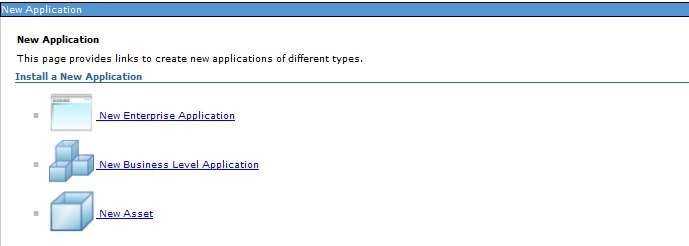
- Click New Enterprise Application. The Preparing for the application
installation window is displayed.
Figure D-4 Preparing for the application installation
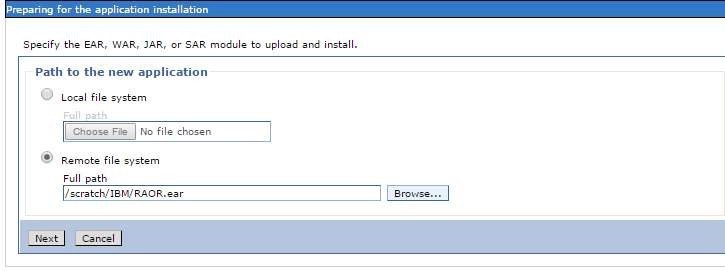
- Select Remote File System and click Browse. Select the EAR
file generated for OFSAAI to upload and install. Click Next.
Figure D-5 Installation Options
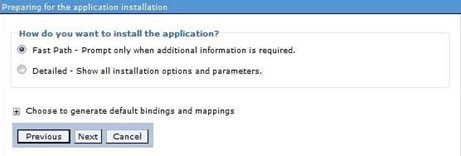
- Select the Fast Path option and click Next. The Install New
Application window is displayed.
Figure D-6 Install New Application AAI
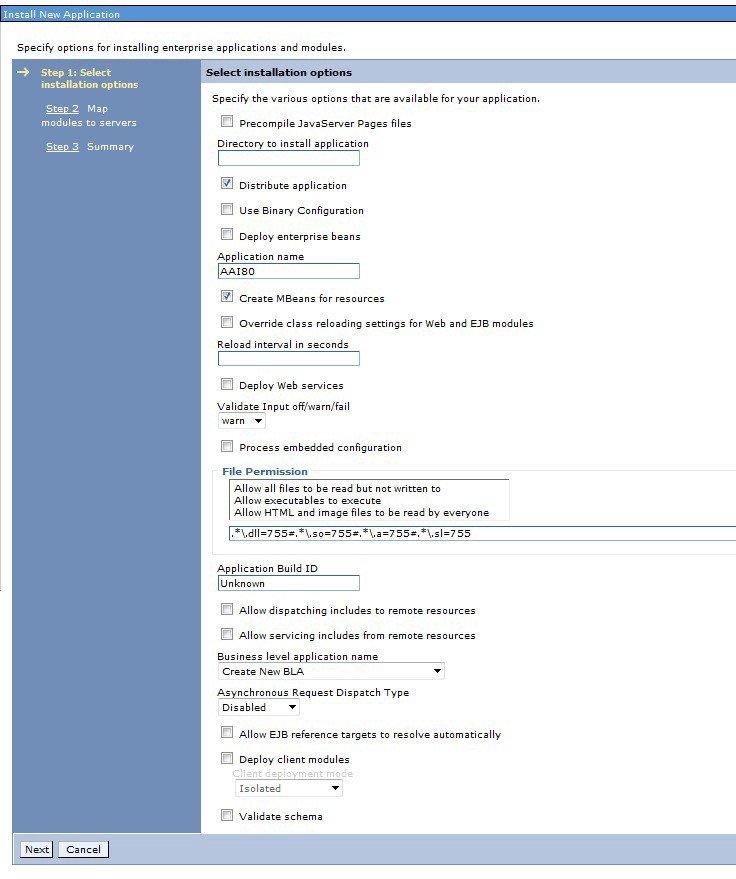
- Enter the required information and click Next. The Map Modules to
Servers window is displayed.
Figure D-7 Map Modules to Servers AAI
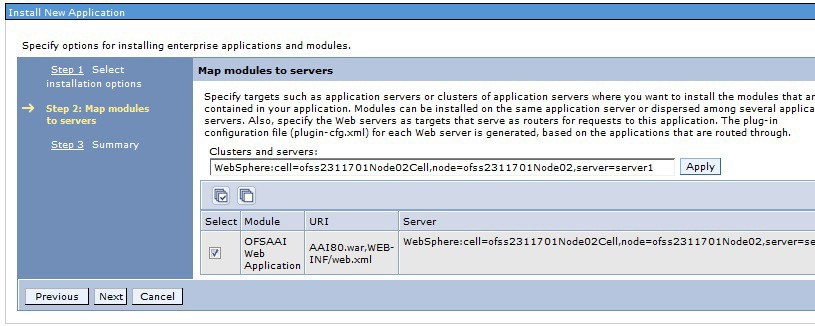
- Select the Web Application and click Next. The Map Resource
References to Resources window is displayed.
Figure D-8 Map Resource References to Resources AAI
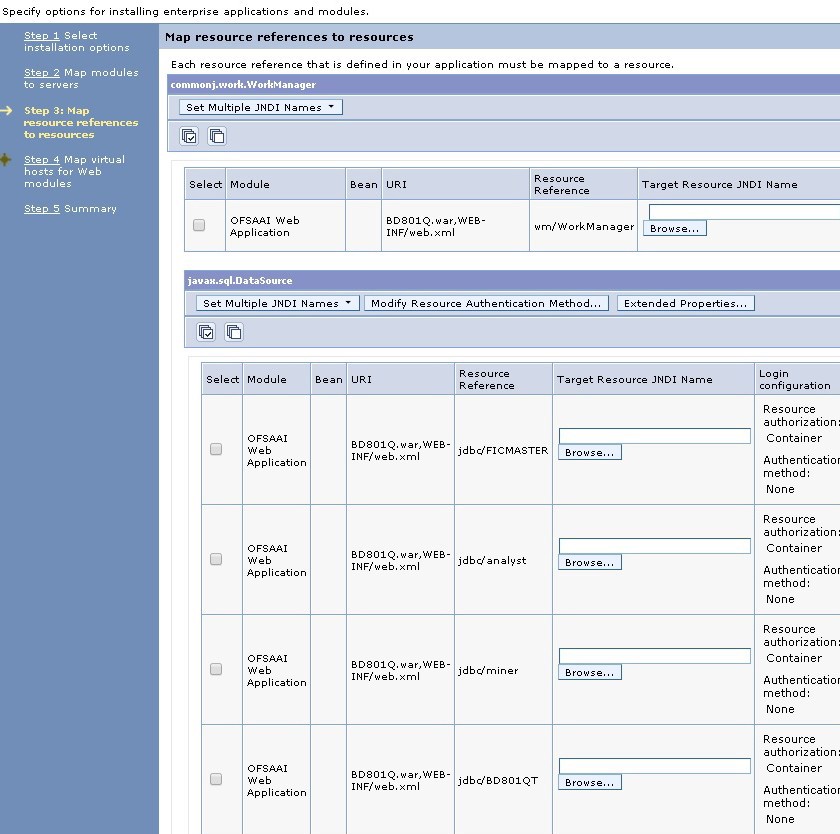
- Map each resource defined in the application to a resource JNDI name defined earlier.
- Click Modify Resource Authentication Method and specify the authentication method created earlier.
- You can specify config for FICMASTER resource or atomic for atomic resource as the authentication method.
- Select the OFSAAI Web Application checkbox and click Next. The
Map Virtual hosts for Web Modules window is displayed.
Figure D-9 Map Virtual host for Web Modules
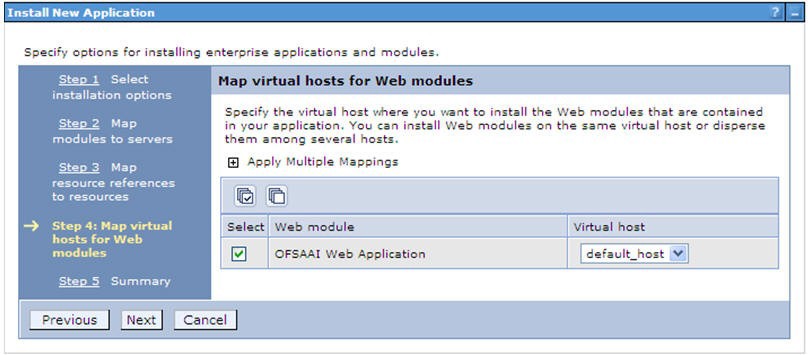
Figure 105: Map Virtual host for Web Modules
- Select the Web Application checkbox and click Next. The
Summary page is displayed.
Figure D-10 Final Summary AAI
- Click Finish and deploy the Infrastructure Application on WebSphere. On successful installation, a message is displayed.
- Click Save and save the master file configuration. The details are displayed in the Master File Configuration window.
Starting the Application
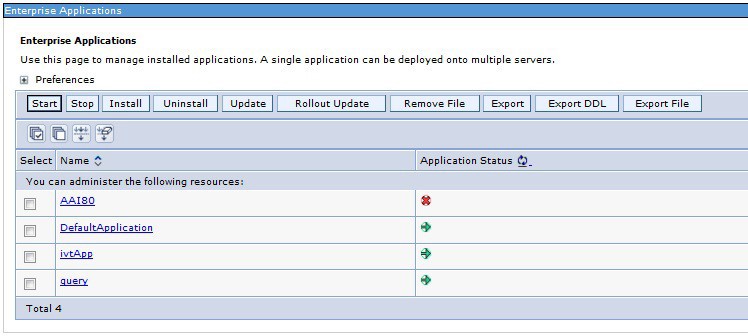
- Expand Applications > Application Type > WebSphere enterprise applications. The Enterprise Applications window is displayed. Figure 107: Enterprise Application
- Select the installed application and click Start.
Note:
- <profile name> is the profile name given while creating the WebSphere profile.
- <cell name > is the cell name given during profile creation.
- <contextname> is the context name given during installation.
Deploying EAR/WAR files for WebLogic
This section describes how to deploy the EAR/WAR files for WebLogic.
- Navigate to the path <WebLogic Installation directory>/user_projects/domains/<domain name>/bin in the machine in which WebLogic is installed.
- Start WebLogic by executing the command: ./startWebLogic.sh -d64 file.
- Open the URL in the browser window: http://<ipaddress>:<admin
server port>/console. (https if SSL is enabled). The Sign in
window of the WebLogic Server Administration Console is displayed.
Note:
Ensure that you have started Infrastructure Server by executing ./ startofsaai.sh as described in Starting Infrastructure Services.
- Log on to the WebLogic Server by entering the user credentials having privileges to deploy the EAR file.
- From the Domain Structure LHS menu, click Deployments. The Summary of
Deployments window is displayed.
Figure D-11 Summary of Deployments
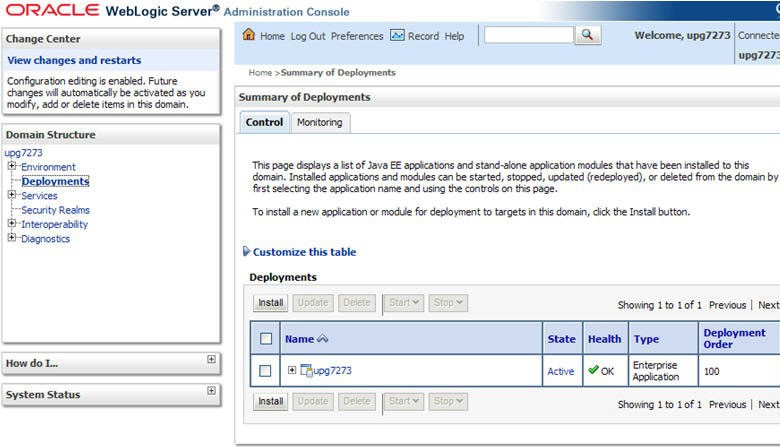
- Click Install. The Install Application Assistant window is displayed.
- Select the Exploded EAR directory after browsing to the directory where it is saved and click Next.
Explode EAR File
To explode EAR, follow these steps:
- Create the applications folder under domain name. For example, "/Bea/user_ projects/ domains/ <Domain _name>/applications".
- Create <context_name>.ear folder under the applicationsfolder.
- Copy the <$FIC_WEB_HOME/<context_name>.ear file to <WEBLOGIC_INSTALL_ DIR>/Bea/ user_projects/domains/<DOMAIN_NAME>/applications/<context_ name>.ear.
- Explode the <context_name>.ear file by executing the command: jar-xvf<context_name>.ear.
- Delete the <context>.ear and < context >.war files (recently created) <WEBLOGIC_ INSTALL_DIR>/Bea/user_projects/domains/<DOMAIN_ NAME>/applications/<context_name>.ear.
- Create a directory <context_name>.war under <WEBLOGIC_INSTALL_DIR>/Bea/user_ projects/ domains/<DOMAIN_NAME>/applications/<context_name>.ear.
- Copy <$FIC_WEB_HOME/<context_name>.war file to <WEBLOGIC_INSTALL_ DIR>/Bea/ user_projects/domains/<DOMAIN_NAME>/applications/<context_ name>.ear/<context_name>.war.
- Explode the <context_name>.war file by executing the following command to get the directory structure: jar -xvf<context_name>.war.
Install Application
To install Application, follow these steps:
- Open the Install Application Assistant.
Figure D-12 Install Application Assistant

- Click Next.
Figure D-13 Install Application Assistant 1
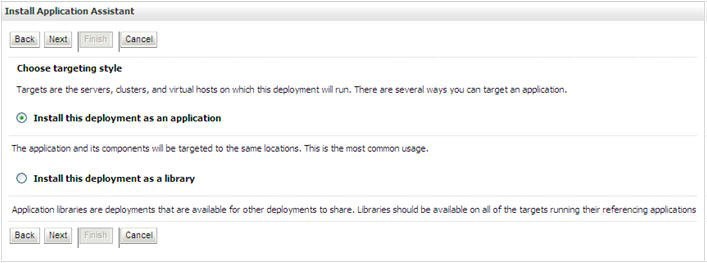
- From the Choose targeting style section, select the Install this deployment as
an application option and click Next. The Optional Settings window is
displayed.
Figure D-14 Optional Settings
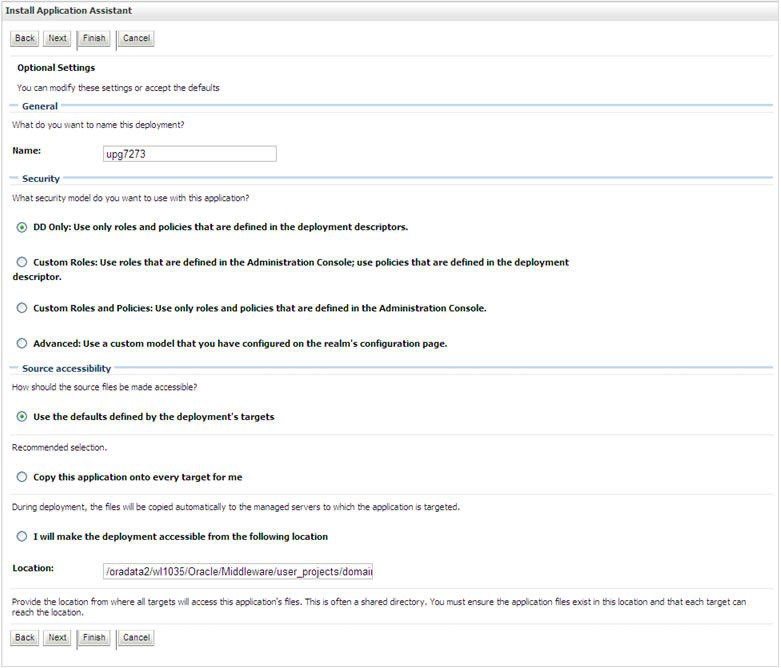
- Enter a Name for the deployment if required.
- Under the Security section, select the DD only option to specify that only roles and policies that are defined in the deployment descriptors must be used.
- SelectI will make the deployment available from the following location under the Source accessibility section.
- Click Next to continue. The Deployment Summary window is displayed.
Figure D-15 Deployment Summary
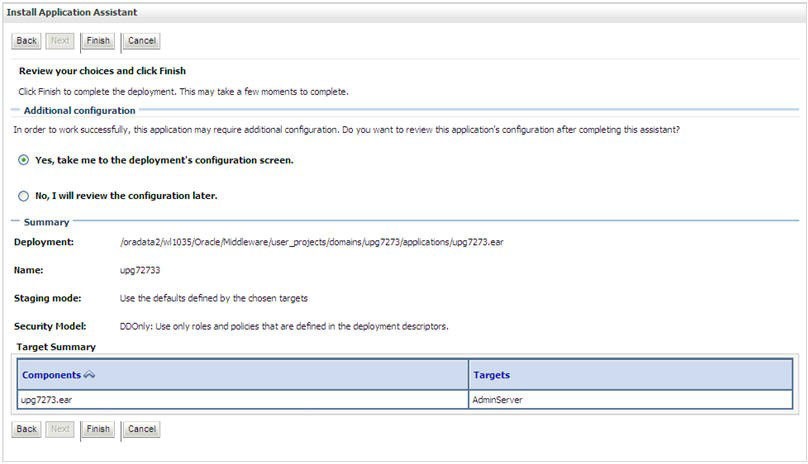
- Select the Yes, take me to the deployment's configuration screen and
click Finish. The Settings for <Deployment Name> window is
displayed.
Figure D-16 Settings for Deployment Name
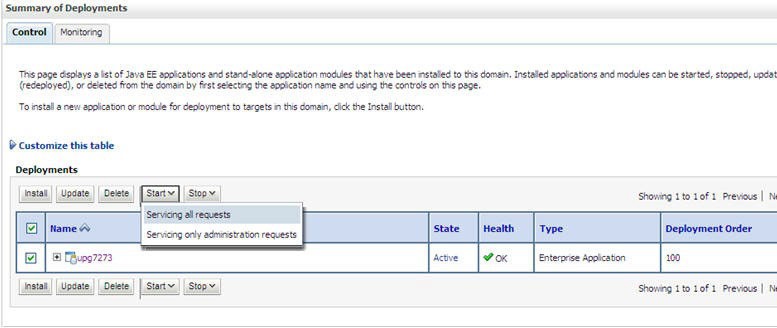
Figure D-17 Settings for Deployment Name Next
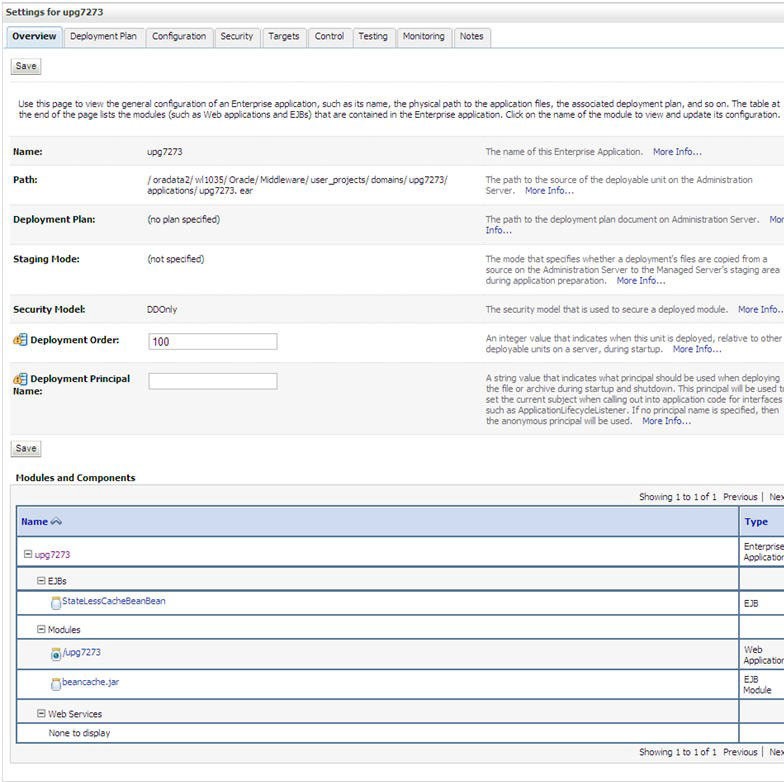
- Review the general configuration details of the deployment. You can also update the configuration of the deployment in this window. In the Overview tab, you can view the complete deployment configuration.
- Click Save to update the changes, if any.
- From the LHS menu, click Deployments. The Summary of Deployments window is displayed.
- Select the newly deployed Infrastructure application and click Start
>Servicing all requests. Ensure that the Infrastructure server is up and
running.
Figure D-18 Summary of Deployments Enterprise Applications
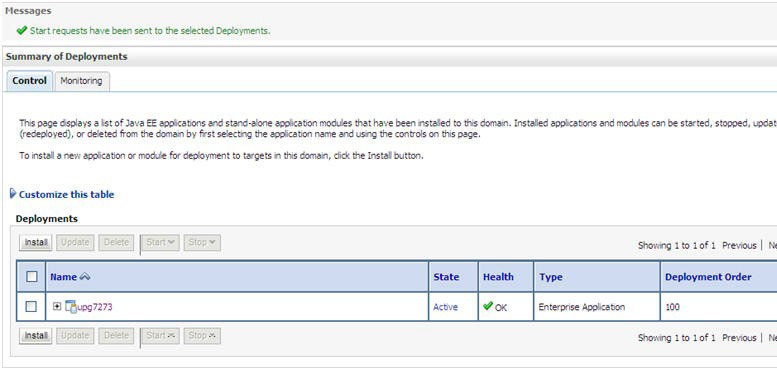
The State of the deployed application will be displayed as Active if started successfully.
Deploying Tomcat WAR Files on Tomcat
Before deploying the WAR files, ensure that the previously deployed applications of Infrastructure are uninstalled. See Uninstalling Previously Deployed WAR Files in Tomcat for the procedure to uninstall the previously deployed Infrastructure war files.
- Copy the <context-name>.war from
$FIC_WEB_HOME/<context-name.war> to <Tomcat Installation
Directory>/webapps/ directory.
Figure D-19 Tomcat Home Page
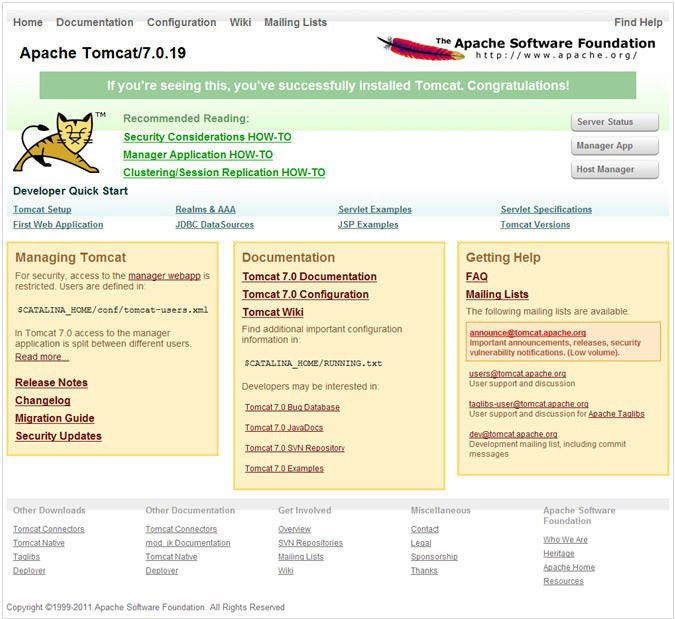
- Click Manager App. The Connect to dialog box is displayed.
- Enter the User ID with administrative privileges and click OK. (For user creation in tomcat, see the Tomcat User Administration section in Configure Apache Tomcat Server for Application Deployment.
- The Tomcat Web Application Manager window is displayed with the list of all
the applications deployed.
Figure D-20 Tomcat Web Application Manager
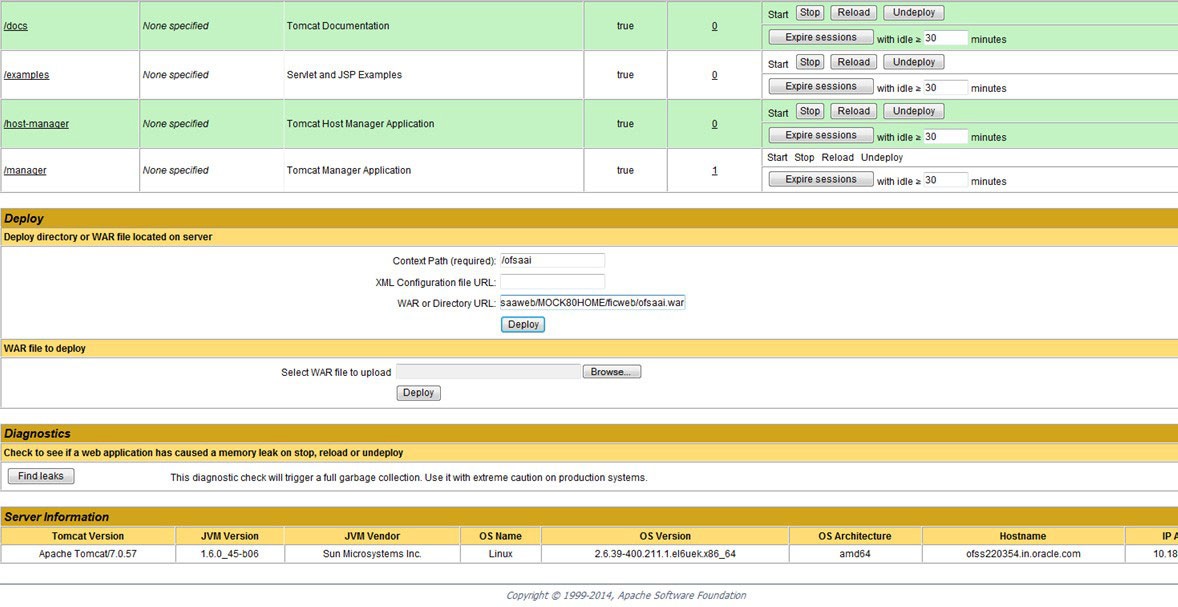
- In the Deploy section, enter the Context Path provided during the installation as /<context- name>.
- Enter the path where the <context-name>.war file resides (by default $FIC_WEB_ HOME/<context-name.war>) in the WAR or Directory URL field and click Deploy.
- On successful application deployment, a confirmation message is displayed. Start the Tomcat server. See Starting Infrastructure Services for more details.