7.12 Deploying RAOR.ear in WebSphere
This section describes how to deploy the RAOR.ear file in WebSphere.
To deploy RAOR.ear in WebSphere, follow these steps:
Note:
- It is mandatory to have RAOR.ear in the same domain where <contextname>.ear of the OFS BD Application is deployed.
- Delete all the Jersey related jars in the WEB-INF/lib folder
- Comment the below line from $FIC_HOME/
raor_processing/WebContent/conf/application- env.properties
file.
linespring.profiles.active=JMS,JMSApplicationCache, JMSGateway,JMSFeedBackGateway
- Start the WebSphere Profile by navigating to the path /<WebSphere_
Installation_ Directory>/ IBM/WebSphere/AppServer/profiles/<Profile_
Name>/bin/ then execute the command:
../ startServer.shserver1 - Open the URL in the browser:
http://<ipaddress>:<AdministrativeConsole
                    Port>/ibm/console
. (use https protocol if SSL is enabled). The login screen is displayed. - Enter the user credentials which has administrator rights and click Log In.
- From the LHS menu, select Applications and click New Application. The
New Application window is displayed.
Figure 7-10 New Application
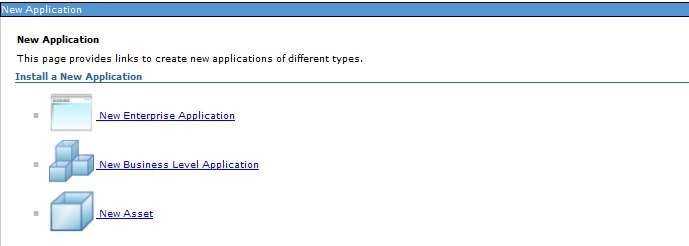
- Click New Enterprise Application. The Preparing for the application
installation window is displayed.
Figure 7-11 Preparing for the Application Installation
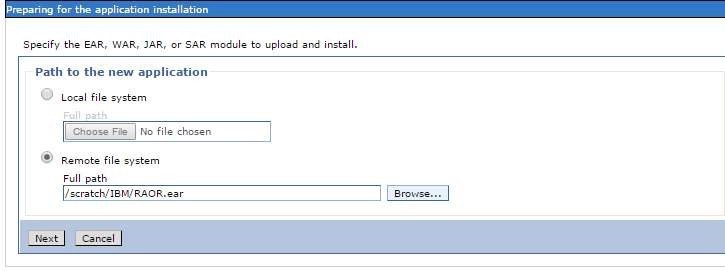
- Select Remote File System and click Browse. Select the EAR file generated for
RAOR to upload and install. Click Next.
Figure 7-12 Installation Options
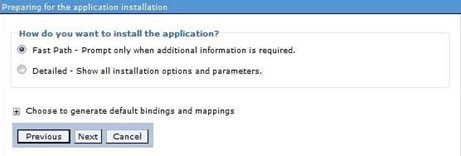
- Select the Fast Path option and click Next. The Install New
Application window is displayed.
Figure 7-13 Install New Application
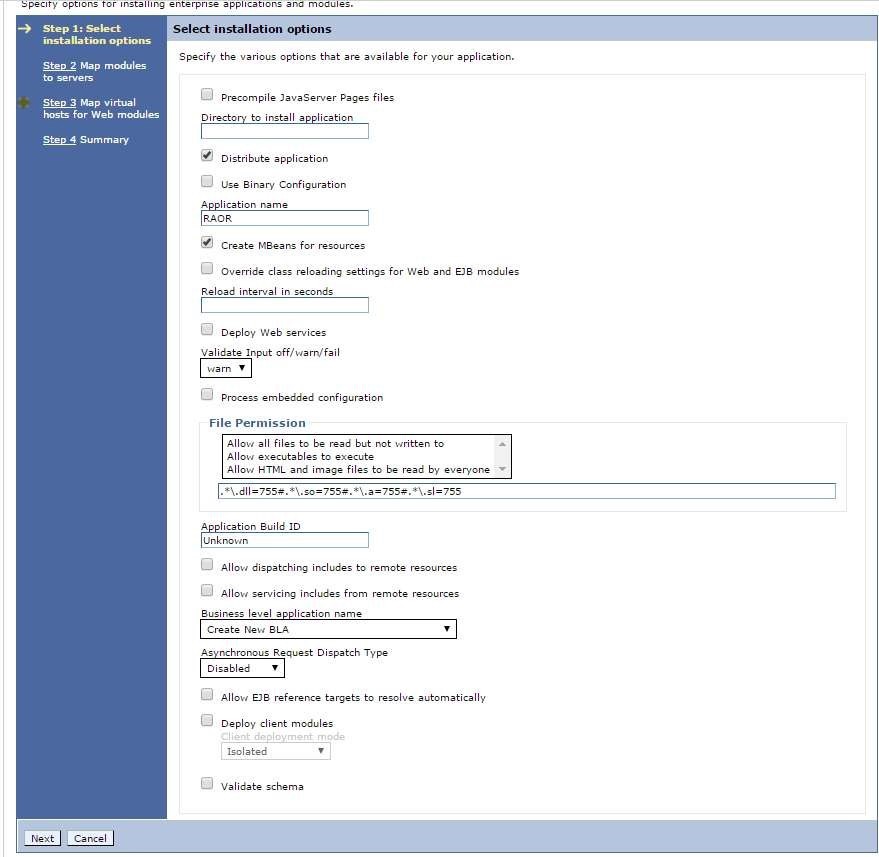
- Enter the required information and click Next. The Map modules to
servers window is displayed.
Figure 7-14 Map modules to servers
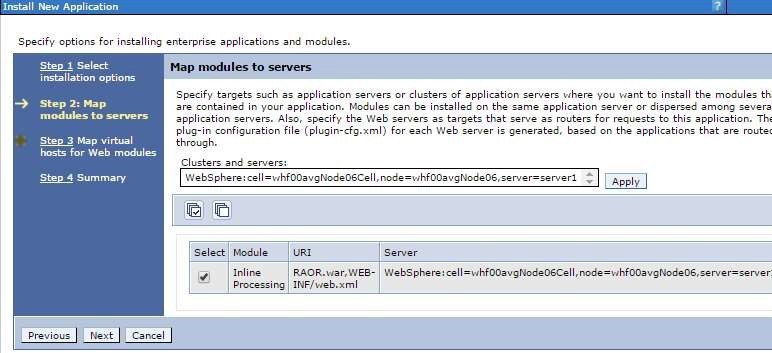
- Select the Inline Processing check box and click Next. The Map virtual
hosts for Web modules page is displayed.
Figure 7-15 Map virtual hosts for Web modules
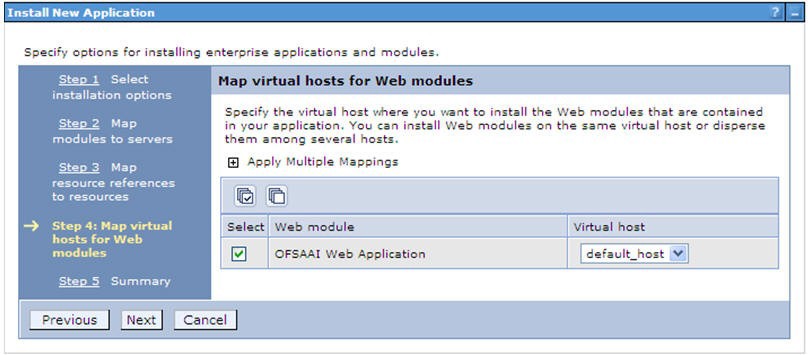
- Select the Inline Processing checkbox and click Next. The Metadata for
modules page is displayed.
Figure 7-16 Summary screen
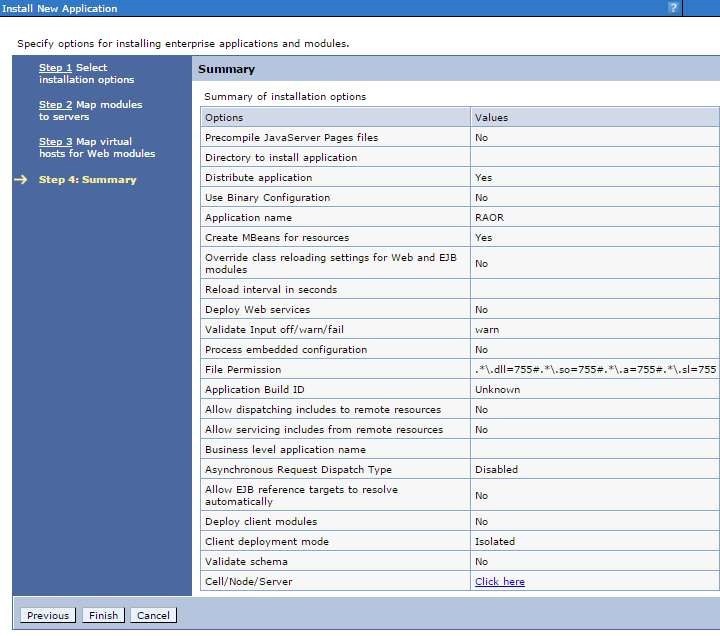
- Select the Metadata-complete attribute checkbox and click Next. The Summary page is displayed.
- Click Finish. On successful installation, a message is displayed.
- Click Save and save the master file configuration. The details are displayed
in the Master File Configuration page.
Figure 7-17 Master File Configuration screen
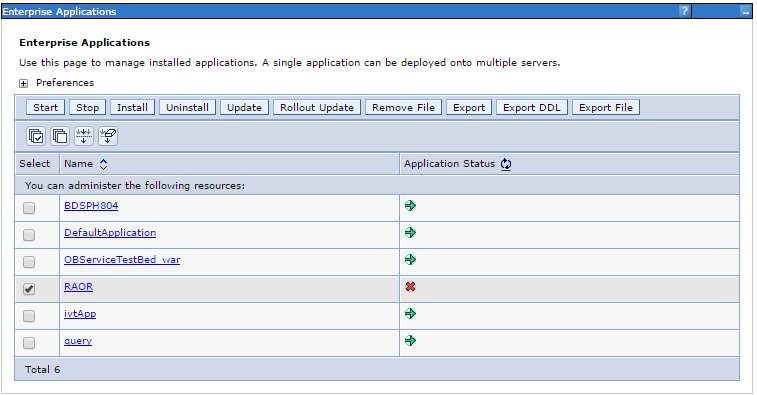
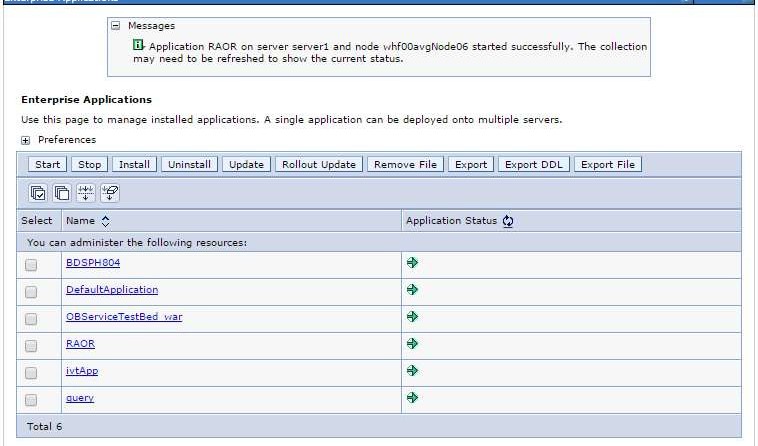
- Select RAOR and click Start. The Enterprise Application page is
displayed with confirmation message.
Figure 7-18 Enterprise Application page with Confirmation message
- If RTFRAUD is deployed, rename StatsManager to StatsManager1 and
LogConfig to LogConfig1 in the deployed area
/RAOR.ear/RAOR.war/conf/applicationContext-jmx.xml file.
<entry key="realtime:name=StatsManager1" value-ref="statMgrBean" />
<entry key="realtime:name=LogConfig1" value-ref="logRuntimeConfigBean" />
- Restart all OFS AAAI servers. For more information, see Starting/Stopping Infrastructure Services.