7.11 Installing RAOR.ear in WebLogic using WebLogic Administrator Console
This section describes how to install RAOR.war in WebLogic using WebLogic Administrator console.
To install RAOR.war in WebLogic using WebLogic Administrator console, follow these steps:
- Navigate to the path <WebLogic Installation directory>/user_ projects/domains/<domain name>/bin in the machine in which WebLogic is installed.
- Start WebLogic by executing the command:
../startWebLogic.sh -d64 file - Open the URL in the browser window: http://<ipaddress>:<admin server port>/console. (https if SSL is enabled). The Sign in window of the WebLogic Server Administration Console is displayed.
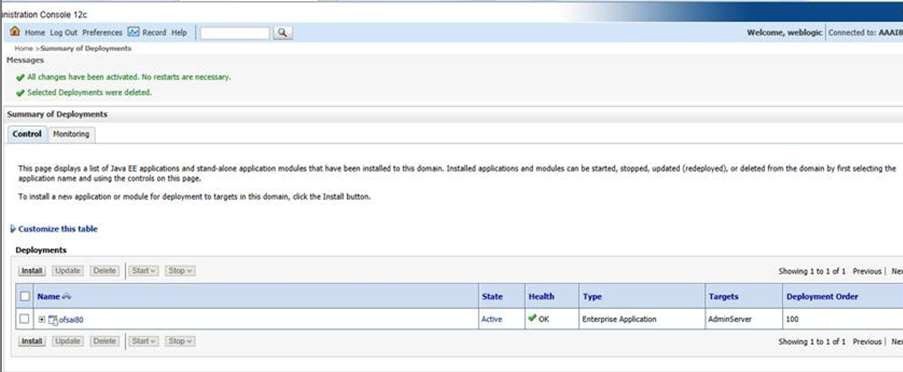
- Login with the Administrator Username and Password. The Summary of
Deployment page is displayed.
Figure 7-4 Summary of Deployment
- Click Install. The Install Application Assistance page is displayed.
Figure 7-5 Install Application Assistance
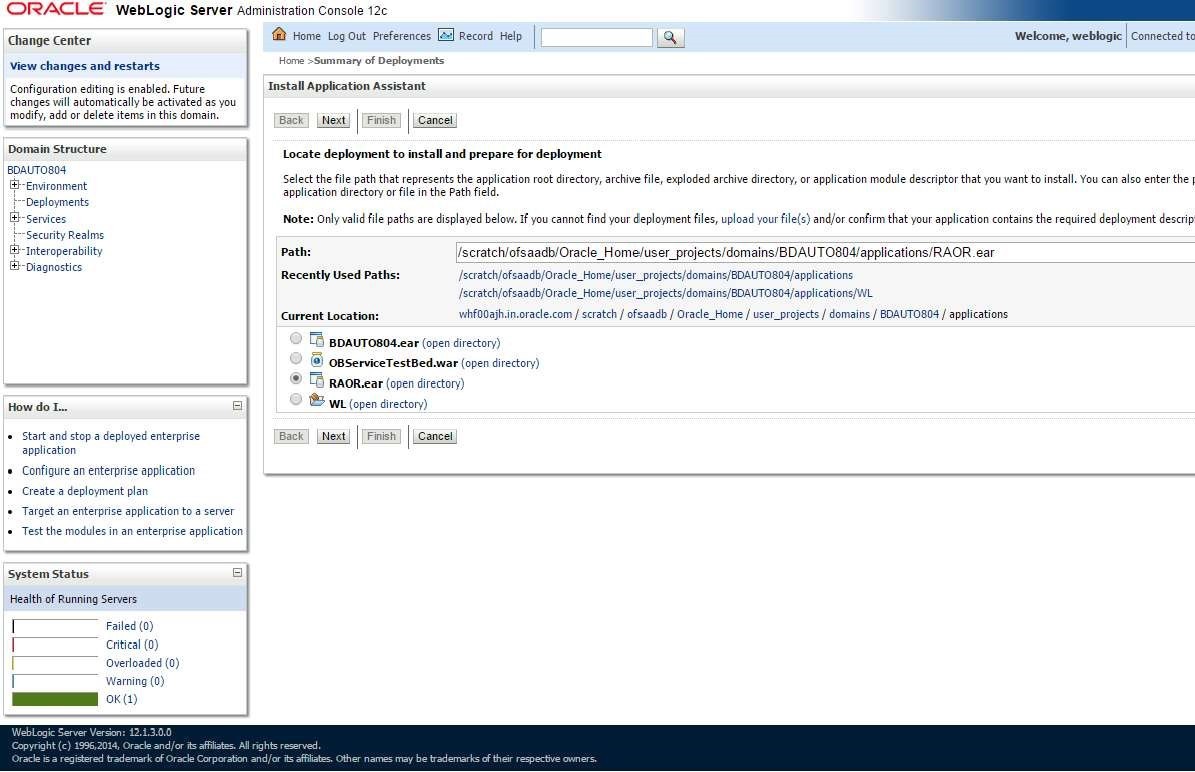
- Select RAOR.ear and click Next. The Install Application
Assistance page is displayed with the Choose targeting style section.
Figure 7-6 Install Application Assistance with choose Target Style
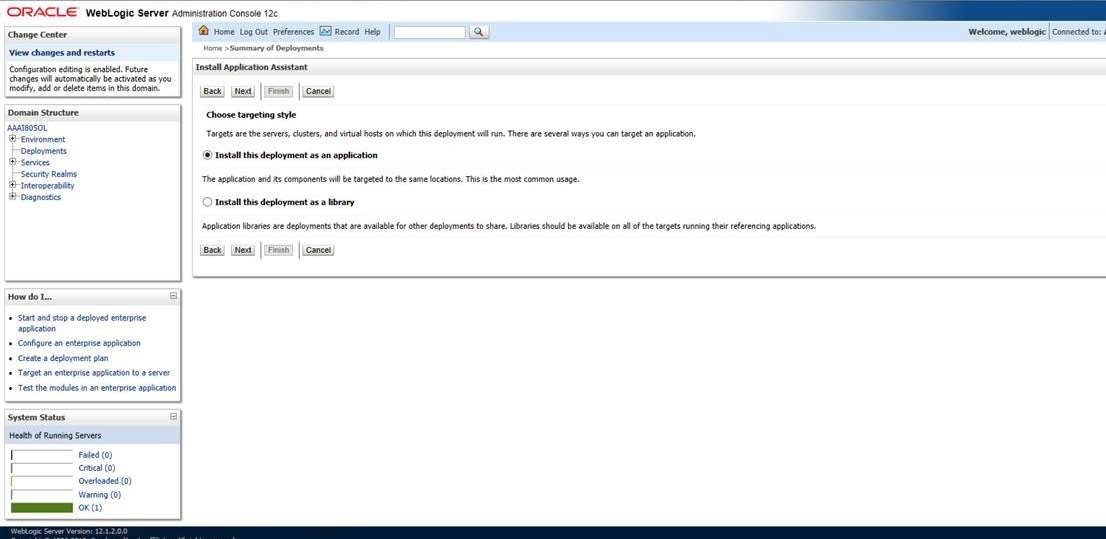
- By default, Install this deployment as an application option in the Choose targeting
style section is selected. Click Next. The Install Application
Assistance page is displayed with the Optional Settings section.
Figure 7-7 Install Application Assistance page with Optional Settings
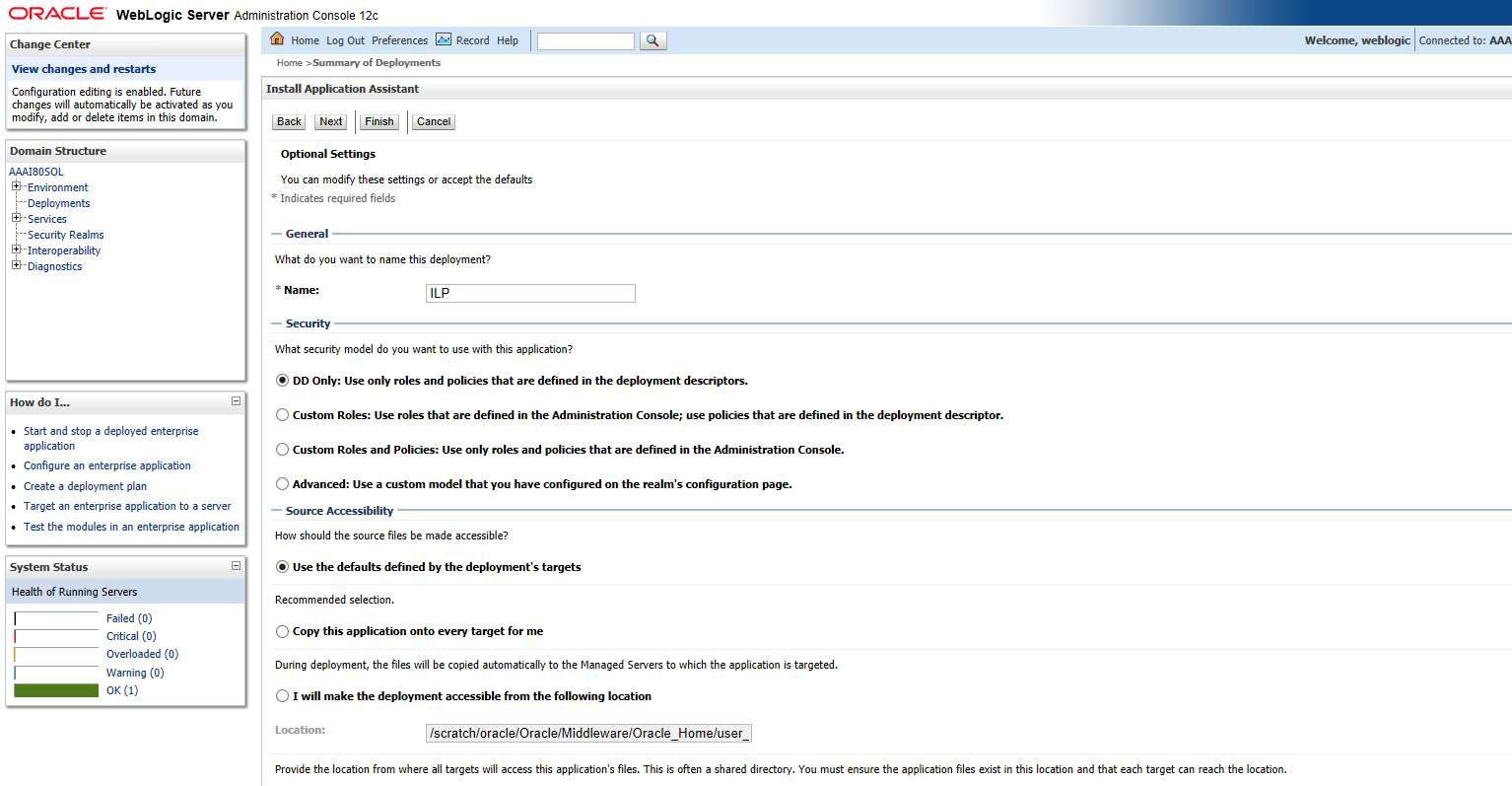
- Retain the default selections and click Next. The Install Application
Assistance page is displayed with the Review your choices and click Finish
section.
Figure 7-8 Install Application Assistance page with Review your choices and click Finish section
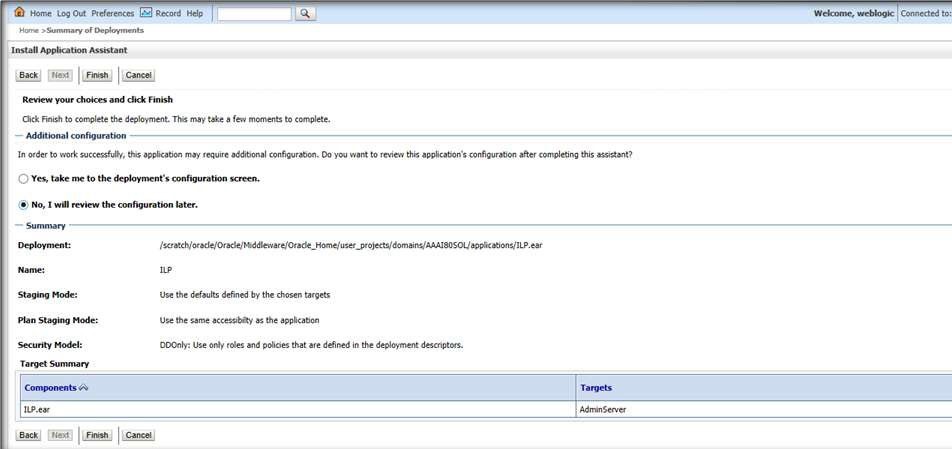
- Select No, I will review the configuration later in the Additional
Configuration section and click Finish.
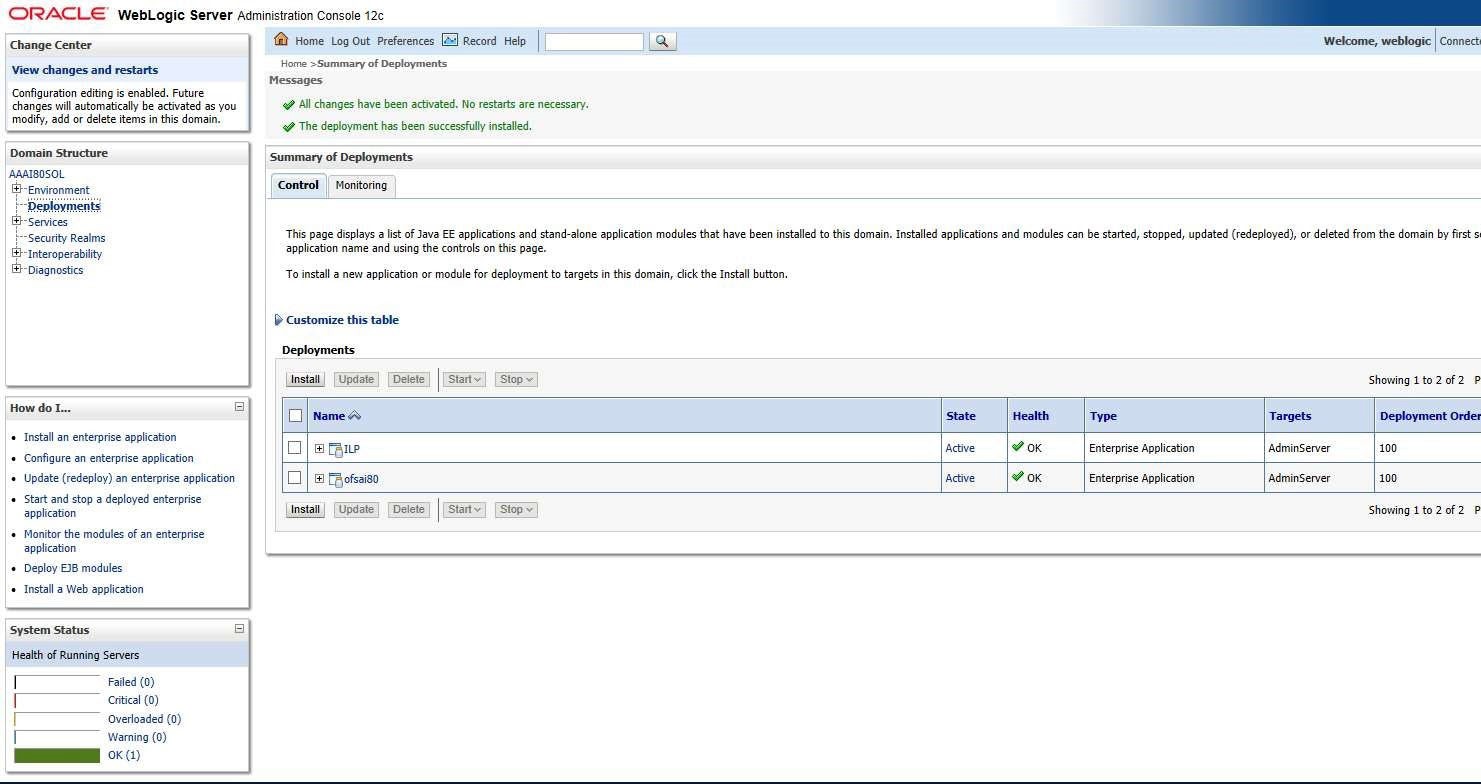
The ILP is added in the Name section of the Summary of Deployment page.
Figure 7-9 Summary of Deployment page with ILP
- Restart all OFS AAAI servers. For more information, see Starting/Stopping Infrastructure Services.