2.5.1 Acting on CTR

In OFS CTR, you can perform an action on a CTR based on user roles and the status of a Currency Transaction Report.

Note:

If no action is available for the selected CTRs then the following message displays.There are no actions available for the selected CTRs.

To perform an action on a CTR, follow these steps:

  1. Select one or more CTRs from the Search and List page and then click Action to take action on one or more CTRs. The Action window is displayed.
    (Or)
    Click the CTR ID from the Search and List page to view its details, and click Action from the CTR Details page. The Action window is displayed.

    Figure 2-9 Actions Window
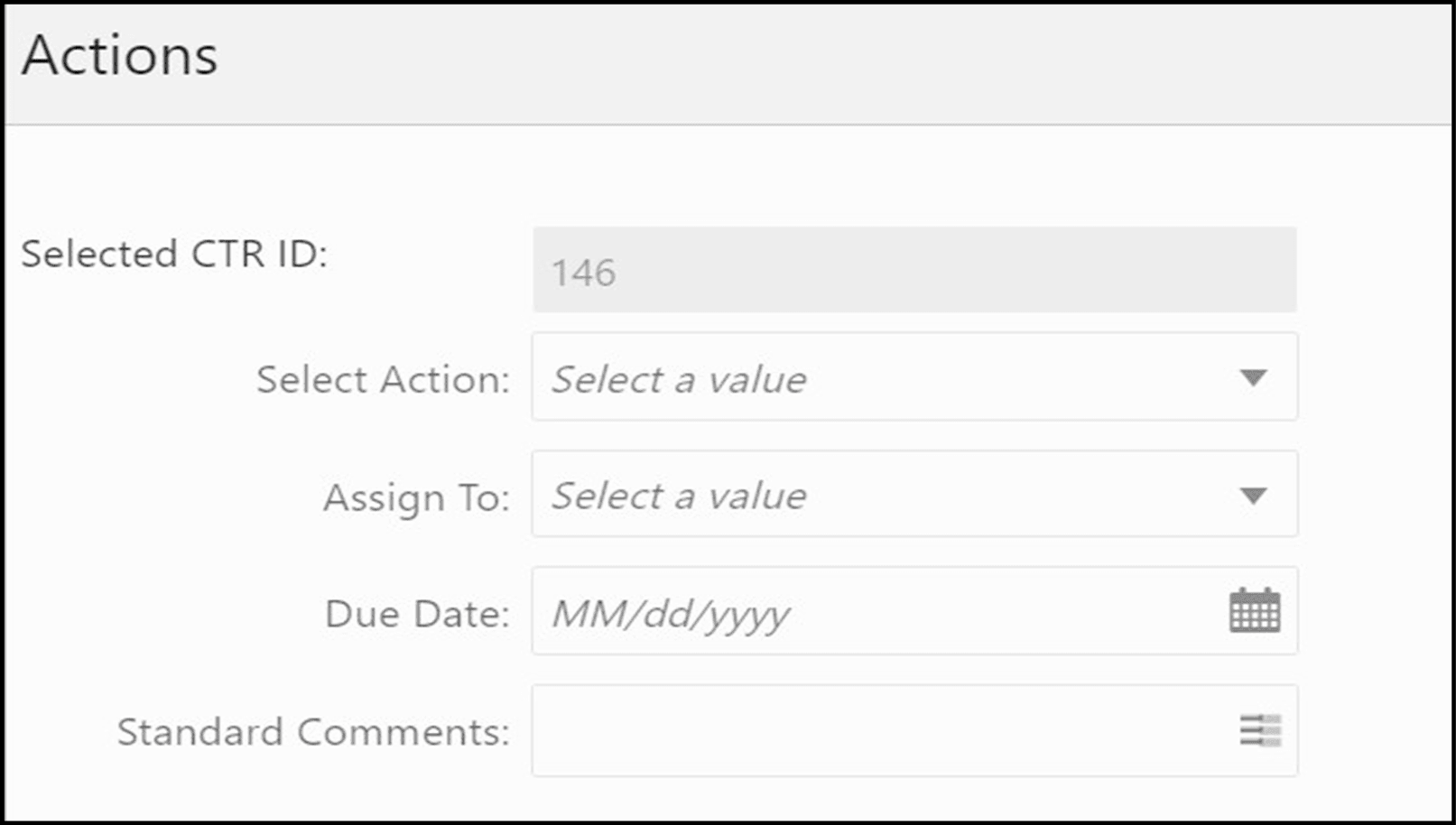

    Actions Window

  2. Enter the required fields as explained in the following table:
  3. Click Save. The requested action is performed on the selected CTRs.
  4. If you click Save and Attach, a confirmation window appears. Click OK. An Actions window displays.
  5. Enter the comments in the Comment box.
       
    Selected CTR ID This field displays the IDs that were selected from CTR List results. Note: This field is not editable.
    Select Action

    The action allows you to take the following actions on CTRs depending on the user role and the current status:

    • Reassign-You can reassign a CTR in the Open status.
    • Submit for review -You can submit a CTR for review in an Open. Once you take this action the status changes to In Review or Rework.
    • Rework-Youcan submit a CTR for rework in Submit for review, In Review, In QA Review statuses.
    • Reopen-You can reopen a CTR in Closed - Exempted, Closed - Reject statuses.
    • Correct/AmendCTR- You can take correct/amend CTR action when a CTR is in Filed - Success Correct, Filed - Success with errors
    • Close-Exempt -You can take close - exempt action on a CTR when it is in Open, In Review, In QA Review, also through Batch.
    • Close-Reject -You can take close - reject action on a CTR when it is in Open, In Review, In QA Review.
    Note:If a user selects multiple CTRs from the list matrix, the available actions will be the actions allowed to individual CTRs based on the user role of the current user and the current statuses of the selected CTRs.
    Assign To

    This option is a single selectable field displaying the users to whom the CTR can be assigned to. This field is enabled only when a user selects any of the following actions in the Select Action field:

    • Reassign
    • Submitfor review
    • Reopen
    • Rework
    • Correct/amend CTR

    The drop-down list displays only those users who have at least one domain and at least one jurisdiction common with the CTR and have access to the resulting status of the CTR based on their user role.

    If the user selects an assignee while taking an action other than Reassign, two actions are recorded. On the Audit tab, reassigned will be recorded as the second action.
    Due Date

    Enter the due date for the selected CTRs.

    This field is enabled only if a user selects the Reopen option in the Select Action field.

    On saving the action, the user selected value in this field will be updated as the due date of the CTR.
    Comments

    Enter comments in the field. This field is mandatory if a user selects any of the following actions:

    • Reopen
    • Closed-Rejected
    • Closed-Exempted
    • Rework
    Correct/Amend CTR
    Standard Comments Select a standard comment from the Standard Comments drop-down list. This field is not mandatory, however, a comment must be added, either through the Comments field or by selecting a Standard Comment.
  6. Click Attach File. Select a file to attach. Click Upload. The attachment is added to the evidence record and the user returns to the Add Attachments window.

    Note:

    You can attach only .text, .doc, and .xml files.