PreviousNext
JavaScript must be enabled to correctly display this content
3.4 Creating an E-File
To create an E-File, follow these steps:
Select Create E-File from the E-File LHS menu. The
Create E-File page is displayed.
If there are any Currency Transaction Reports listed in the CTR List for the
default All Approved Currency Transaction Reports View option, you can
click Create E-File to batch E-File all the Currency
Transaction Reports listed in the CTR List.
(Or)
If you want to E-File only selected Currency Transaction Reports, you can
filter them using the Search option.
Click Search to filter the required Currency Transaction
Reports in Ready for E-File status.
In the search section, enter the Created Date From and Created Date To range or
Due Date From and Due Date To to search for Currency Transaction Reports that
are ready for filing.
Click Go. Currency Transaction Reports in Ready for
E-File status are filtered and displayed on the Search and List page.
Select Create E-File. The Generate E-File window is
displayed.
Figure 3-4 Generate E-File Window
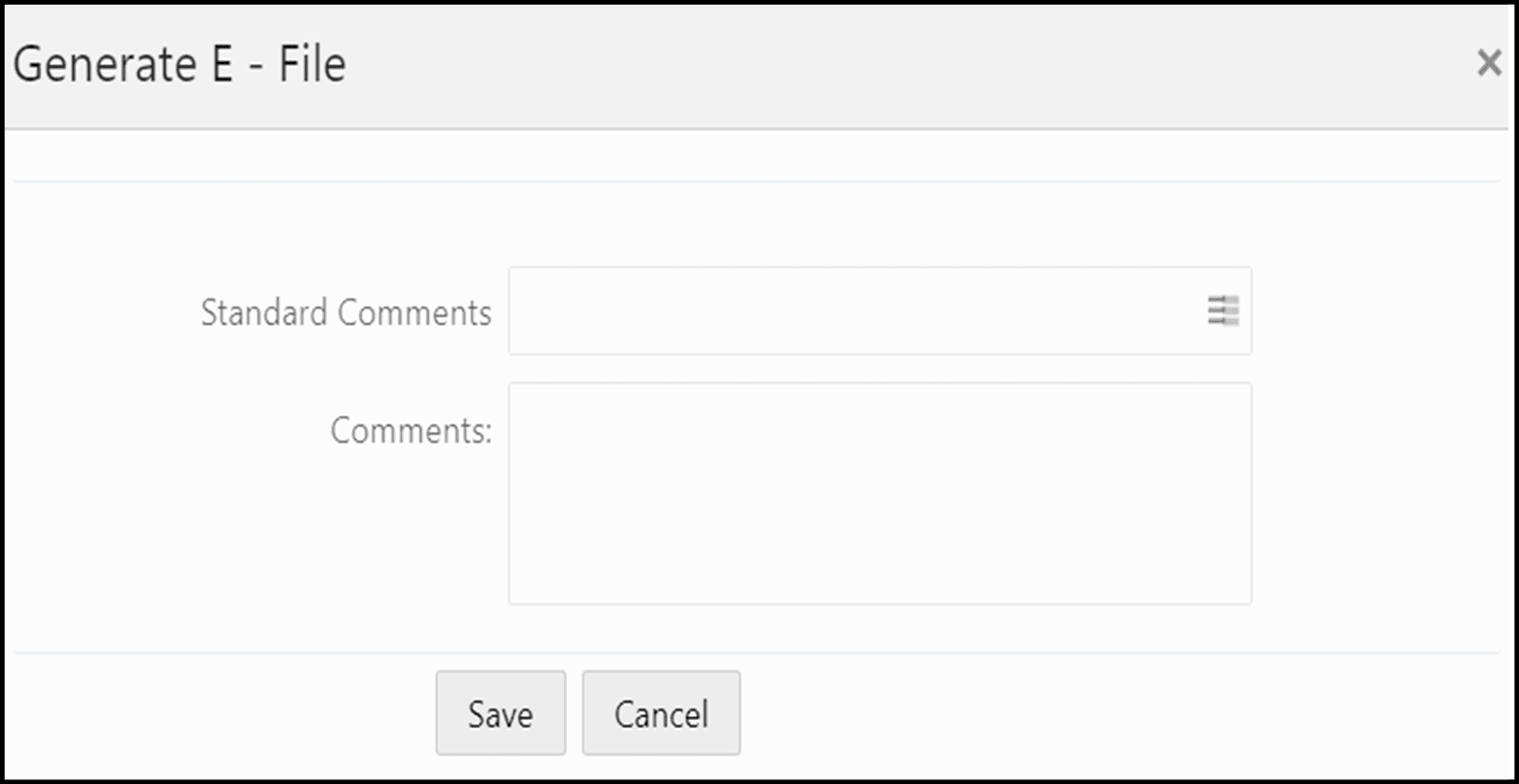
Select the standard comments from the Standard Comments box.
Enter required comments in the Comments box and click
Save. All the Currency Transaction Reports displayed
in the Search and List results have their status changed to Filed.