4.5.2.1 Creating Exemption on Customer/Account
You can create Exemptions either on a customer or on an account through the CTR.
To create an Exemption on a customer/account, follow these steps
- Select Create Exemptions from the Exemptions LHS menu. The Create Exemption
page is displayed.
Figure 4-7 Create Exemption Search Page

- Enter the details in the search fields as described in the following
table:
Field Description Customer ID Enter the Customer ID(s) in this field to search for Customer IDs in the Customer Identifier column in the Customer Table.
This field is mutually exclusive of other fields in the Create Exemption search fields. This field allows comma separated search up to 50 characters in length.
Customer Name Enter the Customer Name to search for Customer Names and associated Customer IDs with ownership role in the Customer Table. This field supports wildcard character searching. Account ID Enter the Account ID to search for Account IDs in the Account Identifier column in the Account Table.
This field allows comma separated search.
Limit Search To Select either Account or Customer from Limit Search To drop-down list to limit the Tax Identifier search to Accounts or Customers. TIN Format Select any TIN format from the following options:
- EIN
- Foreign
- ITIN
- SSN
- Tax ID
Note: TIN Format, TIN, and Limit Search To fields are dependent on each other while performing search. When searching through Tax Identifier, the TIN Format, TIN and Limit Search To fields are mandatory.
TIN Enter the TIN Identifier in this field along with Limit Search To and TIN Format when performing a Tax Identifier search.
This field supports comma separated search with a maximum of 50 characters.
- Click Go. If you have selected Limited Search To as an
Account, CTR searches for the entered TIN in the Account Table and displays the
results of Accounts in the Accounts Grid.OrIf you have selected Limited Search To as Customer, CTR searches for the entered TIN in Customer Table and displays the results of Customers in Customer Grid.
- From the Accounts results list, when you select a particular account against a
particular Account ID, the Customer list gets refreshed to display the Customer
ID(s) of customers to which the selected account is mapped and where customers
have an owning role on the account.OrFrom the Customer results list, when you select a particular Customer ID, the Account List records get refreshed to show all the accounts that are associated with the selected Customer ID
- Select either a Customer ID or an Account ID from the Customers list records and Account list records respectively on which you want to create an Exemption.
- Click Create. A Create Exemption pop-up window is
displayed.
Figure 4-8 Create Exemption Dialog window
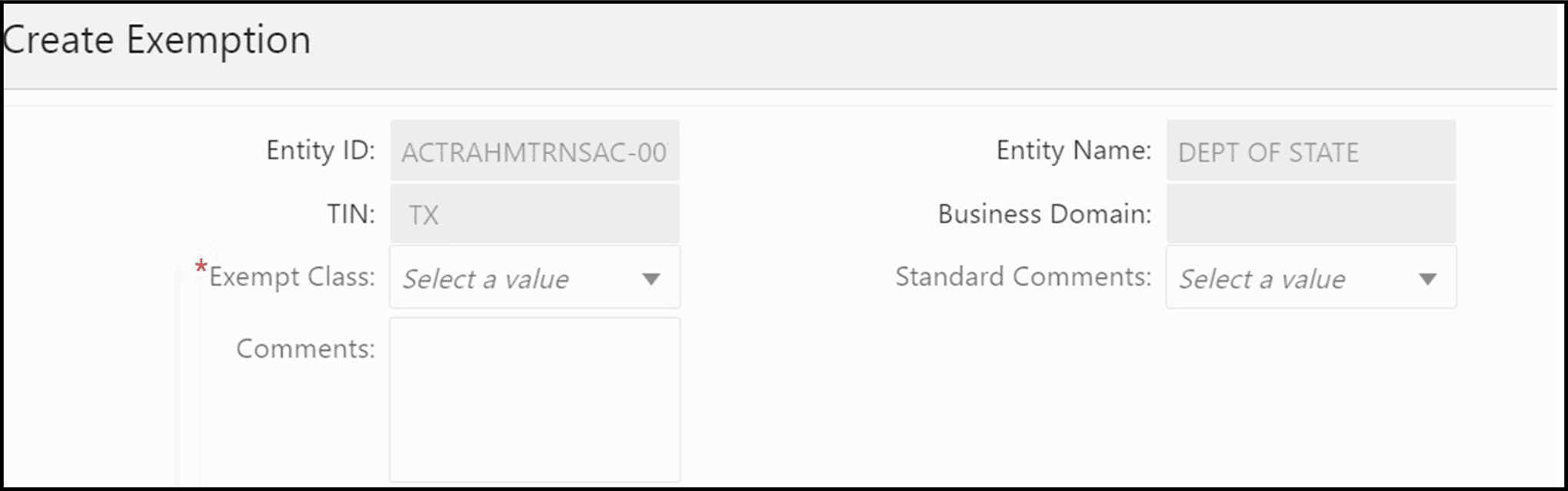
- Select an Exempt Class from the drop-down options and enter comments (if
any).
Note:
The Entity ID, Entity Name, TIN, and Business Domain fields in the Create Exemption pop-up window are pre-populated and are not editable.
- Click Save. A confirm window is displayed.
- Click OK. A new Exemption is created and you are
navigated to the Exemption Details page.
- If there exists an Exemption on the Customer of the selected account in the active or process of being created/approved the CTR displays the following message An Exemption already exists or is in the process of being created/approved for an owning customer of this Account. This account inherits its exempt status from its exempt owning customer. This action creation action cannot be completed.
- If there are Exemptions on accounts mapped to the selected customer ID in the status of ‘Rejected’ ‘Closed’ or ‘Revoked’ the CTR displays the following message Inactive Exemption/s exists on the Account(s) mapped to the selected customer ID. Click OK to continue with creating as a new Exemption. Click Cancel if you would prefer to discontinue creation. A user can choose to reopen the inactive Exemption from the Exemption Search and List page.