4.5.2.2 Creating Exemption on TIN

For some entities, such as non-profit organizations, financial institutions, and so on, there may be one Tax Identification Number (TIN) associated with many individual customers. Rather than having to review and approve multiple customer exemptions that result in multiple DOEP filings for one TIN, CTR allows you to identify exemptions and file one DOEP for the TIN.

To create an Exemption on a TIN, follow these steps:

  1. Select Create Exemptions from the Exemptions LHS menu.
  2. Select Customer from the Limit Search To drop-down list.
  3. To find all the individual customers associated with the TIN, search using the TIN Format and TIN fields.
  4. Click Go. The Create Exemption Search page refreshes with the customers that are associated with the TIN on which the search was conducted.
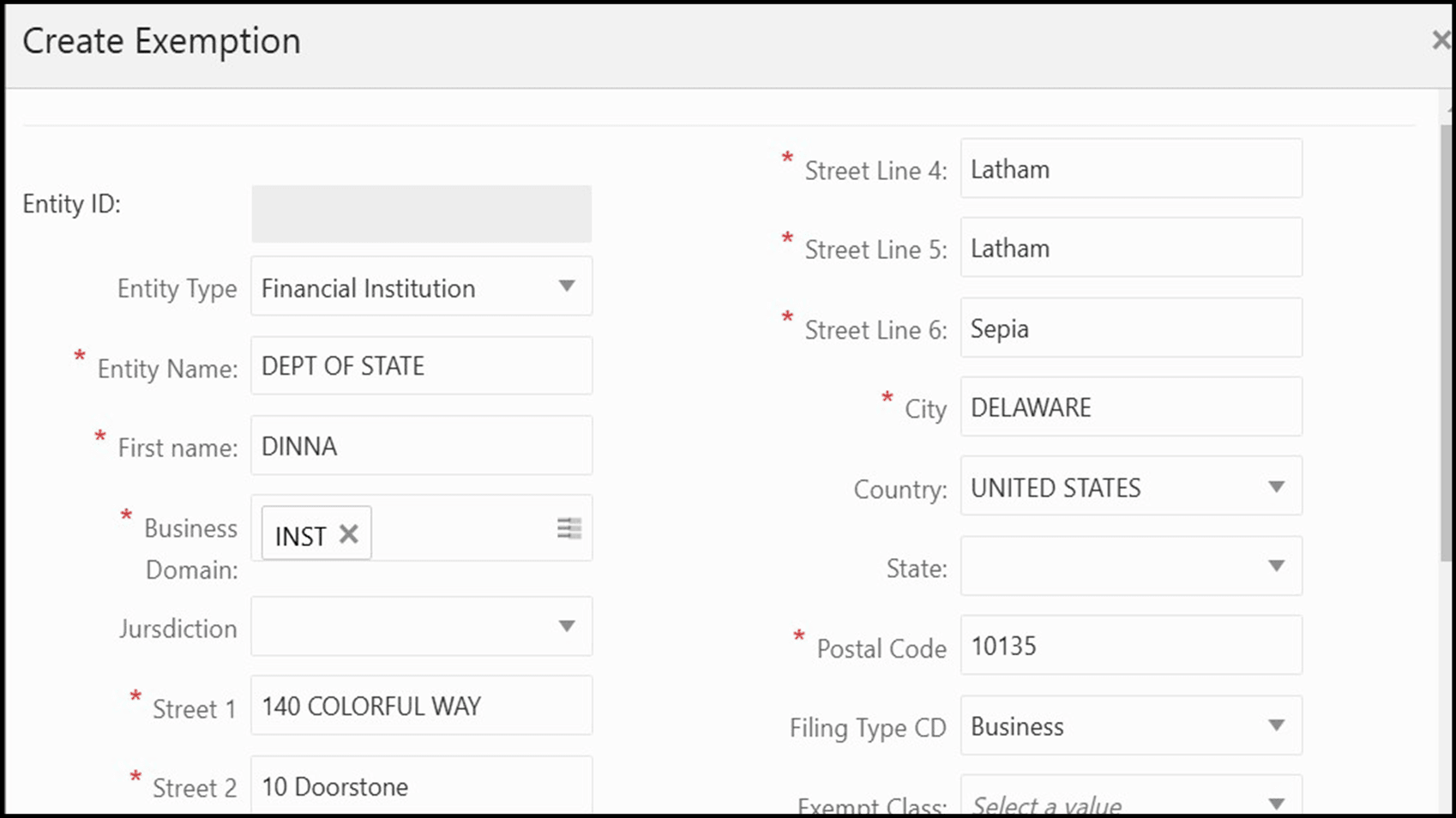
  5. Click Exempt All by TIN. A Create Exemption pop-up window is displayed.

    Figure 4-9 Create Exemption

    Create Exemption

  6. Select the Exempt Class from the drop-down list and update the required details.
  7. Select the standard comments and enter the comments. In this pop-up window, you can enter a single entity name and contact details for all customers using this TIN.
  8. Click Save. A confirmation window is displayed.
  9. Click OK. A new Exemption is created and you are navigated to the Exemption Details page.

    Note:

    If an Exemption on one or more Customers associated is in the status 'Rejected’ or ‘Revoked’, CTR displays the following message: One or more of the Customers with this Tax Identifier has previously been rejected for exemption or had their exemption Revoked. Press OK to continue.