Audit Currency Transaction Report
The Audit Currency Transaction Report shows the number of Currency Transaction Reports that anexempt customer or an account is saved from creating and processing.
Figure 4-62 Audit Currency Transaction Report
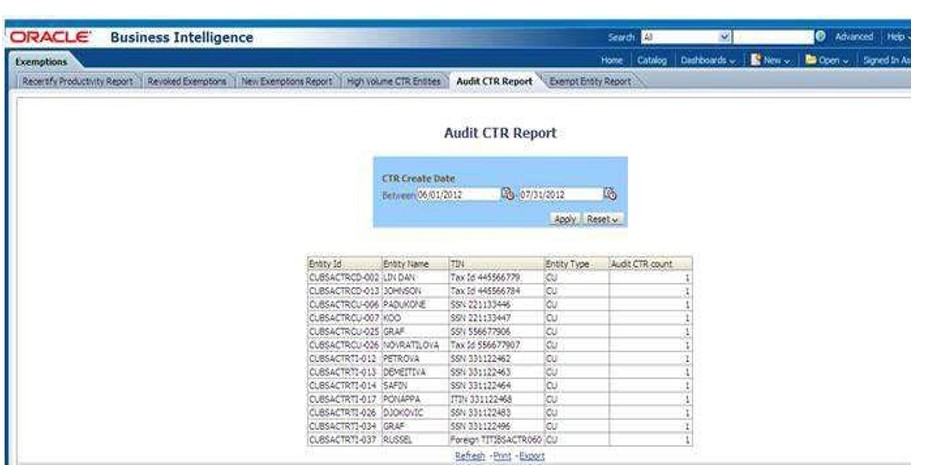
To generate Audit Currency Transaction Report, follow these steps:
- Hover over the Reports menu in the CTR and click Reports.
The Reports Home page is displayed. The Home page varies depending upon the users roles.
- From Dashboards drop-down menu select Exemption dashboard under Currency Transaction Report submenu option.
Different report types related to Exemption dashboards are displayed in tabs depending upon the user role.
- Select the Audit Currency Transaction Report report tab.
The Audit Currency Transaction Report report page is displayed with default values entered in the filters.
- To view the Audit Currency Transaction Report, enter the details as described in the following table:
Table 4-24 Audit Currency Transaction Report Filter Descriptions
Filter Name Description Currency Transaction Report Created Between
Enter a date range for the search using the Select Date icon. This field defaults to60 days less than the current date.
Currency Transaction Report Created To
Enter a date range for the search using the Select Date icon. This field defaults to current date.
- Click Apply.
A tabular report showing Audit Currency Transaction Report report is displayed. You can also click Reset to reset all the field values to default values.
- You can choose to Refresh, Print and Export the displayed report.