Case Search
Use this dashboard to view the cases that are associated to the entity of interest of the user. To generate a Case Search report, follow these steps:
- Navigate to the MIS Reports.
- Expand the Cases option displayed on the left hand side.
- Click Case Search option.
- Click the Global Filters icon.
The Global Filters are displayed on the left hand side.
media/image29.png Global Filters for Case Search ReportFigure 4-19 Global Filters for Case Search Report
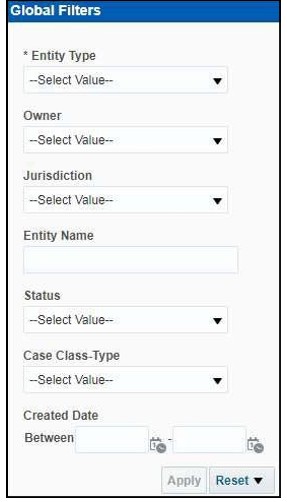
- Enter the following filter details:
Table 4-5 Case Search Report Filter Descriptions
Field Description Entity Type
Select the required entity type for the cases that you want to view. This filters the AMLalert by the type of business entity.
Owner
Select the owner of the case.
Jurisdiction
Select the jurisdiction to which the case belongs to. This filters the case report by the business jurisdiction (geographic location) associated with a case. The drop- down list contains only the jurisdictions with which you are authorized to view.
Entity Name
Enter the entity name of the case.
Status
Select the status for the cases that you want to view.
Case Class Type
Select the class type for the cases that you want to view.
Created Date Between
Select the time period to view the cases that are handled between the selected time period.
- Click Apply.
The data is filtered to satisfy all the specified filter conditions, and the result is displayed in tabular and bar chart reports.
Figure 4-20 Case Entity Search Report
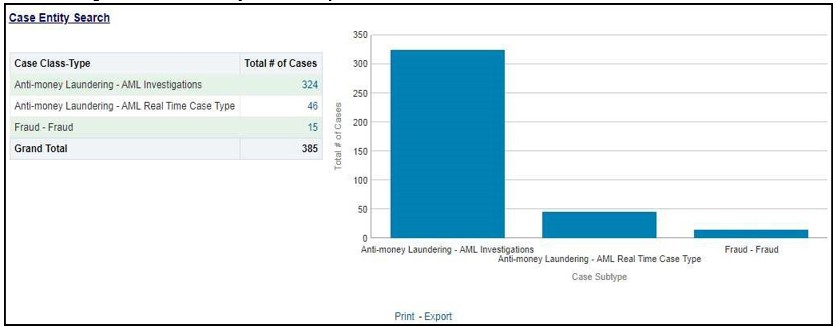
For example, in the above figure:
- The Tabular report lists the selected Case Class-Type categories and the total number of cases for each category.
- The Bar chart report displays the information with the selected Case Class-Type categories using X axis and total number of cases for each category on the Y axis.