Currency Transaction Journal
Figure 4-65 Currency Transaction Journal
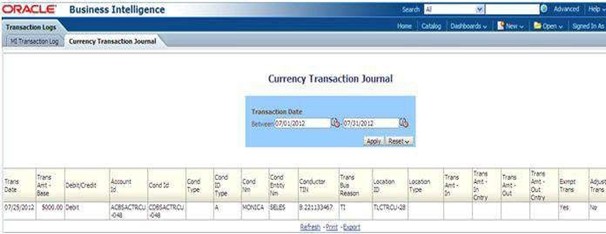
To generate Currency Transaction Journal report, follow these steps:
- Hover over the Reports menu in the CTR and click Reports.
The Reports Home page is displayed. The Home page varies depending upon the users roles.
- From Dashboards drop-down menu select Transaction Logs dashboard under Currency Transaction Report submenu option.
Different report types related to Transaction Logs dashboards are displayed in tabs depending upon the user role.
- From Dashboards drop-down menu select Transaction Logs dashboard under Currency Transaction Report submenu option.
Different report types related to Transaction Logs dashboards are displayed in tabs depending upon the user role.
- Select the Currency Transaction Journal tab.
The Currency Transaction Journal page is displayed with default values entered in the filters.
- To view the Currency Transaction Journal report, enter the details as described in the following table:
Table 4-27 Currency Transaction Journal Filter Descriptions
Filter Name
Description
Transaction Date Between
Enter the transaction date using the Select Date icon. This field defaultsto
one calendar day less than the current date.
Transaction Date To
Enter the transaction date using the Select Date icon. This field defaultsto current date.
- Click Apply.
A tabular report showing Currency Transaction Journal report is displayed. You can also click Reset to reset all the field values to default values.
- You can choose to Refresh, Print and Export the displayed report.