Cash Flow Process
This module discusses the procedure for creating and executing the Cash Flow Process. When all the required assumptions are defined, CFE Processing performs the calculation and generates a result set. The Cash Flow Process allows you to perform the following tasks:
- Determine the data that you want to process.
- Submit to the CFE processing engine the modeling horizon for which you want to calculate cash flows.
- Specify the prepayment , forecast rate, and other assumptions to be used in the process.
- Define the output preferences.
- Execute the Cash Flow process and generate results.
Cash Flow Process Summary
This page is the gateway to all Cash Flow Process Rules and related functionality. You can navigate to other pages relating to Cash Flow Process Rules from this point.
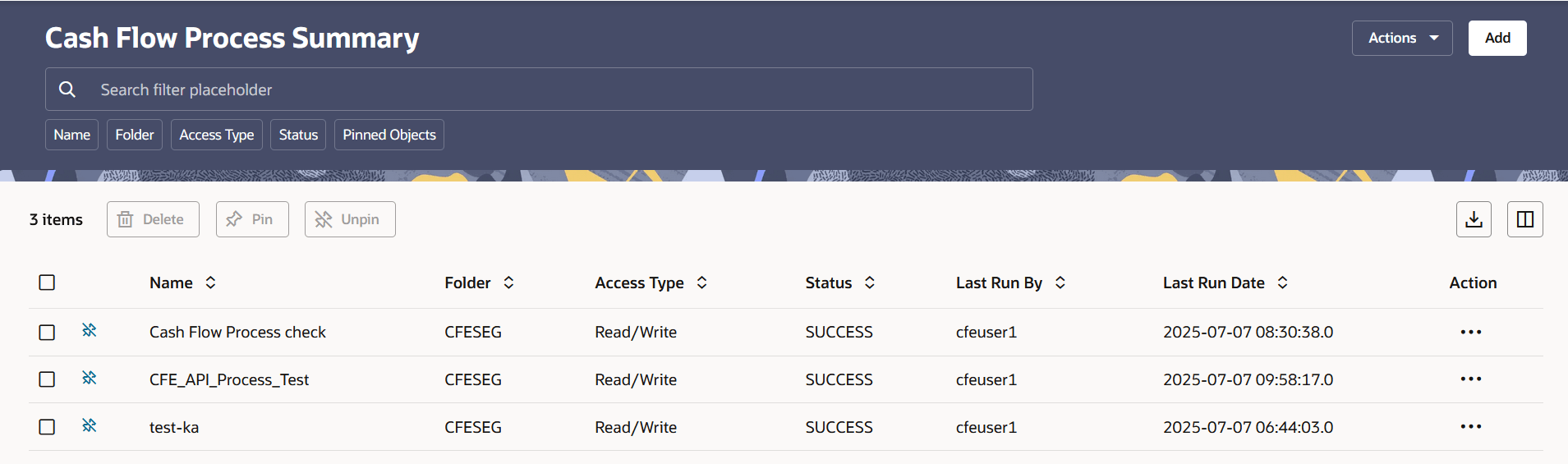
Figure 6-114 Cash Flow Process Summary Page
Search Cash Flow Process
Prerequisites: Predefined Cash Flow Process
To search for a Cash Flow Process, follow these steps:
Click Search after entering the search criteria. The search results are displayed in a table containing all the Cash Flow Process Rules that meet the search criteria.
Or
The other method to search a Cash Flow Process is using the Field Search option. The Field Search is an inline wildcard UI search that allows you to enter value partially or fully and the rows that match the entered string in any of its column is fetched in the Summary table. Enter the Id, Name, Group, Condition Column, or Is User Defined status of the Cash Flow Process and click Search .
The Cash Flow Process summary displays the following information:
Add: Click Add icon at the top right of the summary page to build a new Cash Flow Process.
Actions: Enables you to perform following tasks.
- Refresh: Retains the selected filters and refreshes the summary page with latest status.
- Reset:Clears the selected filters and refreshes the summary page.
- Help:Redirects you to latest documentation.
Delete: Enables you to select and delete one or multiple processes in the table simultaneously.
Pin/Unpin: Enables you to pin/unpin the selected process.
Export: Enables you to download the summary page details in .CSV format.
Columns: Allows you to view the summary page data using a customized list of columns.
The Cash Flow Process summary table displays the following columns:
- Name: Displays the Cash Flow Process's short name.
- Calculation Date Range: Displays the calculation date range for which process is defined.
- Folder: Displays the Folder name where the Cash Flow Process is saved.
- Access Type: Displays the access type of Rule. It can be Read-Only or Read/Write.
- Last Run By: Displays the Name of the user who last runs the Cash Flow Process .
- Last Run Date: Displays the Date and Time when Cash Flow Process was run last.
- Status: Displays the status of the Cash Flow Process.
- Action: Displays the following list of
actions that can be performed on the selected Cash Flow Process.
- Multiple Delete: Select one or more Rules in the table and then click the Multiple Delete icon at the top right of the Summary Page to delete more than one Rule at the same time.
- View/Edit: You can view existing Cash Flow Process, and you can edit existing Cash Flow Process Rules, provided you have read/write privileges. View/Edit to view or edit the contents of a Cash Flow Process in Read/Write format. Depending on user privileges the Rule will open in either View or Edit mode.
- Save As: You can copy Cash Flow Process Rules to avoid having to enter data multiple times. This saves time and effort and reduces mistakes. Click on the Action icon against the Cash Flow Process Name and select Save As to create a copy of an existing Cash Flow Process.
- Delete: You can delete Cash Flow
Process Rules that are no longer required. Click on the Action
icon against the Cash Flow Process Name and select
Delete to delete an existing Cash Flow
Process.
Note:
A Cash Flow Process cannot be retrieved after deletion. Restrictions on deleting Cash Flow Process Rules are:- You cannot delete Cash Flow Process Rules if you have only Read privileges. Only users with Read/Write privileges and Cash Flow Process owners can delete Cash Flow Process Rules.
- You cannot delete a Cash Flow Process that has a dependency.
- Dependency Check: You can check dependencies for rules to know where a particular Cash Flow Process has been used. This also prevents accidental deletion of rules having dependencies. Click on the Action icon against the Cash Flow Process Name and select Dependency Check to generate a report on all Rules that utilize your selected Cash Flow Process.
- Execute: Select Execute to execute an existing Cash Flow Process . After clicking Execute, the Run Parameter Execution window is displayed. Select As of Date (Execution Date) and Legal Entity, and then click Run.
- Execute Details: Select Execute Details to view execution details of the Cash Flow Process .