Create Cash Flow Process
To create a new Cash Flow process, perform the following steps:
- Navigate to the Cash Flow Process Summary page.
- Click Add. The Create Cash Flow Process page is displayed.
- Enter the details in the Process Details section.
Figure 6-115 Process Details
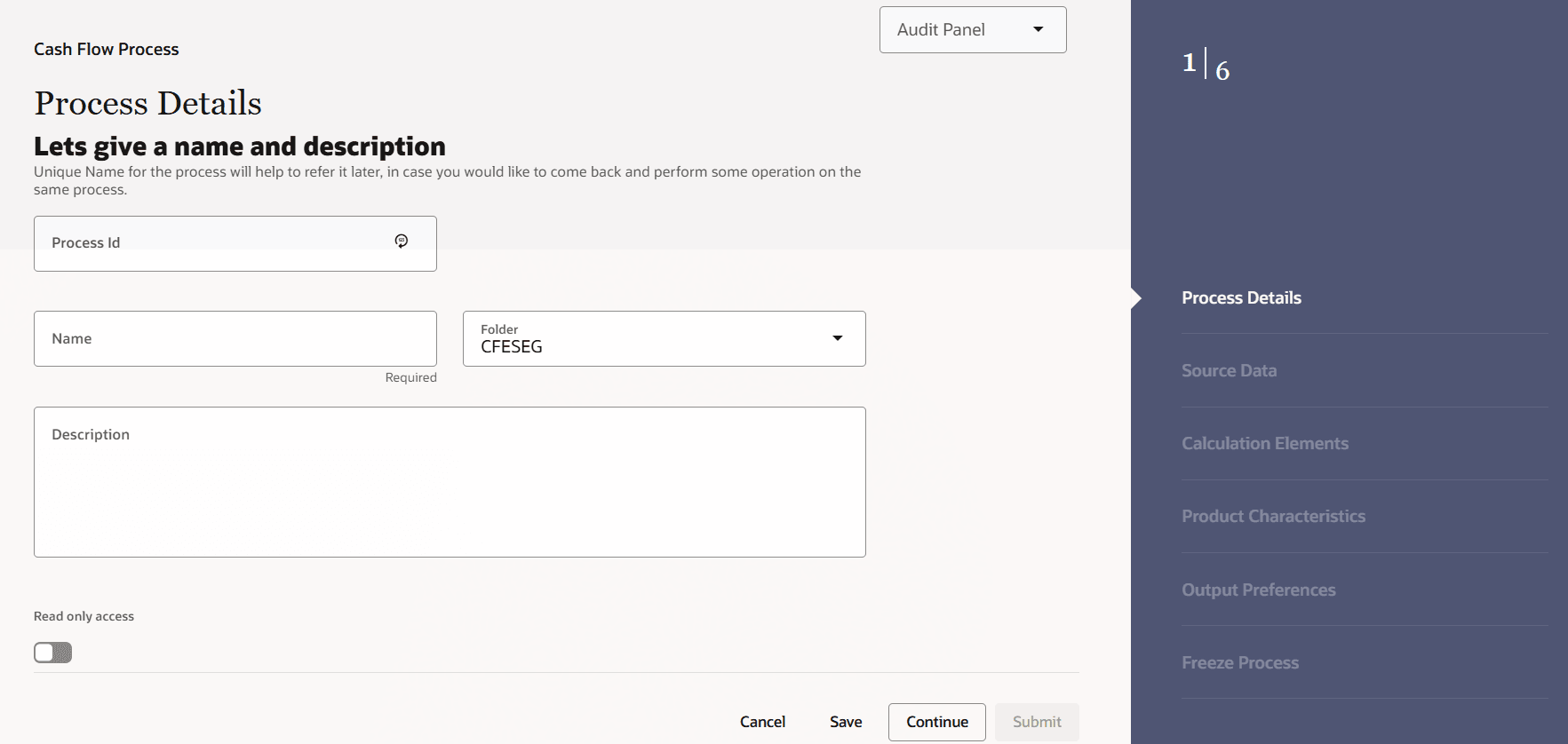
Table 6-27 List of process details used for Creating Cash Flow Process
Parameter Description Process ID Enter the Process ID manually, or click Autogenerate to generate it automatically. Name Enter the name of the Cash Flow Process . Description Enter the description of the Cash Flow Process . Folder Select the Folder where the Cash Flow Process needs to be saved. Access Type Select the Access Type as Read-Only or Read/Write. - Click Apply to navigate to the Source Data section.
Figure 6-116 Source Data
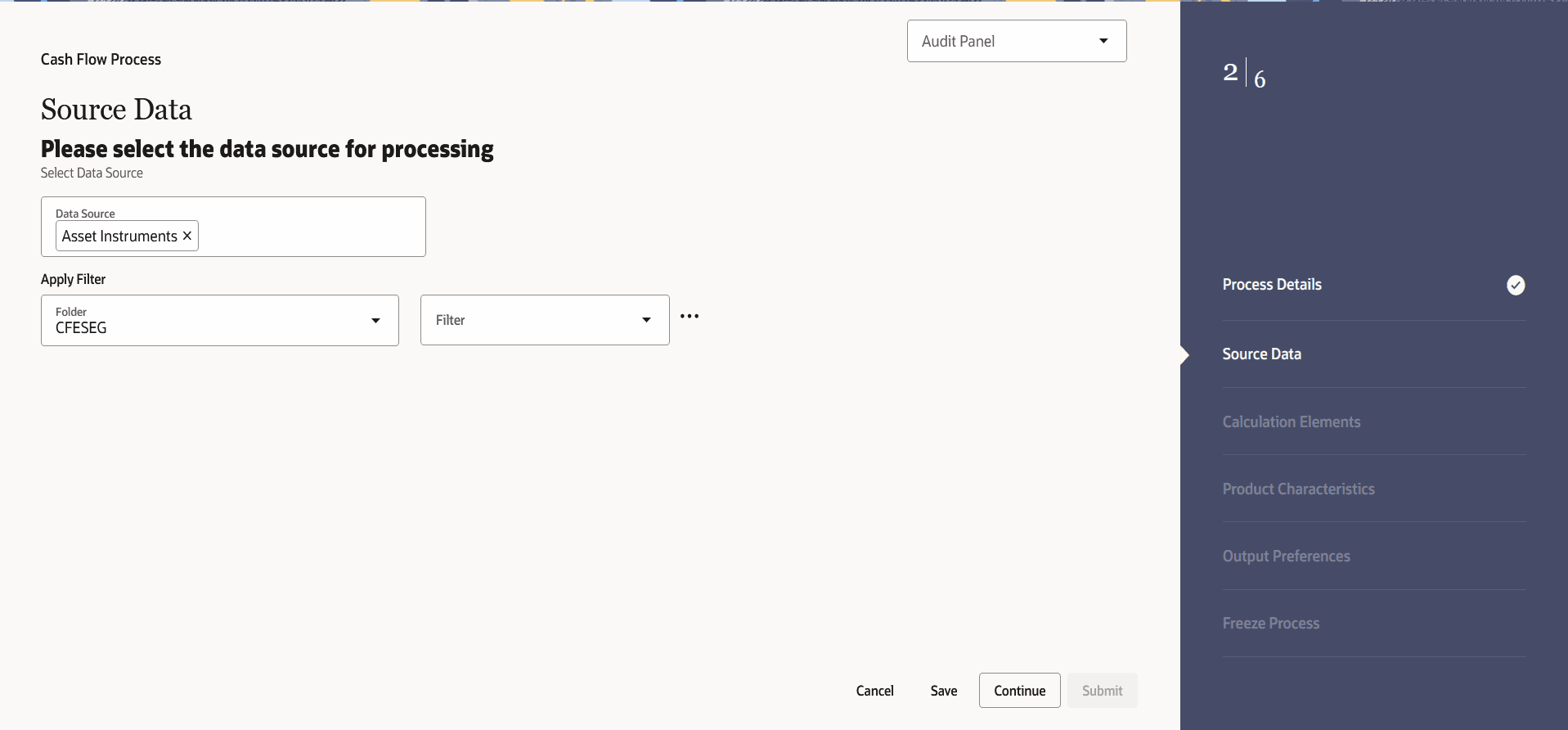
- Enter the Source Data details shown in the following table:
Table 6-28 List of Source Data details used for Creating Cash Flow Process
Parameter Description Data Source This field allows you to select the Instrument tables that must be included in a Cash Flow process. Data Filter Folder Select the Folder from which you want to apply Data Filter. Data Filter This field allows you to select a subset of data for processing by selecting a filter that was previously created. - Click Apply to navigate to the Calculation Elements
section.
Figure 6-117 Calculation Elements
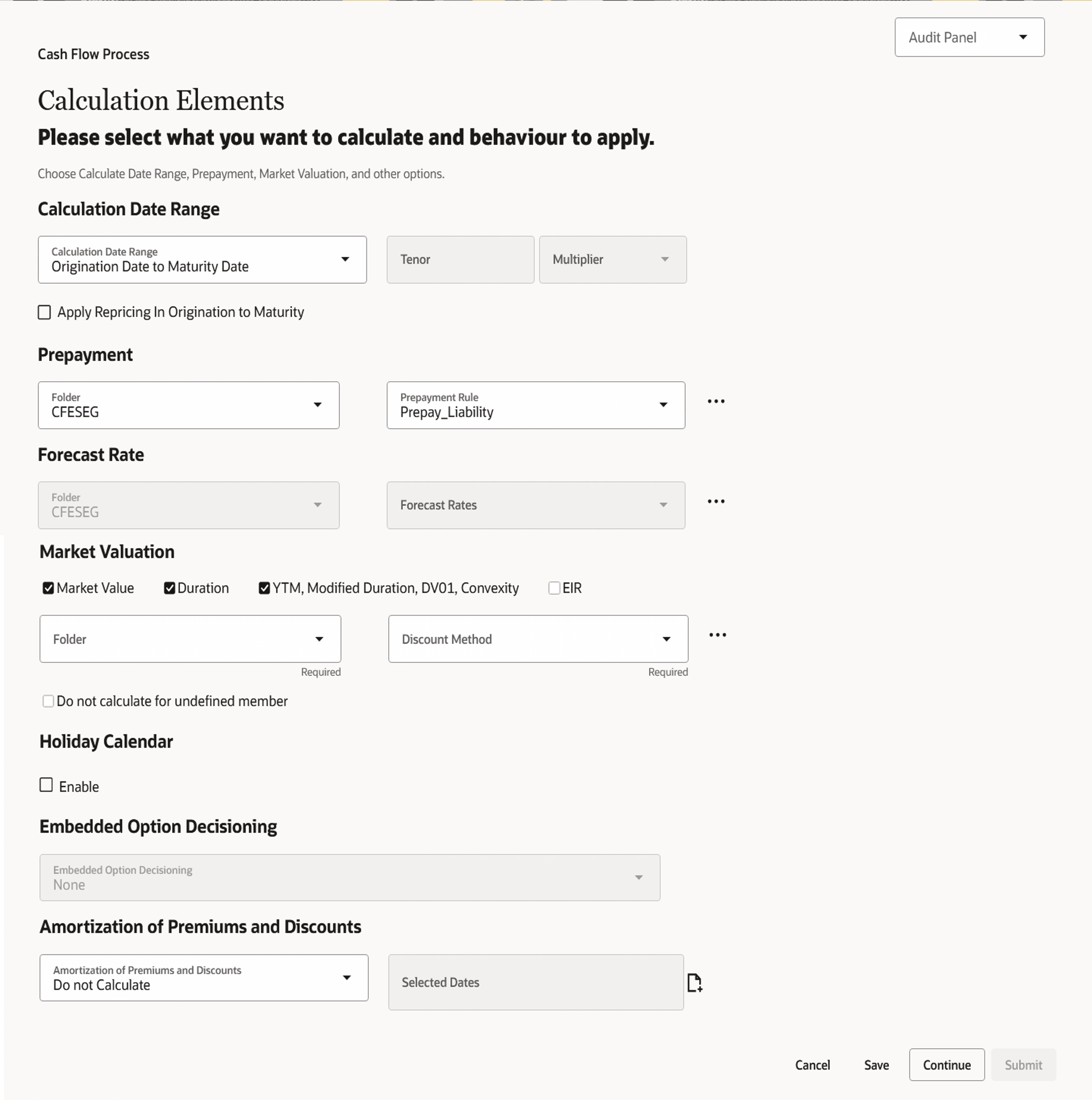
- Enter the Calculation Elements shown in the following table:
Table 6-29 List of Calculation Elements details used for Creating Cash Flow Process
Parameter Description Calculation Date Range Select the time horizon for which you want to perform the cash flow calculation. This has the following options:
- As of Date to Maturity Date: Calculation is performed between As of Date and Maturity Date of the instrument.
- As of Date to Next Reprice Date: Calculation is performed between As of Date and Next Repricing Date of the instrument.
- Origination Date to Maturity Date: Calculation is performed between Origination Date to Maturity Date of the instrument.
- Last Reprice Date to Next Reprice Date: Calculation is performed between Last Reprice Date to Next Reprice Date of the instrument.
- As of Date to Future Specified Date: Calculation is performed for the specified tenor starting from As of Date.
Apply Repricing In Origination to Maturity This check-box is enabled when Calculation Date Range is Origination to Maturity. When this parameter is selected and Forecast Rates is defined, repricing events will be generated as per Adjustable Type of instrument and Interest Rate will be re-calculated. Repricing events between Origination and As of Date using historical IRC while those after As of Date use forecasted IRCs. Prepayment Select the Folder and Prepayment you want to be applied during cash flow calculation. See Prepayment, to set up prepayment methods. This is an optional step. Forecast Rate Scenario Select the Folder and Forecast Rates you want to be applied to the process. See Forecast Rate Scenarios to set up rate scenarios. This is an optional step and enabled only when the calculation data range is ‘As of Date to Maturity Date’ and ‘Origination Date to Maturity Date’. Market Valuation Select the measures you want to calculate:
Market Value: Select this to calculate Present Value of principal and interest cash flows.
Duration: Select this to calculate Macaulay Duration of cash flows
YTM, Modified Duration, DV01, Convexity: Select this option if you want to measure the price sensitivity for small changes in the underlying interest rate curves (DV01/PV01).
EIR: Select this option to calculate Effective Interest Rate of instrumentDo not calculate for undefined member This check-box is enabled when Market Valuation is selected. During the CFE processing if this parameter is not selected, then discount factor 1 is used for market value calculations if no definition is found in Discount Method rule. If this parameter is selected, then market value of undefined members in Discount Method is not calculated. Discount Method Select the Folder and Discount Method you want to be applied to the process. See Discount Method to set up Discount Methods. This is an optional step. Holiday Calendar Select check-box to apply Holiday Calendar during cash flow calculation. If selected ash flow dates falling on a holiday get adjusted as per defined conventions. You can also select the holiday calculation option, calendar, and business day convention at the product-currency level. Embedded Option Decisioning This is enabled only when Calculation Date Range is selected as As of Date to Maturity, Market Value check-box is selected and Forecast Rates is selected. If your processed data contains fixed rate bonds with embedded options, you can select the behavior of the option to force it to maturity of the instrument, force it to first option expiry date, or let it be rate path dependent.
This drop-down shows the list of embedded option decision types.Amortization of Premiums and Discounts Determines the method used for amortizing the premiums and discounts. This has the following options:
- Do not Calculate: The default value for the Calculation Method drop-down list is Do not calculate. In this case, cash flow for premium/discount does not get calculated even when Deferred Balance is given with instrument data.
- Amortize on Payment Dates: Select this option if you want to calculate premiums and discounts on Payment Dates.
- Amortize on User Defined
Dates: Select this option if you want to
calculate premiums and discounts on user-defined dates
instead of payment dates. After selecting this option,
perform these steps:
- Click Add next to Selected Dates field.
- Add one or more dates on which you want to amortize premium/discount using Calendar and click Add to Selection.
- Click Apply to navigate to the Product Characteristics
section.
Figure 6-118 Product Characteristics
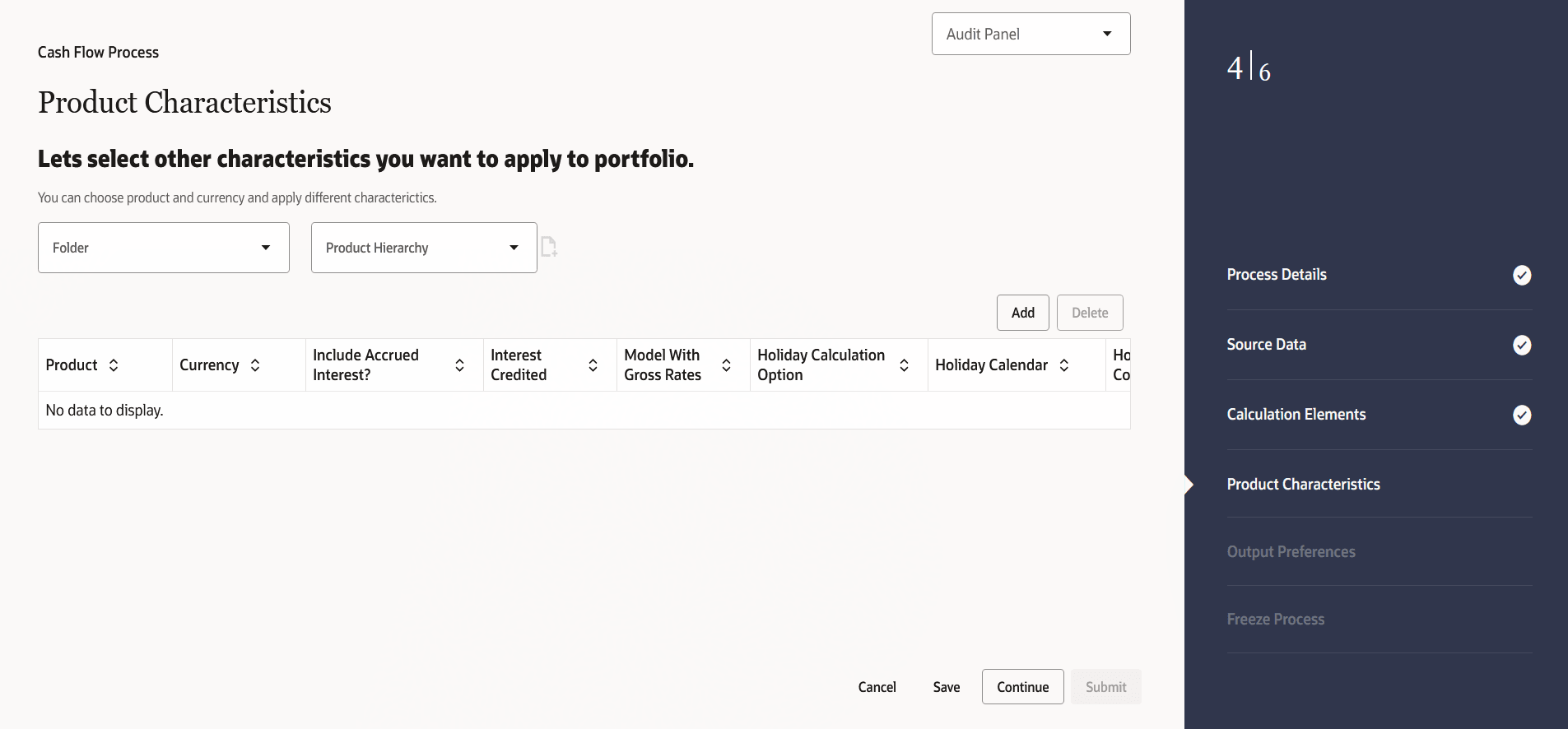
- Enter the Product Characteristics shown in the following table:
Table 6-30 List of Product Characteristics details used for Creating Cash Flow Process
Parameter Description Product Hierarchy Folder You can specify some processing parameters at product-currency combination.
Select the Folder from the Product Hierarchy Folder list.
Product Hierarchy Select the Product Hierarchy on which you want to specify parameters. To add a Product Hierarchy, follow these steps:
- Click Add button next to the Product Hierarchy field.
- Select one or more products using the corresponding check-box and click Done.
Note:
Hierarchy_code column in the files should not have the space. If there is any space, then remove the space and proceed. - After clicking Add, the list of product is displayed with the following
details:
Table 6-31 Product Selection Details
Parameter Description Product Shows the selected product details. Currency Shows the currency of the selected product. Include Accrued Interest Yes or No status of Include Accrued Interest. The basis on which the interest accrual on an account is calculated. Interest Credited Yes or No status of Interest Credited. This option shows the interest payments to be capitalized as principal on simple or non-amortizing instruments. Model With Gross Rates If the institution has outsourced loan serving rights for some of the assets (most typically mortgages), the rates paid by customers on those assets (gross rates) are greater than the rates received by the bank (net rates). For these instruments, both a net and gross rate is calculated within the cash flow engine and both gross and net rate financial elements are the output. The gross rate is used for prepayment and amortization calculations. The net rate is used for income simulation and the calculation of retained earnings in the auto-balancing process. Holiday Calculation option Shows the list of calculation options Shift dates Only and Recalculate Payment. Note:
This field is available only when you enable the Holiday Calendar from Calculation Element block.Holiday Calendar Shows the list of holiday calendar. You can select one. Note:
This field is available only when you enable the Holiday Calendar from Calculation Element block.Holiday Rolling Convention The default value is Unadjusted and is enabled, only when Holiday Calendar is selected. This can have the following values:
- Actual/Un-adjusted: Payment on an actual day, even if it is a non-business day.
- Following Business Day: The payment date is rolled to the next business day.
- Modified following business day*: The payment date is rolled to the next business day unless doing so would cause the payment to be in the next calendar month, in which case the payment date is rolled to the previous business day.
- Previous business day: The payment date is rolled to the previous business day.
- Modified previous business day*: The payment date is rolled to the previous business day unless doing so would cause the payment to be in the previous calendar month, in which case the payment date is rolled to the next business day
Many institutions have month-end accounting procedures to use this.
Note:
This field is available only when you enable the Holiday Calendar from Calculation Element block. - Click Apply to navigate to the Output Preferences
section.
Figure 6-119 Output Preferences
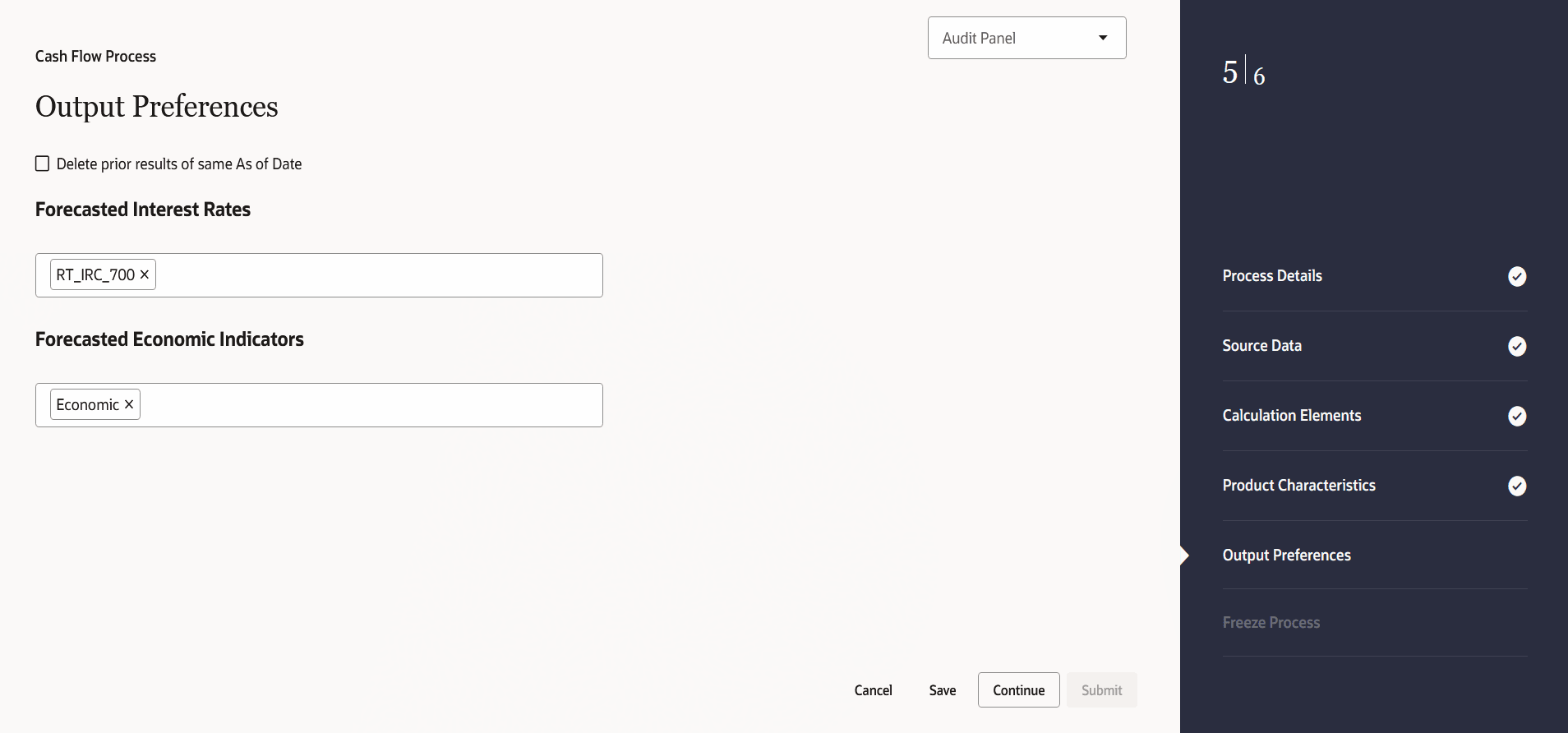
- Enter the Output Preferences details shown in the following table
.
Table 6-32 List of Output Preferences details used for Creating Cash Flow Process
Parameter Description Delete Prior Results of Same As of Date If this check-box is selected, then engine removes the results of previous process execution ID and As of Date. Engine fetches all the details of the same Process ID and As Of Date from the tables FSI_O_CFE_OUTPUT_HIST , FSI_O_FCAST_IRC_RATES_HIST , FSI_O_CFE_MESSAGE_HIST , and other tables if required. Process history tables keep track of execution id's whose data has been deleted. Forecast Interest Rates Select the Interest Rate Curves for which you want the engine to write forecasted interest rates in the database table Forecast Economic Indicators Select the Economic Indicators for which you want the engine to write forecasted interest rates in the database table - Click Apply to navigate to the Freeze Process
section.
Figure 6-120 Freeze Process
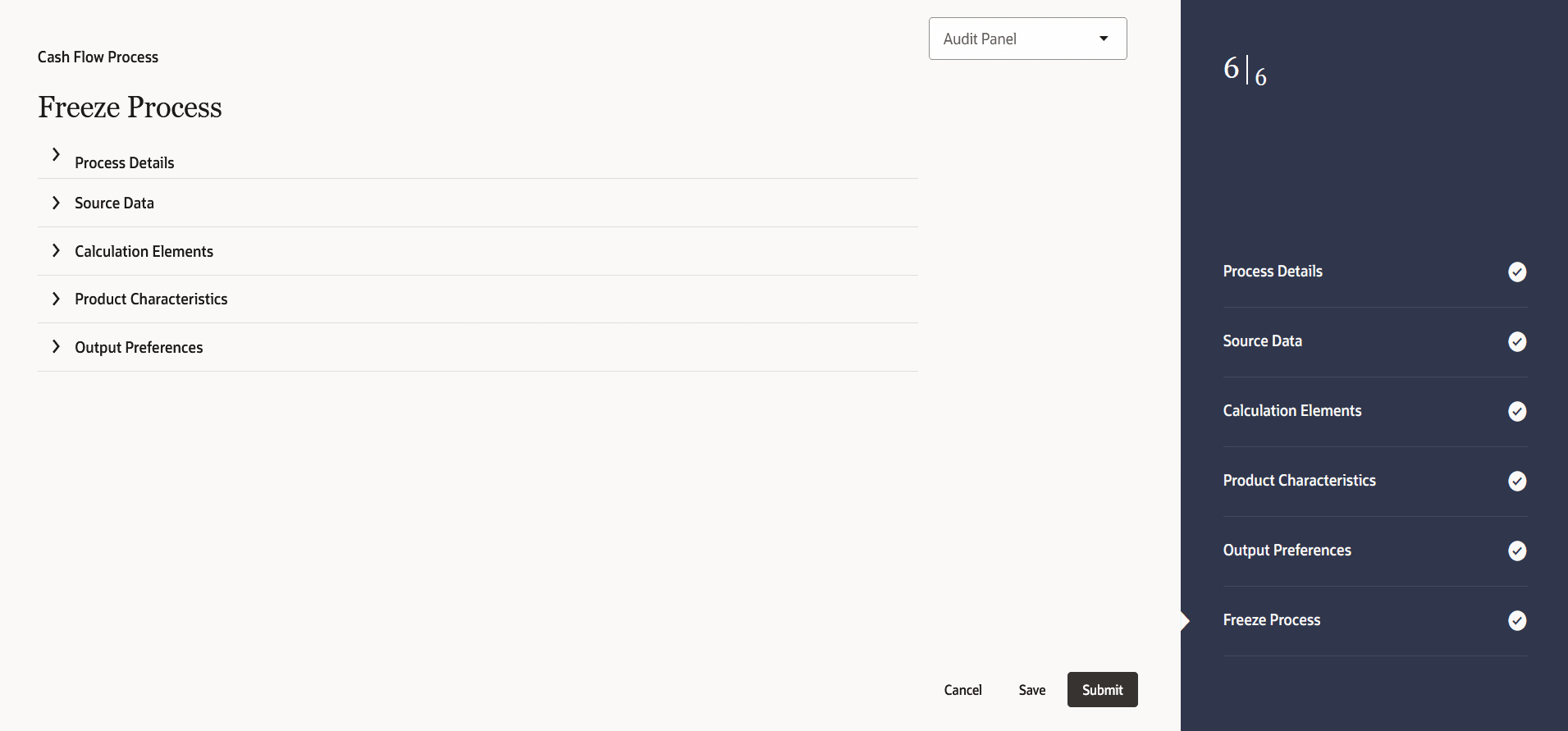
- Verify the changes and click Submit.